View order transactions (online and offline)
See every payment tied to your orders in one place. Crate's Transactions screen totals your successful, pending, failed, and refunded payments, and lets you open any one to view its details and jump to the linked order.
On Crate you collect online payments through your store and gateways, and you can record offline payments for orders you fulfil in person. The Transactions screen brings both together so you always know exactly what's been paid, what's pending, and what's failed.
This guide shows how to check the payment behind any order.
Your totals, by status
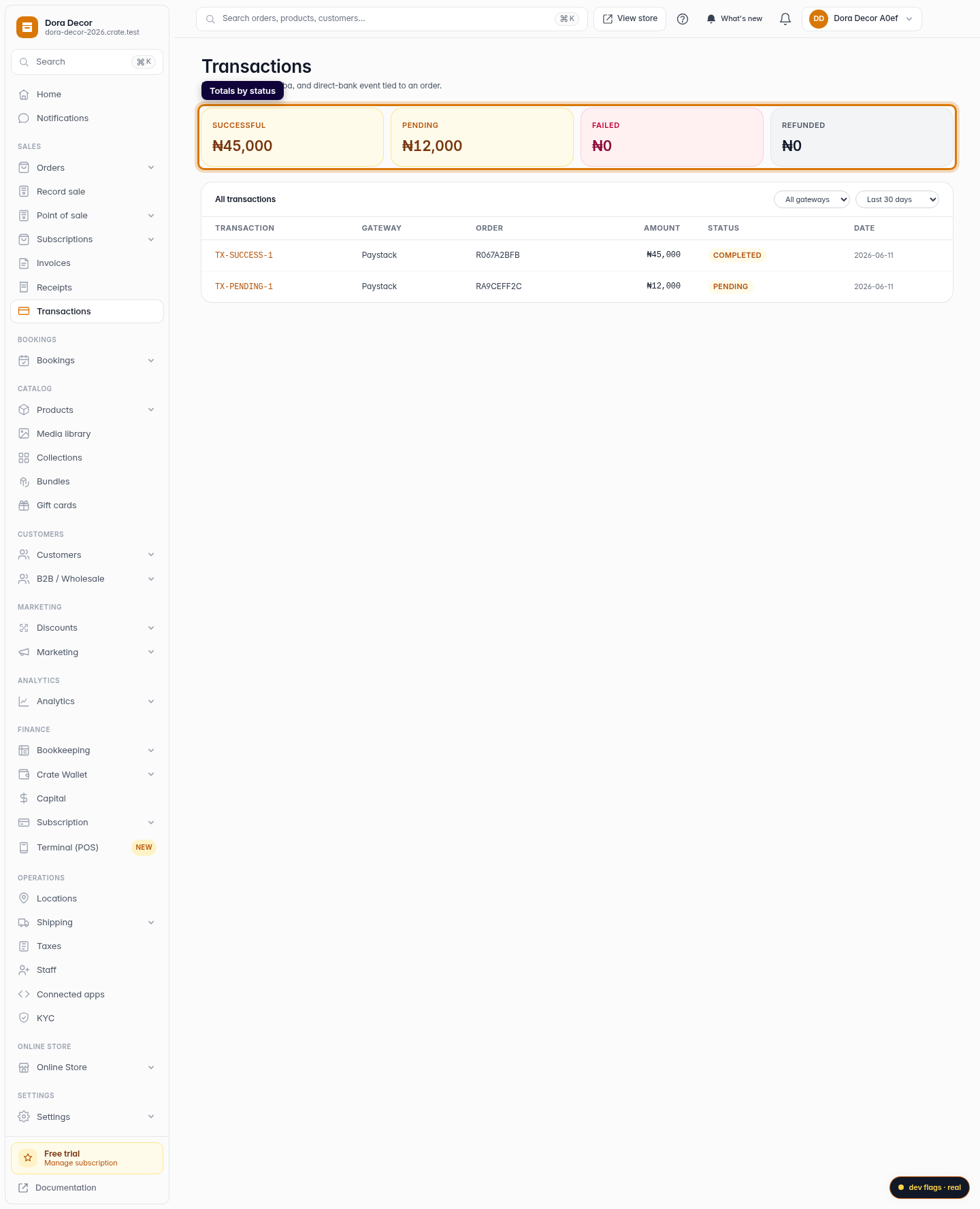
The four tiles at the top of the Transactions screen total every payment by its current state:
- Successful — payments that have completed and settled.
- Pending — payments still in checkout, processing, or awaiting confirmation.
- Failed — payments that didn't go through.
- Refunded — amounts refunded or voided back to customers.
Together they give you a quick read on your day's cash flow before you dig into individual rows.
Drilling into one transaction
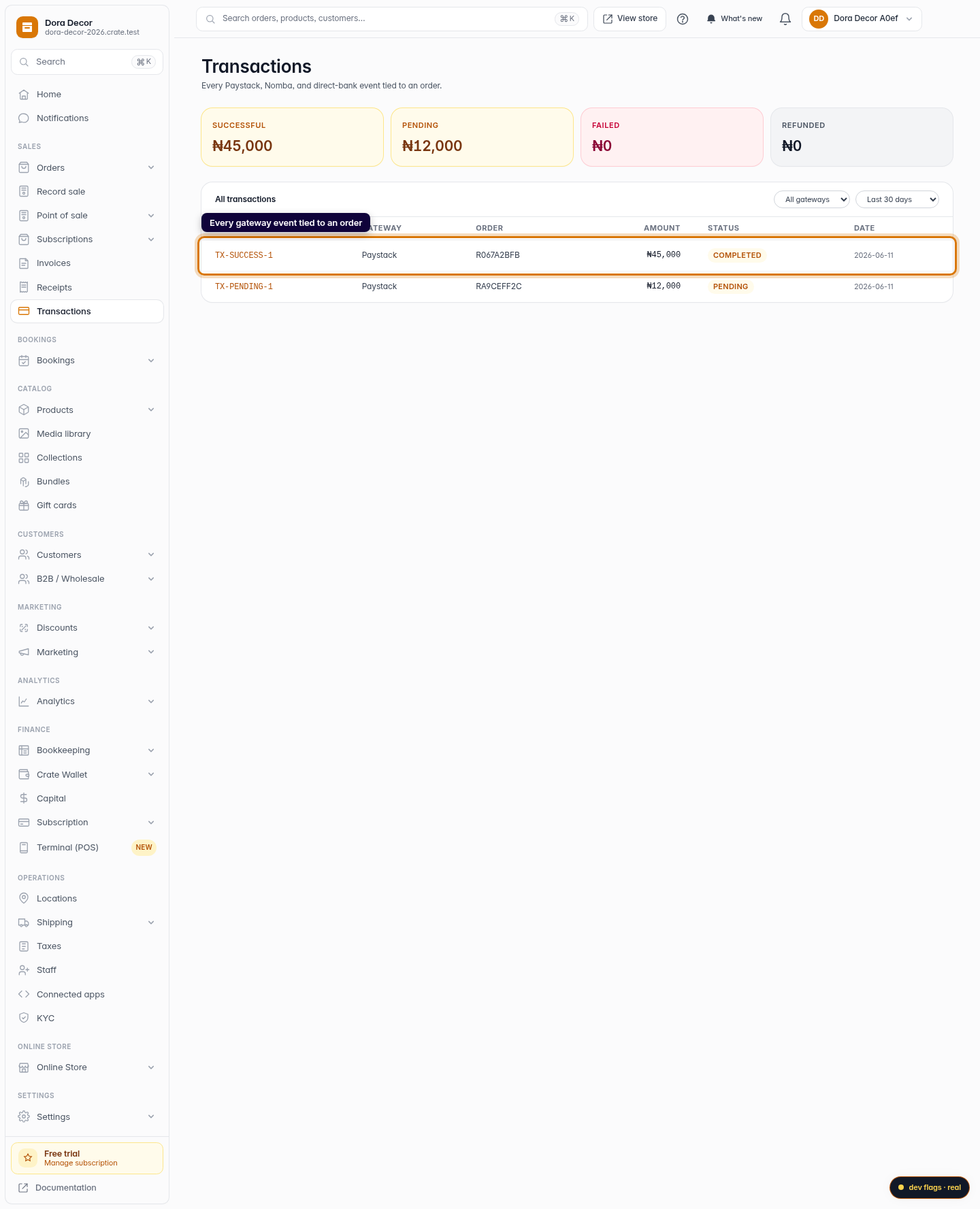
Every Paystack, Nomba, and direct-bank event appears in the list below the tiles, ordered newest first. Click any row to open its detail page, where you'll see:
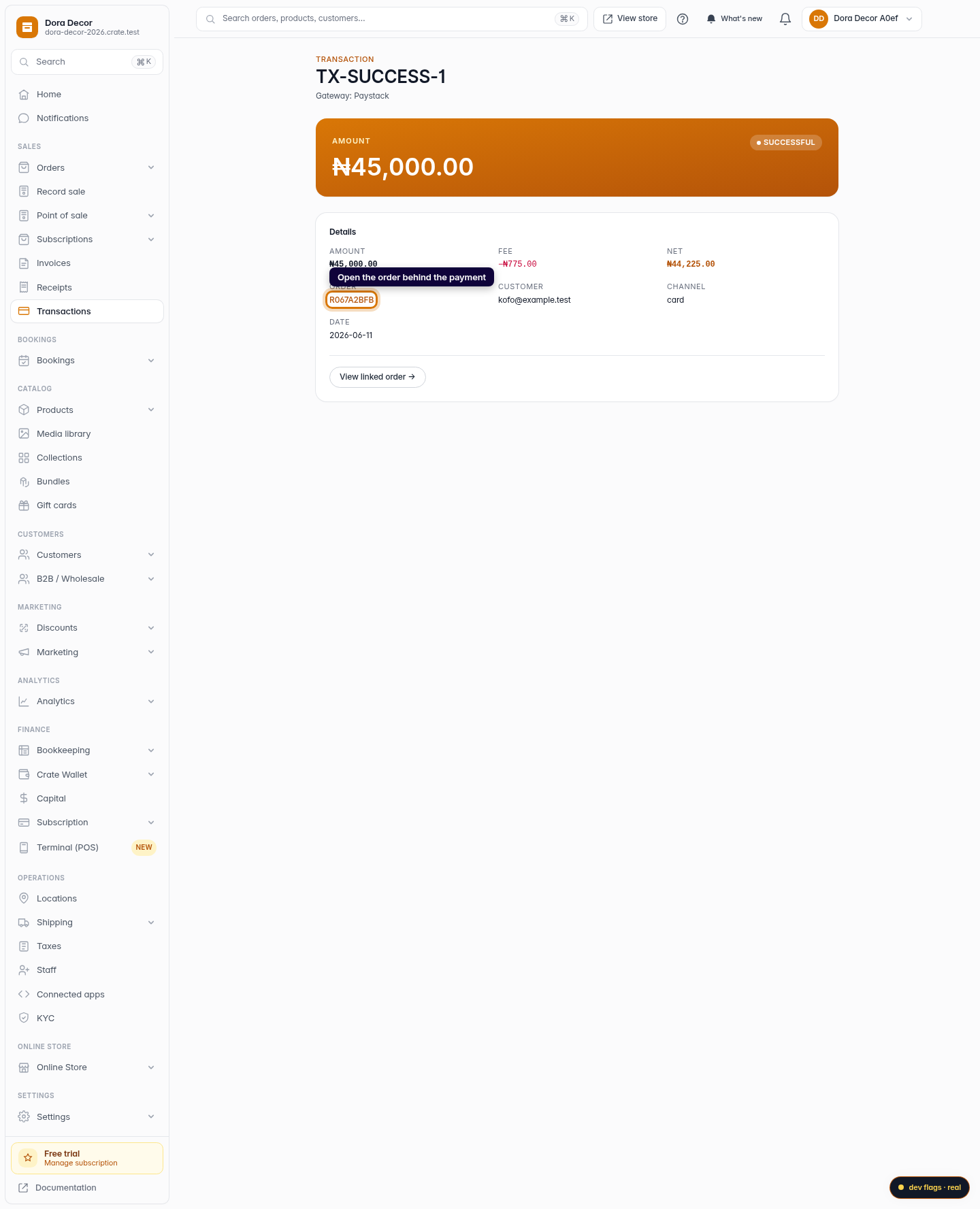
- the amount, the fee deducted, and the net you received,
- the status and channel (card, transfer, USSD, and so on),
- the customer and the order the payment belongs to.
From there, View linked order takes you straight to that order — handy when you need to match a payment to what was bought, confirm a delivery, or follow up on a pending settlement.
Tip: Reconciling end of month? Filter the list by gateway to check each provider's payments separately, then open anything that looks off to see its fee and linked order in one place.
-
1
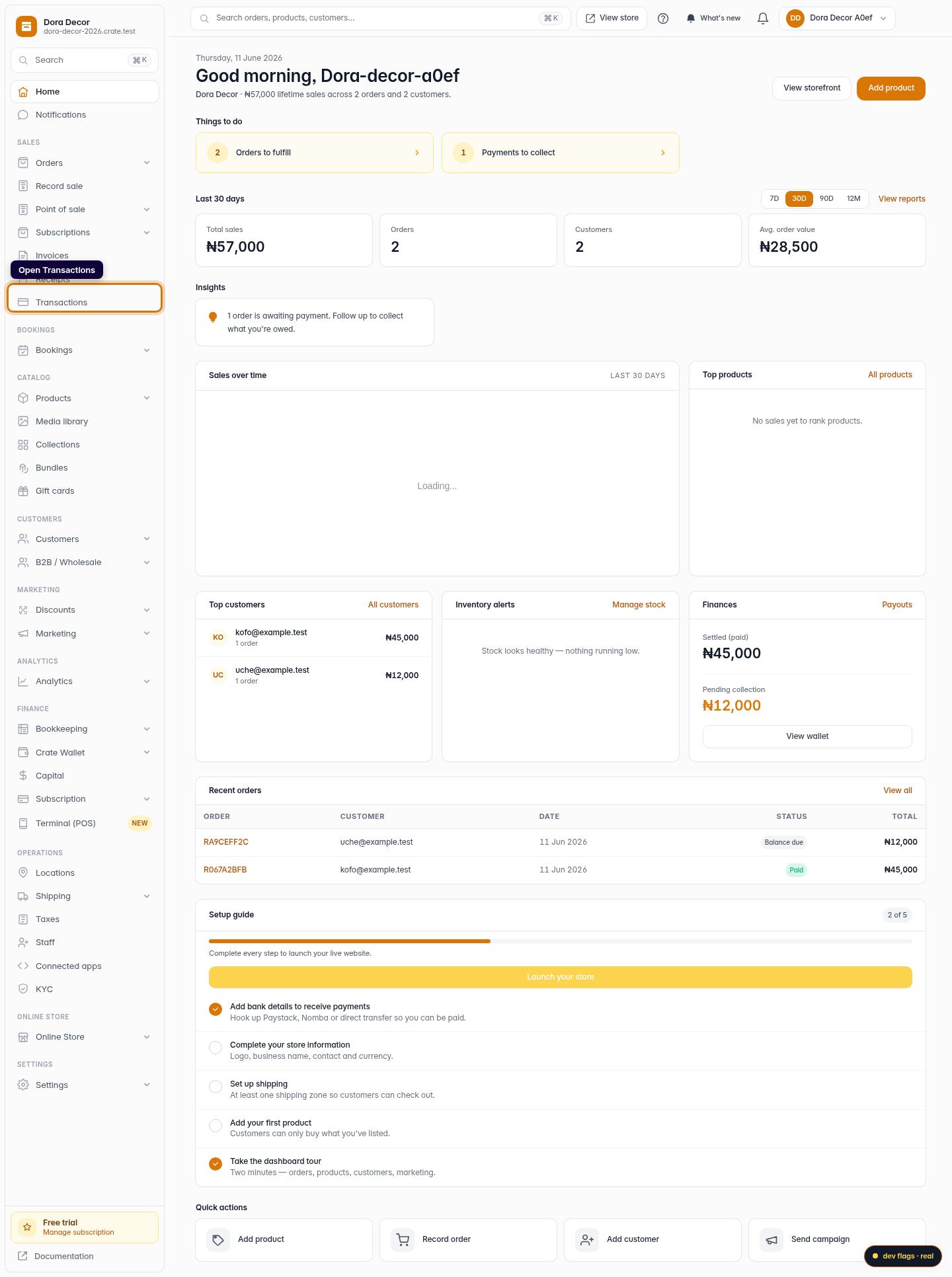
Open Transactions
From your Crate dashboard, open Transactions under the Sales section of the sidebar. This is the home for every payment event across your store.
Web 
Mobile -
2
Read your totals at a glance
The summary tiles total your payments by status — Successful, Pending, Failed, and Refunded — so you can see at a glance how much has settled and how much is still in flight.
Web -
3
Find a transaction in the list
Below the totals, every Paystack, Nomba, and direct-bank event is listed newest first, with its order, amount, and status. Use the gateway and date filters to narrow the list when you're reconciling.
Web -
4
Open a transaction's details
Click any transaction to open it. The detail screen shows the amount, fee, and net, the status, the channel, and the customer — and links straight to the order the payment belongs to via View linked order.
Web