Set up VAT (7.5%) for Nigerian merchants
Add Nigerian VAT to your store so checkout totals are FIRS-compliant. Crate defaults to the 7.5% standard rate, applies it at checkout, and lets you zero-rate or exempt specific products.
To stay compliant with the Federal Inland Revenue Service (FIRS), Nigerian merchants charge Value-Added Tax (VAT) at the standard rate of 7.5%. Crate makes this a one-minute setup: add a tax rate once and every applicable order is calculated correctly at checkout.
VAT applies to the goods you sell, not to your business as a whole. You set the rate on Crate, and the checkout adds it to the order total (or treats your prices as VAT-inclusive — your choice).
Inclusive or exclusive pricing
When you create the rate, you decide how it's displayed:
- Prices exclude VAT (default) — your product price is the base, and 7.5% is added on top at checkout. The customer sees the tax as a separate line.
- Prices already include VAT — your displayed price is the final price, and Crate works the 7.5% back out of it for your records. Useful when you advertise round, all-in prices.
Tip: Not every product is standard-rated. Some goods are zero-rated or exempt under Nigerian law. Use Crate's per-product tax categories to apply the right treatment to those items instead of charging the full 7.5% across the board.
What changes after you save
Once the rate is saved, Crate applies it automatically to new orders that fall under it. Existing orders aren't touched. You can edit or remove the rate at any time from the Taxes list, and add separate rates for other jurisdictions if you sell beyond Nigeria.
A note on transaction fees
VAT on your store is separate from the processing fee your payment gateway charges. If you'd rather your customers cover that gateway fee, you can set the charge bearer on the Paystack charge options screen — that's about who pays Paystack, while VAT here is about tax on the goods themselves.
-
1
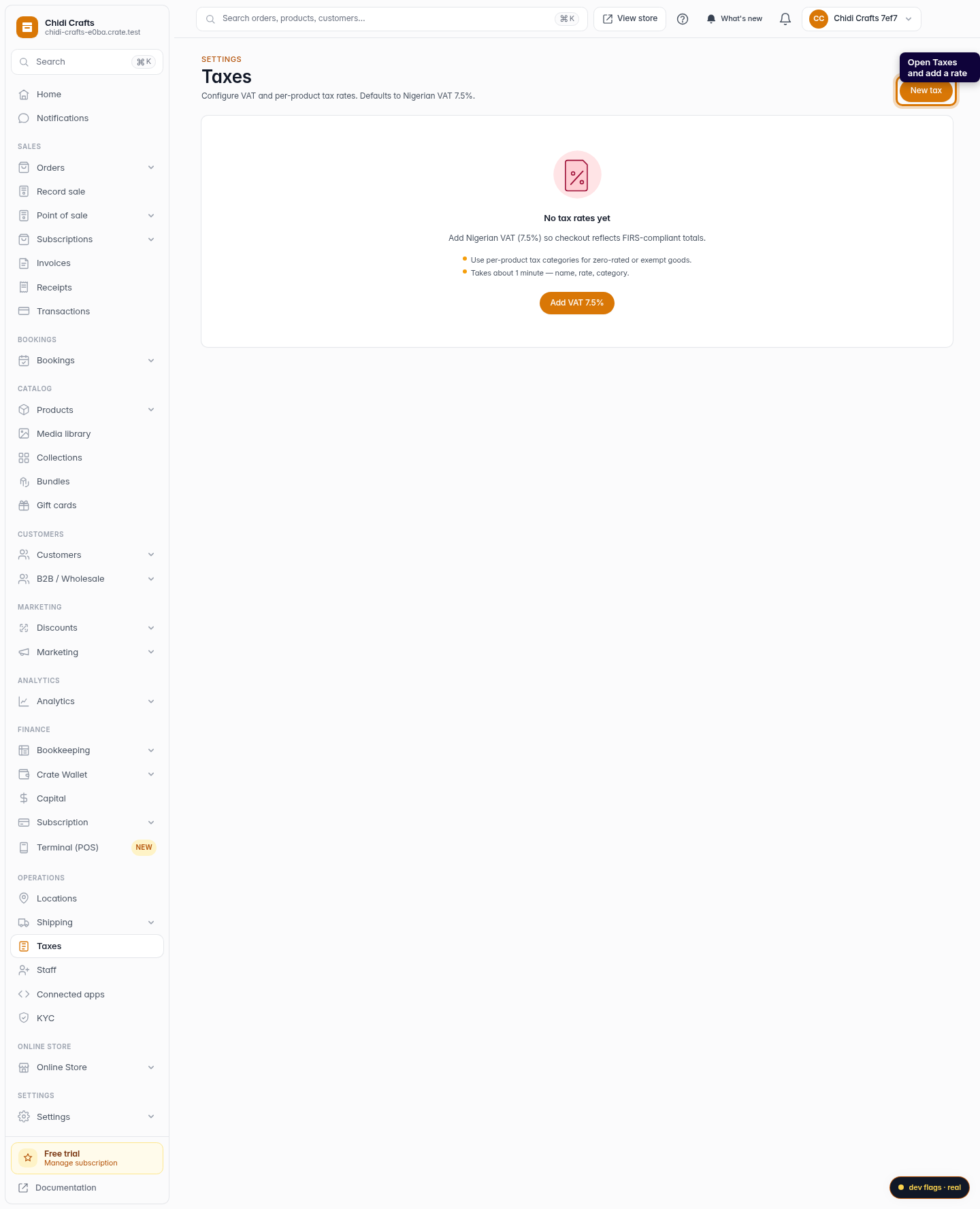
Open Taxes
From your Crate dashboard, open Taxes under the Operations section of the sidebar. This is where you configure VAT and any per-product tax rates.
Web 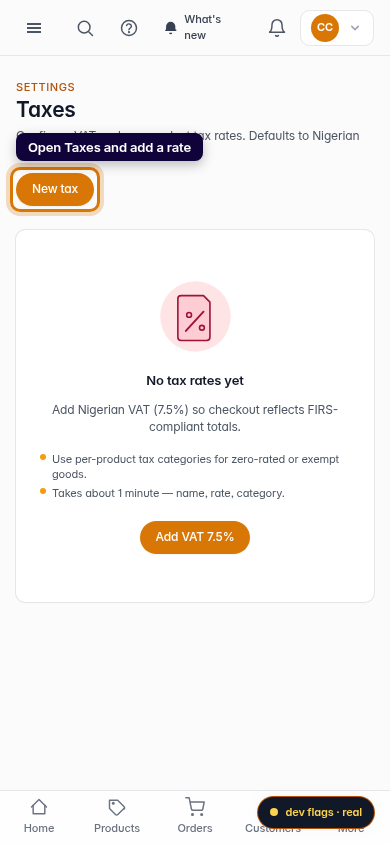
Mobile -
2
Add VAT 7.5%
If you haven't set up tax yet, click Add VAT 7.5% (or New tax). Crate pre-fills the Nigerian standard rate so you don't have to remember it.
Web -
3
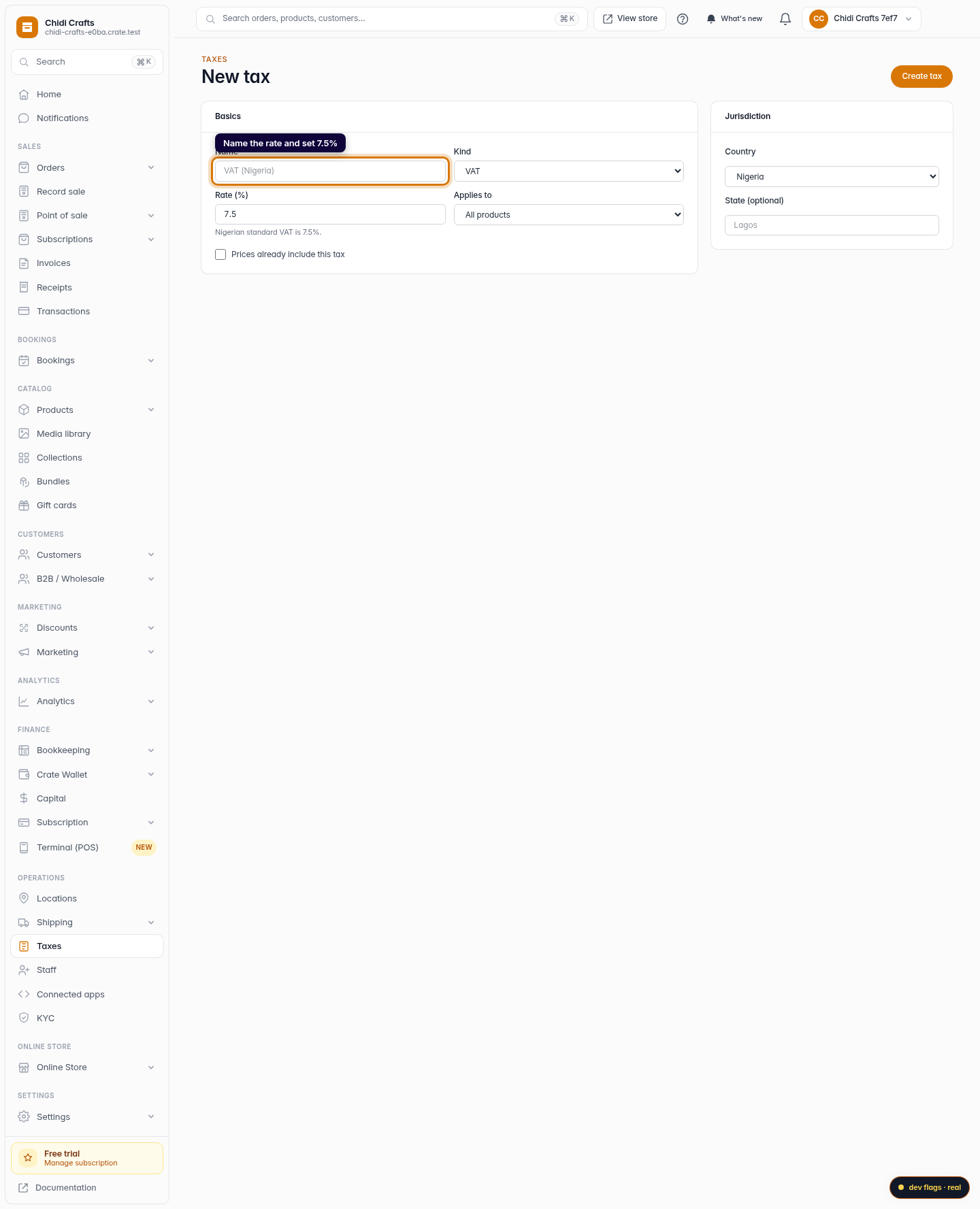
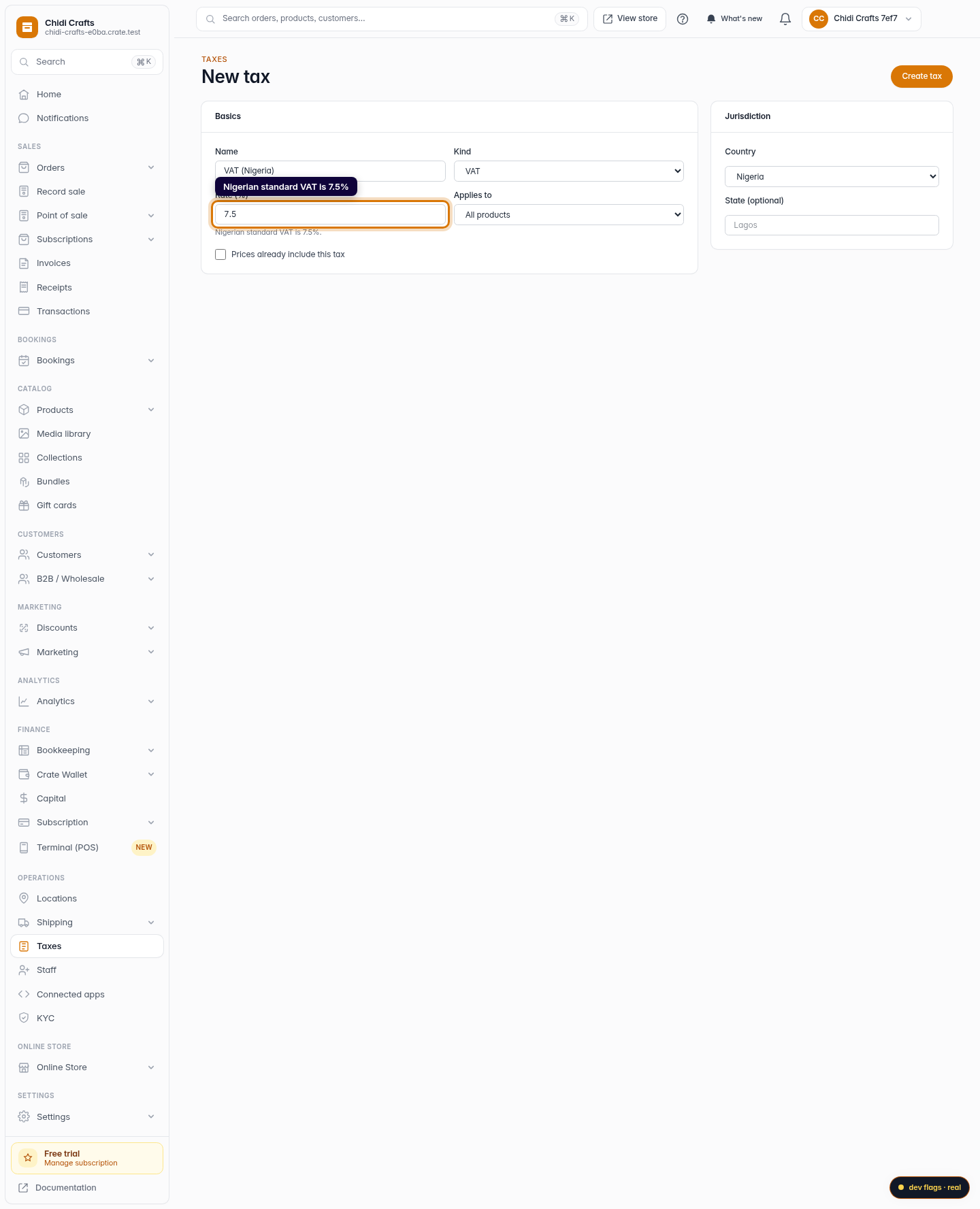
Name the rate and set 7.5%
Give the rate a clear name — for example VAT (Nigeria) — and confirm the rate is 7.5%. Choose whether your displayed prices already include the tax, then pick the jurisdiction (Nigeria by default).
Web -
4
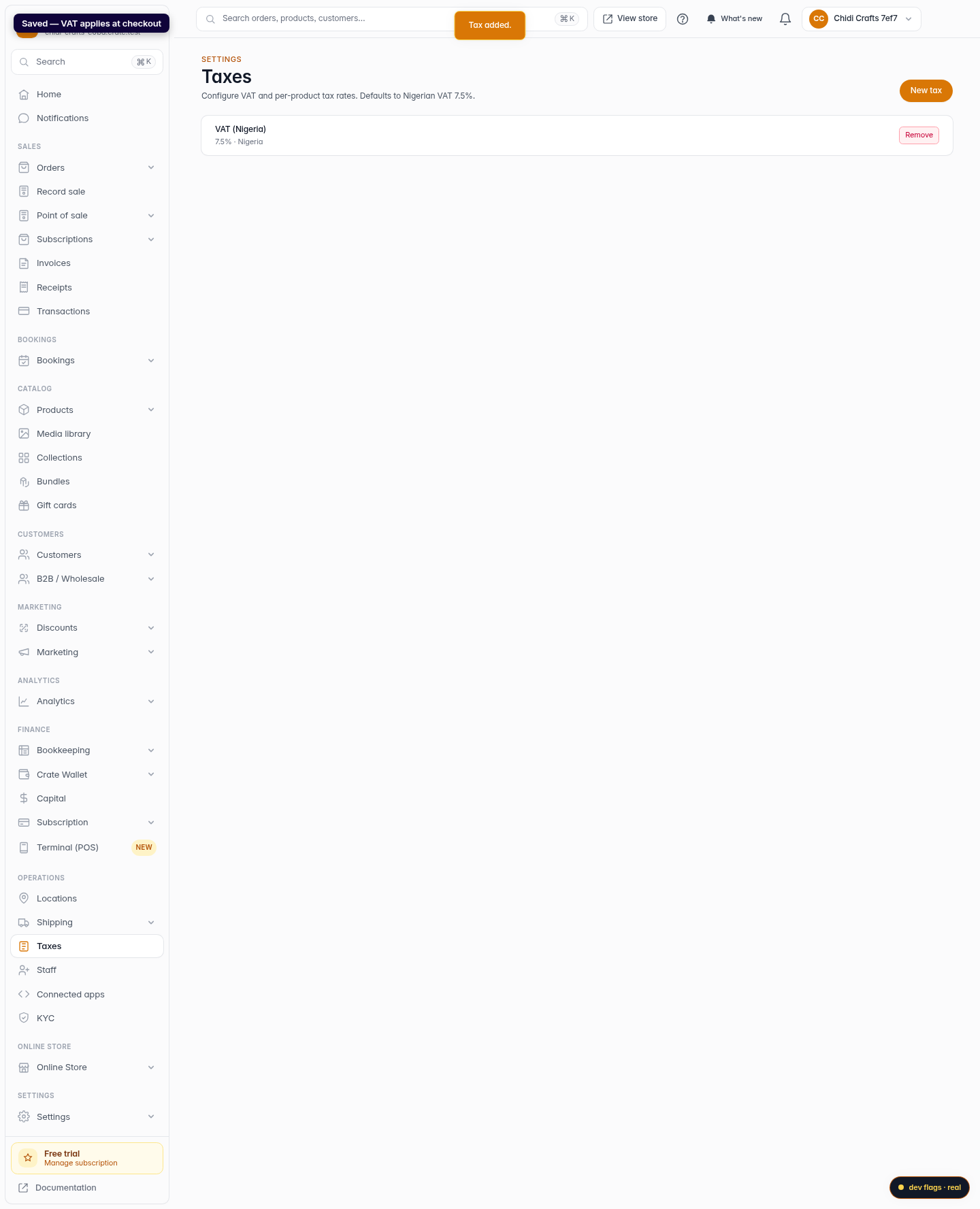
Save — VAT applies at checkout
Click Create tax. The rate appears in your Taxes list and Crate now calculates VAT on applicable orders so every checkout total is FIRS-compliant.
Web 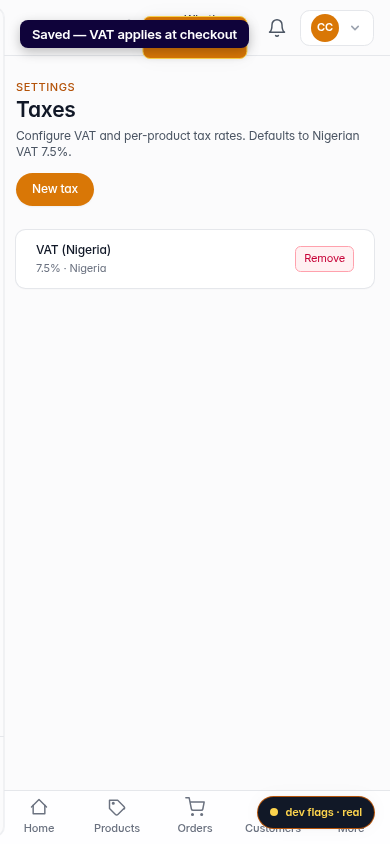
Mobile