Add or remove staff WhatsApp numbers
Keep your team in the loop by adding up to four staff WhatsApp numbers to your Crate Terminal — everyone gets an instant alert the moment a payment lands.
When a customer pays your Terminal, the alert doesn't have to land on one phone. Add your team's WhatsApp numbers and everyone on the floor knows the moment money arrives — no shouting across the shop to confirm a transfer went through.
Crate Terminal supports up to four staff WhatsApp numbers. Add and remove them any time as your team changes.
Before you start
You'll need your Terminal account active before staff alerts can be sent. If you haven't activated yet, request your Terminal first — then come back to add your team.
Tip: Use the staff member's personal WhatsApp number, not a shared line, so each person gets their own alert and you always know who was on shift when a payment came in.
Managing your slots
The screen shows your numbers as a list of slots — filled ones show the name and number, empty ones are ready for a new teammate. Once all four slots are full, the Add number button is disabled until you remove one. Removing a number stops its alerts straight away.
-
1
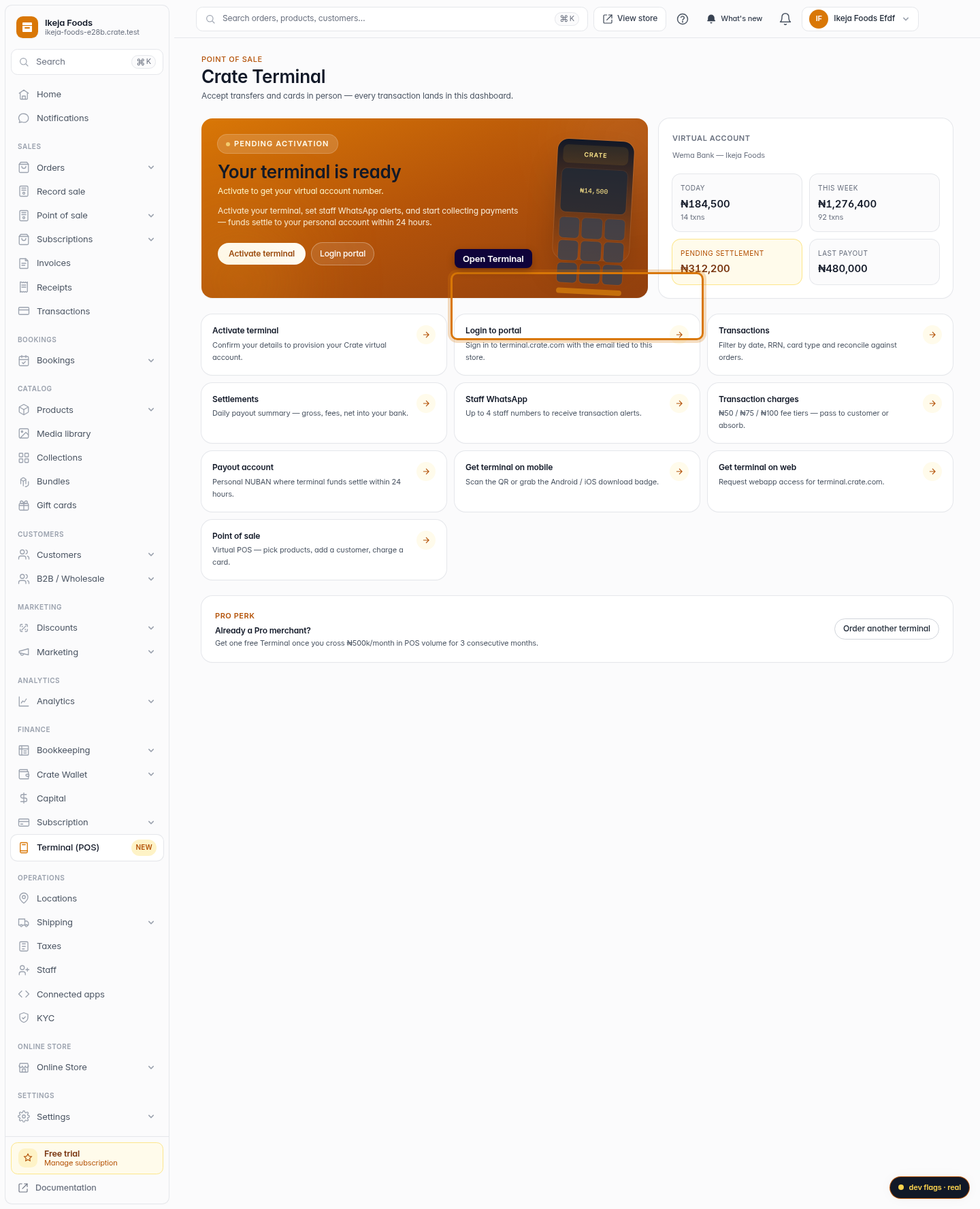
Open Terminal
From the dashboard sidebar, open Terminal to reach your Terminal hub.
Web -
2
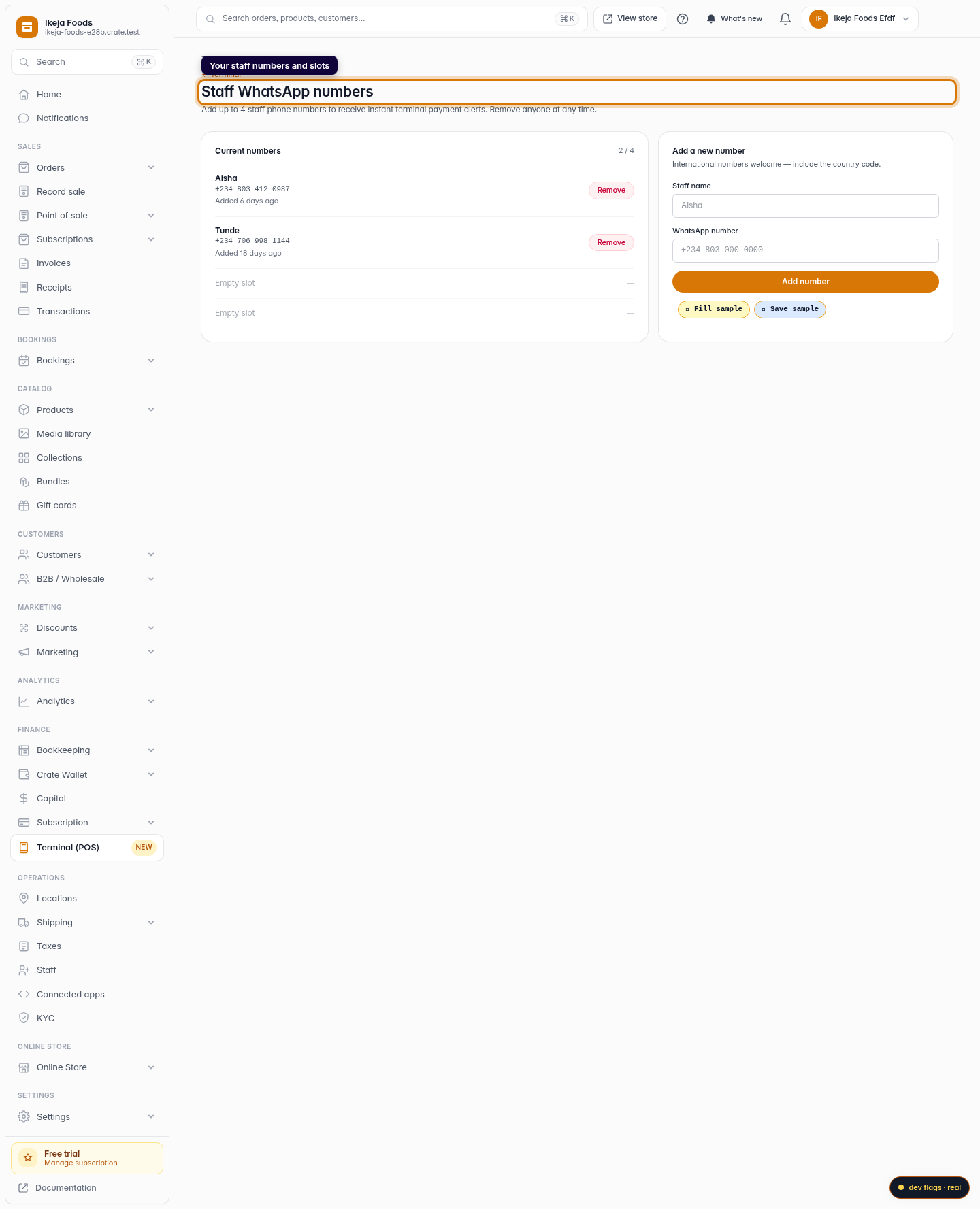
Go to Staff WhatsApp
On the Terminal hub, open Staff WhatsApp. This screen lists every number currently receiving payment alerts and shows how many of your four slots are used.
Web 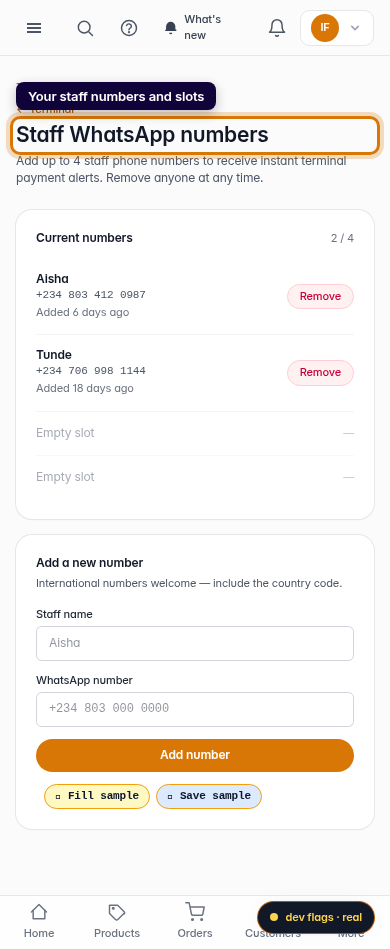
Mobile -
3
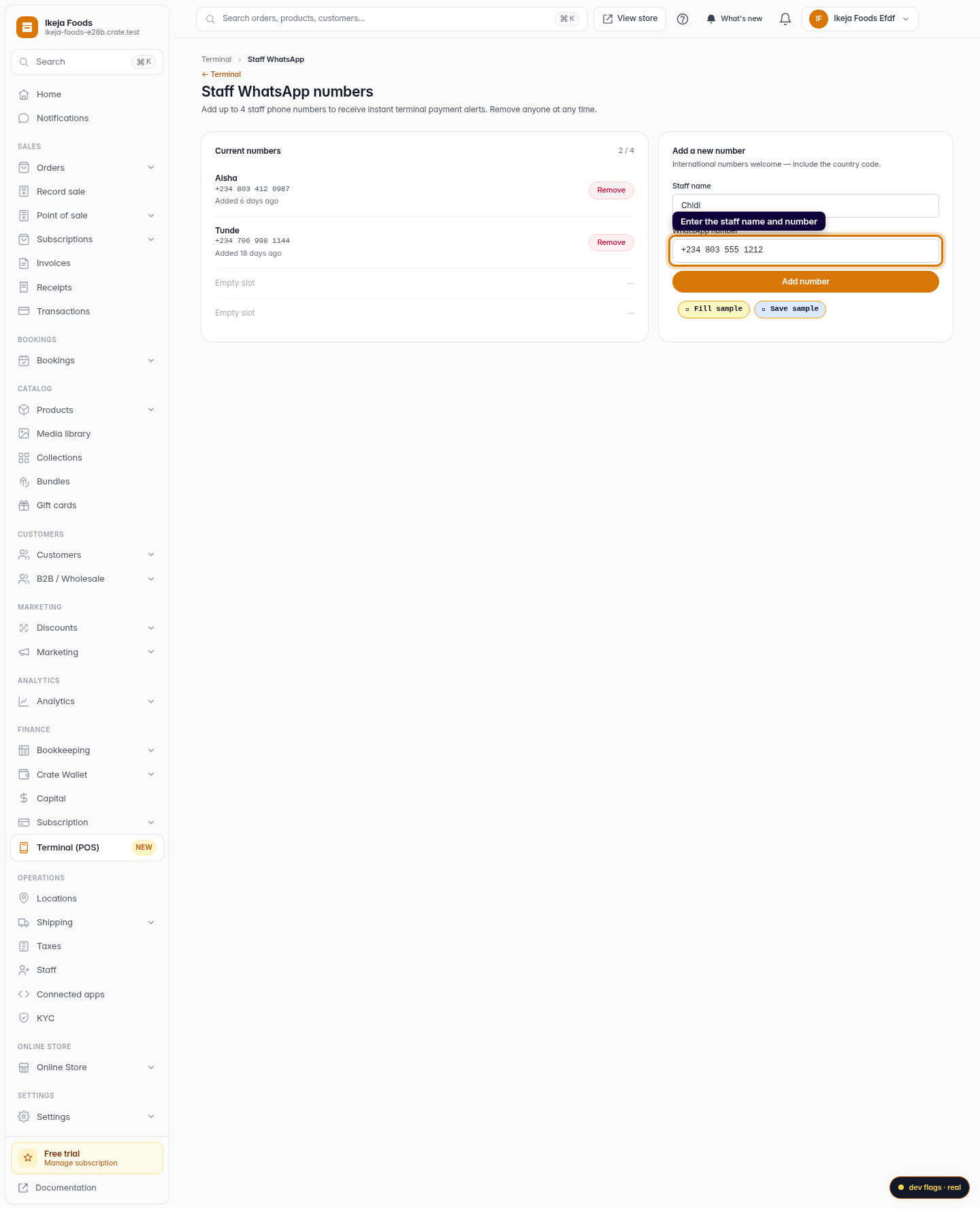
Enter the staff details
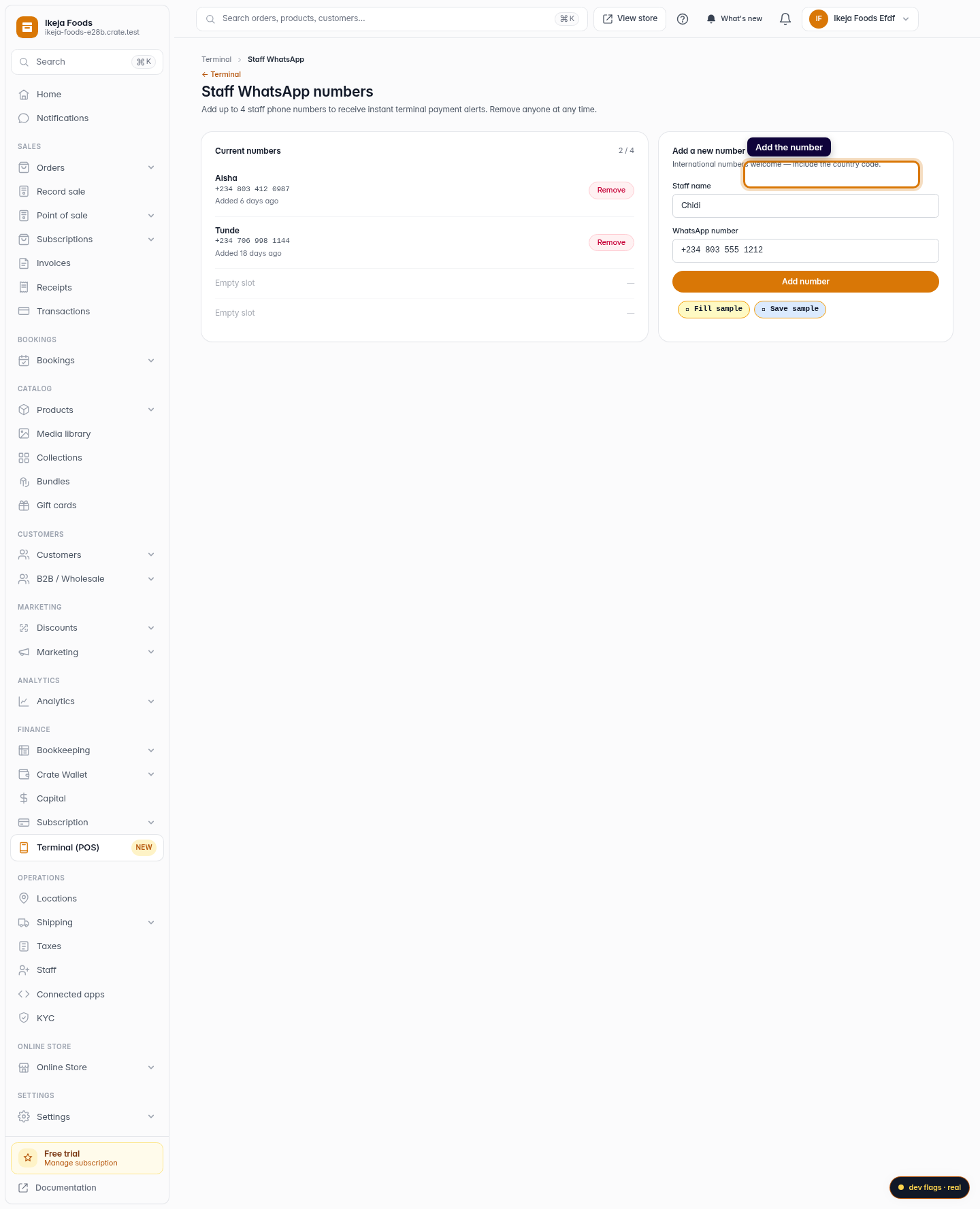
In Add a new number, type the staff member's name and their WhatsApp number, including the country code. International numbers work too.
Web -
4
Add the number
Click Add number. It joins the list and starts receiving an alert for every successful transfer. You can add up to four numbers in total.
Web -
5
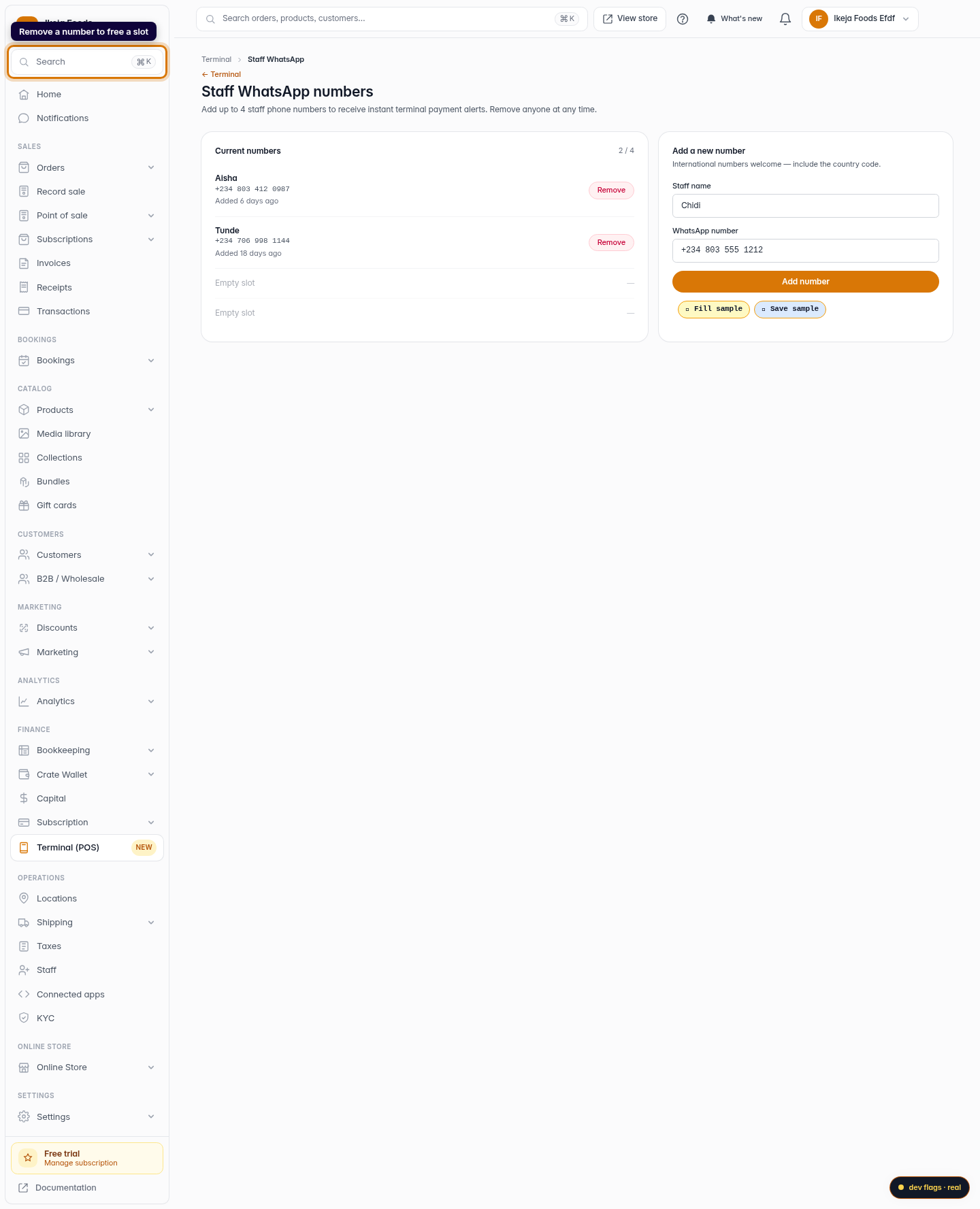
Remove a number
To stop alerts for someone, find their entry in the list and click Remove. The slot frees up immediately so you can add a different team member.
Web 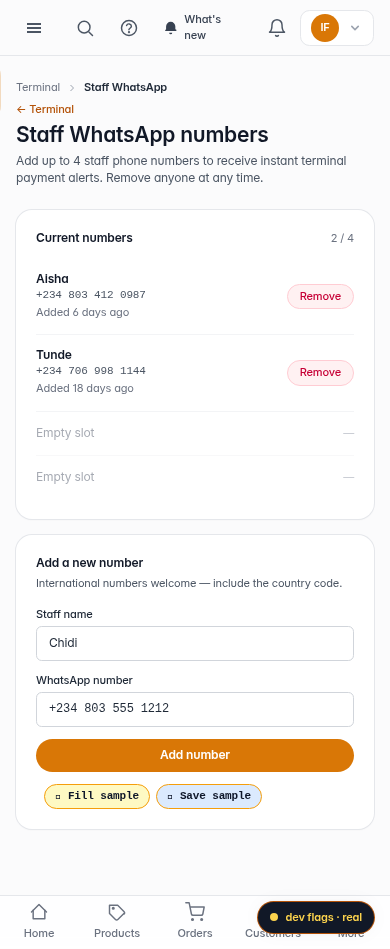
Mobile