Print a barcode
Generate a real, scannable Code-128 label for any product and print it onto a sticker — ready to scan at your point of sale.
A barcode turns a product into something you can scan — at the register, during a stock count, or when picking an order. Crate gives every product a real, scannable Code-128 barcode automatically, so printing a label is a two-click job.
The label
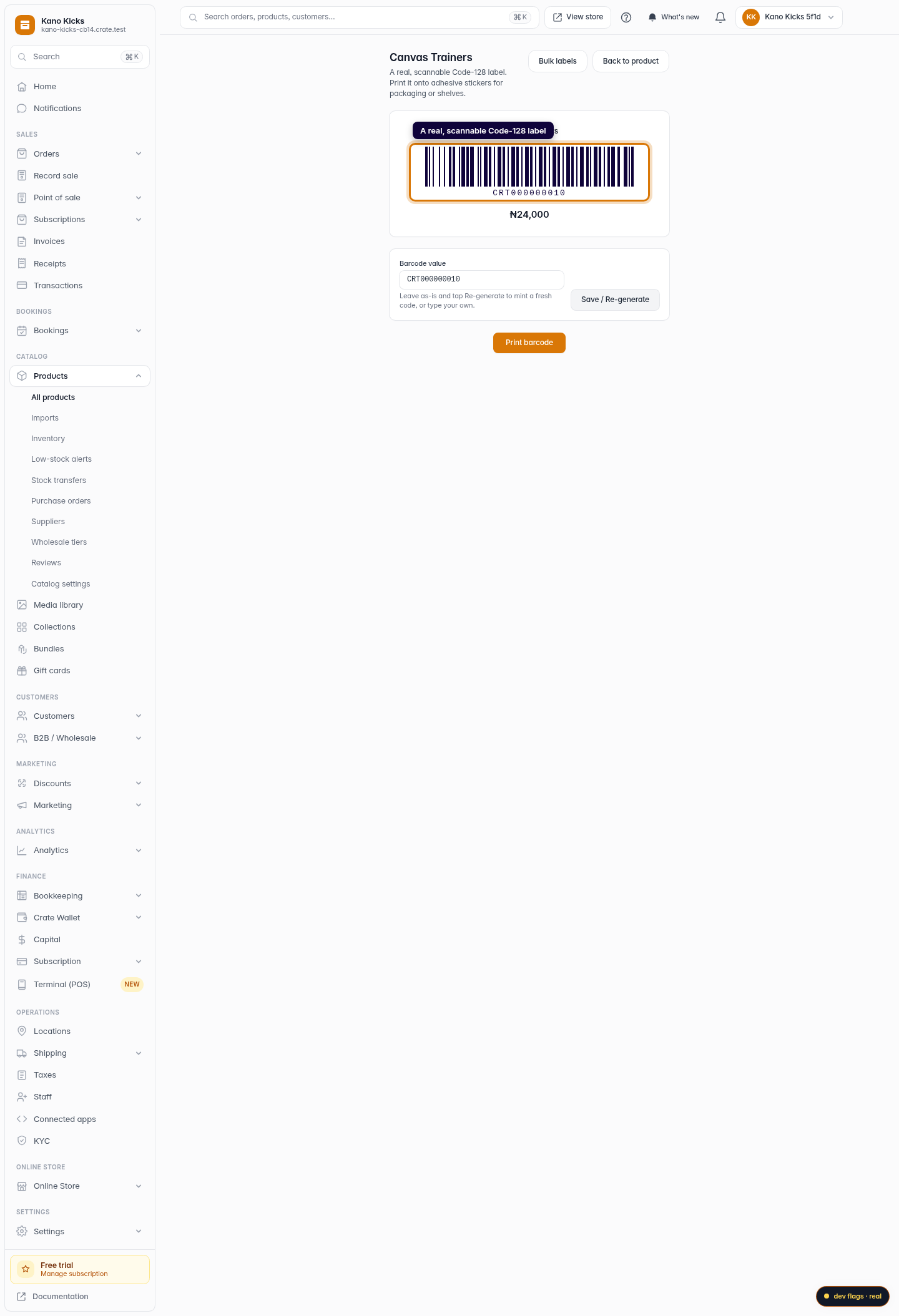
The barcode page shows a clean, print-ready label: the product name, the option (for a specific variant), the scannable barcode itself, and the price. It is built to land neatly on a standard adhesive sticker.
Using your own codes
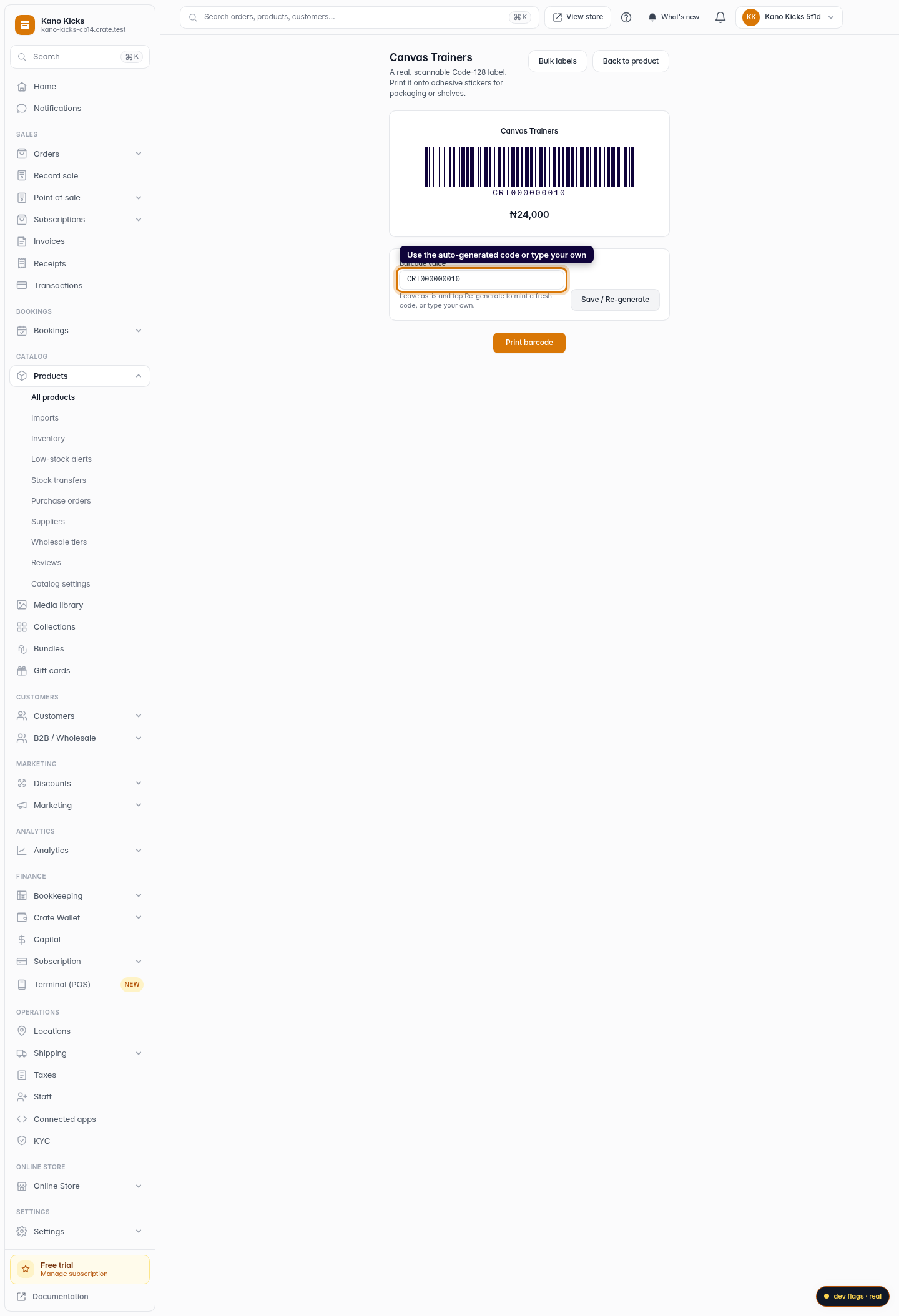
If your products already carry manufacturer or supplier barcodes, type that value into Barcode value and save it — Crate will print and scan against your code instead of the auto-generated one. Leave the field untouched and tap Save / Re-generate to mint a fresh value at any time.
Tip: Printing labels for lots of products at once? Use Print bulk barcodes instead of doing them one by one.
-
1
Open the product
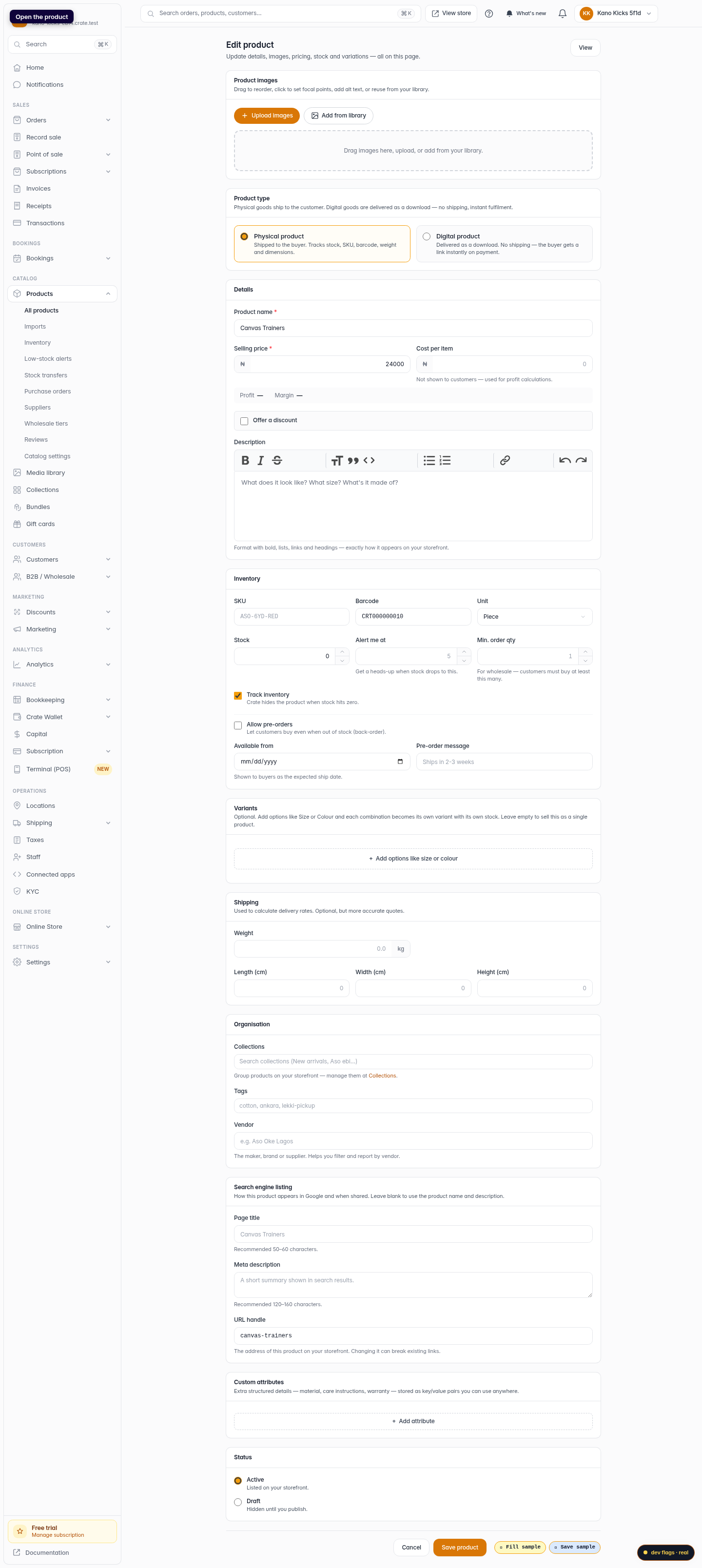
From Products, open the product you want a label for. Crate auto-mints a barcode for every product, so there is nothing to set up first.
Web 
Mobile -
2
Open its barcode label
Go to the product's Barcode page. Crate renders a real, scannable Code-128 label showing the product name, its barcode value and the price.
Web -
3
Adjust the barcode value (optional)
Want your own code? Type it into Barcode value and tap Save / Re-generate — or leave it as-is to keep the auto-generated one.
Web -
4
Print the label
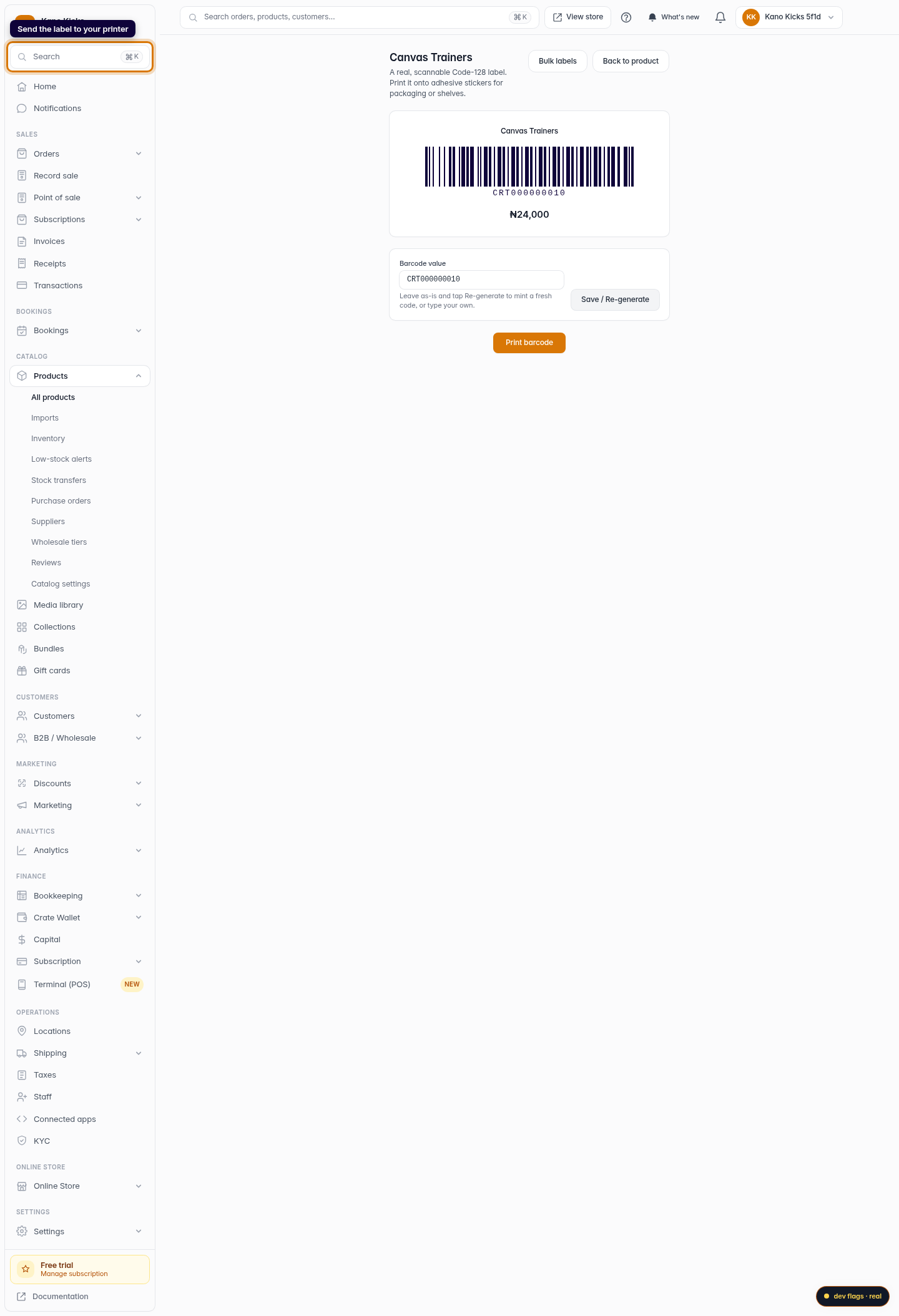
Click Print barcode. Your browser's print dialog opens, ready to send the label to an adhesive-sticker or label printer.
Web 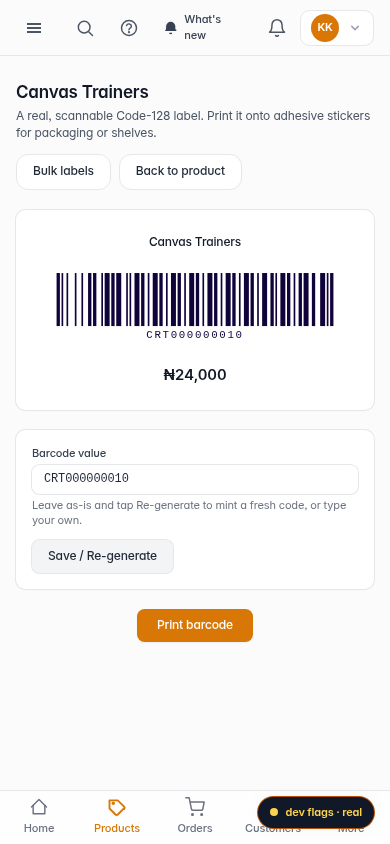
Mobile