Generate and print a product barcode
Mint a real, scannable Code-128 barcode for any product, print it onto labels for your shelves and packaging, and scan it at the register to ring up sales in seconds.
Barcodes turn checkout into a scan. Instead of searching for a product by name at the register, you scan the label and Crate drops it straight into the cart — faster lines, fewer mistakes, and inventory that stays accurate.
How it works
Every product in Crate can carry a barcode. Crate generates a real, scannable Code-128 label for you automatically, so you don't need a separate barcode tool. Print the label, stick it on the product, and you're ready to scan.
Bring your own codes
If your products already arrive with manufacturer barcodes, you don't have to reprint anything. Open the product's Barcode page, type the existing value into the Barcode value field, and save — Crate will now recognise that code when you scan it.
Scanning at the register
Once products carry barcodes, head to the point of sale and scan to add items to a sale. The code resolves to the right product and variant instantly, so a busy counter keeps moving.
Tip: Print a sheet of labels in one go from Bulk labels on the barcode page — handy when you've just received a new batch of stock and need every unit tagged.
-
1
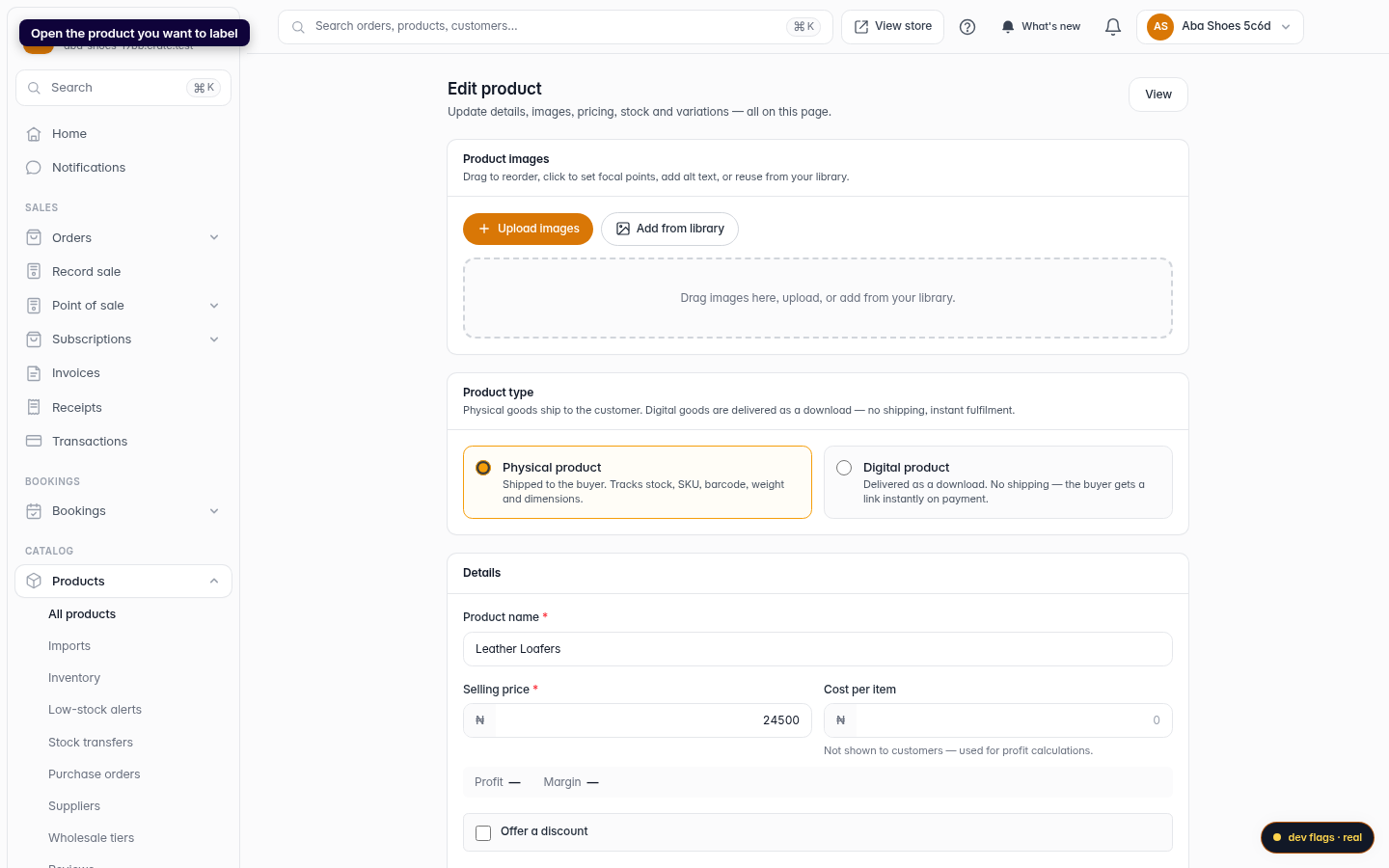
Open the product
From Products, open the product you want to label. Every product can carry its own barcode.
Web -
2
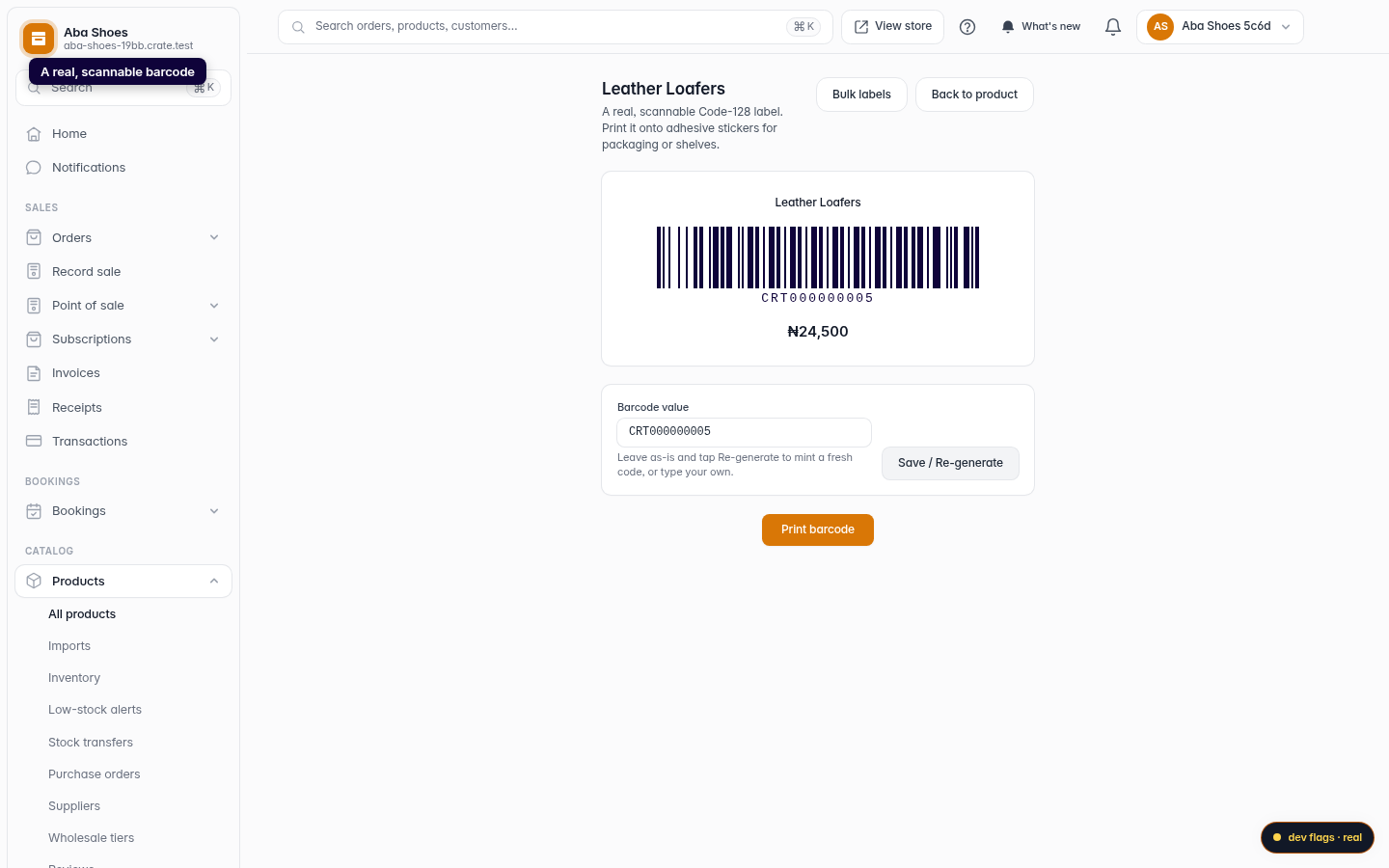
Go to the barcode label
Open the product's Barcode page. Crate shows a real, scannable Code-128 label, already minted and ready to print.
Web -
3
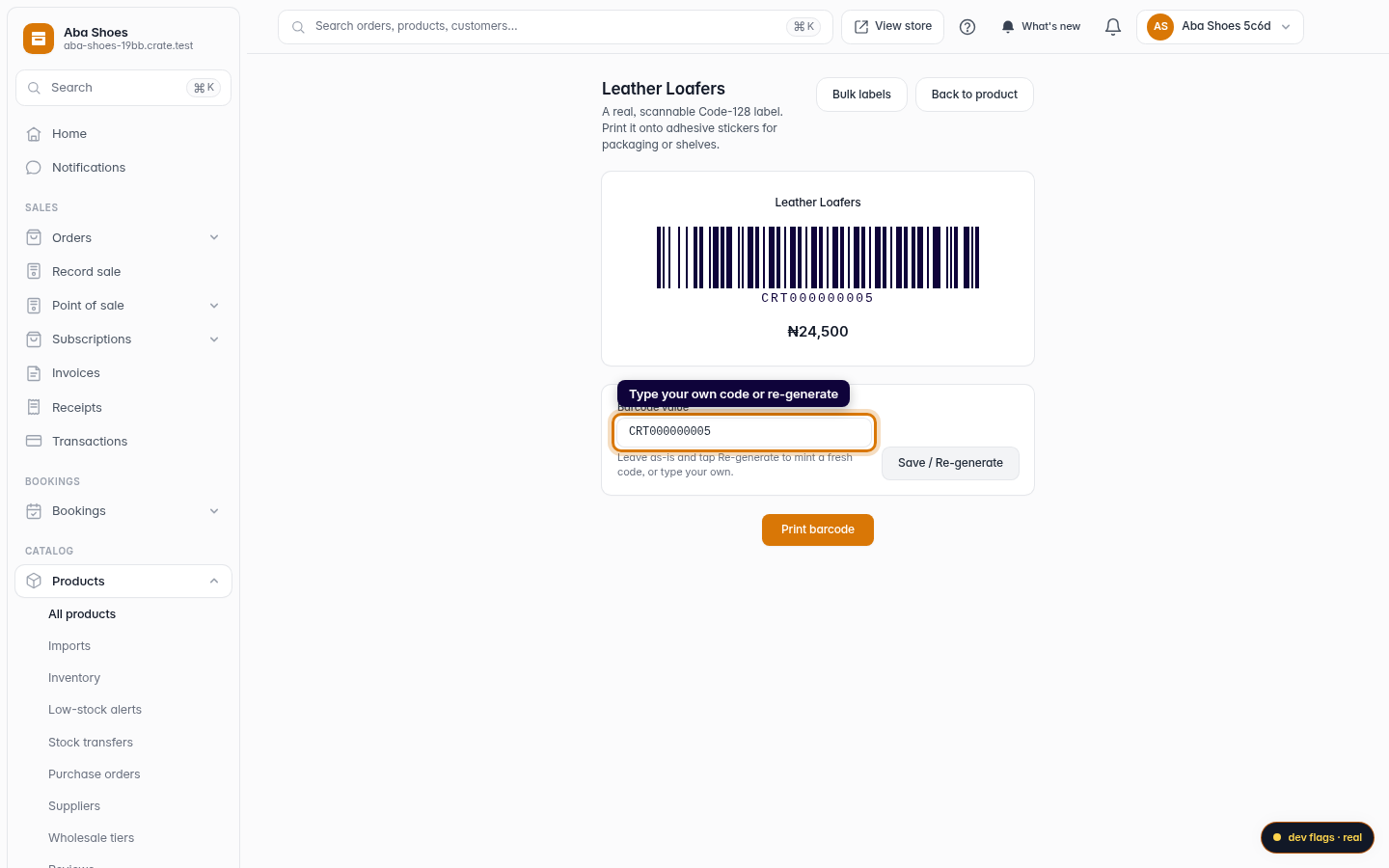
Use your own code or re-generate
Want a specific value — say, the code already printed on your supplier's packaging? Type it into the Barcode value field. Or leave it as-is and re-generate a fresh one.
Web -
4
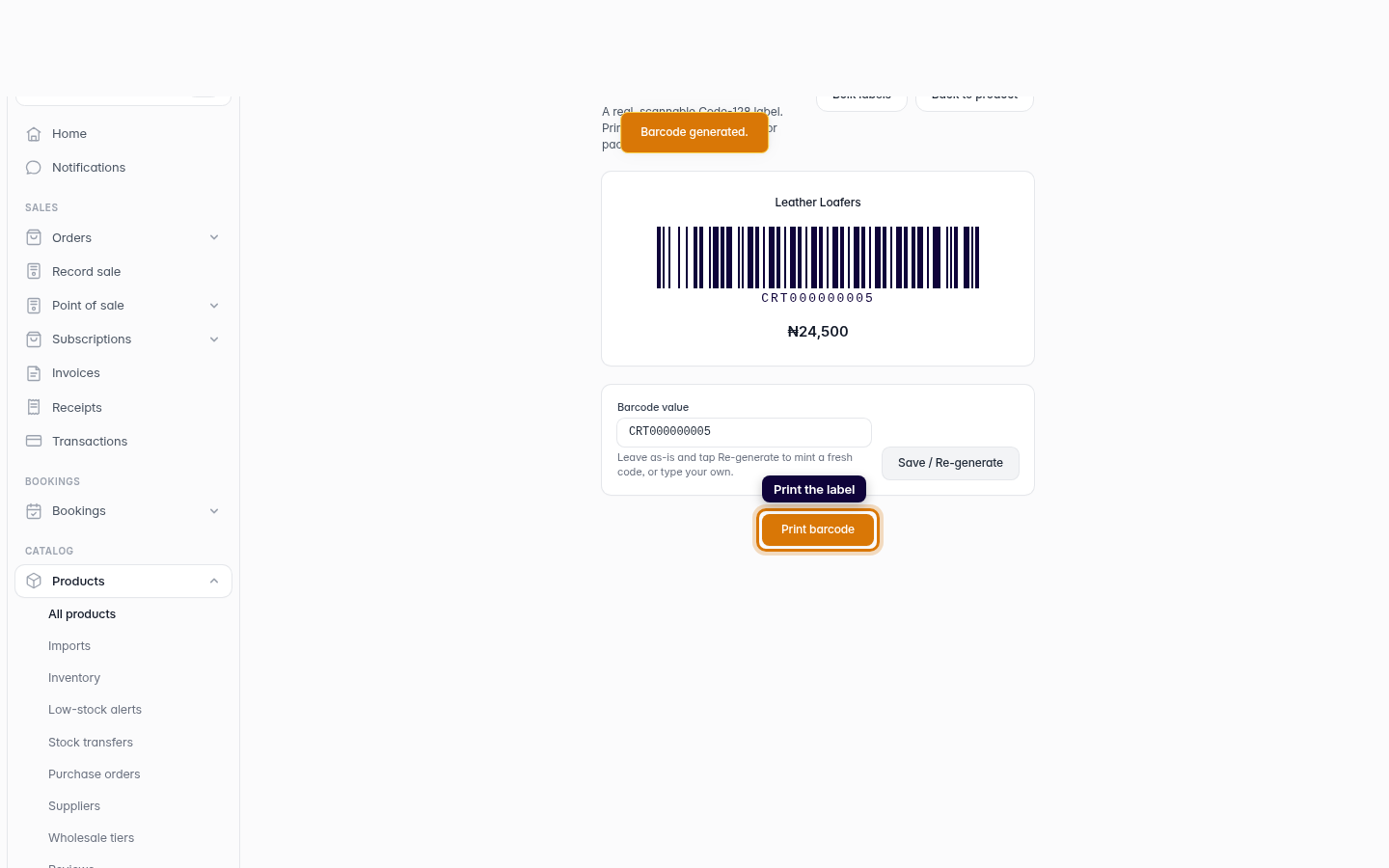
Save and print
Click Save / Re-generate to lock the value to this product, then Print barcode. Print onto adhesive stickers and stick them on your stock — they're ready to scan at the register.
Web