Create an order by scanning barcodes
Ring up an in-person sale on the Crate register by scanning a product's barcode — Crate looks it up by SKU, drops it in the cart, and you take payment in seconds.
The Crate register turns any browser into a point-of-sale terminal. For shops that print barcodes on their stock, scanning is the fastest way to ring up a sale — no hunting through a product list, no typos on the price.
A barcode in Crate is simply the product's SKU. When you scan, your handheld reader types the code into the search box, and Crate looks up the matching product. If you don't have a scanner, typing the SKU does exactly the same thing.
Before you start
Each product (or variant) you want to scan needs a SKU that matches its printed barcode. You set this when you add or edit the product. The register only sells what's in your catalogue, so a code that isn't on file simply returns no match — nothing gets added by accident.
Tip: A register shift tracks the cash in your drawer from open to close. Always open a shift before the first sale and close it at the end of the day to get a clean Z-report and catch any variance.
What happens after you charge
Charging the cart creates a real order on the point of sale channel, marks it paid, and reduces the on-hand stock for every item scanned. The sale lands in POS sales and counts toward your register's Z-report, so your in-store takings sit alongside your online orders in one place.
-
1
Open the register
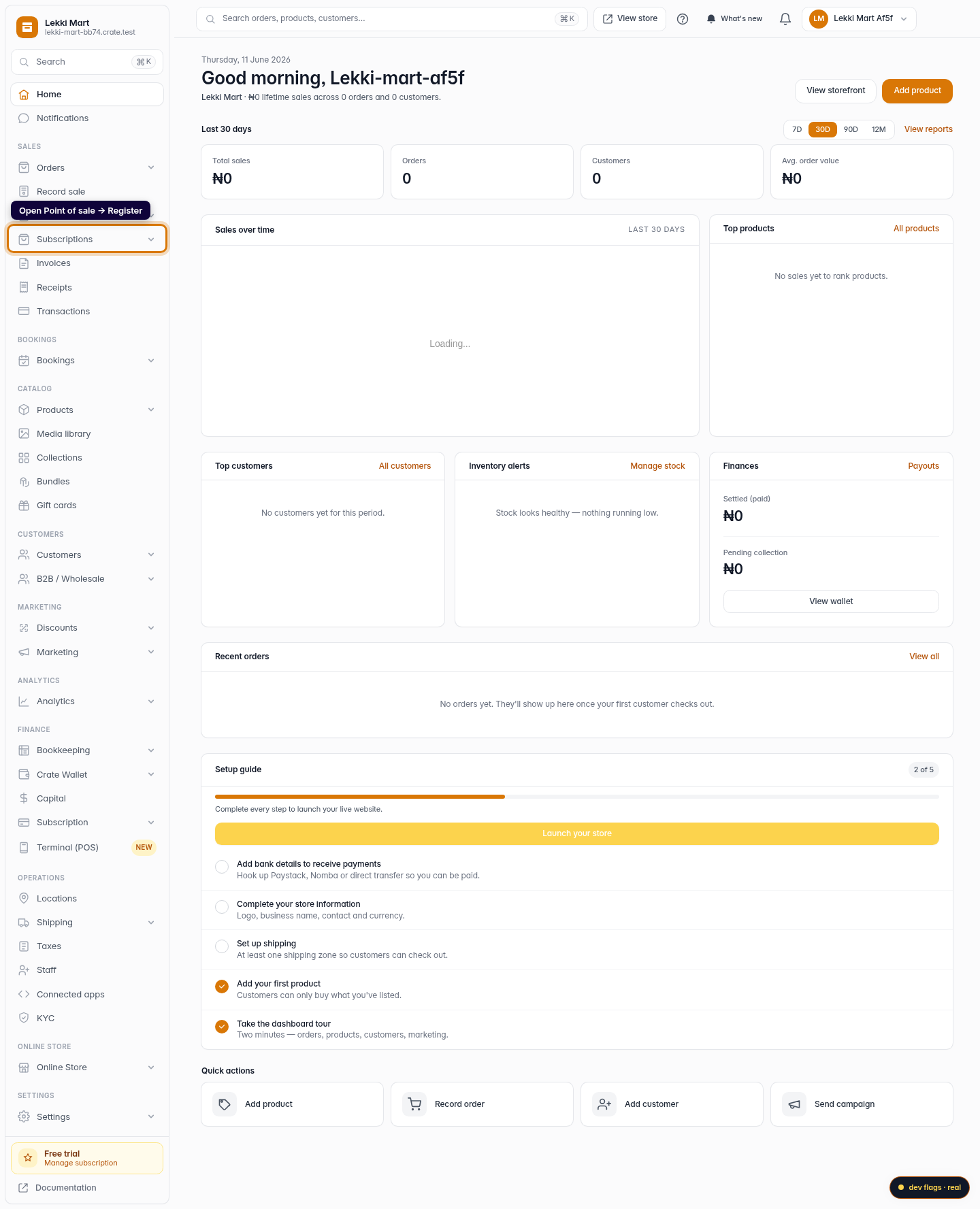
From the dashboard sidebar, open Point of sale → Register. This is the touch register you ring up walk-in sales on.
Web 
Mobile -
2
Start a shift
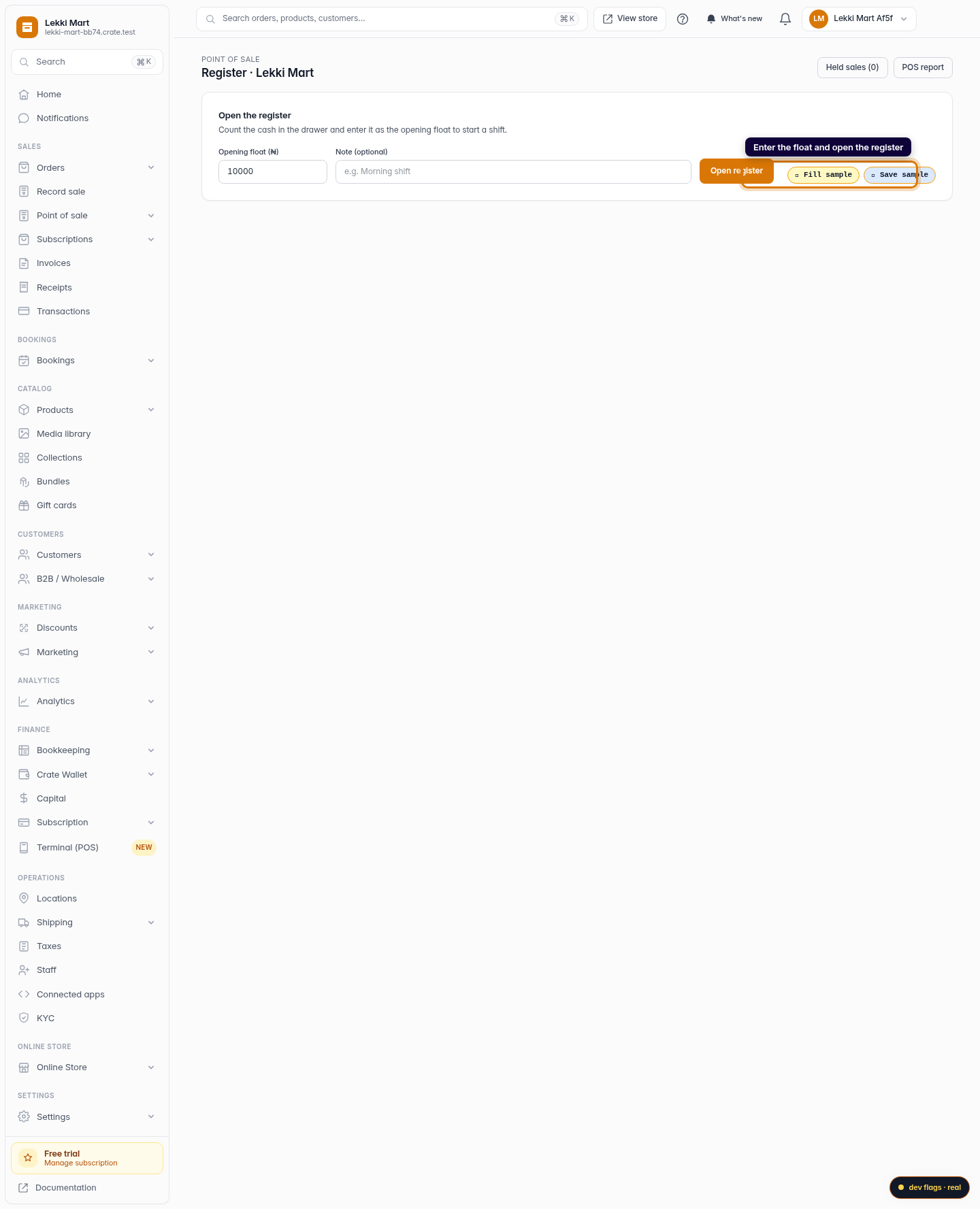
Count the cash already in your drawer and enter it as the opening float, then click Open register. You can't ring up a sale until a shift is open, so the day's cash always reconciles.
Web -
3
Scan the barcode
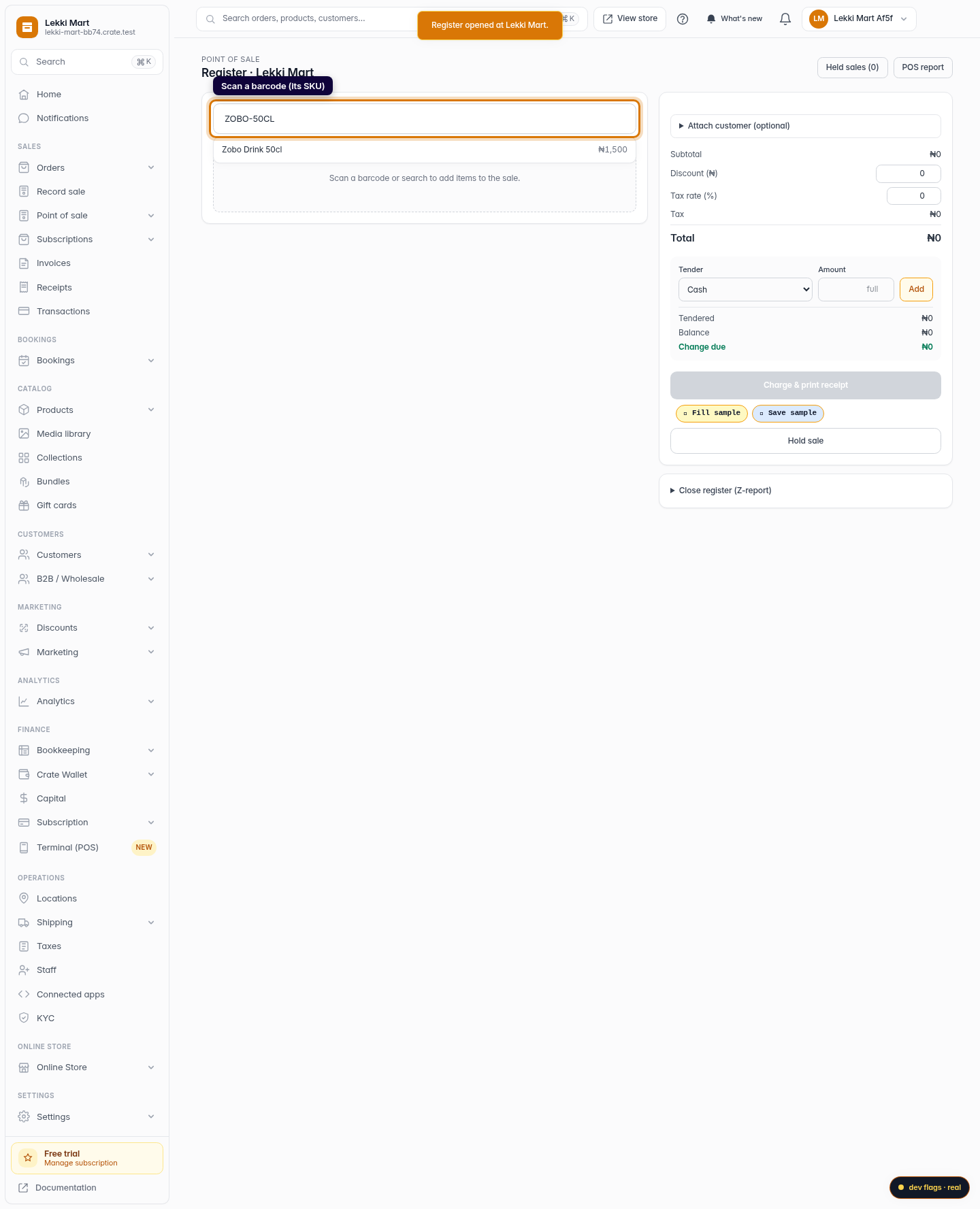
Click into the Search or scan a product box and scan the item's barcode (or type its SKU). A handheld scanner just types the code for you — Crate matches it to the product by SKU and shows it in the results.
Web 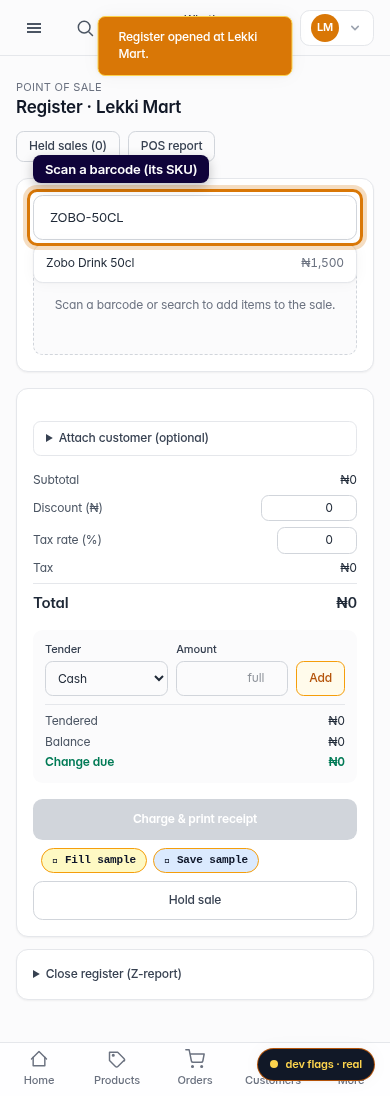
Mobile -
4
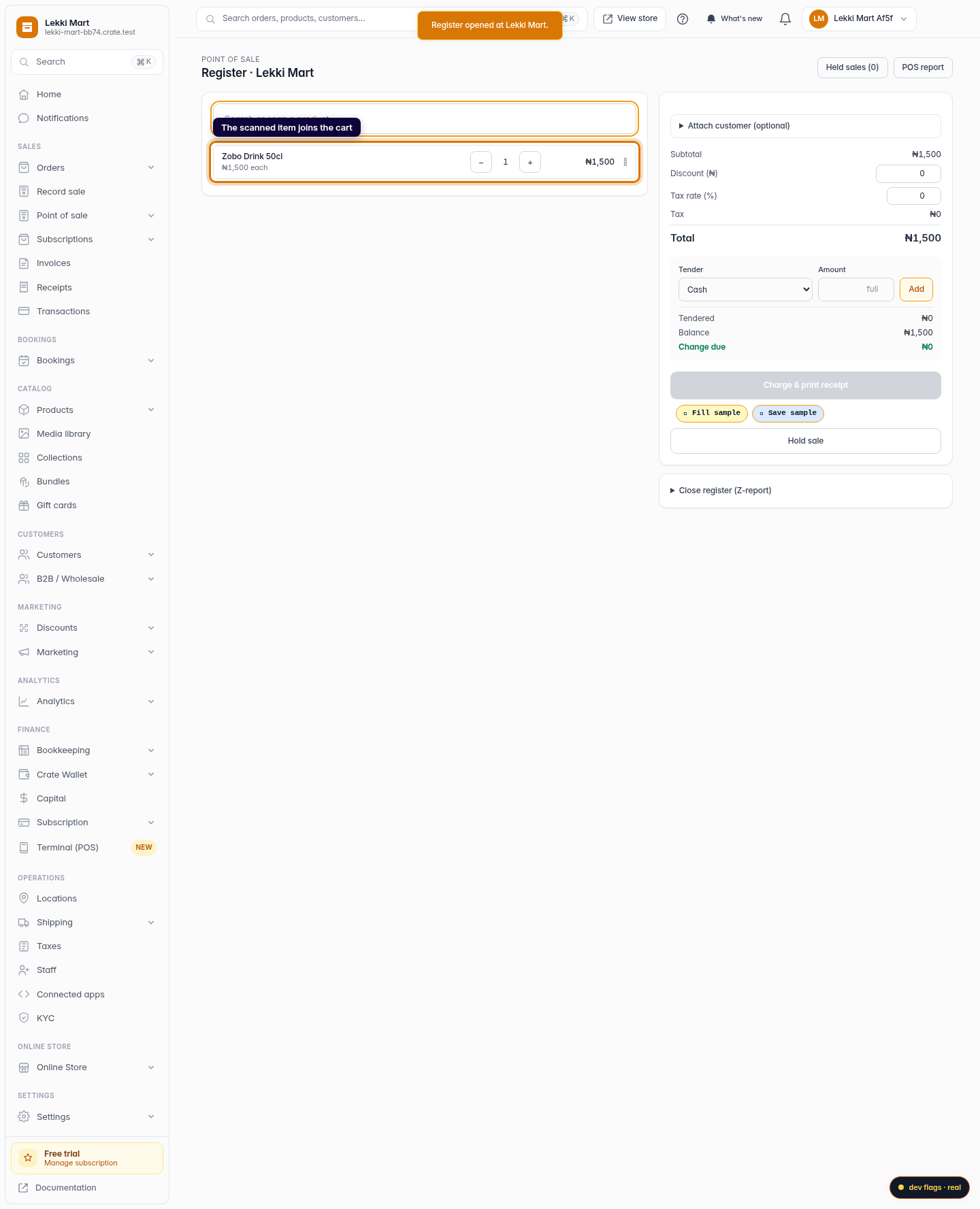
Add it to the cart
Click the matching result to drop it into the cart. Scan the next item to keep building the sale — scanning the same code again just bumps its quantity.
Web -
5
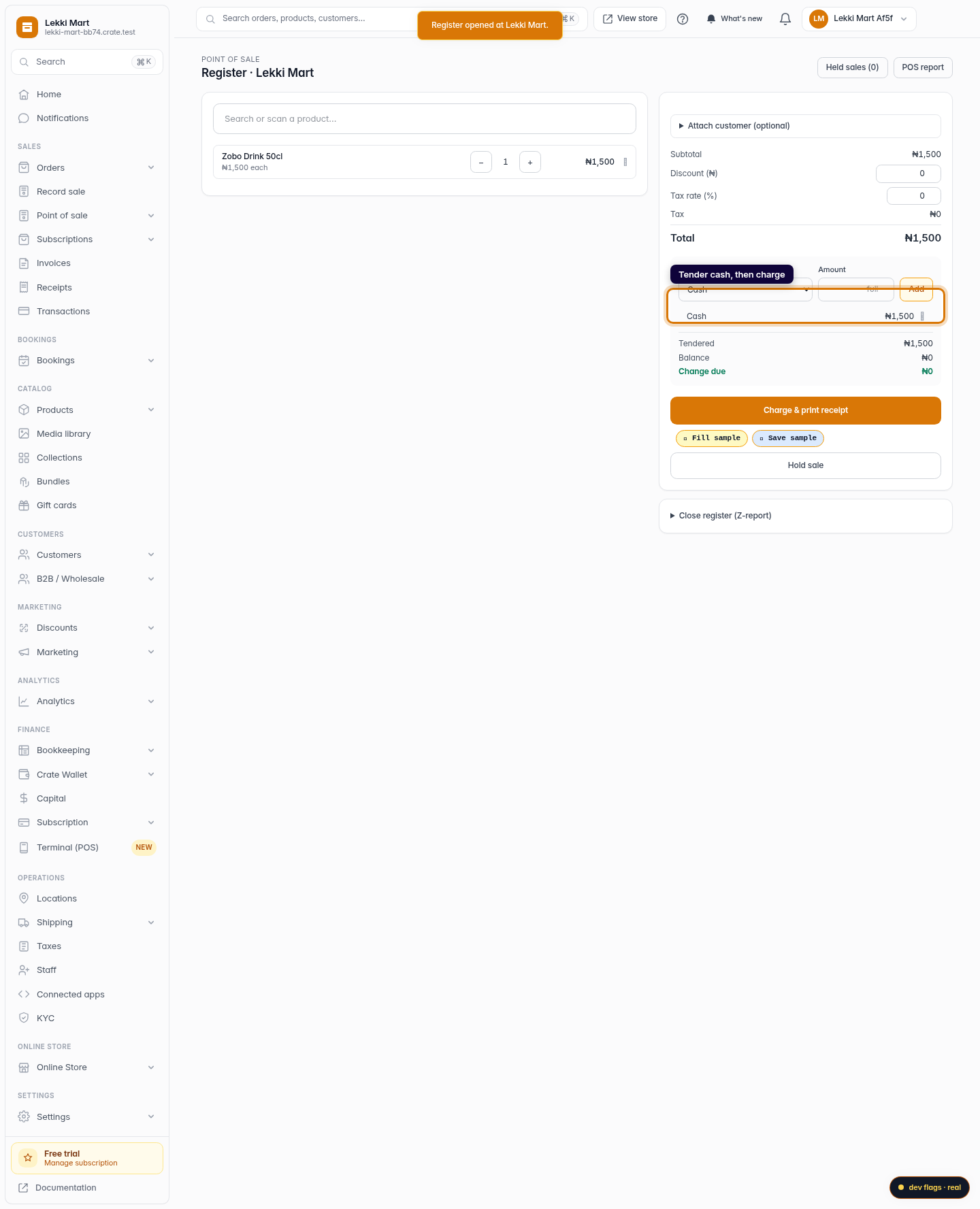
Take payment
Pick a tender (cash, card, transfer…), enter the amount, and click Add. Crate shows the change due. When the cart is fully paid, click Charge & print receipt.
Web -
6
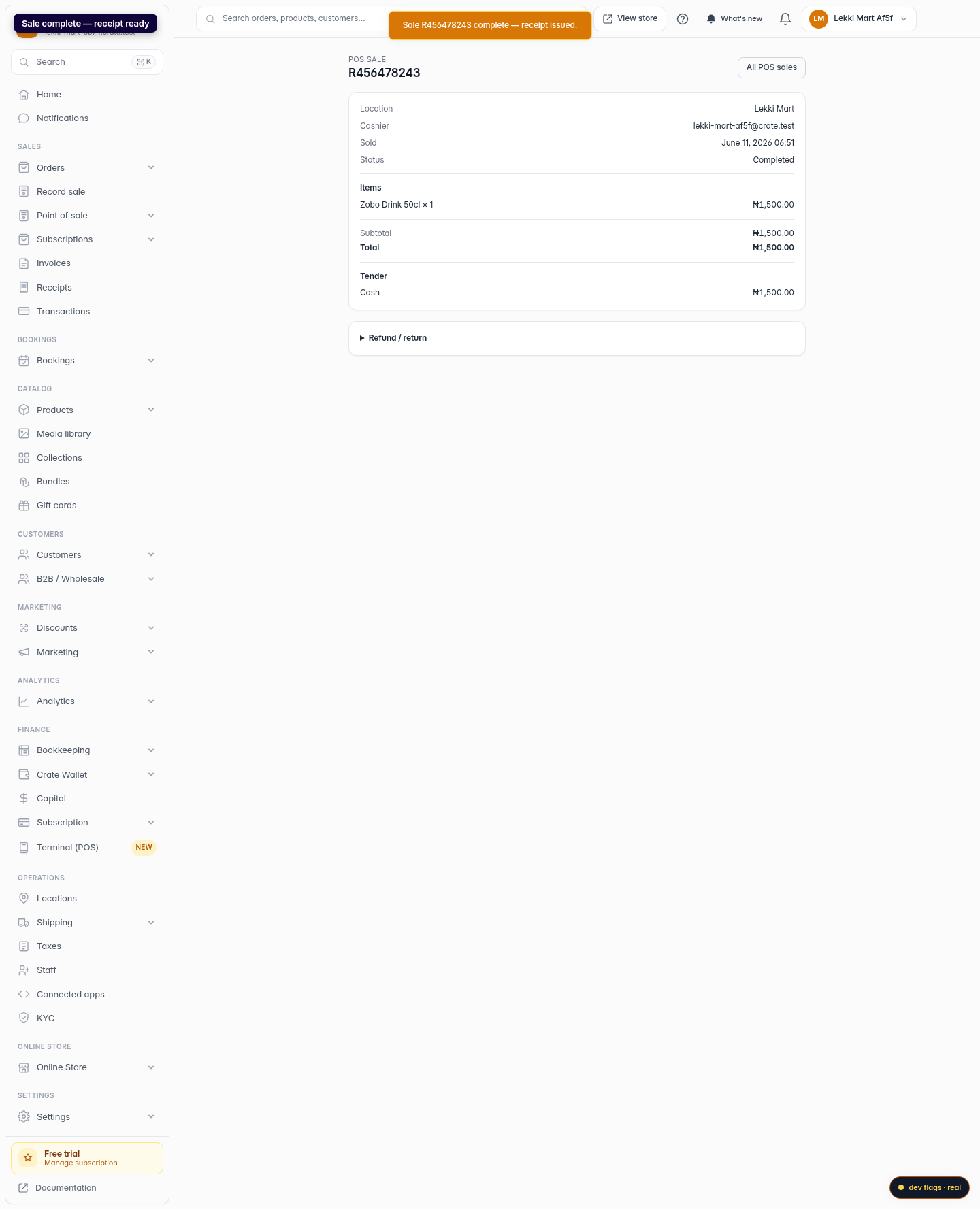
Sale complete
Crate records the order, decrements your stock, and takes you to the sale's receipt — ready to print or text to the customer.
Web 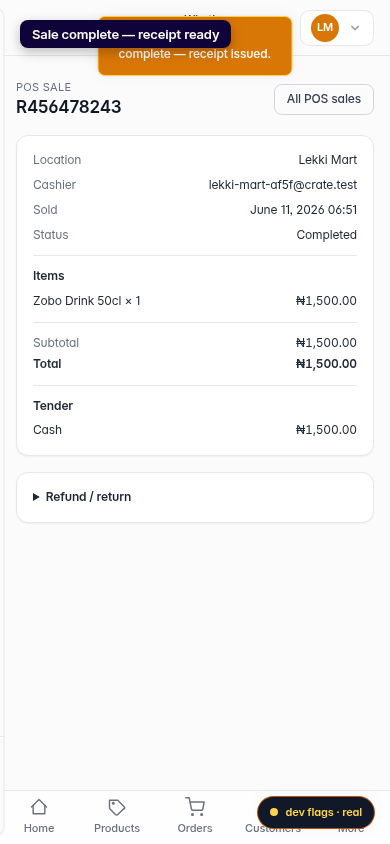
Mobile