Check your domain details and history
See a connected domain's status, SSL certificate, registrar, redirect preference and a full timeline of verification and renewal events — all on one page.
Once a custom domain is connected, the Domains area becomes the single place to check its health. Instead of logging into a registrar to find out whether your certificate is valid or when the domain renews, you see all of it on the domain's details page — status, SSL, registrar, redirect preference, DNS overview, and a history timeline.
This is the page to open when a shopper says your store won't load securely, or when you're not sure whether a recent change has taken effect.
What the Status panel tells you
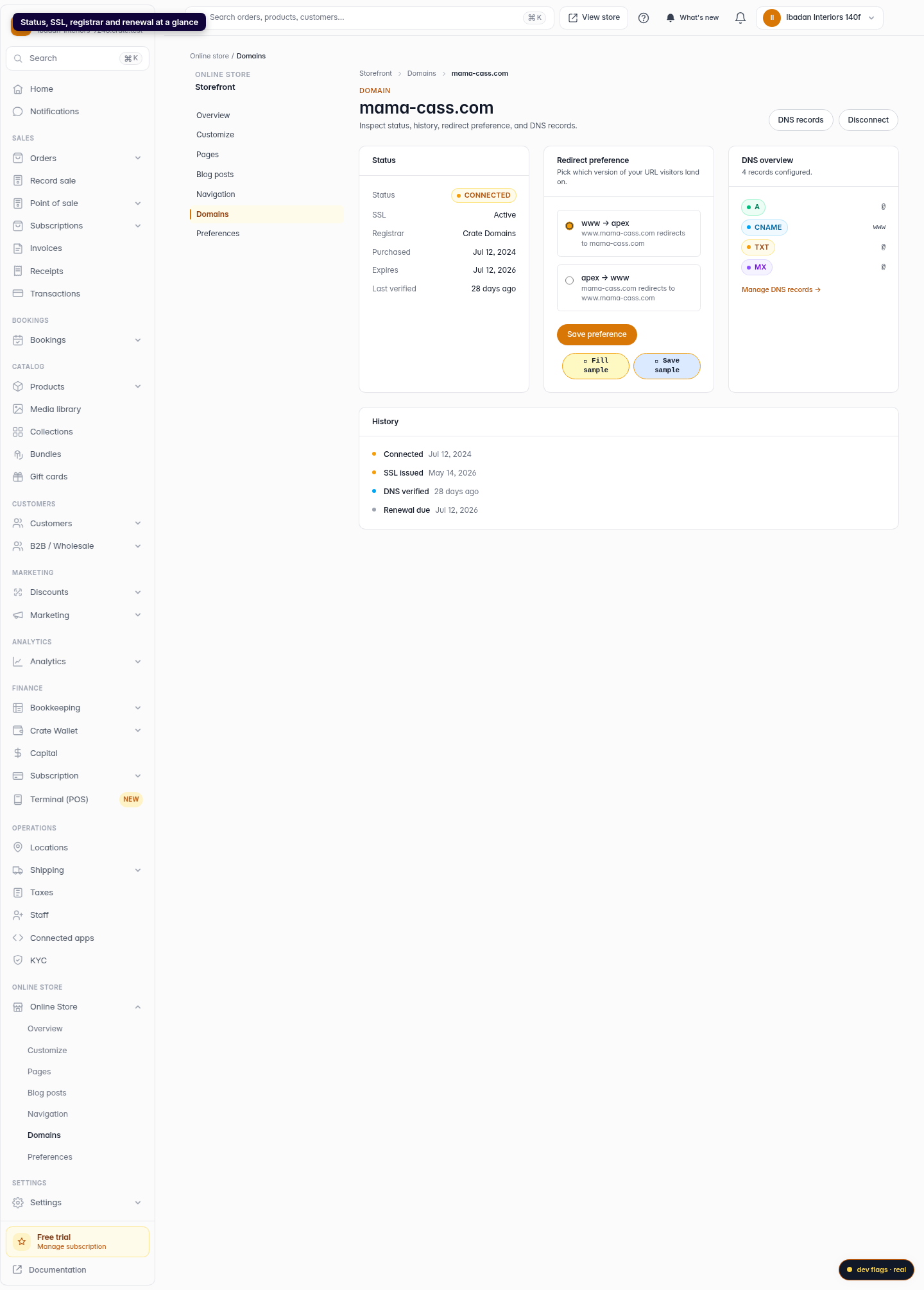
- Status — whether the domain is Connected and serving your store, or still Pending verification.
- SSL — the state of the certificate that powers the padlock in shoppers' browsers. Crate issues and renews these automatically.
- Registrar, Purchased, Expires — who the domain is registered with and its key dates.
- Last verified — when Crate last confirmed the domain's DNS still points at us.
The history timeline
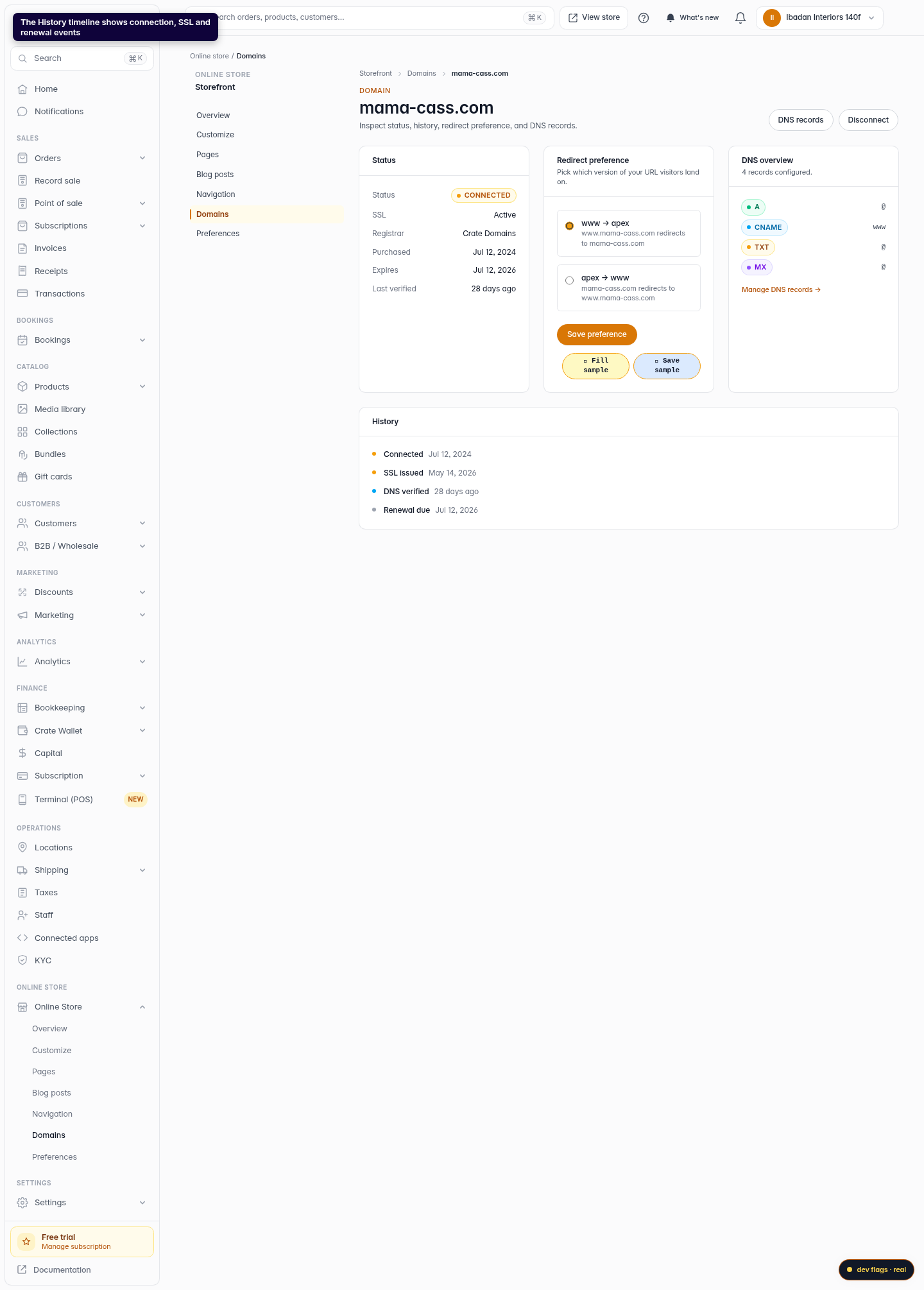
The History section is an at-a-glance audit of the domain's life: when it was connected, when its SSL certificate was issued, when DNS was verified, and when the next renewal is due. If you're troubleshooting, the timeline tells you whether the step you expected has actually happened yet.
Tip: SSL is handled for you — Crate issues a free certificate as soon as your domain points at our servers and re-issues it before it expires. If the SSL line says Issuing, give DNS time to propagate and check back.
From this page you can also jump straight to DNS records to adjust where the domain points, or set your redirect preference (www → apex or apex → www).
-
1
Open Domains
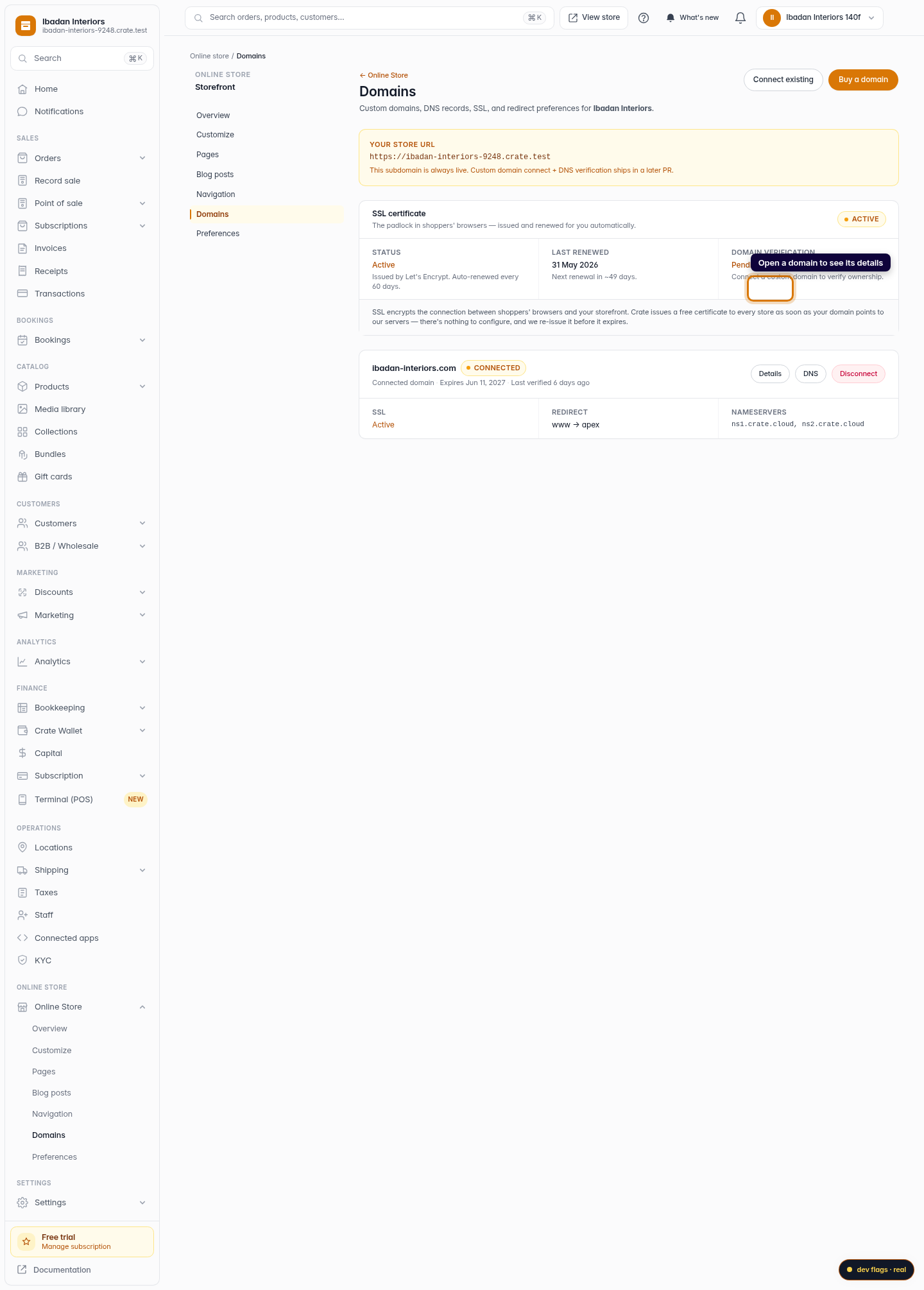
From your dashboard, open Online Store → Domains. Each connected domain shows as a card. Click Details to open one.
Web 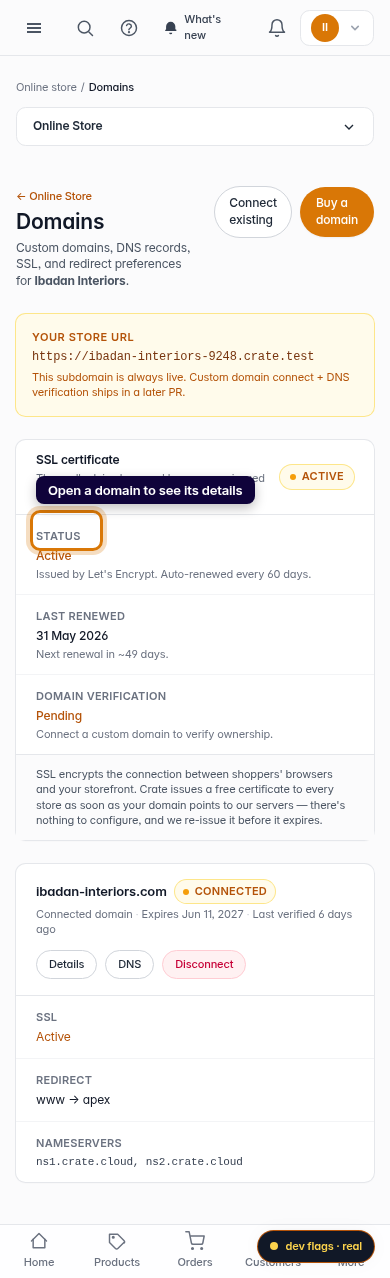
Mobile -
2
Read the status at a glance
The Status panel shows whether the domain is connected, its SSL state, the registrar, and when it was purchased, expires, and was last verified.
Web -
3
Review the history timeline
The History timeline lists the key events for the domain — when it was connected, when its SSL certificate was issued, when DNS was verified, and the next renewal date.
Web 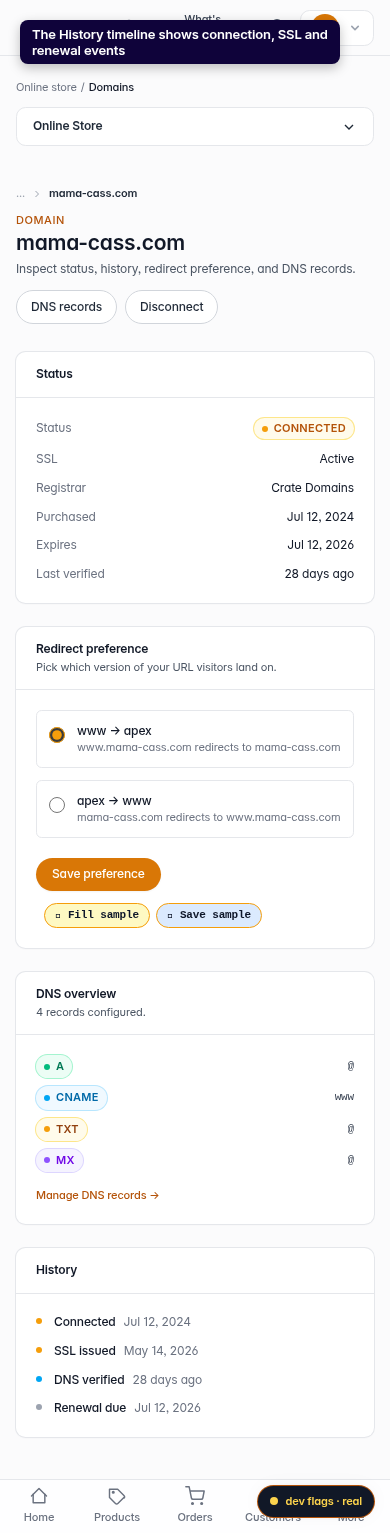
Mobile -
4
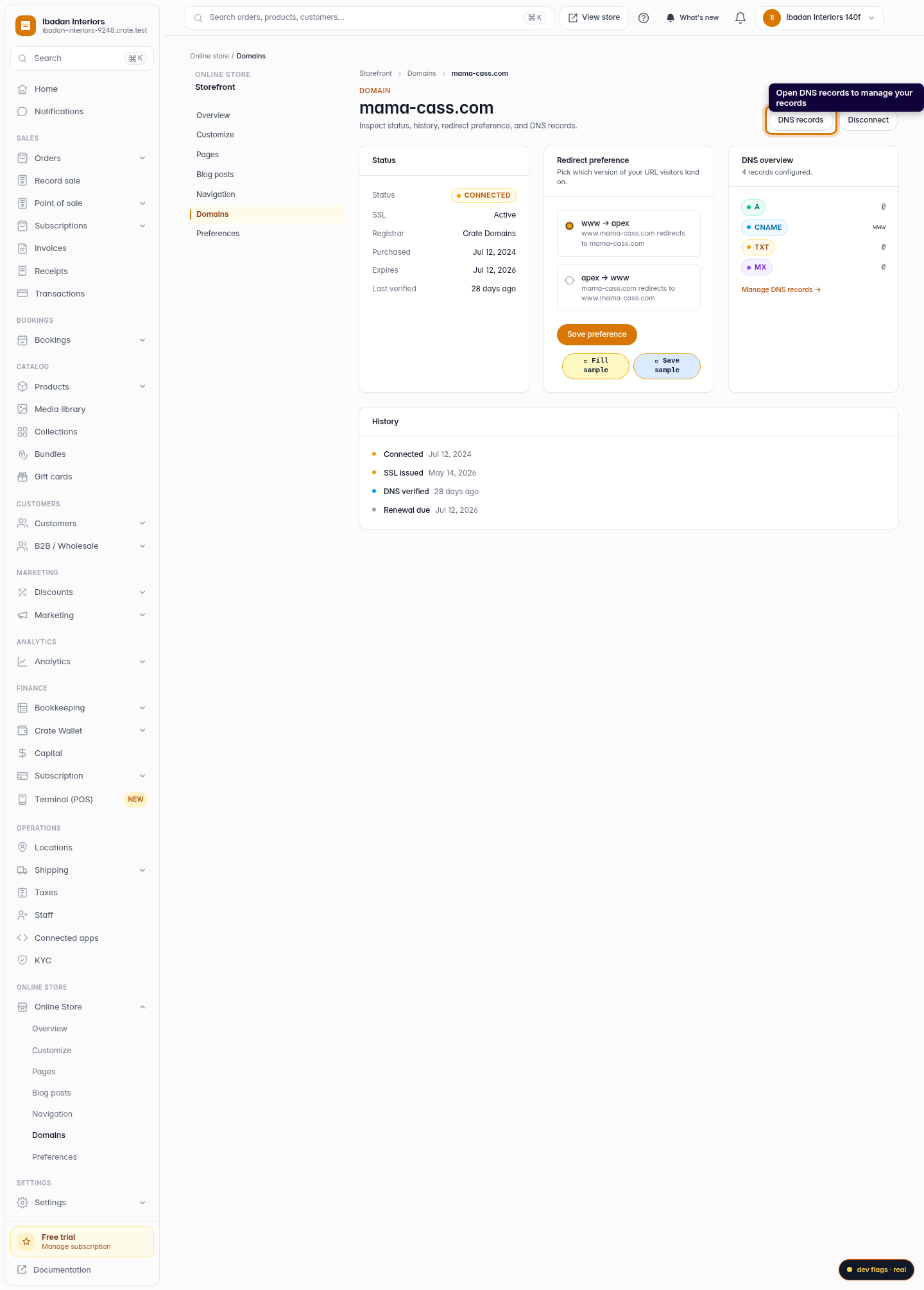
Jump to DNS records
Need to change where the domain points? Click DNS records to manage the domain's A, CNAME, TXT and other records from here.
Web