Change which products show on your store
Control the products on your home page by editing the Featured collection section — choose the collection to show and how many products appear, right in the storefront builder.
Your home page is built from sections, and the rows of products shoppers see are Featured collection sections. Changing what's listed — and how much of it — is a matter of editing those sections in the storefront builder. Your change shows live in the preview as you make it.
Each Featured collection section points at one of your collections, so the products it lists update automatically as you add or remove items from that collection. You're choosing which collection to spotlight and how many of its products to show.
What you control
- Category (collection) — the collection this section pulls from. Swap it to feature a different group of products entirely.
- How many products to show — the cap on the listing. A small number makes a neat, curated row; a larger one shows more of the collection.
- Heading and button — the title above the row and the see-all link beneath it.
Reorder or add more
Want a different collection higher up the page? Use the section's move controls in the builder to drag it above or below others. Need a second listing? Add another Featured collection section and point it at a different collection.
Tip: Empty rows look broken. Point each Featured collection section at a collection that actually has products in it — if a collection is empty, add products to it first from Collections.
Edits save to a draft as you work. Click Publish in the builder to push your new listing live.
-
1
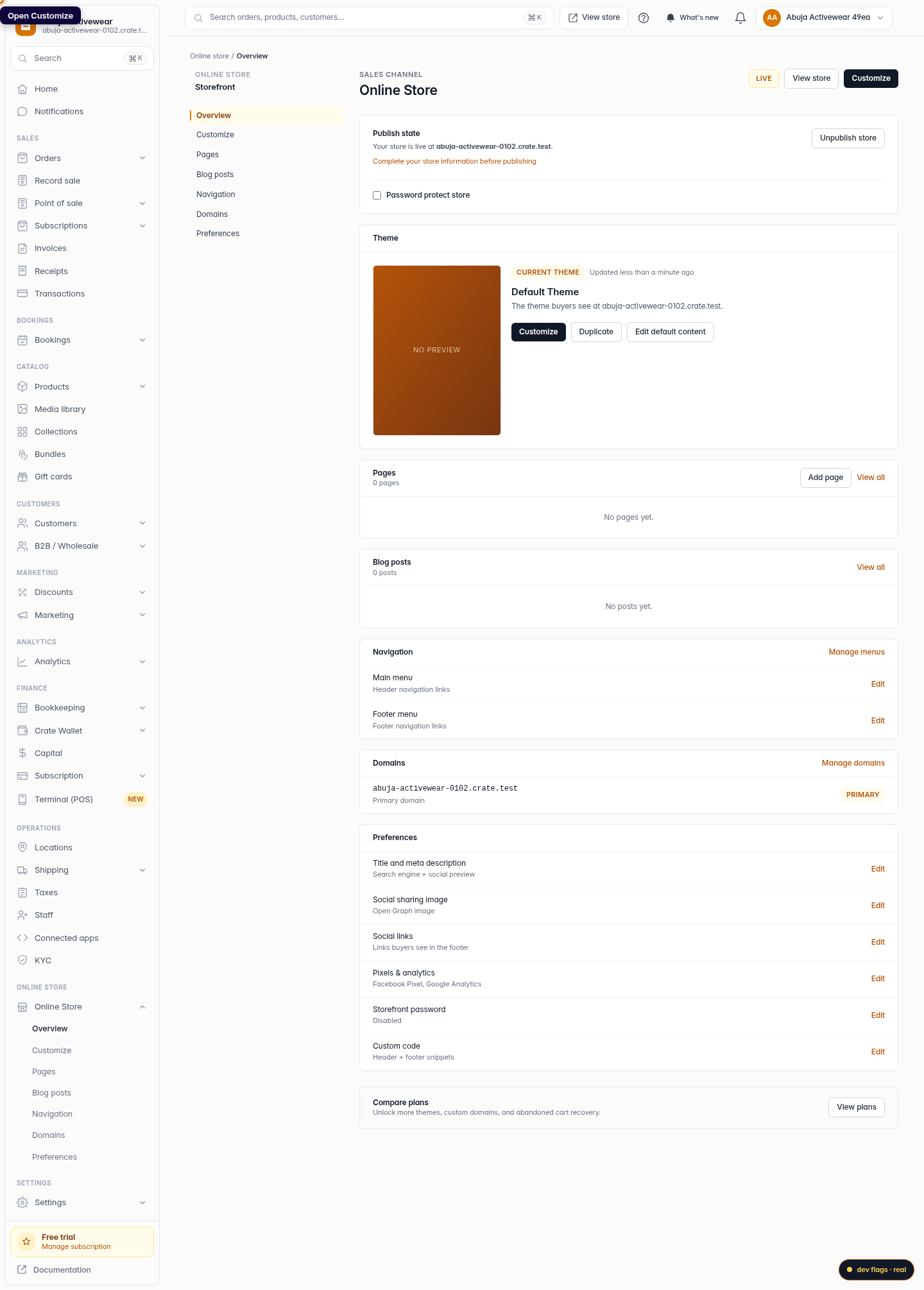
Open Customize
From your dashboard, open Online Store and click Customize to launch the storefront builder.
Web 
Mobile -
2
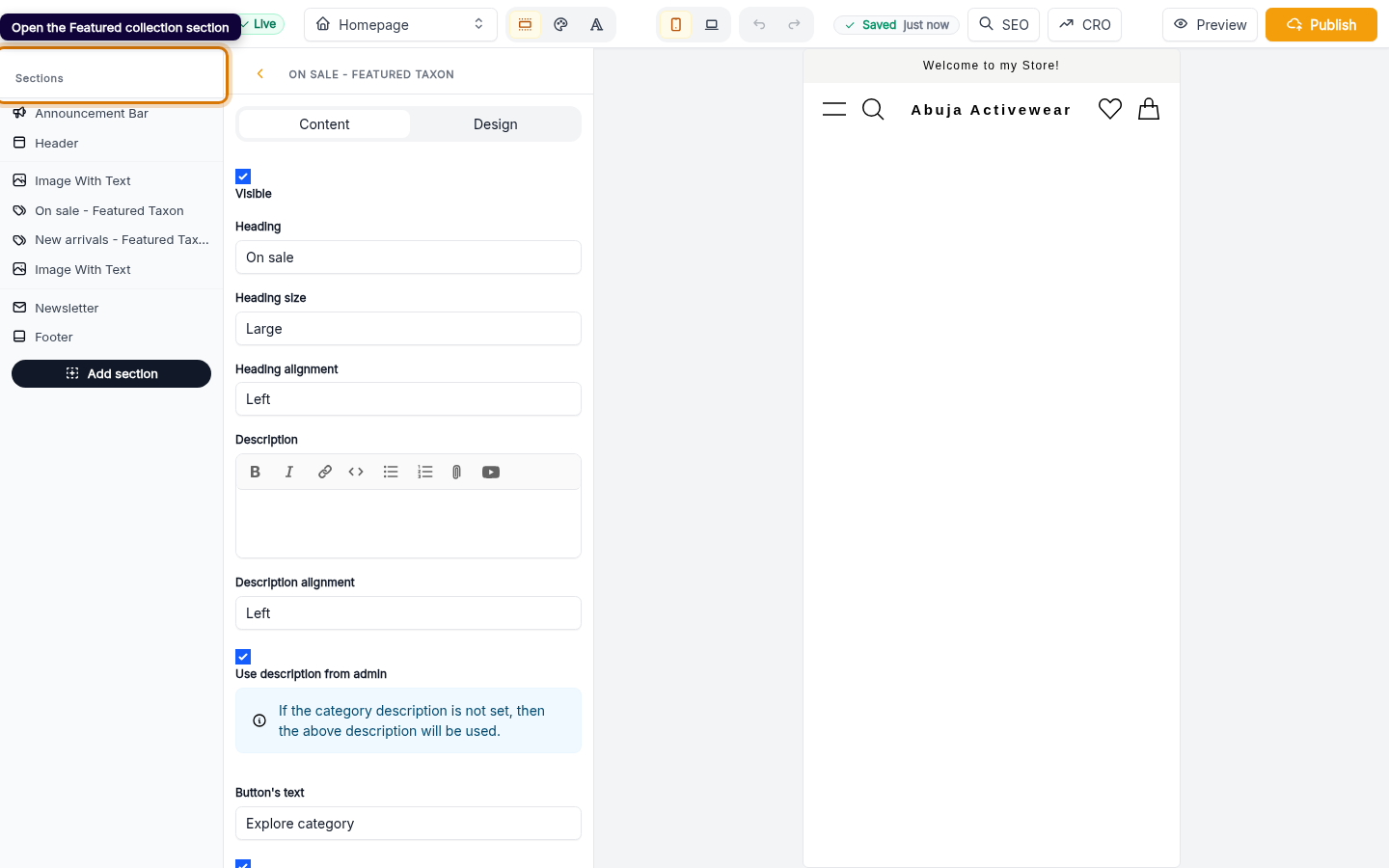
Open the Featured collection section
In the builder's section list, open a Featured collection section. Each one is a block of products on your home page — this is what shoppers scroll through.
Web -
3
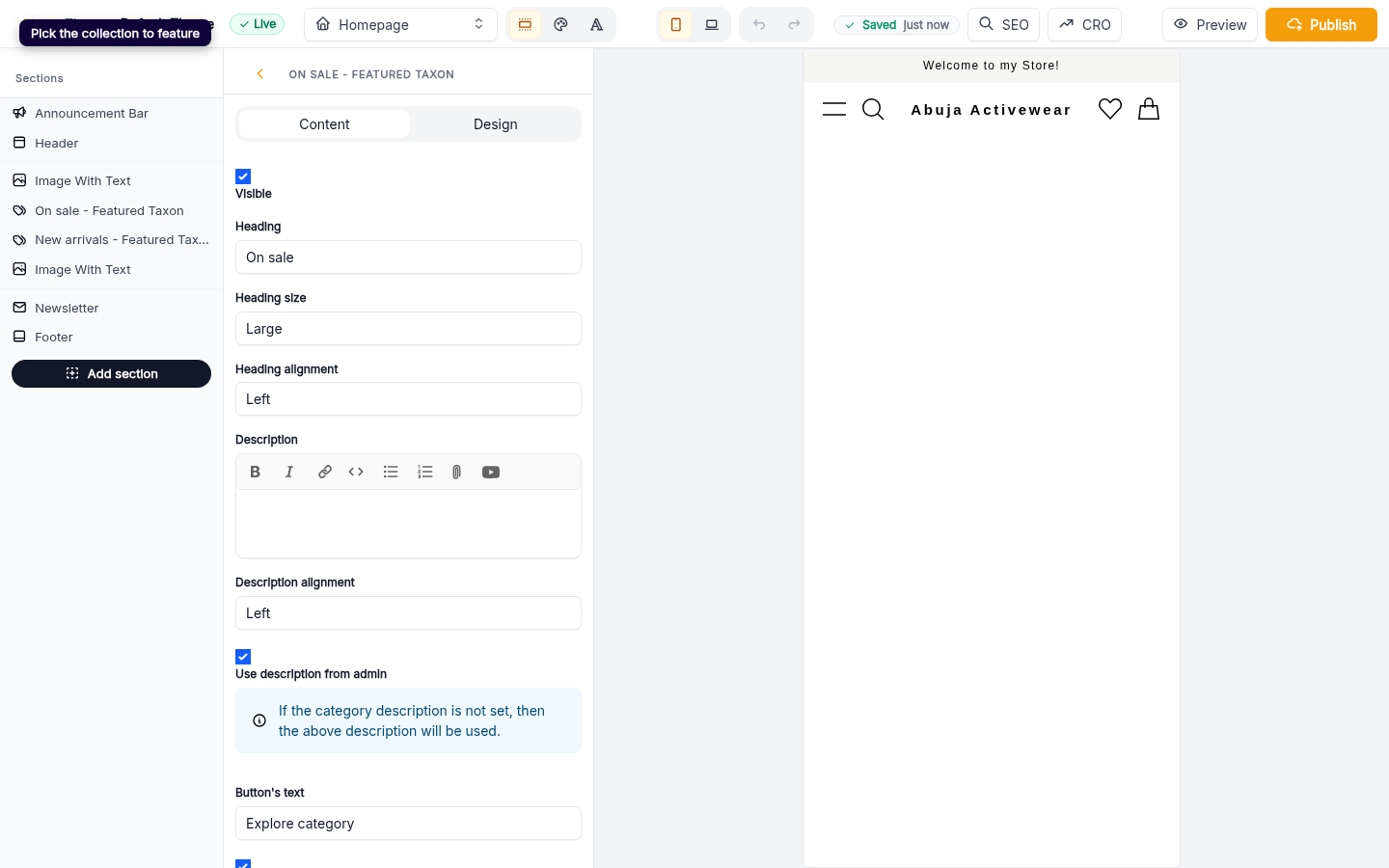
Pick the collection to feature
Under Category, choose which collection of products this section shows — your newest drops, a sale group, or any collection you've created.
Web -
4
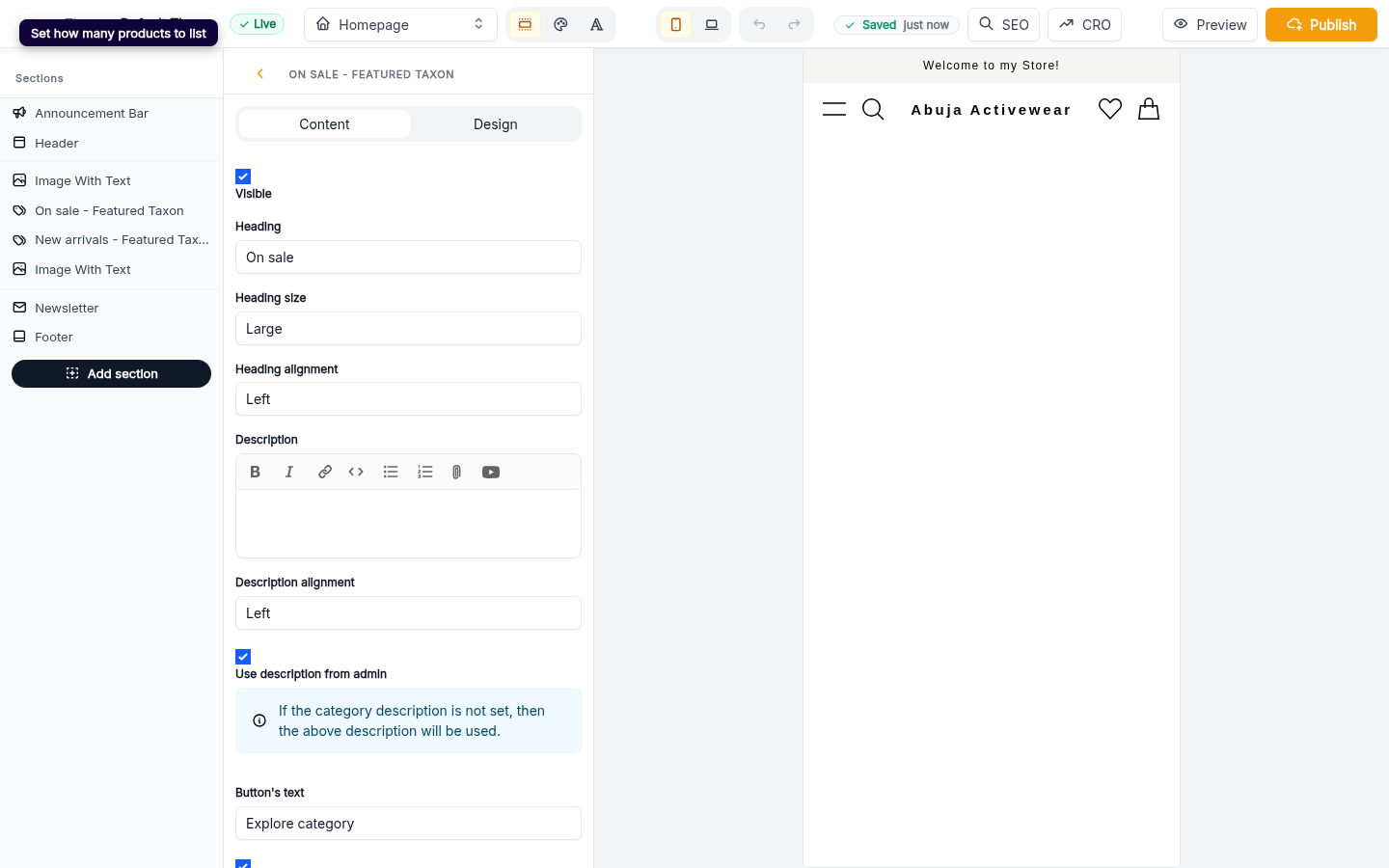
Set how many products to list
Use how many products to show to control the size of the listing — keep it tight for a curated row, or raise it to show a full collection.
Web