How customers leave reviews — and how you moderate them
Reviews build buyer trust. Shoppers rate and review products right on your storefront; you approve, reply to, and answer everything from one Reviews & Q&A queue before it goes public.
Reviews are some of the most persuasive content on your storefront — a prospective buyer trusts another customer far more than any product description. Crate lets shoppers review the products they've bought, and gives you full control over what appears, all from a single moderation queue.
How customers leave a review
On your storefront, a customer who has bought a product can rate it and write a review right on the product page. When their order matches their email, Crate flags the review as a Verified buyer, which carries extra weight with future shoppers. Customers can also ask questions about a product before they buy.
Every submission is private until you approve it — nothing a customer writes appears on your storefront automatically.
Your moderation queue
Open Reviews in the dashboard and you'll find everything in one place:
- Pending — new reviews and questions awaiting your decision.
- Approve / Reject — publish a review to the product page, or keep it off your storefront.
- Reply — respond publicly beneath a review (great for thanking a happy customer or addressing a concern).
- Questions tab — answer customer questions; your answer publishes to the product page so future shoppers see it too.
Tip: Reply to your reviews — even the glowing ones. A visible, gracious response shows prospective buyers there's a real, attentive business behind the storefront.
Why approval matters
Because reviews stay hidden until you approve them, your storefront only ever shows feedback you've seen. That protects you from spam and lets you reply before a review goes public — turning even a critical review into a chance to show great service.
-
1
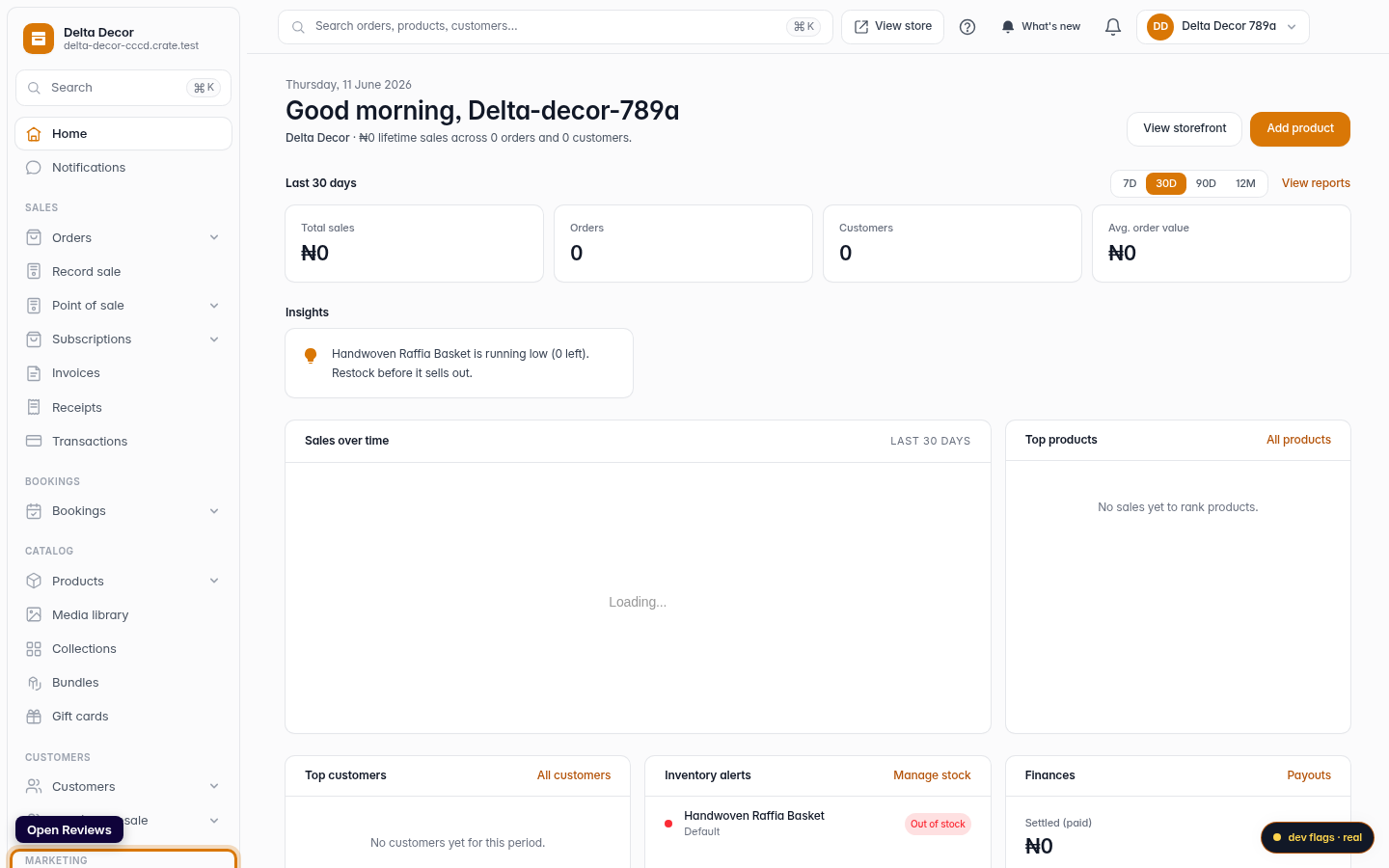
Open Reviews
From your Crate dashboard, open Catalog → Reviews in the sidebar. This is your moderation queue for everything customers leave on your products.
Web 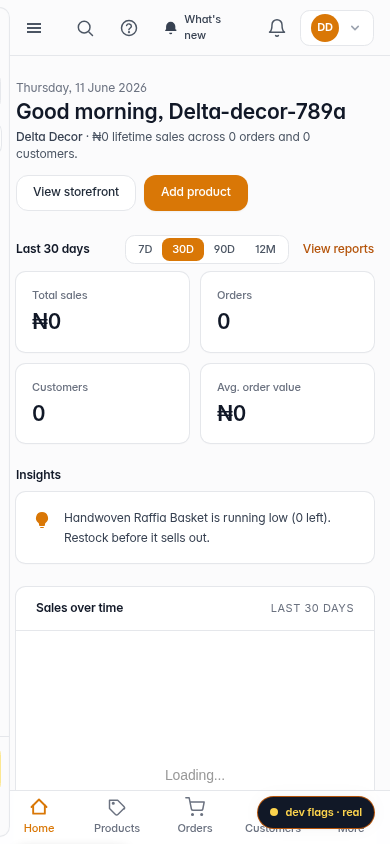
Mobile -
2
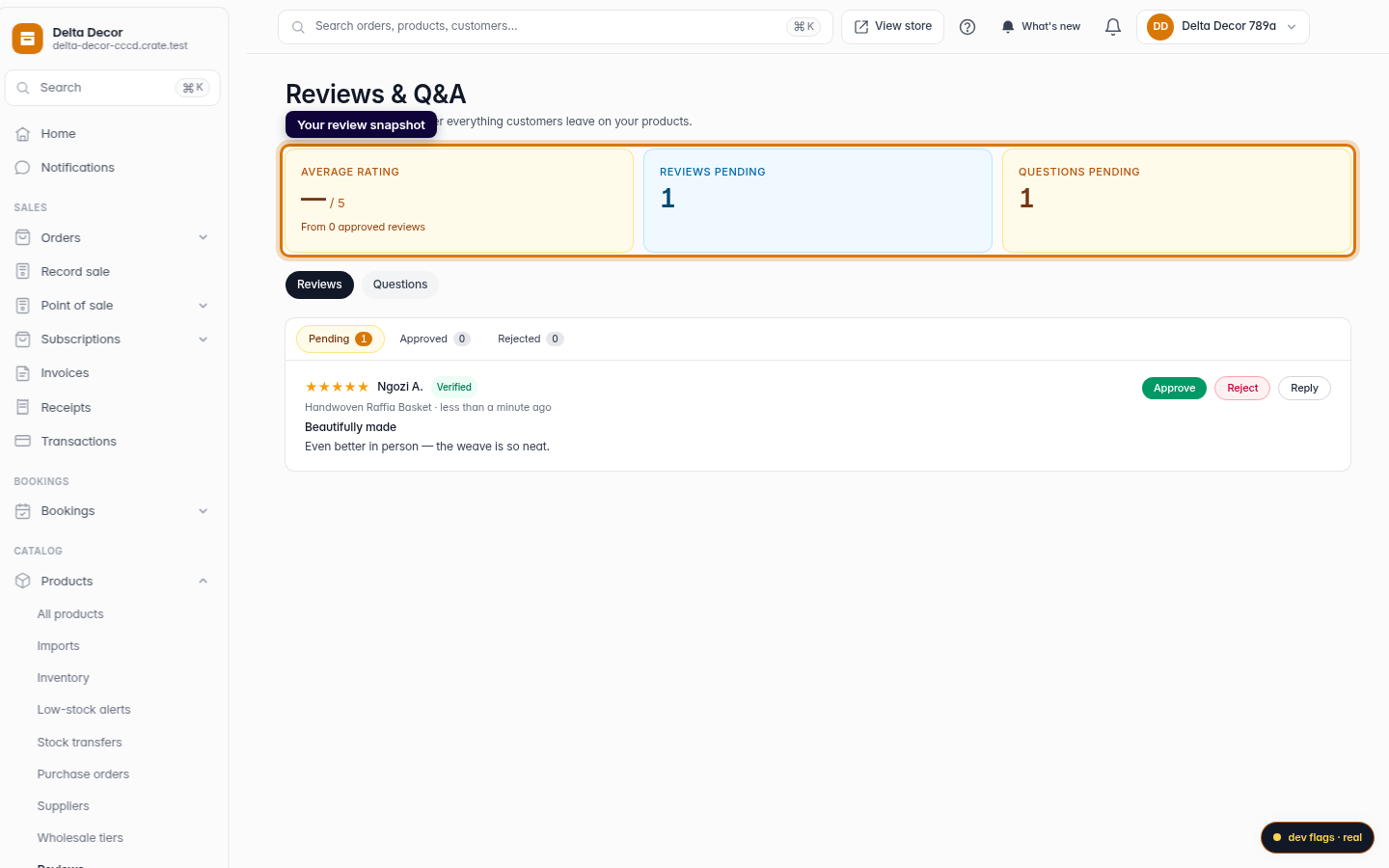
See your review snapshot
The top cards show your average rating, plus how many reviews and questions are pending your attention. Below, tabs split content into Pending, Approved, and Rejected.
Web -
3
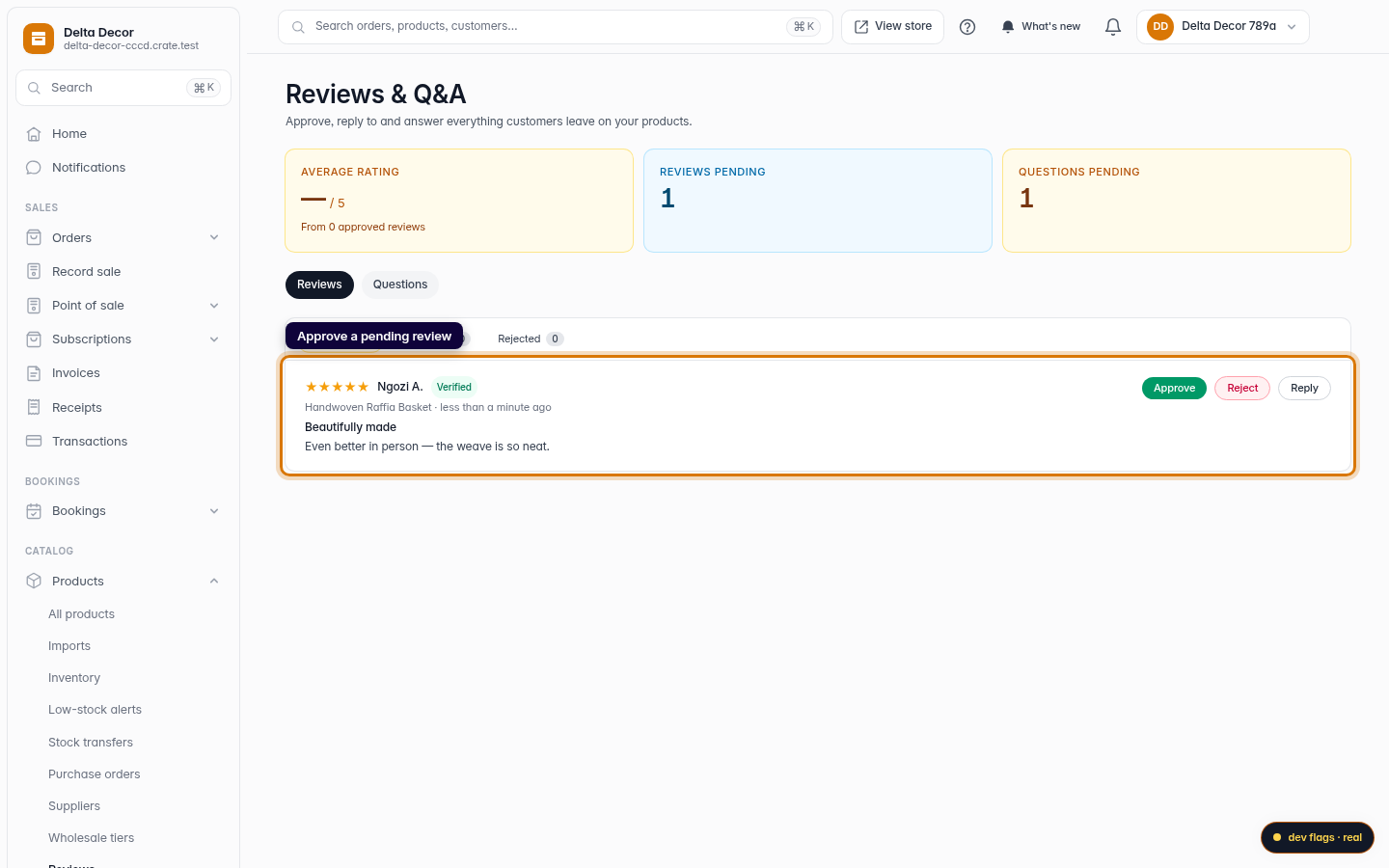
Approve a pending review
A new review lands in Pending and stays hidden until you act. Click Approve to publish it on the product page, or Reject to keep it off your storefront.
Web 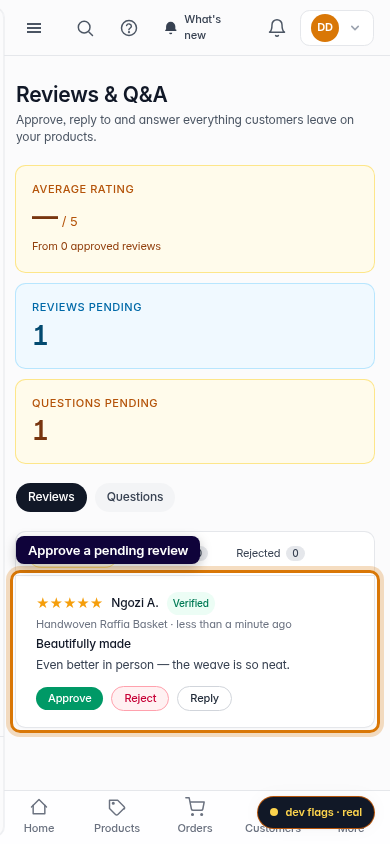
Mobile -
4
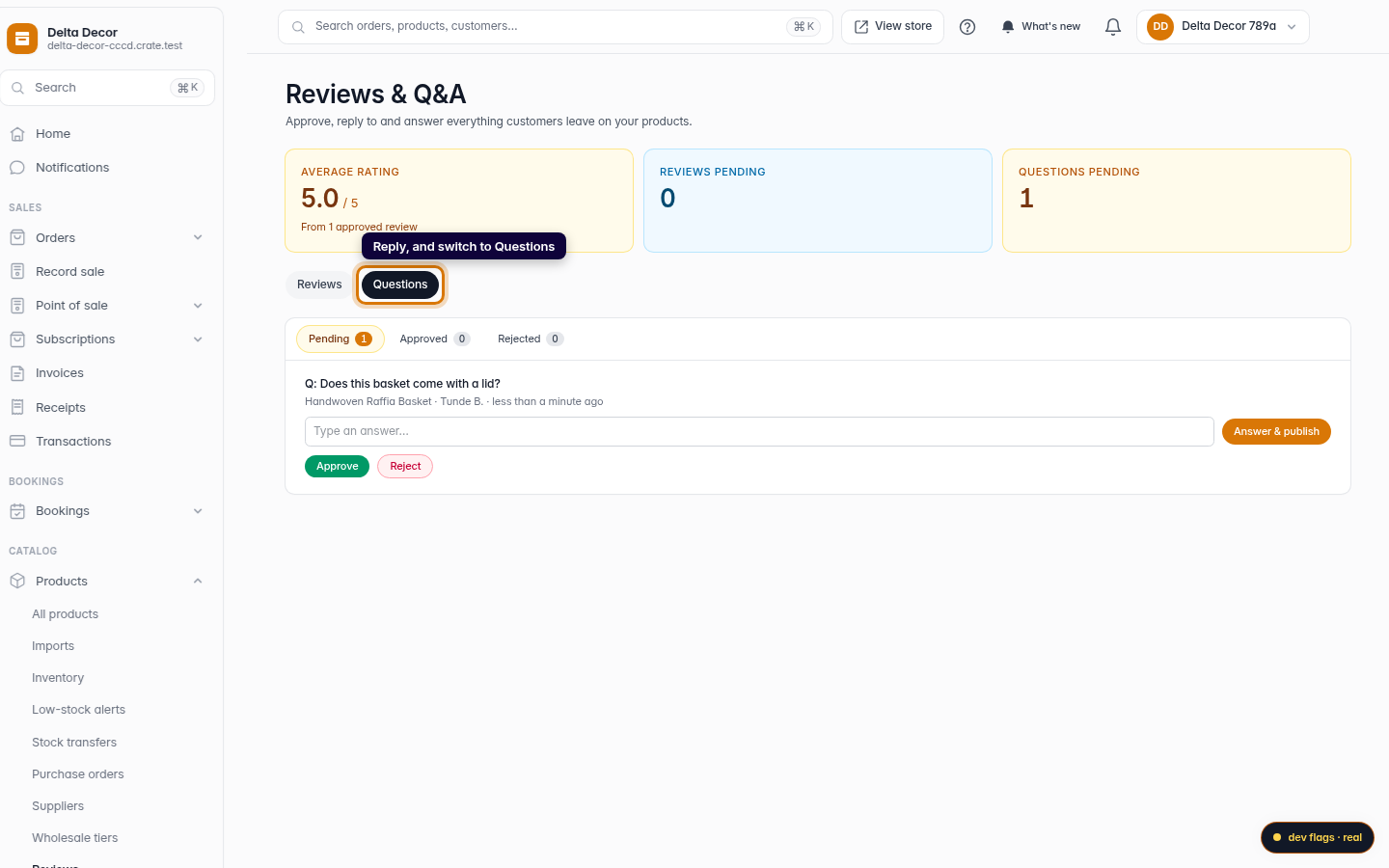
Reply, and switch to Questions
Open Reply to respond publicly under a review. Use the Questions tab to answer customer questions about your products — answers publish to the product page too.
Web