Change your theme colour
Match your storefront to your brand. Open the Customize editor, pick a colour preset or set your own brand colour, and publish — the change ripples across buttons, links, and accents site-wide.
Colour is the fastest way to make a storefront feel like yours. Crate's Customize editor lets you set a brand colour — plus text, button, background and accent colours — and watch the storefront preview update live before anything goes public.
Presets vs. your own colour
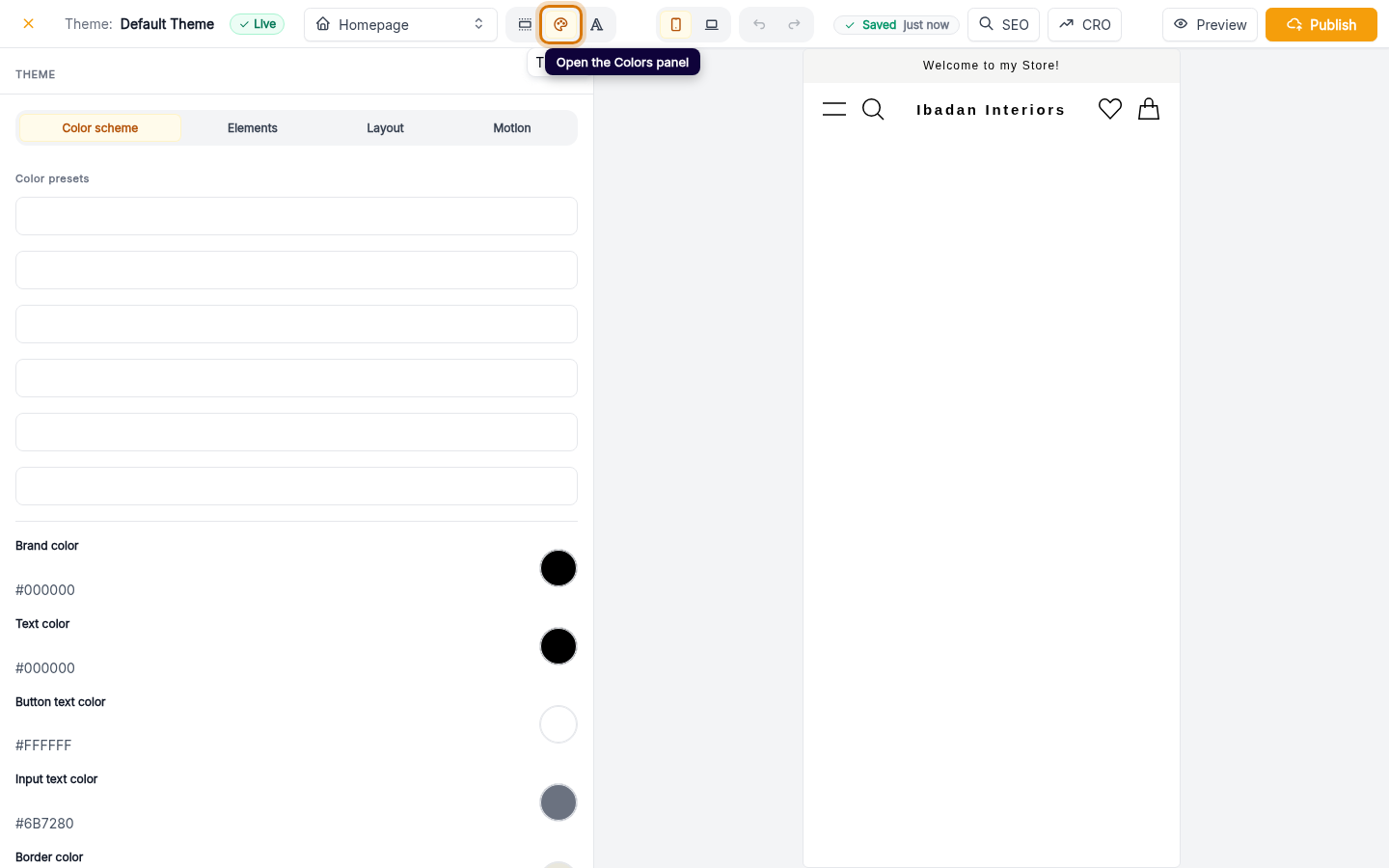
The Colors panel gives you two ways to work:
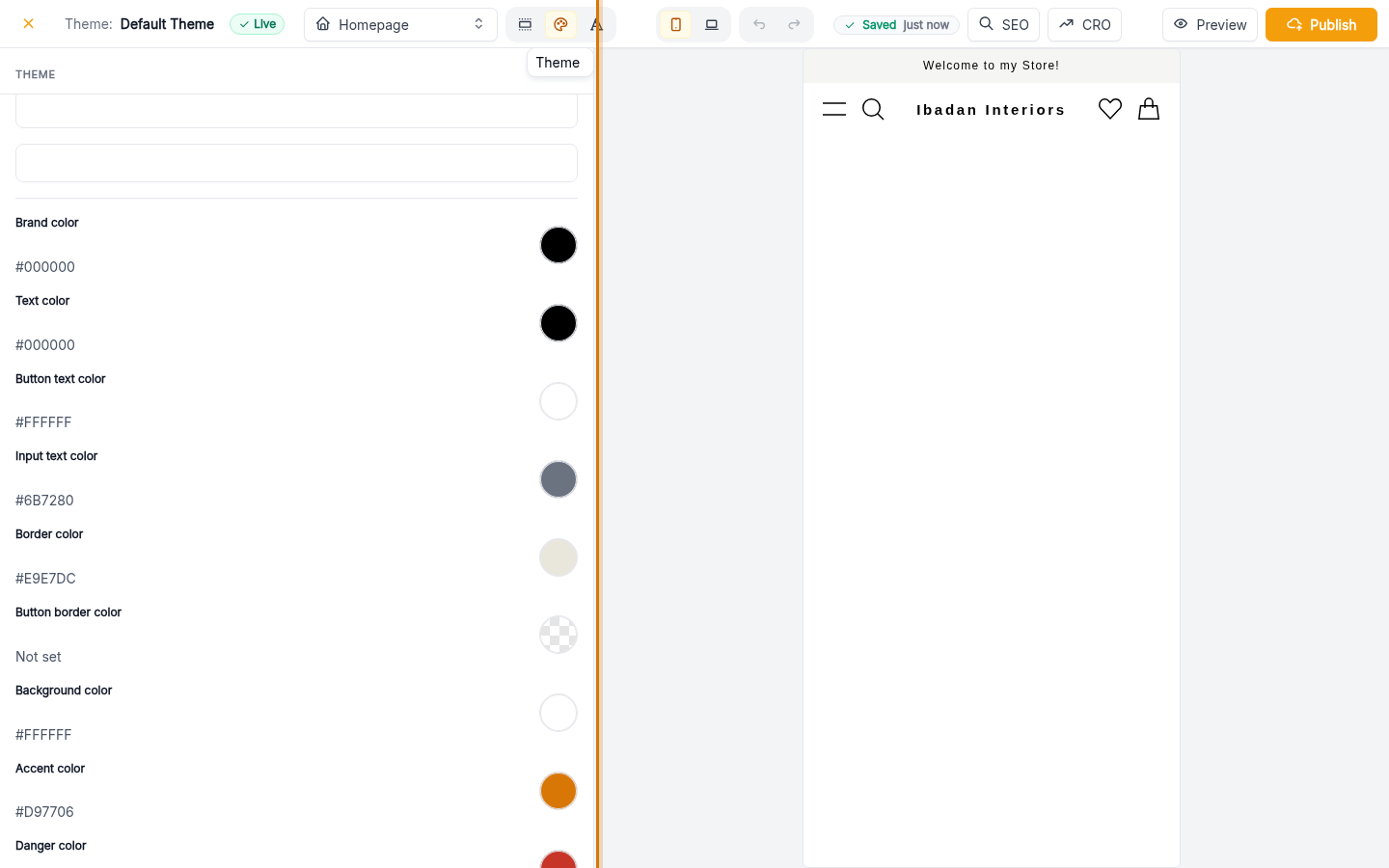
- Colour presets — a row of coordinated palettes at the top of the panel. One click sets several colours at once, so everything stays harmonious.
- Per-colour pickers — set your exact brand colour, text colour, button colours and more. Use these when you have a precise hex value from your brand guidelines.
Both update the live preview instantly, so you're never guessing.
Tip: Start from the preset that's closest to your brand, then nudge the individual Brand colour picker. It's faster than building a palette from scratch.
Drafts and publishing
Editor changes are saved to a draft of your live theme — your storefront keeps showing the current colours until you're ready. When the preview looks right, hit Publish and the new palette goes live everywhere your colours appear: buttons, links, badges and accents. Nothing else about your theme or products changes.
-
1
Open Customize
From the Online Store overview, click Customize on your current theme. This opens the live storefront editor with a real-time preview.

Web -
2
Open the Colors panel
In the editor's left rail, click the Colors icon. The colour scheme panel opens with presets at the top and a picker for every brand colour below.
Web -
3
Pick a preset or your brand colour
Apply a ready-made colour preset for an instant coordinated palette, or set your brand colour precisely with the colour picker. The preview repaints as you go.
Web -
4
Publish your change
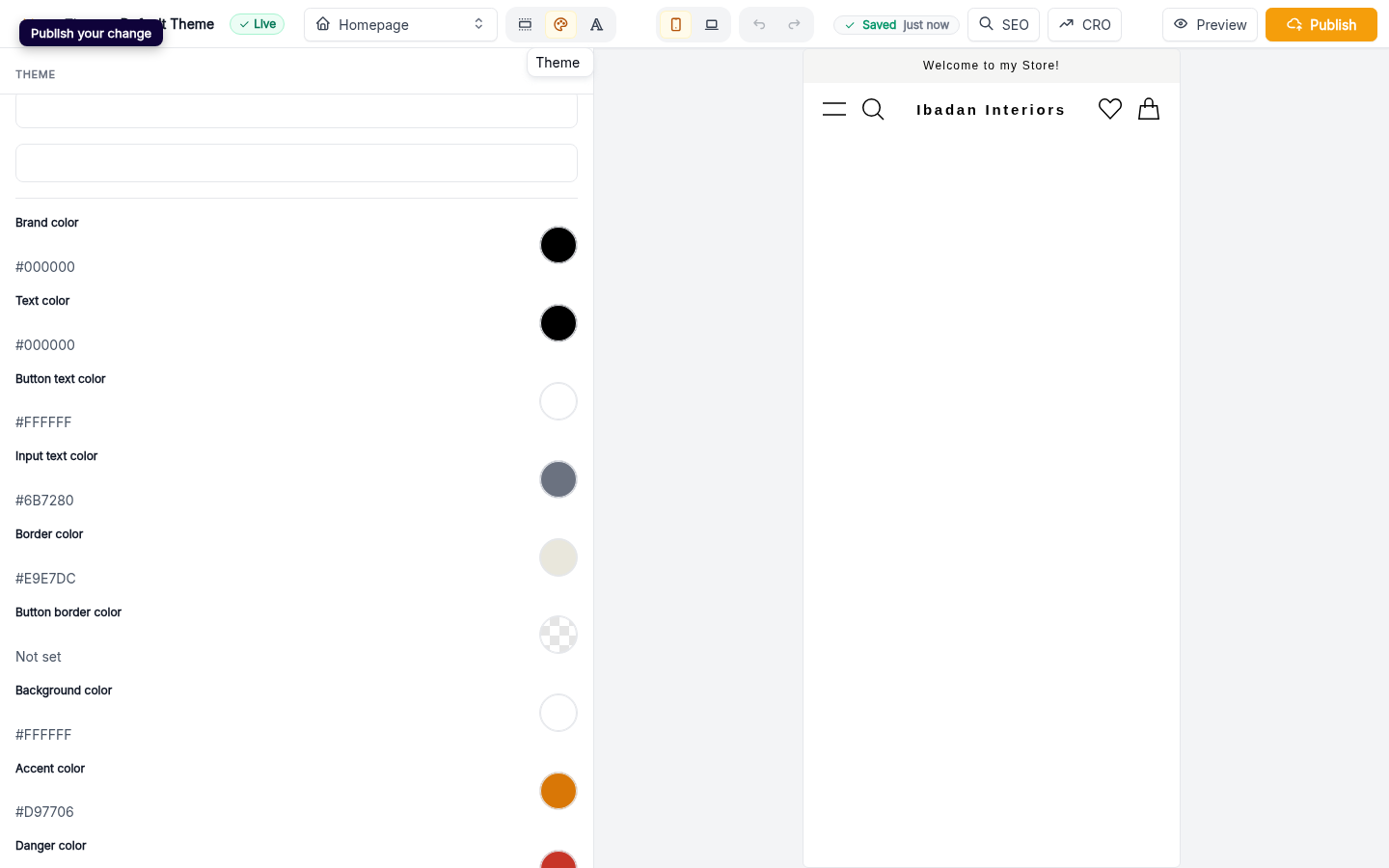
Your edits are saved to a draft of the theme. Click Publish in the editor header to push the new colours live to your storefront.
Web