Add and edit your newsletter pop-up
Turn first-time visitors into subscribers with a newsletter pop-up. Set when it appears, write the offer, and attach a welcome coupon — all from the Customize builder, with a live preview as you type.
A newsletter pop-up is one of the fastest ways to grow a list of shoppers you can sell to again and again. On Crate it's a built-in storefront section — free on every plan — that collects email addresses straight into your dashboard, where you can broadcast to them later.
Every change you make to the pop-up saves automatically and repaints the live preview beside you, so you can see exactly what shoppers will see before anyone visits.
Where subscribers land
Email addresses captured by the pop-up are stored under Online Store → Newsletter in your dashboard. From there you can send a one-off broadcast or export the list. The pop-up and the subscriber list are two halves of the same feature — the pop-up collects, the Newsletter page sends.
Tip: Keep the offer specific. "Get 10% off your first order" converts far better than "Subscribe to our newsletter" — shoppers trade an email for a reason, not a request.
Turning it off
The pop-up is a section like any other. To stop it showing, open it in the builder and hide the section, or remove it entirely — your storefront keeps working exactly as before, minus the pop-up.
-
1
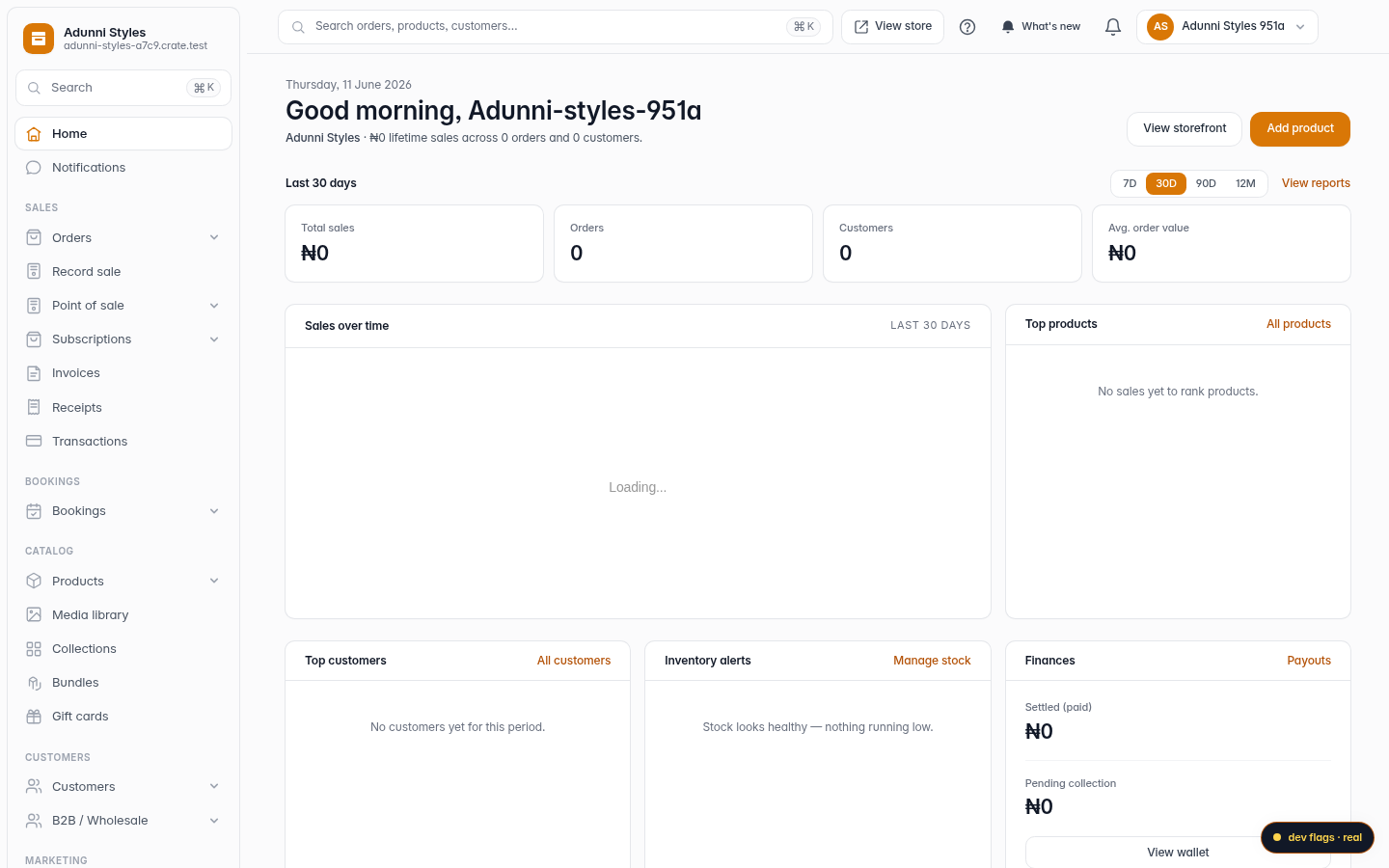
Open the Customize builder
From your Crate dashboard, open Online Store in the sidebar, then click Customize to open the storefront builder. Everything on your store is a section you can edit here.
Web -
2
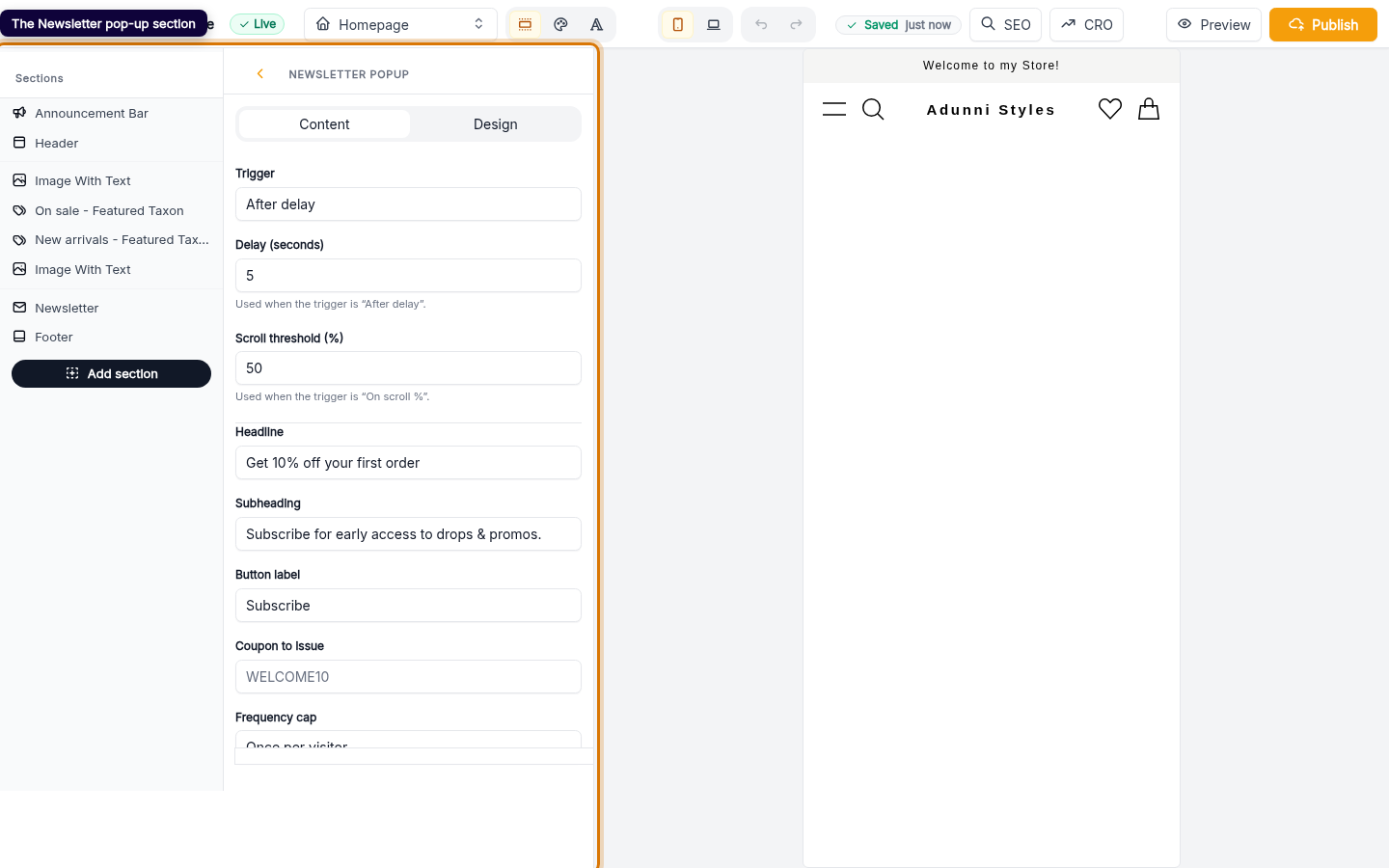
Find the Newsletter pop-up section
The builder opens straight on the Newsletter pop-up section. It's a floating section, so it isn't pinned to one page — it can appear anywhere on your storefront.
Web -
3
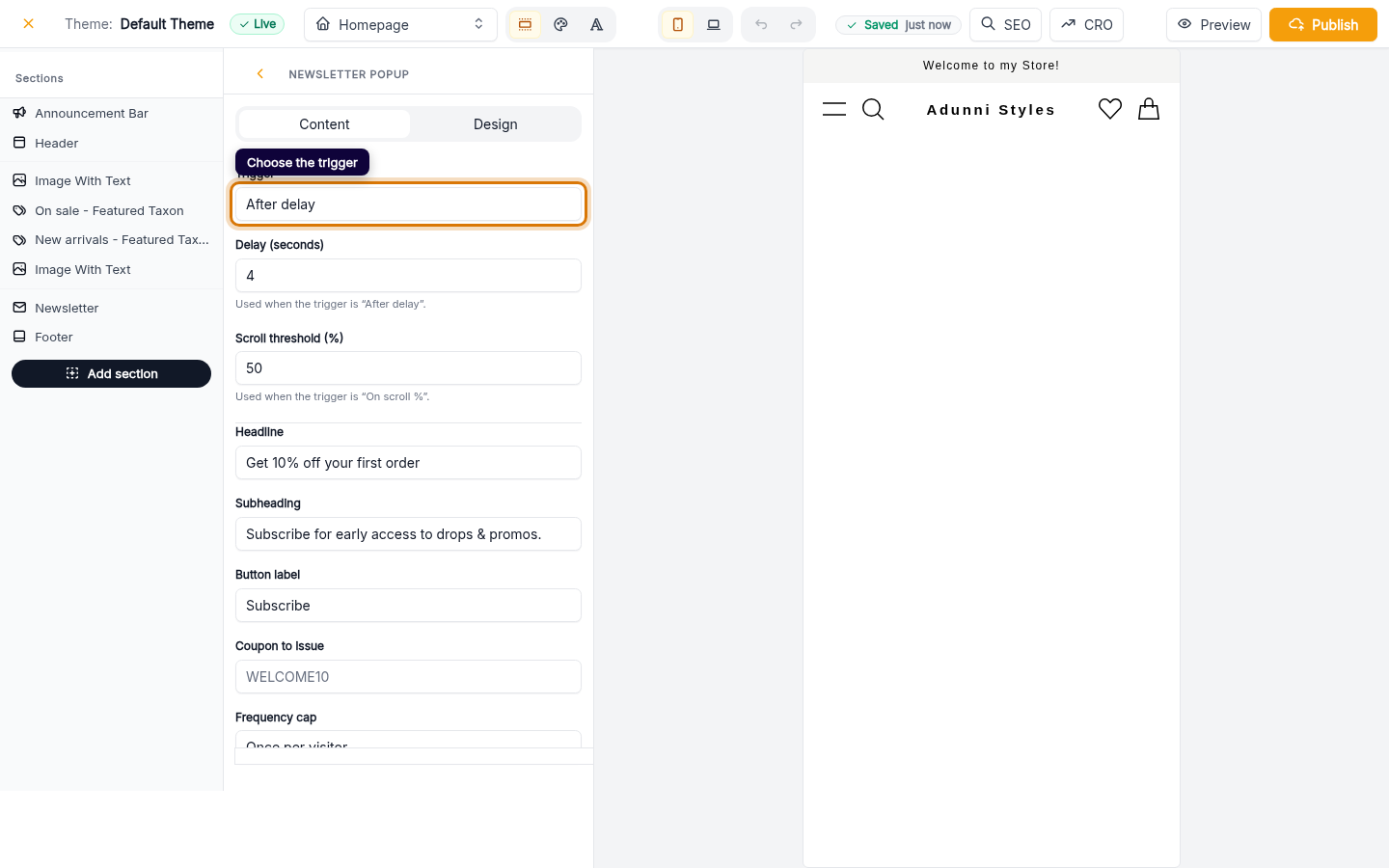
Choose when it appears
Set the Trigger that brings the pop-up up:
- After delay — shows a few seconds after the page loads (set the delay below).
- On exit intent — shows when a shopper moves to close the tab.
- On scroll % — shows once they've scrolled past a threshold you set.
Web -
4
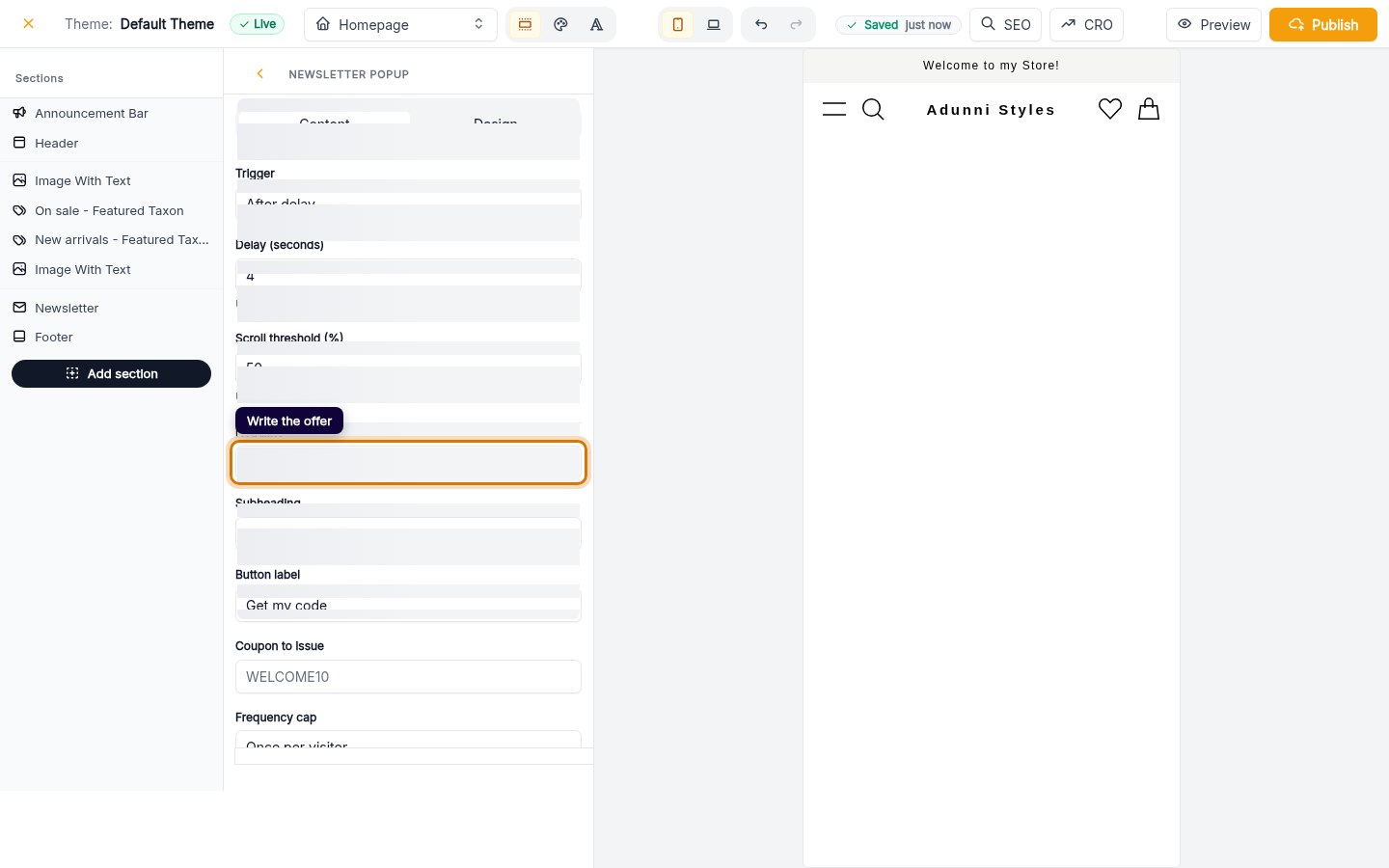
Write the offer
Fill in the Headline, Subheading and Button label. A clear incentive — a discount, early access, free shipping — is what turns a visitor into a subscriber.
Web -
5
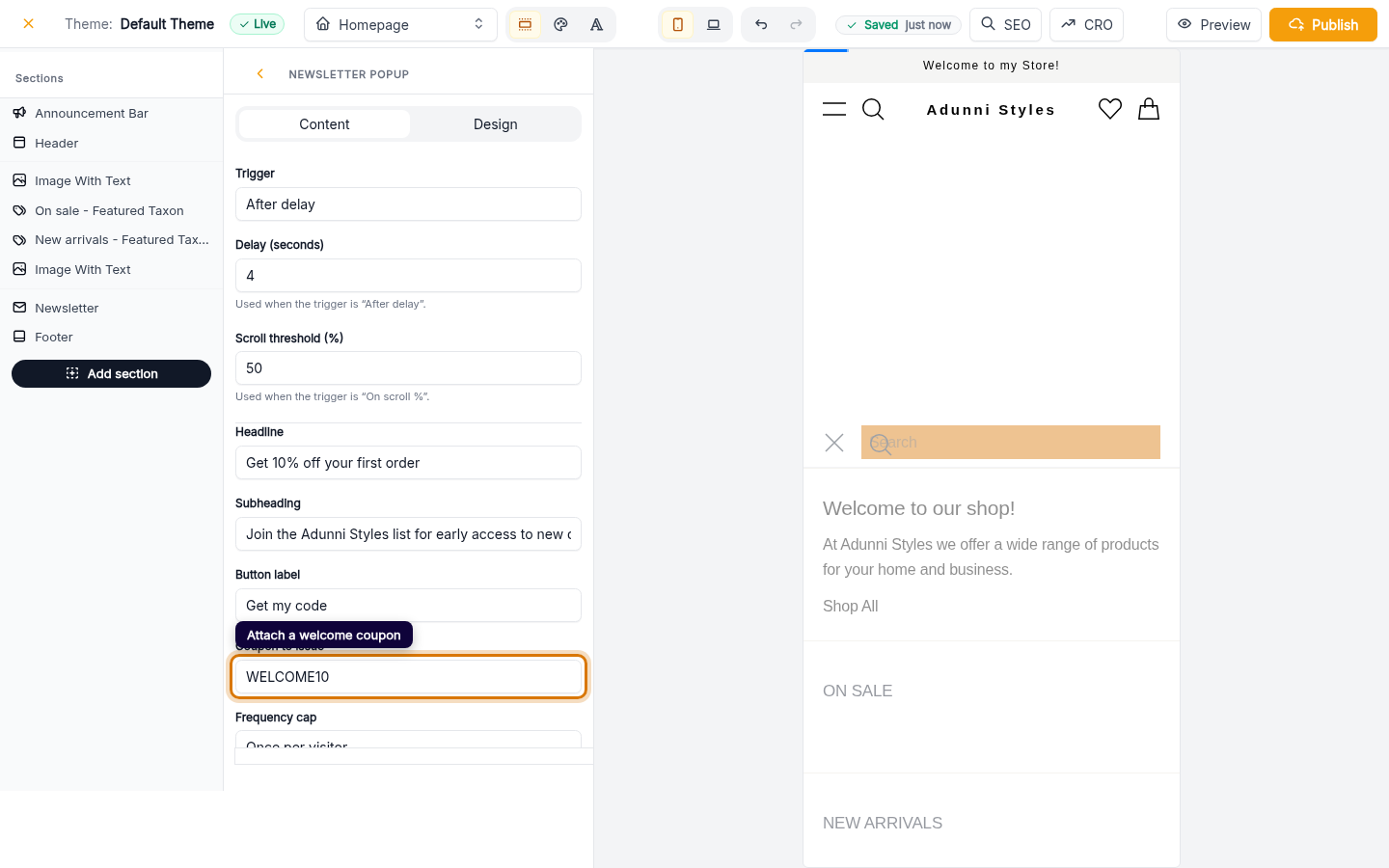
Attach a welcome coupon (optional)
Drop a coupon code into Coupon to issue and new subscribers get it the moment they sign up. Use the Frequency cap to decide how often a shopper sees the pop-up.
Web