Change your store theme
Your theme sets the whole look of your storefront. Install a ready-made theme from the library and make it live in two clicks — your products carry over untouched.
Your theme is the single biggest lever on how your storefront looks — its layout, spacing, and default sections. Crate ships a library of ready-made themes, and switching between them never touches your products, orders, or customers. You can change your mind as often as you like.
How themes work in Crate
Every store has exactly one live theme — that's what buyers see. The rest sit in your theme library, ready to install. Installing a theme creates your own copy of it (with a starter homepage) and, if you choose Install & activate, makes it live in the same click.
Tip: Want to try a theme without disturbing your live storefront? Use Install on its own instead of Install & activate. It lands in your library as a draft you can customise and preview, then Publish when you're happy.
After you switch
Your catalogue is theme-independent, so nothing about your products changes. What does change is the storefront's chrome and starter layout. Open Customize on the new live theme to fine-tune its colours, fonts, and sections — see Change your theme colour. If you ever want the old look back, every live theme can be snapshotted and restored from Versions.
-
1
Open Online Store
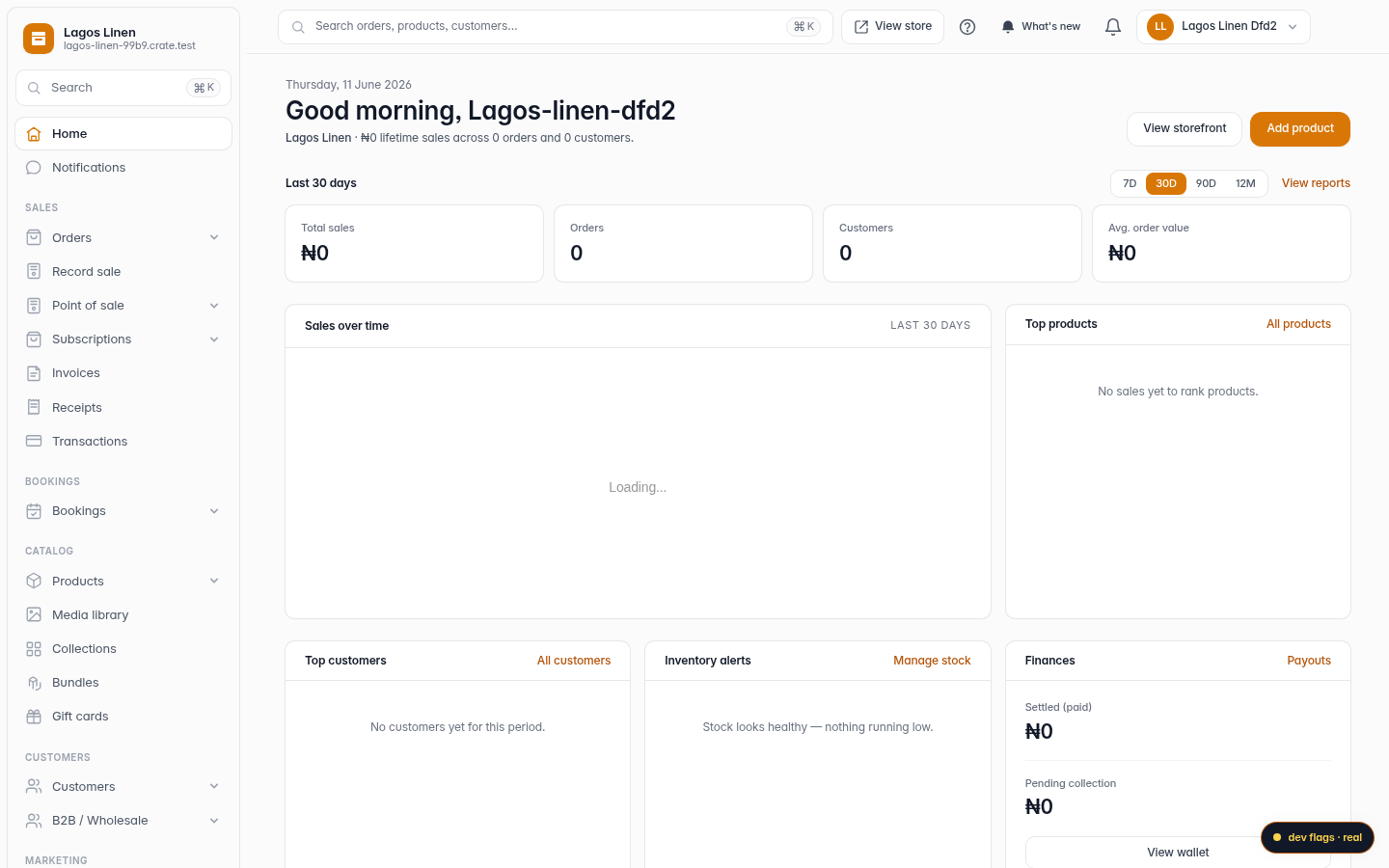
From your Crate dashboard, open Online Store in the left sidebar. This is where your storefront's look lives.
Web 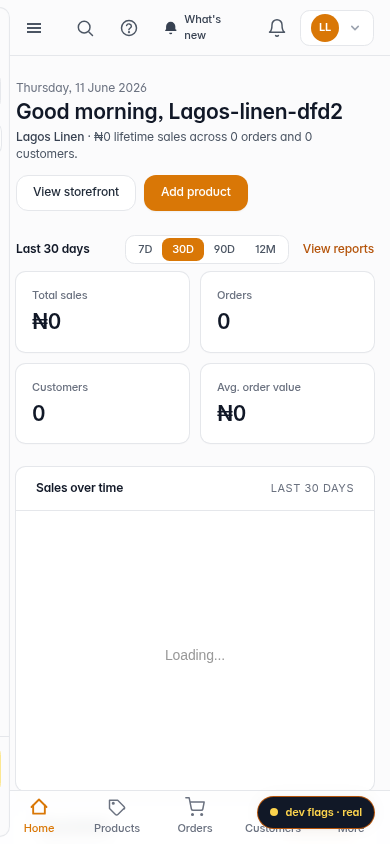
Mobile -
2
Go to Themes
On the Online Store overview, open Themes (the Edit default content / View all link on the current-theme card). You'll see your live theme at the top and the theme library below.
Web -
3
Browse the theme library
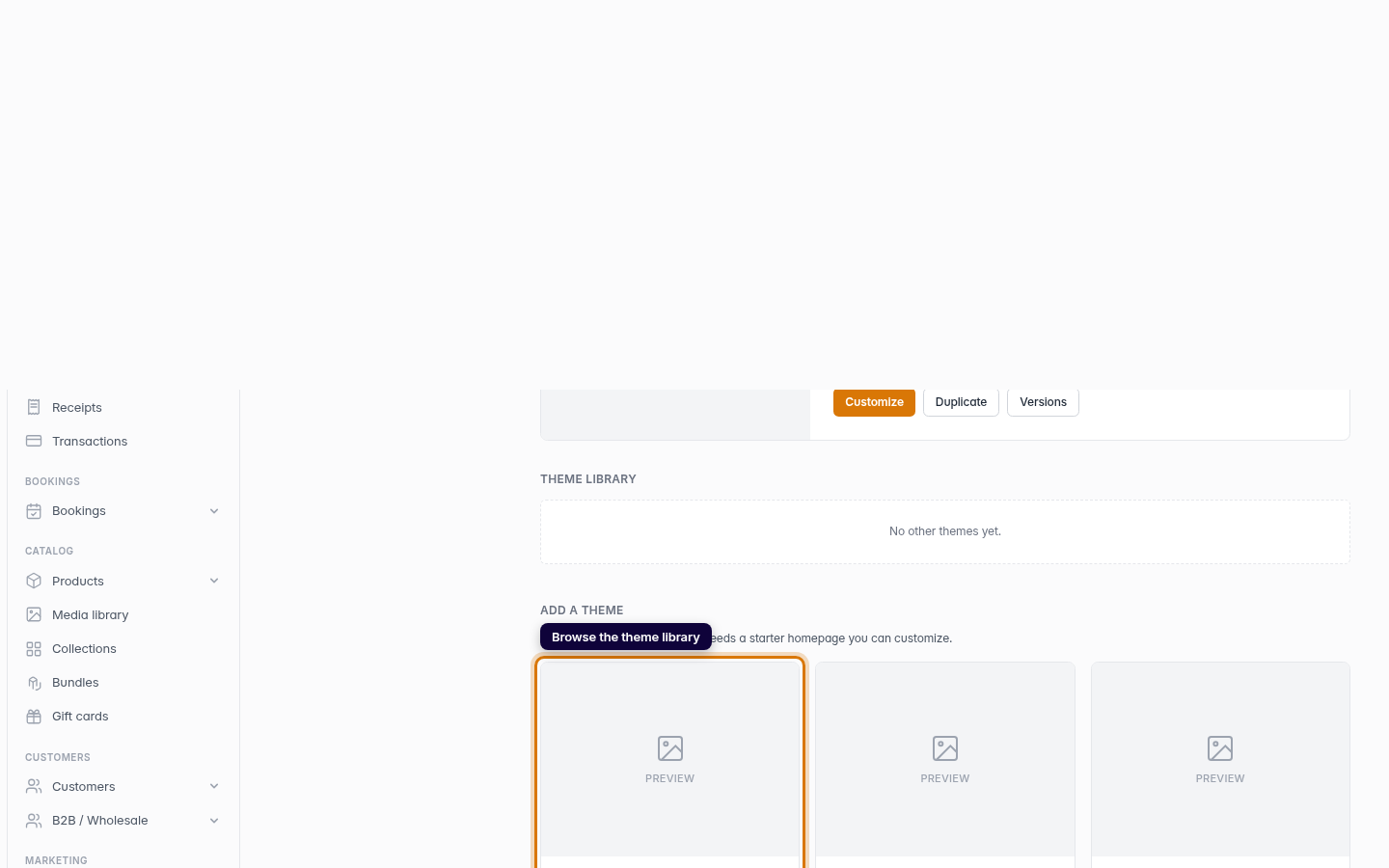
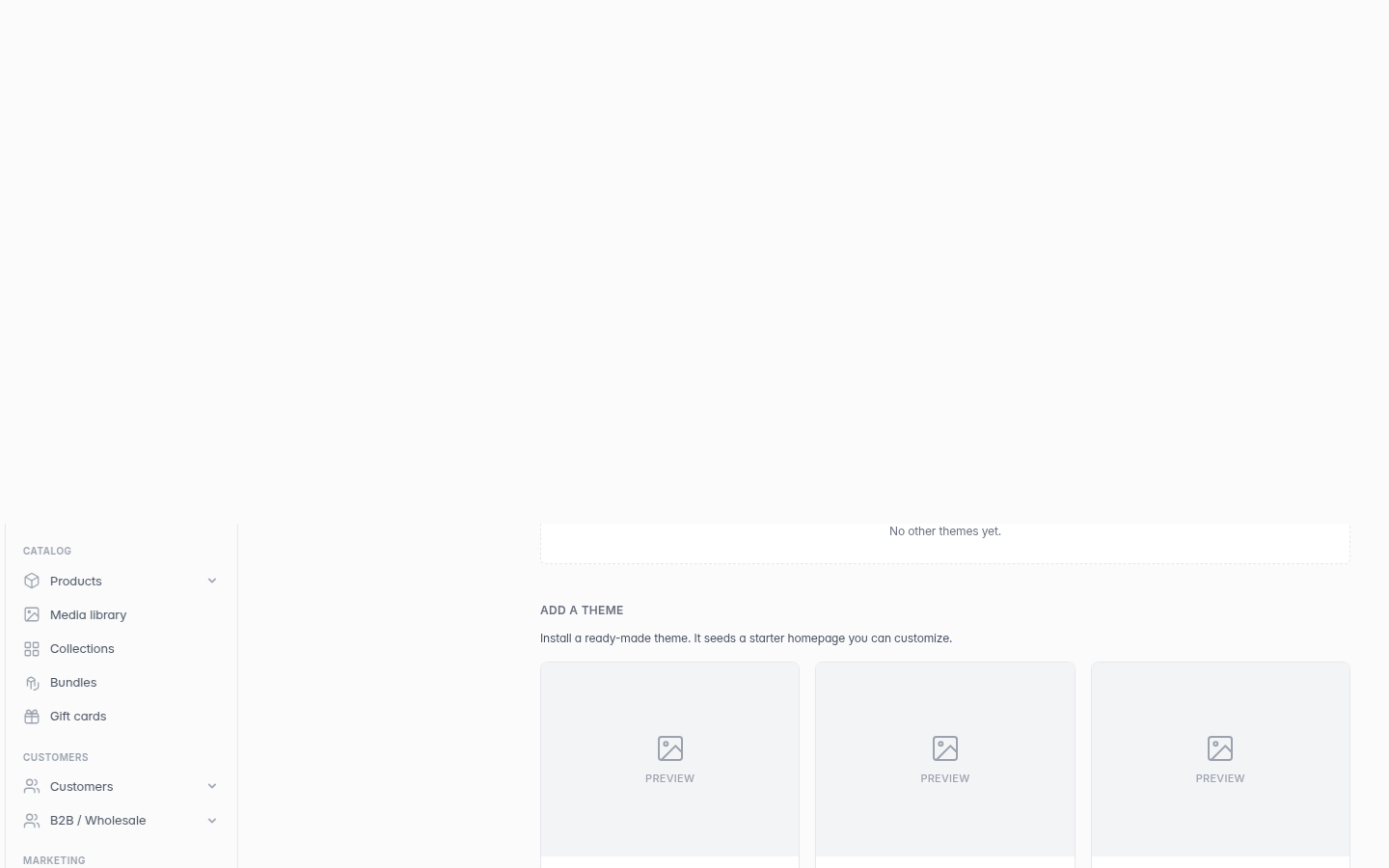
Scroll to Add a theme. Each card is a ready-made theme that seeds a starter homepage you can customise later. Pick one that fits your brand.
Web 
Mobile -
4
Install and make it live
Click Install & activate on the theme you want. Crate installs it, seeds its pages, and makes it the live theme your customers see — all in one step.
Web -
5
Your new theme is live
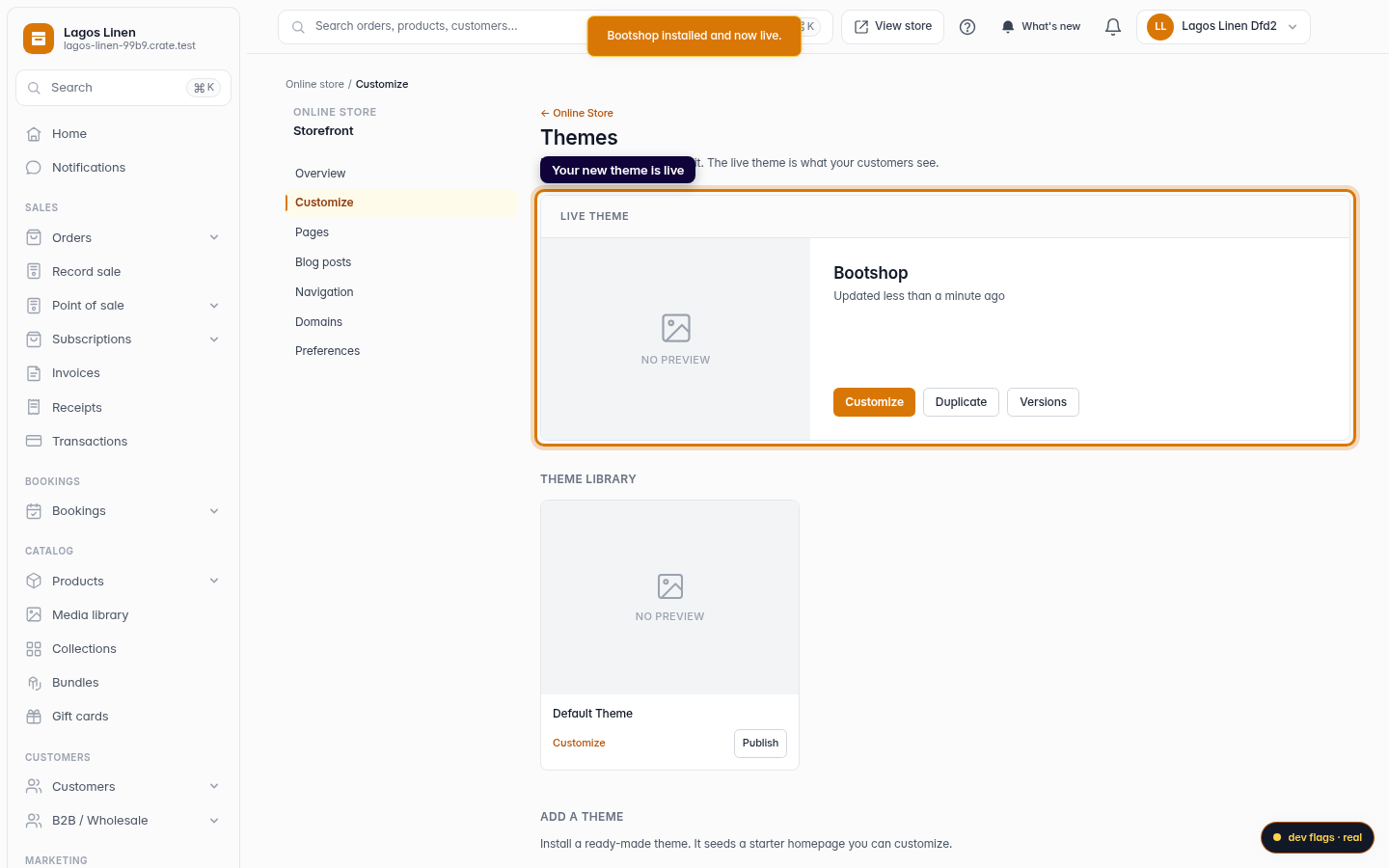
The theme moves up to the Live theme slot. From here you can Customize it or roll back any time from Versions.
Web 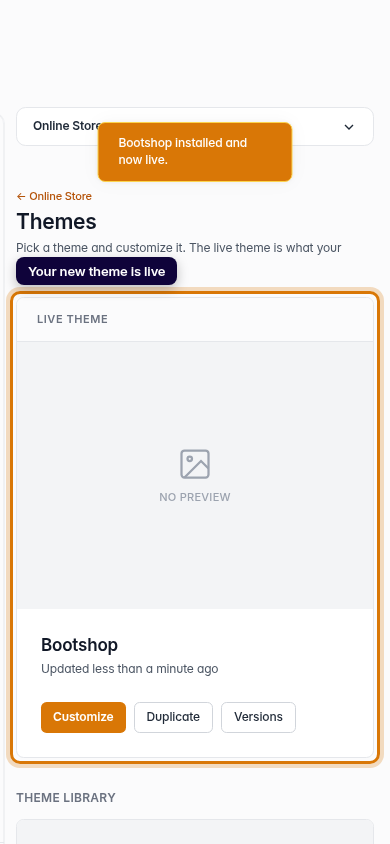
Mobile