How to check whether an order has been paid
Every order carries a clear payment status. Open the order to see whether it's Paid, Unpaid or Partial at a glance, and drill into its transactions for the full money trail.
The first thing you want to know about any order is simple: have I been paid? Crate makes the answer obvious, so you never ship goods before the money has arrived — or chase a customer who's already paid.
The payment status pill
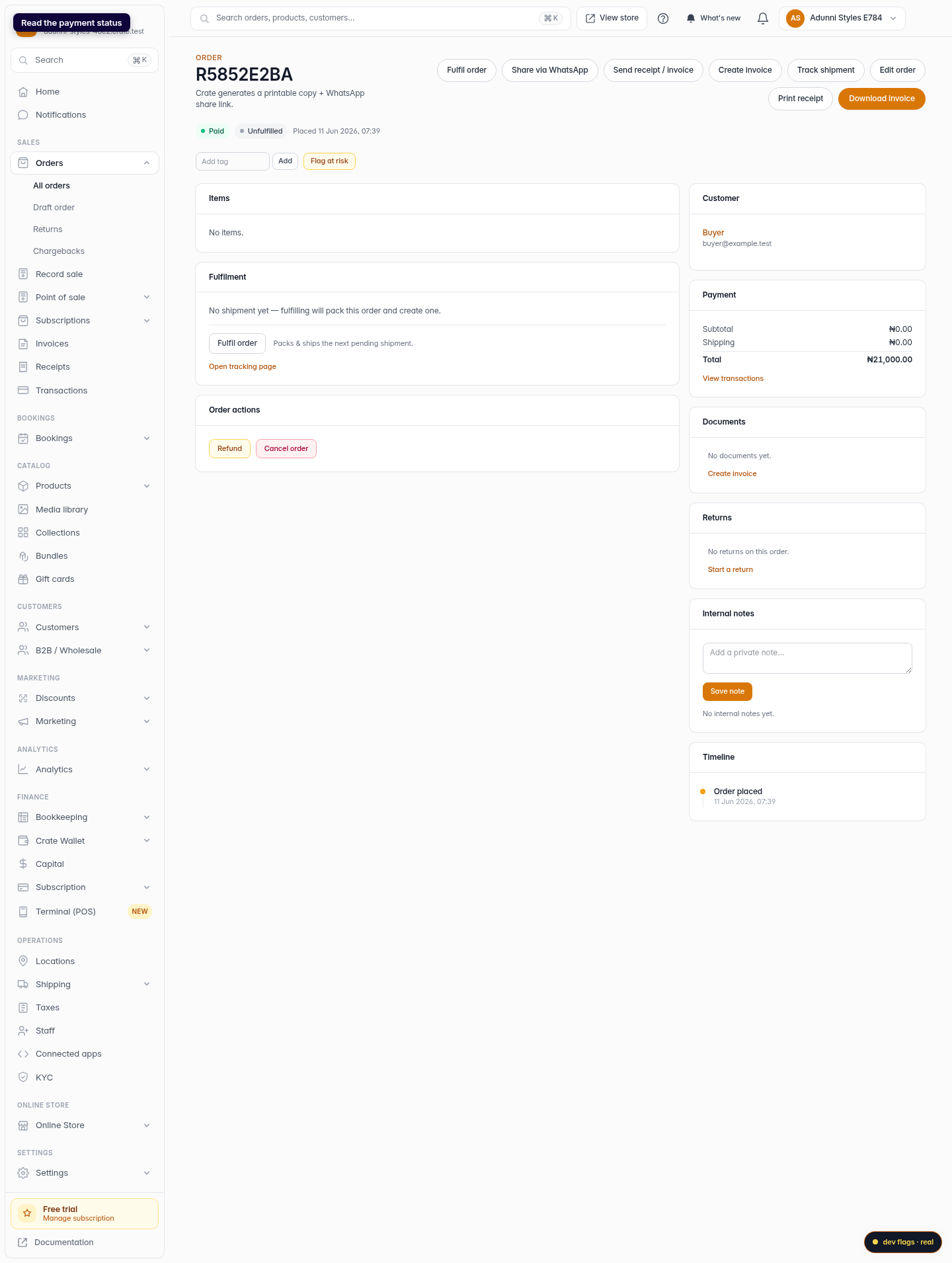
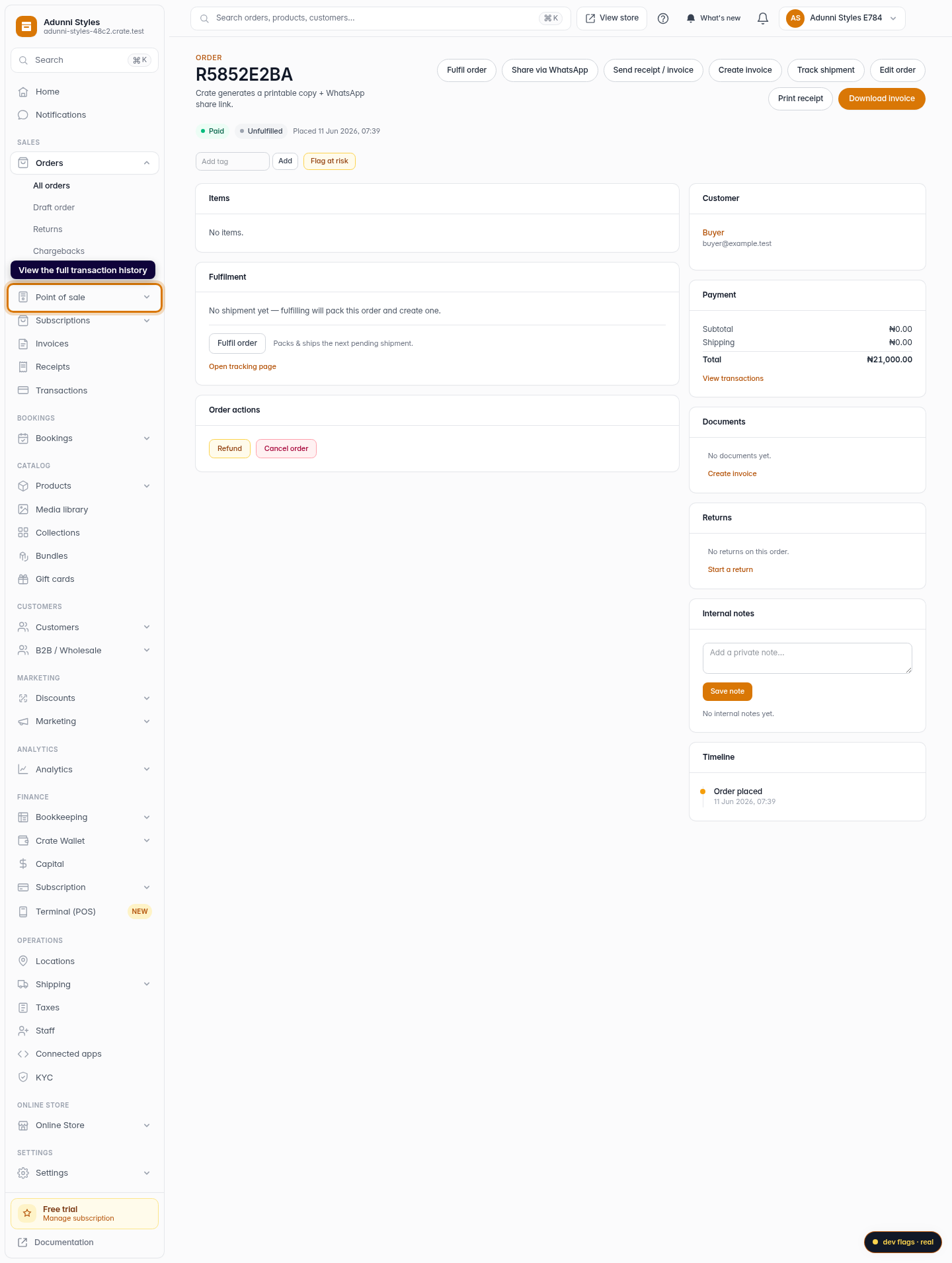
Open any order and look at the top of the page. A coloured payment status pill sums it up:
- Paid — the full amount has been received.
- Partial — some money has come in, but a balance remains.
- Unpaid — no payment recorded yet.
That single badge is all you need for a quick yes-or-no on most orders.
The payment breakdown
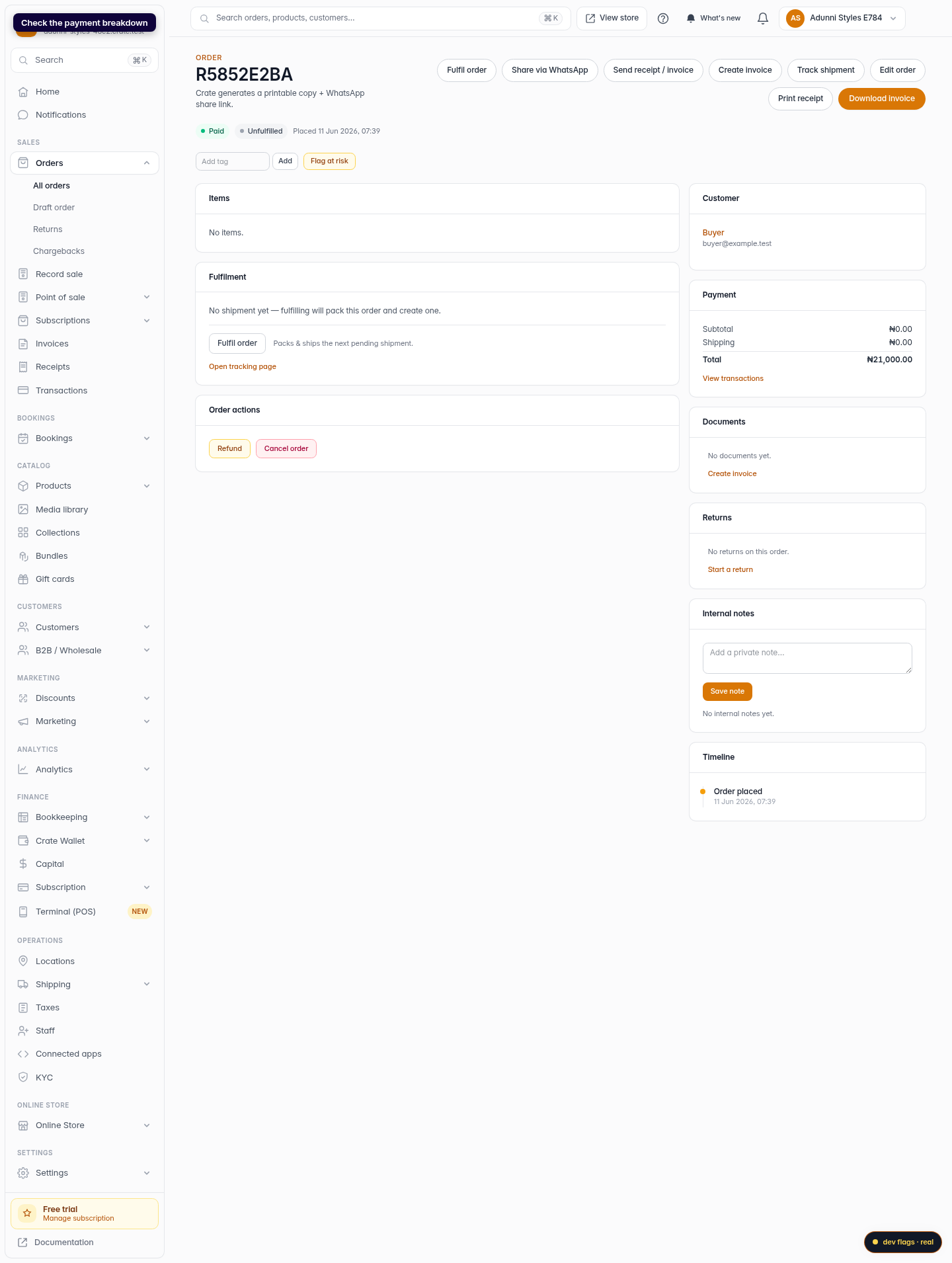
For the detail behind the badge, scroll to the Payment card. It lists the subtotal, shipping, any discount or tax, and the total — so you can see precisely what the customer owes and how it adds up.
The full money trail
Need more than the summary? Click View transactions on the order to open the complete list of payments recorded against it. This is where you confirm that a transfer settled, or reconcile an order that was paid in instalments.
Tip: Filter your Orders list by Payment status → Unpaid to see everyone who still owes you, then follow up in one sitting.
-
1
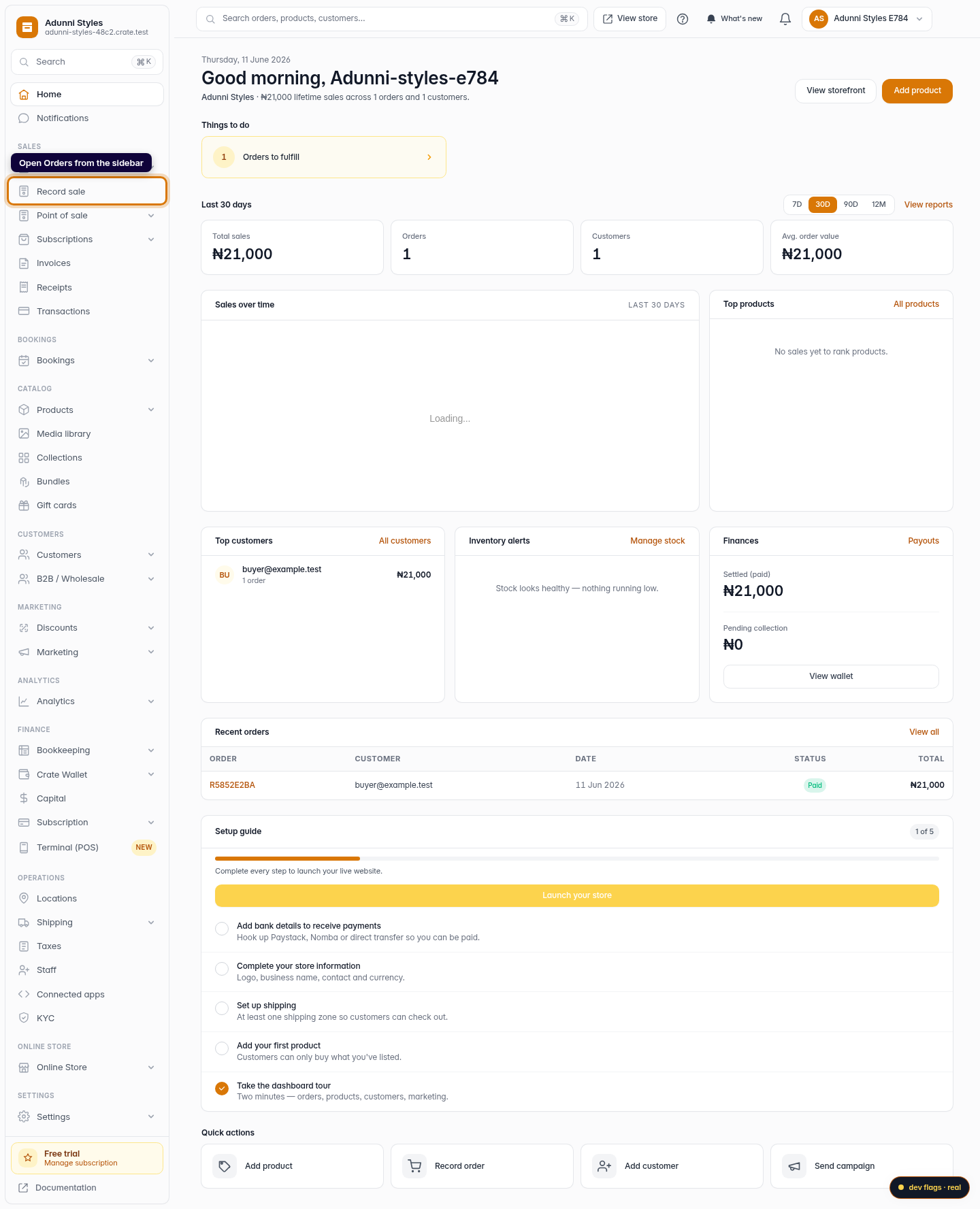
Open Orders
From the dashboard sidebar, open Orders to see all your sales.
Web -
2
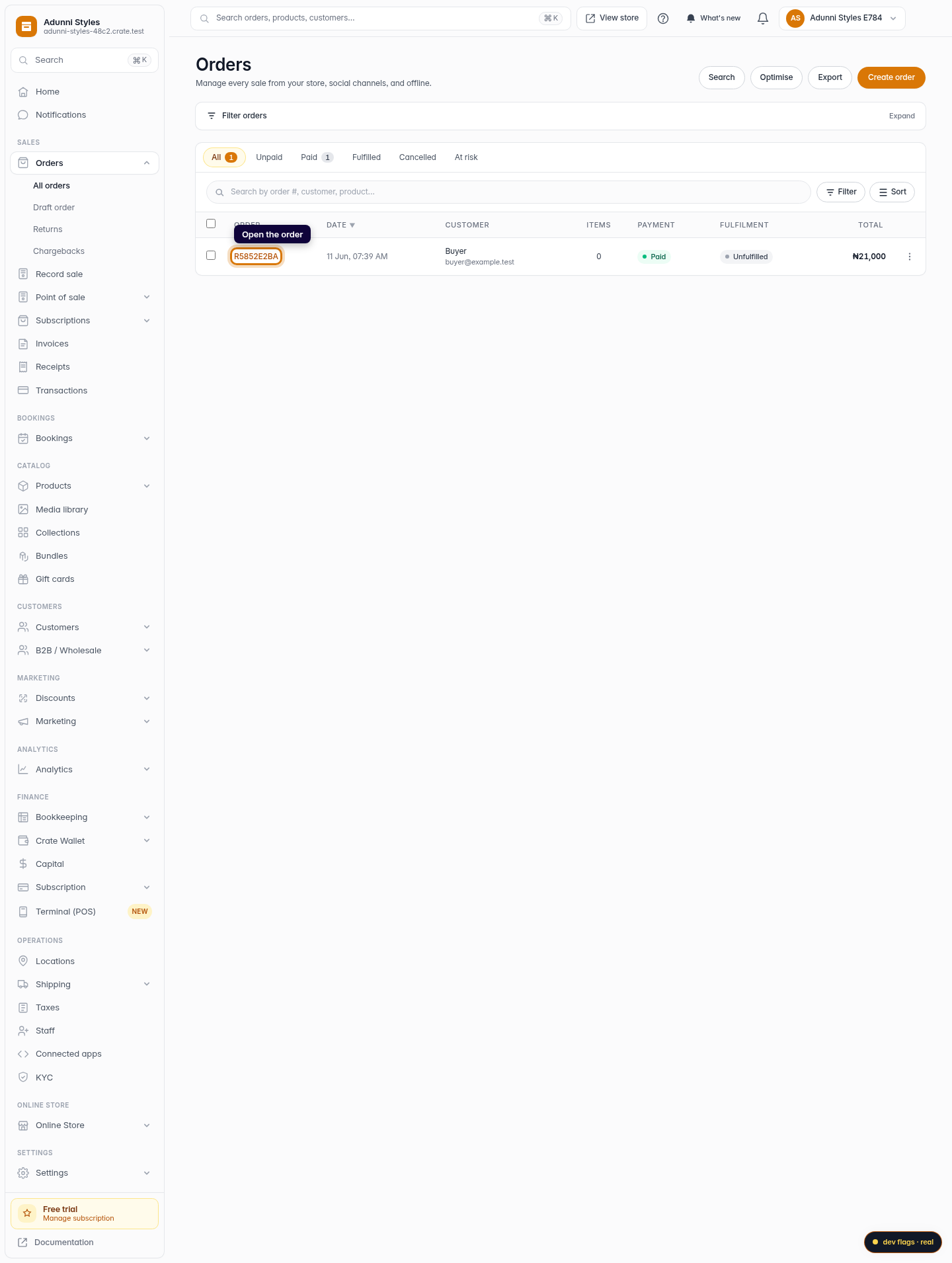
Open the order
Click the order you want to check. Each order opens on its own page with the customer, items and money all in one place.
Web -
3
Read the payment status
At the top of the order, a coloured pill tells you its payment status — Paid, Unpaid or Partial. This is the quickest way to know whether the money has landed.
Web -
4
Check the payment breakdown
Scroll to the Payment card to see the subtotal, shipping, any discount or tax, and the total. It shows exactly how the order's amount is made up.
Web -
5
View the full transaction history
Click View transactions to open every payment recorded against this order — useful for confirming settlement or reconciling part-payments.
Web