Add and delete product variations
Sell the same product in different sizes or colours. Crate builds a variant for every option you pick, each with its own price, SKU and stock — and removing one is a single tick.
Variations let one product cover every size or colour you sell, instead of cluttering your catalogue with a separate listing for each. The buyer picks Medium or Navy on the product page; you track stock, price and SKU for each combination from a single screen.
Before you start
Add the base product first — see Add a product. Variations build on top of an existing product: you're telling Crate the ways that one product can differ.
How Crate builds variants
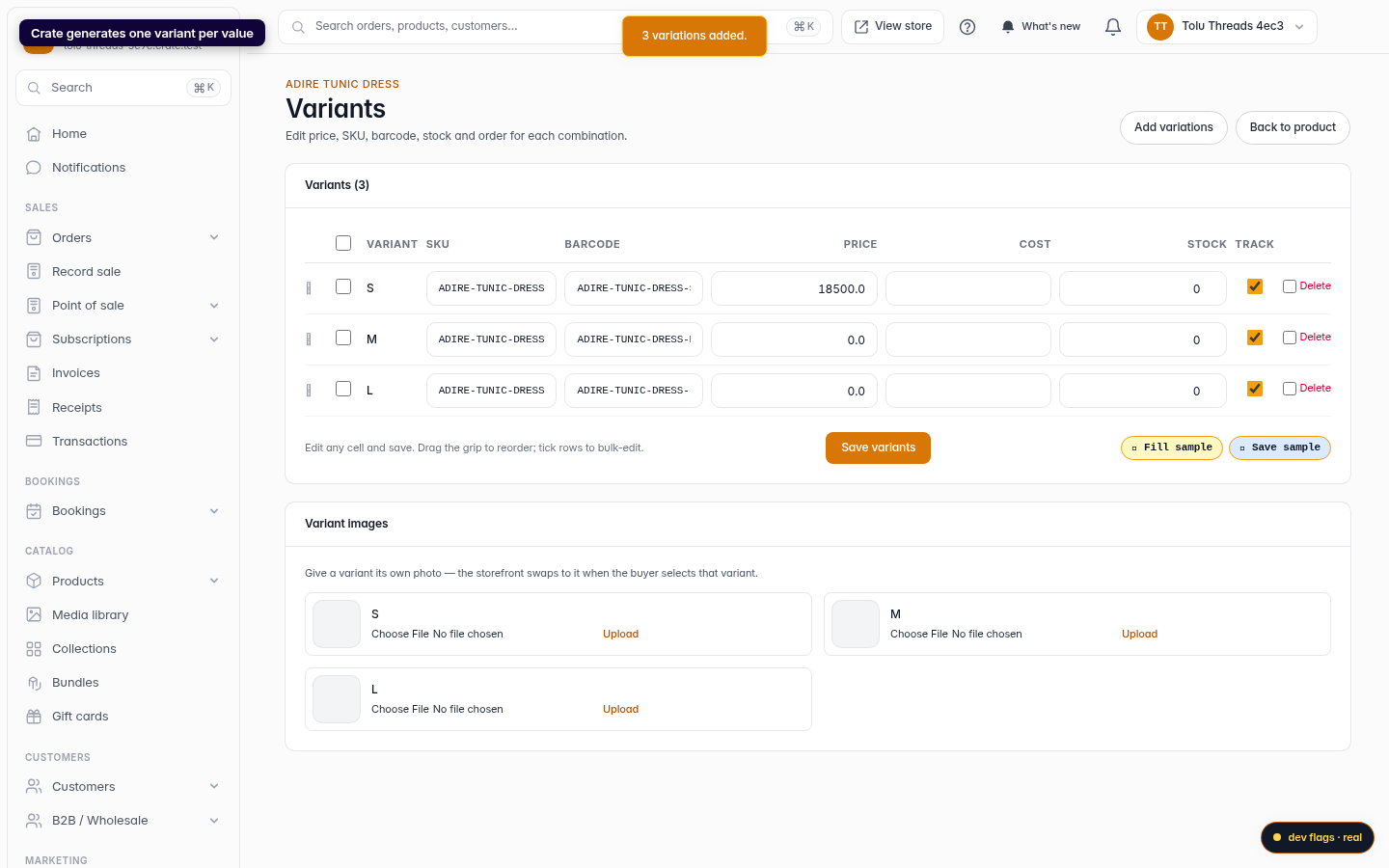
When you pick an attribute and its values, Crate generates one variant per value. A T-shirt with sizes S, M and L becomes three variants, each carrying its own price, SKU, barcode and stock count. Leave a price untouched and the variant inherits the product's price, so you only edit the ones that differ.
Tip: Selling in both sizes and colours? Add Size first, save, then open the builder again and add Colour. Each value you add creates new variants alongside the ones you already have.
Editing and removing
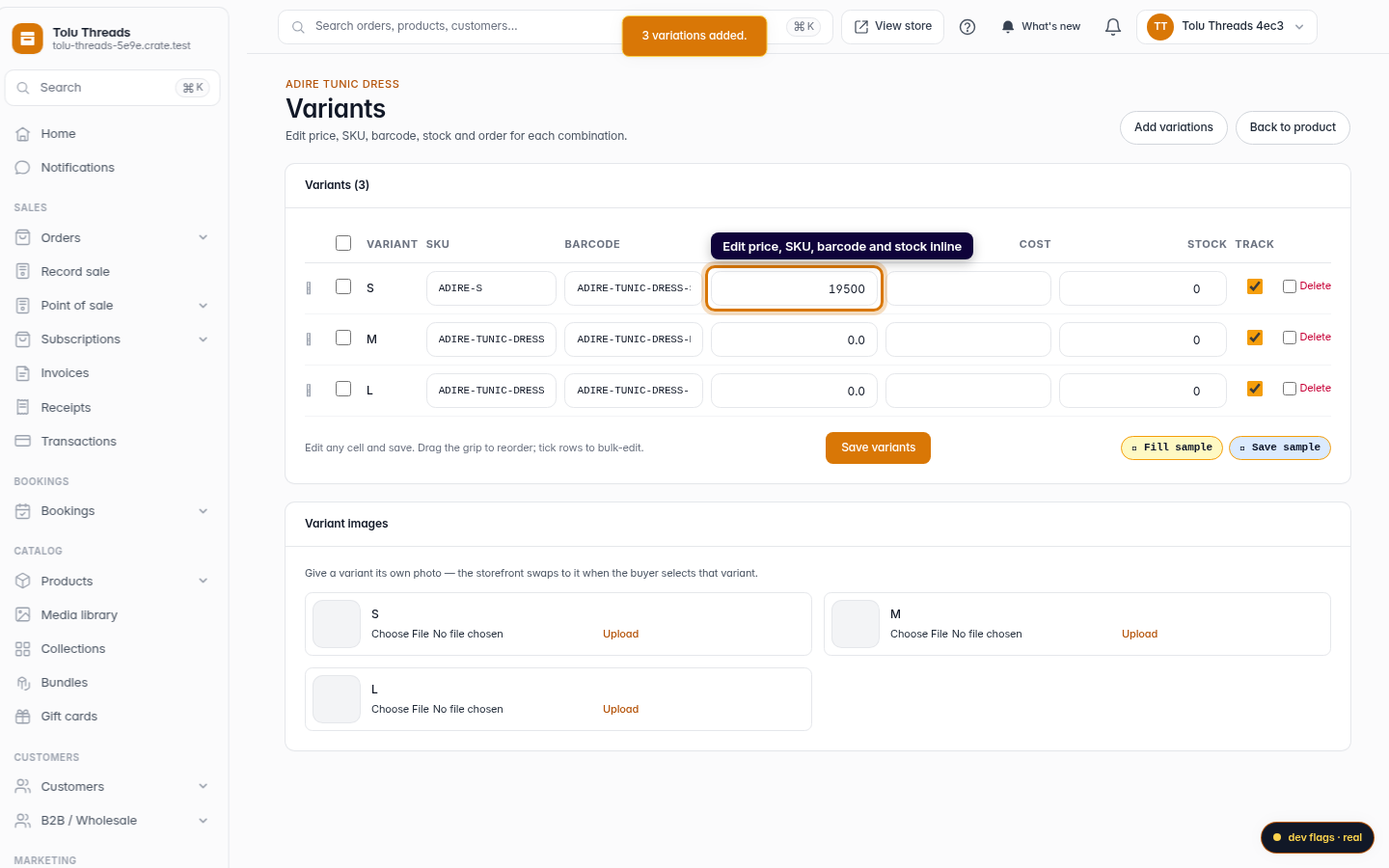
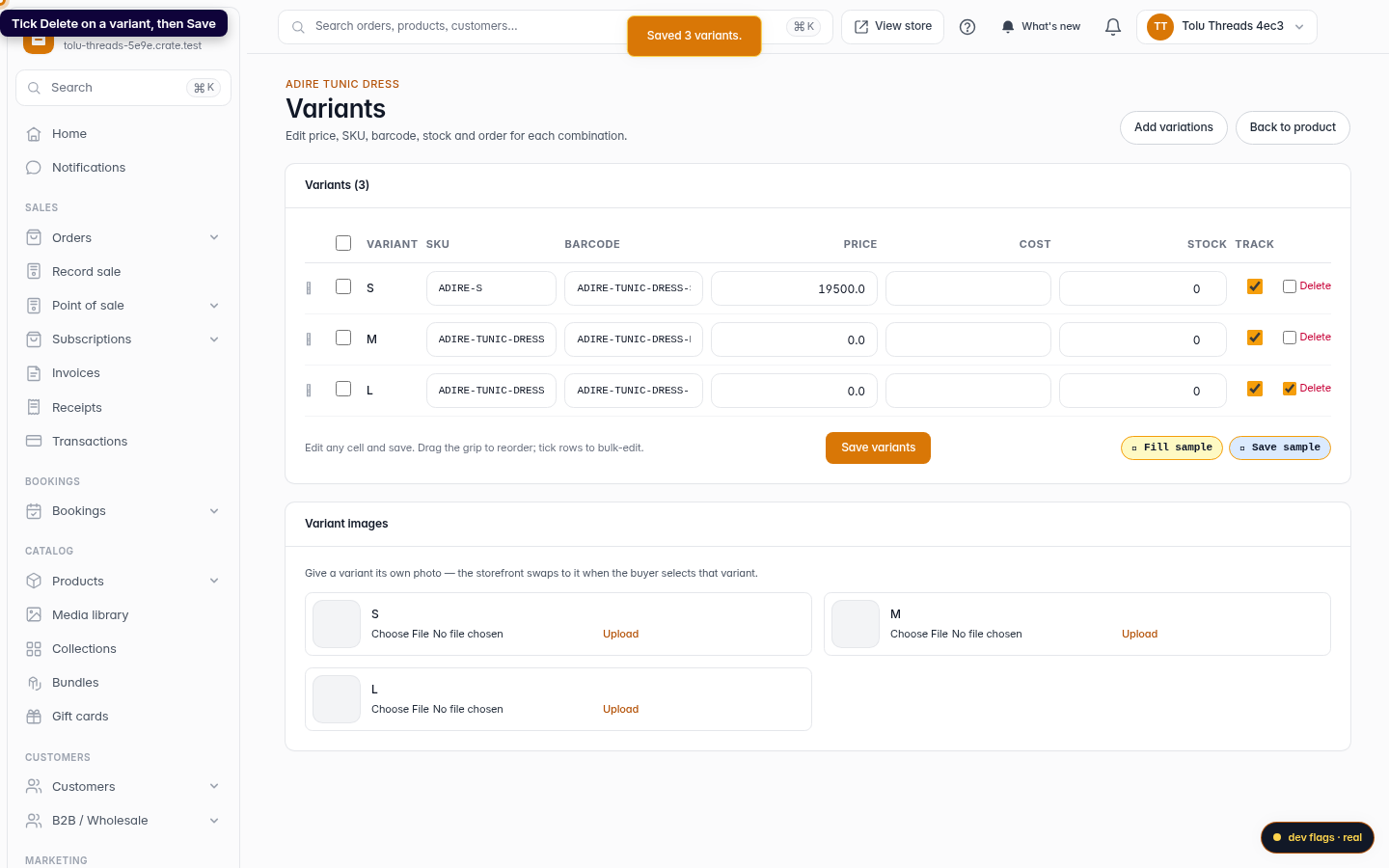
The Variants table is a live editor. Change a price, SKU or stock count in place and hit Save variants once — every edit on the screen saves together. Ticking several rows reveals a bulk bar so you can, say, raise every price by 10% at once.
Deleting works the same way: tick a variant's Delete box and save. Crate removes it without disturbing your other edits, and the buyer immediately stops seeing that option on your storefront.
-
1
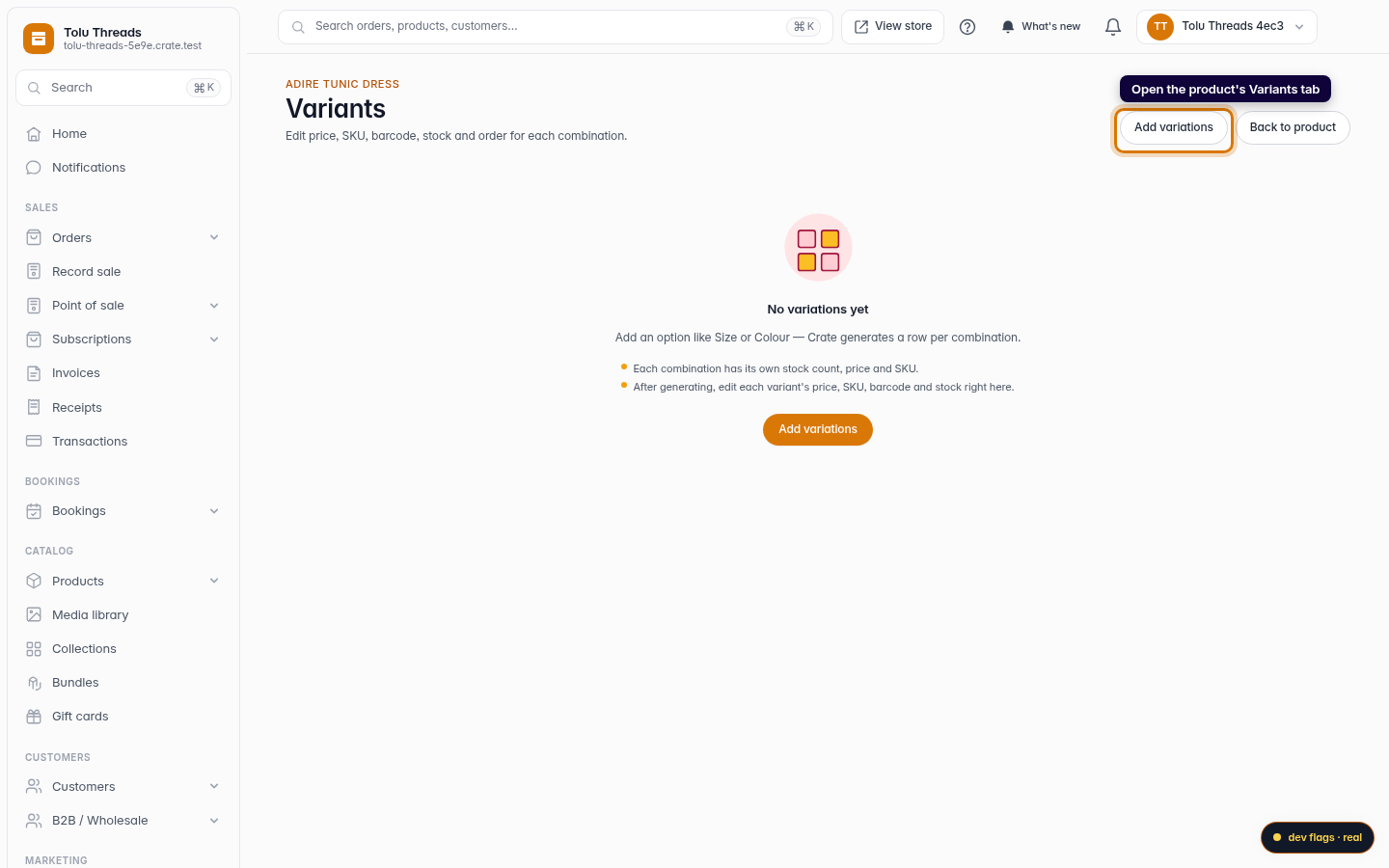
Open the product's Variants tab
From the product's edit page, open Variants. If the product has no options yet you'll see an empty state with Add variations.
Web 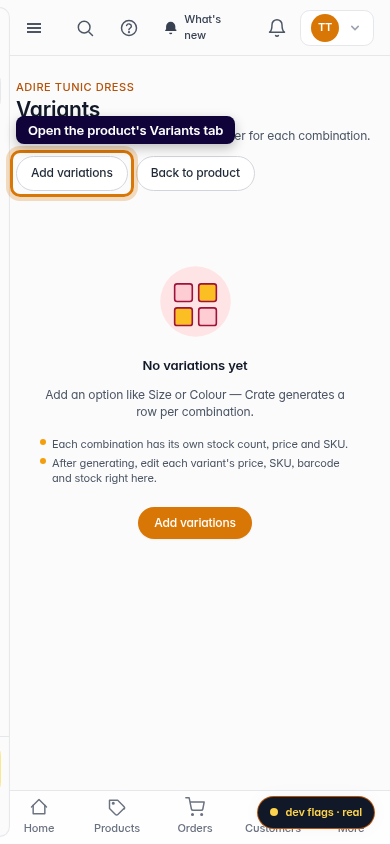
Mobile -
2
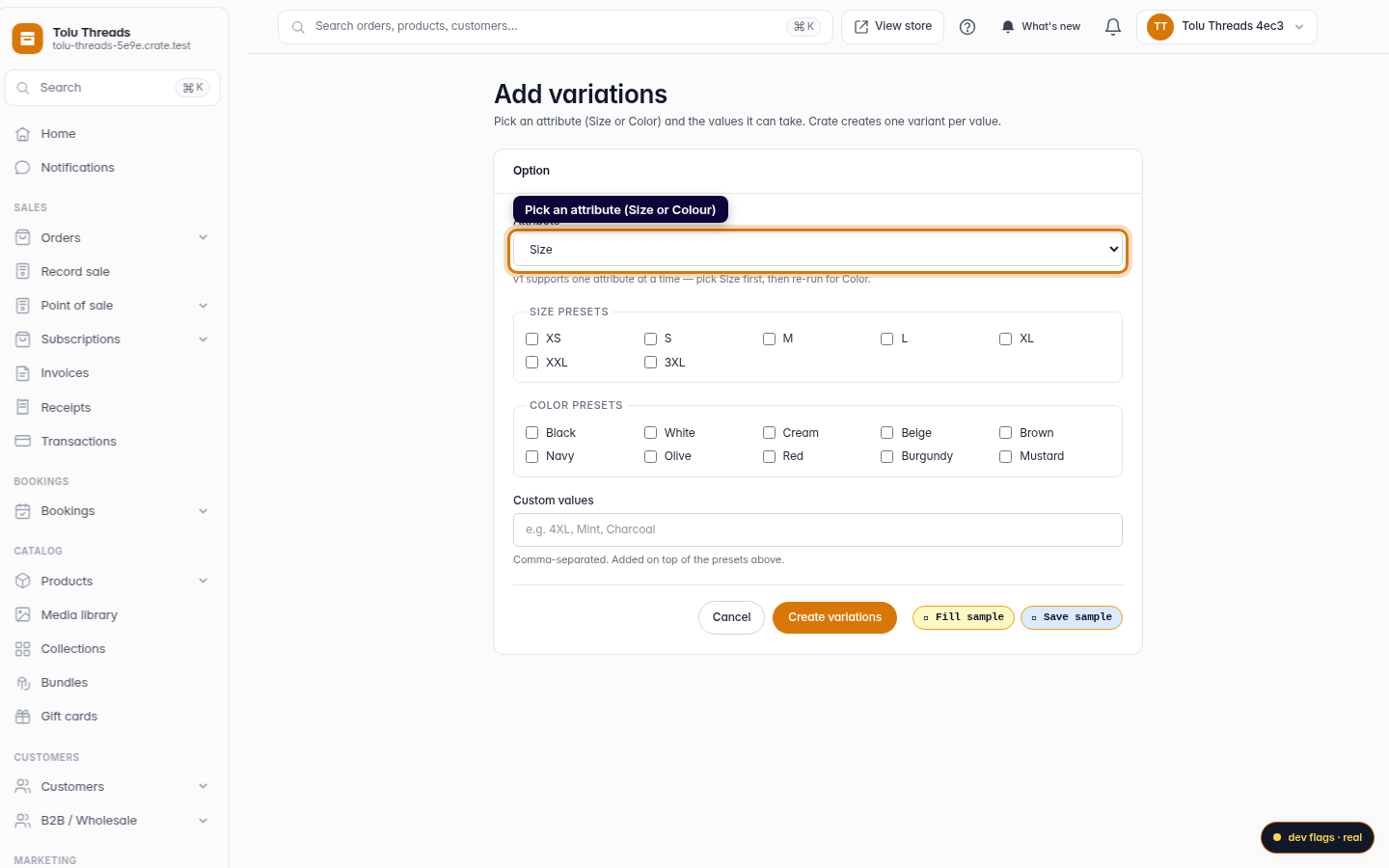
Pick an attribute
Choose the attribute that varies — Size or Colour. Crate's first pass handles one attribute at a time; add Size now, then re-run for Colour.
Web 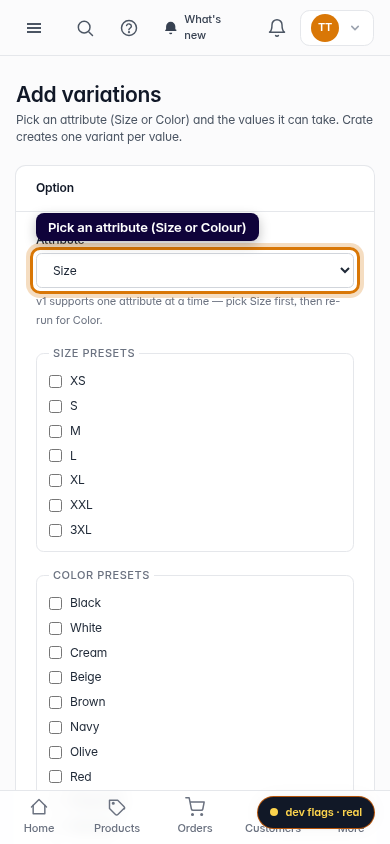
Mobile -
3
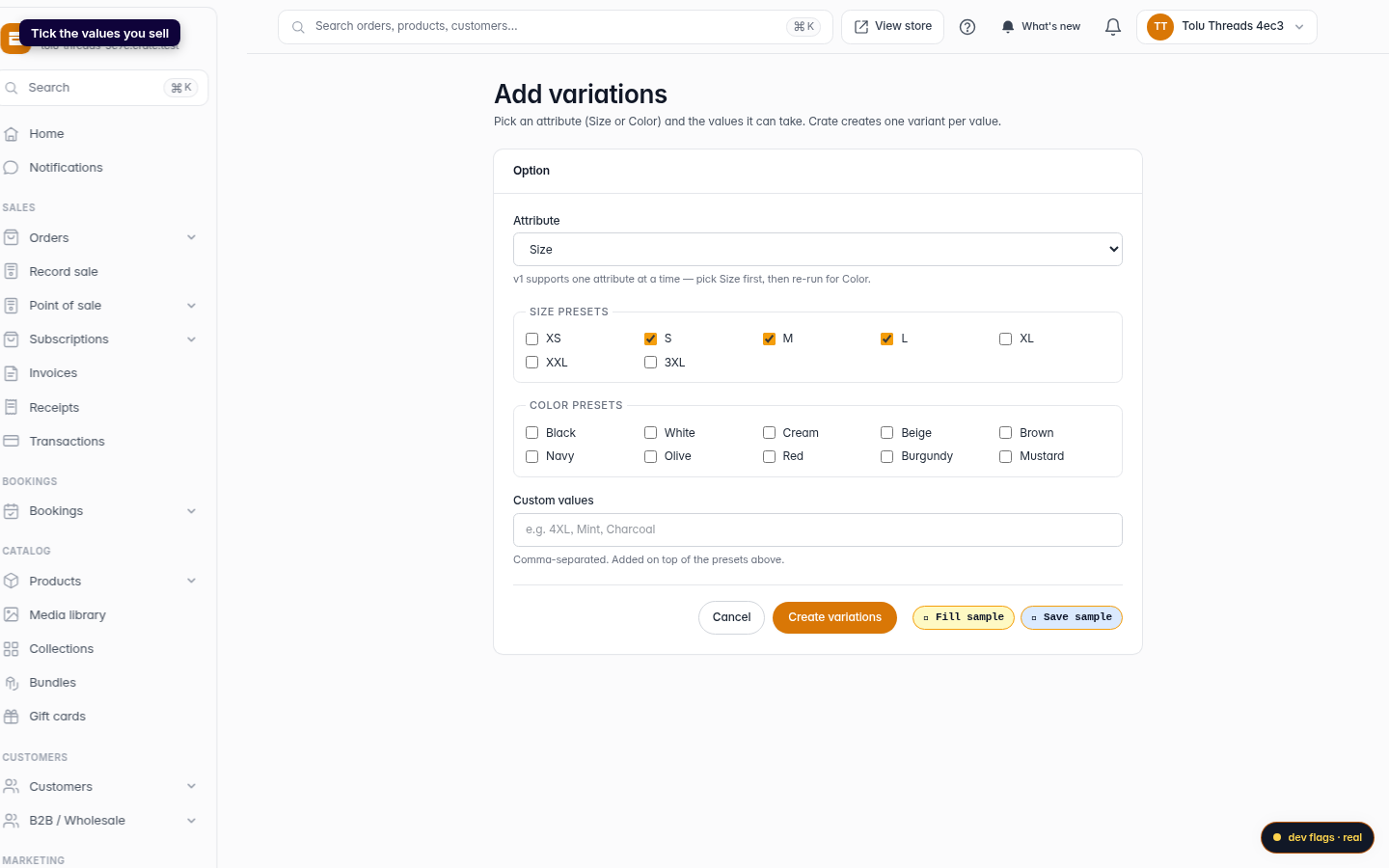
Tick the values you sell
Tick the preset values (S, M, L…) you actually stock, or type your own in Custom values — comma-separated, e.g. 4XL, Charcoal.
Web -
4
Generate the variants
Click Create variations. Crate creates one variant per value — each lands in the table with its own price, SKU, barcode and stock count.
Web 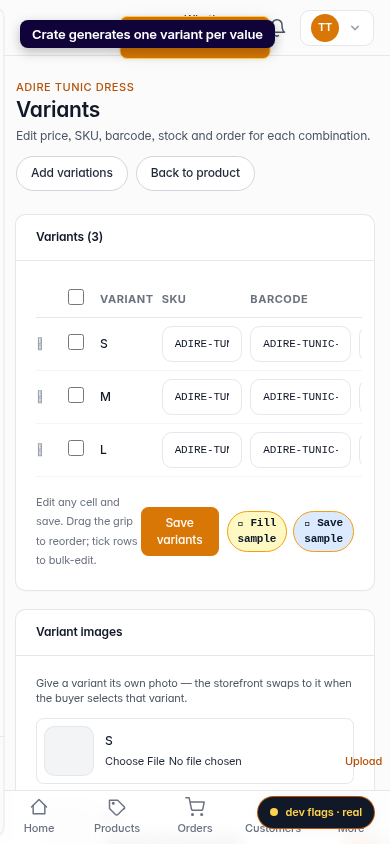
Mobile -
5
Fine-tune each variant
Edit any cell inline — price, SKU, barcode, cost and stock — then click Save variants once to save them all together. Tick several rows first to bulk-edit them in one go.
Web -
6
Delete a variant
To drop a variant, tick its Delete box and click Save variants. It's removed on save — the rest of your edits go through in the same step.
Web 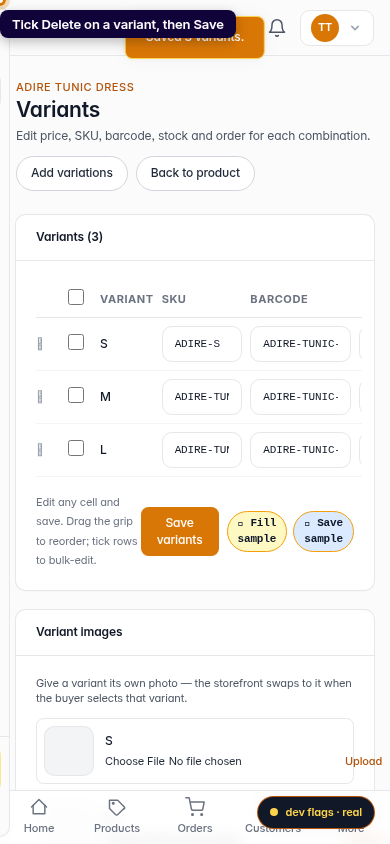
Mobile