Add a note when you send an invoice
Send an invoice with a personal message attached — delivery details, payment instructions, or a quick thank-you — so everything the customer needs sits in one place.
An invoice is more than a number to pay. Often the customer needs a little context with it — when payment is due, how to pay, when to expect delivery, or simply a friendly word. Crate lets you attach that note to the invoice as you send it, so the bill and the message arrive as one.
Adding a note upfront sets clear expectations and saves you a second round of messages. Instead of sending the invoice and then chasing with payment details, you put everything in the Message box and send once.
Where the note lives
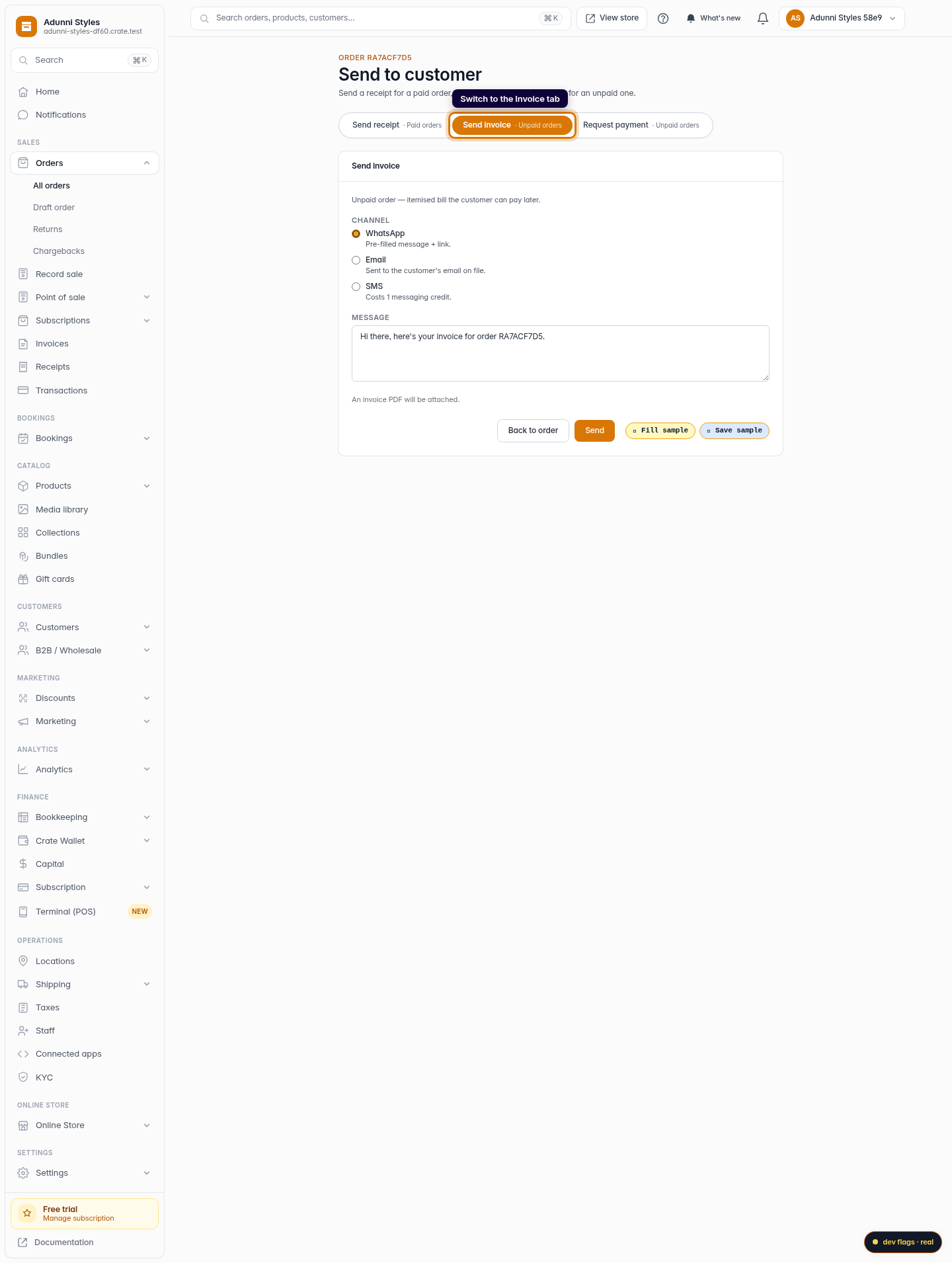
Crate's invoice note is the Message that accompanies the invoice you send from an order. Open the order, choose Send receipt / invoice, switch to the Send invoice tab, and you'll find a message box pre-filled with a sensible default. Replace it with whatever the customer needs to know — it travels with the invoice on whichever channel you choose.
Tip: Keep notes short and specific. "Transfer to GTBank 0123456789 — Adunni Styles, and reply with the receipt" does more work than a long paragraph the customer skims past.
Pick the right channel for the note
The same note works across WhatsApp, Email and SMS — pick whichever your customer actually reads. WhatsApp sends a pre-filled message with the link; Email delivers to the address on file; SMS uses one messaging credit. Whatever you choose, your note rides along with the invoice.
-
1
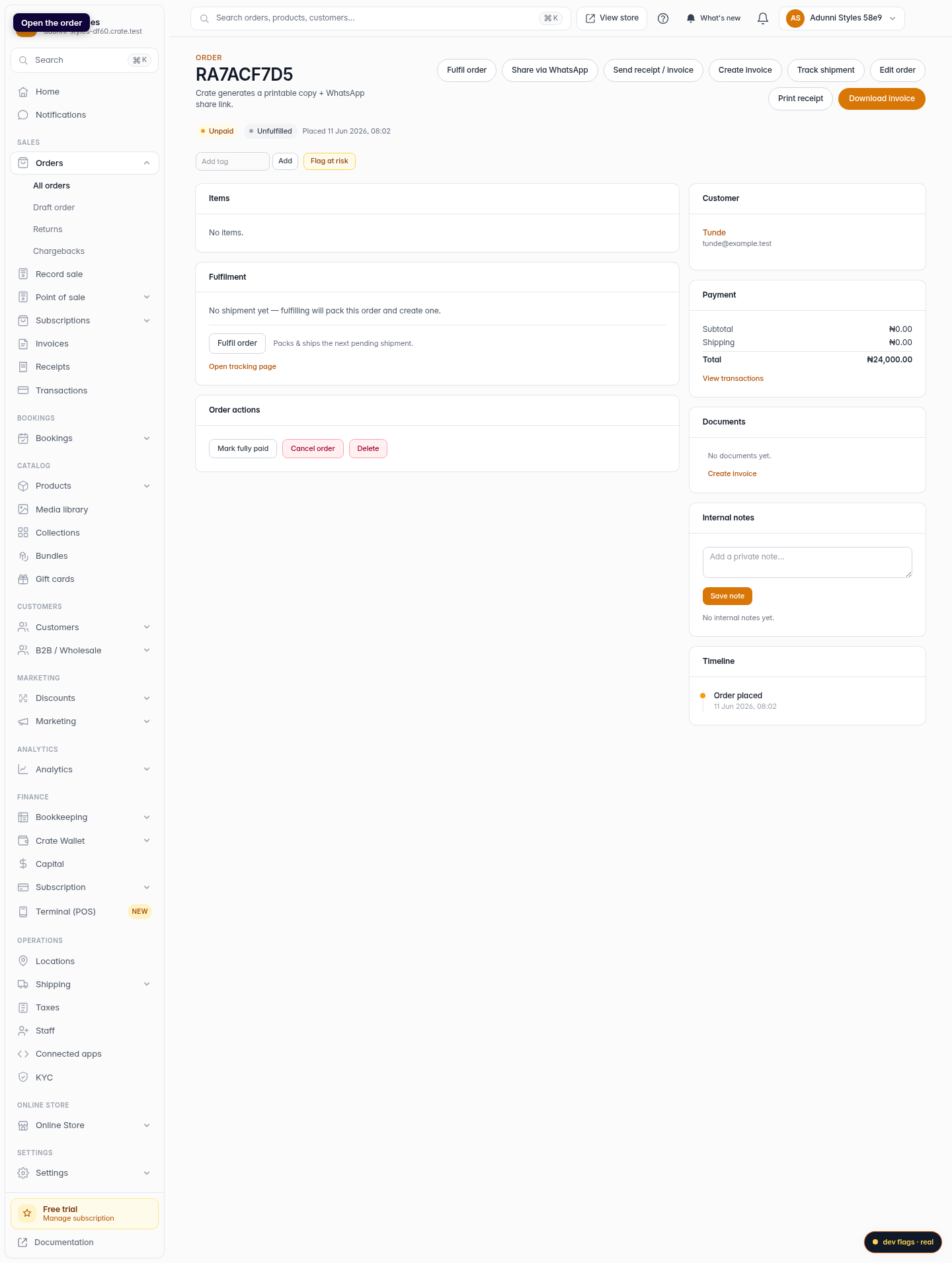
Open the order
From your Crate dashboard, open Orders and click the unpaid order you want to invoice.
Web 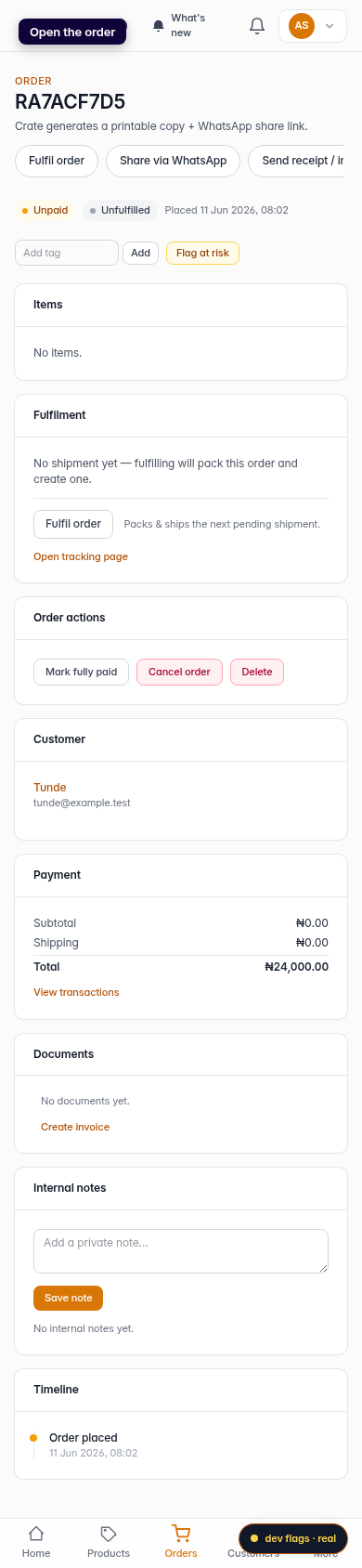
Mobile -
2
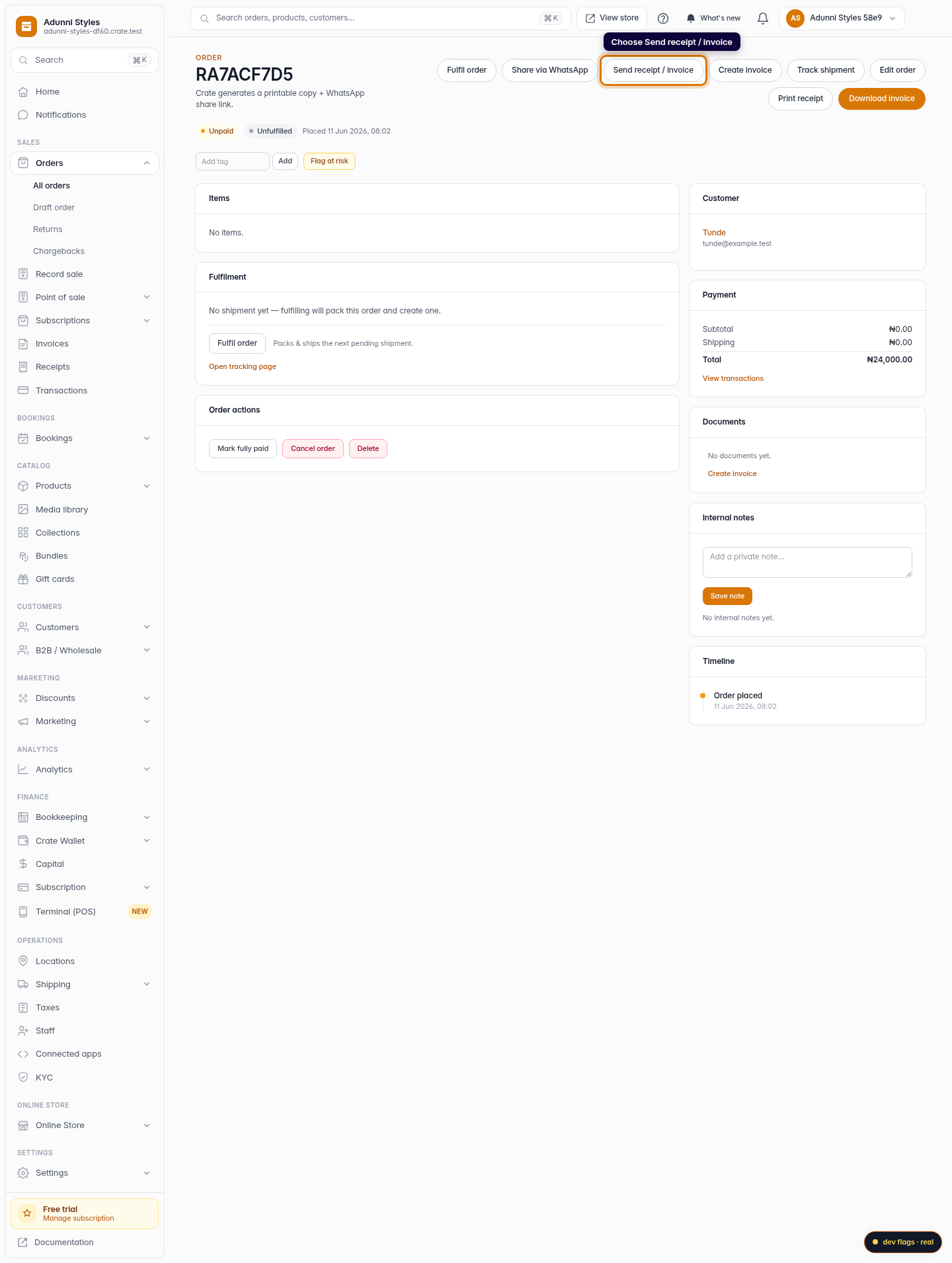
Choose Send receipt / invoice
In the order's header actions, click Send receipt / invoice. This opens the page for sending a receipt, an invoice, or a payment request.
Web -
3
Switch to the Invoice tab
At the top of the page, select the Send invoice tab. Crate will attach an itemised invoice PDF the customer can pay later.
Web -
4
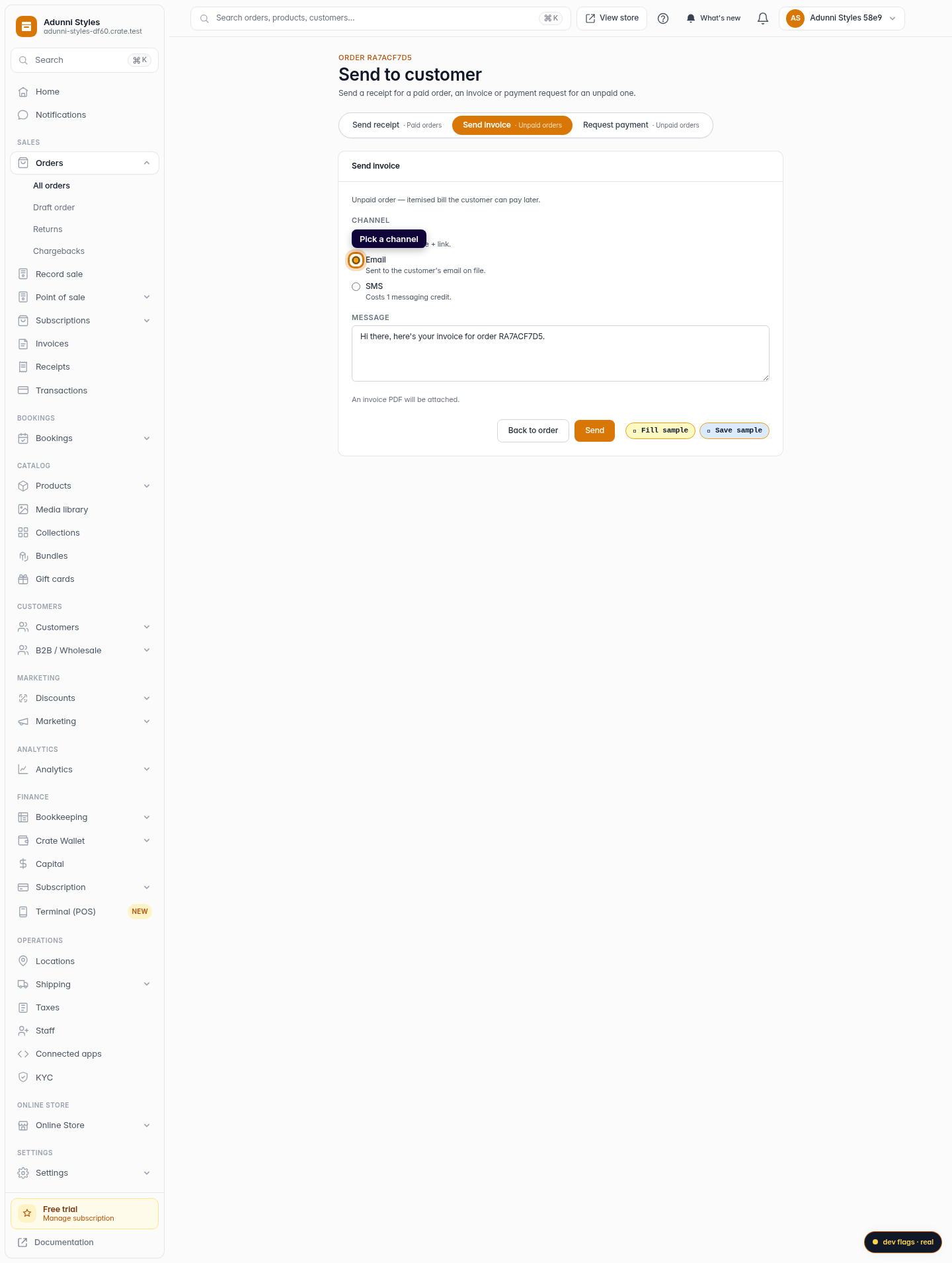
Pick a channel
Choose how to send it — WhatsApp, Email, or SMS. Crate pre-fills the right contact and delivery method for the channel you pick.
Web -
5
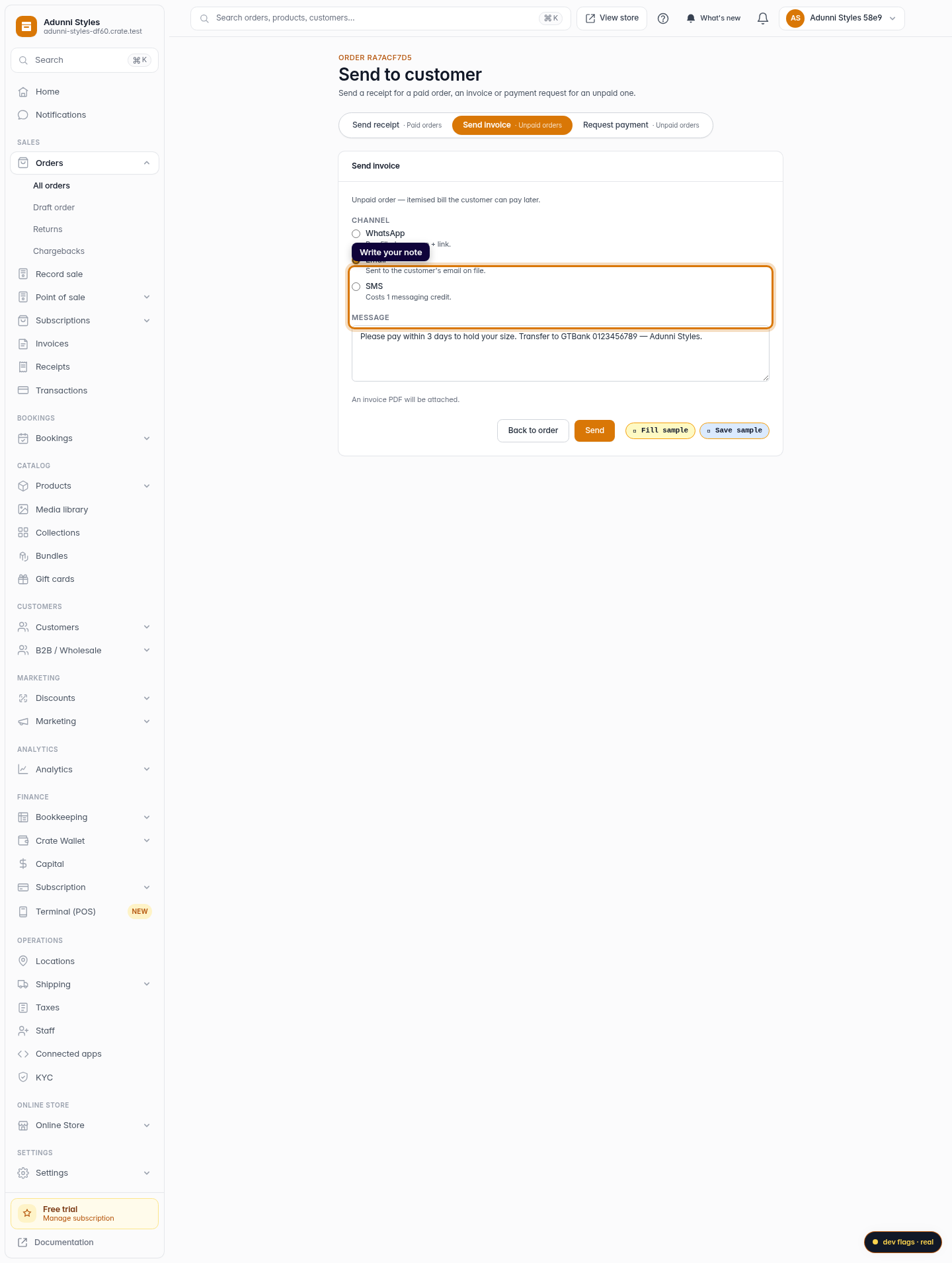
Write your note
In the Message box, replace the default text with your own note. This is where you add the extra context — "Pay within 3 days to hold your size," delivery timing, or your account details. Clear notes mean fewer follow-up questions and a more professional invoice.
Web 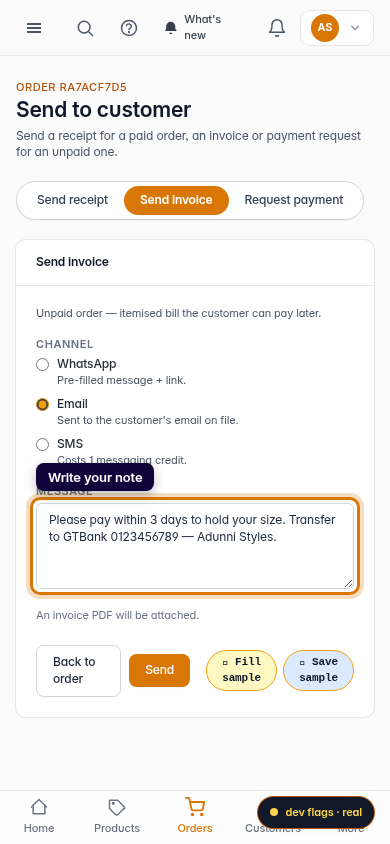
Mobile -
6
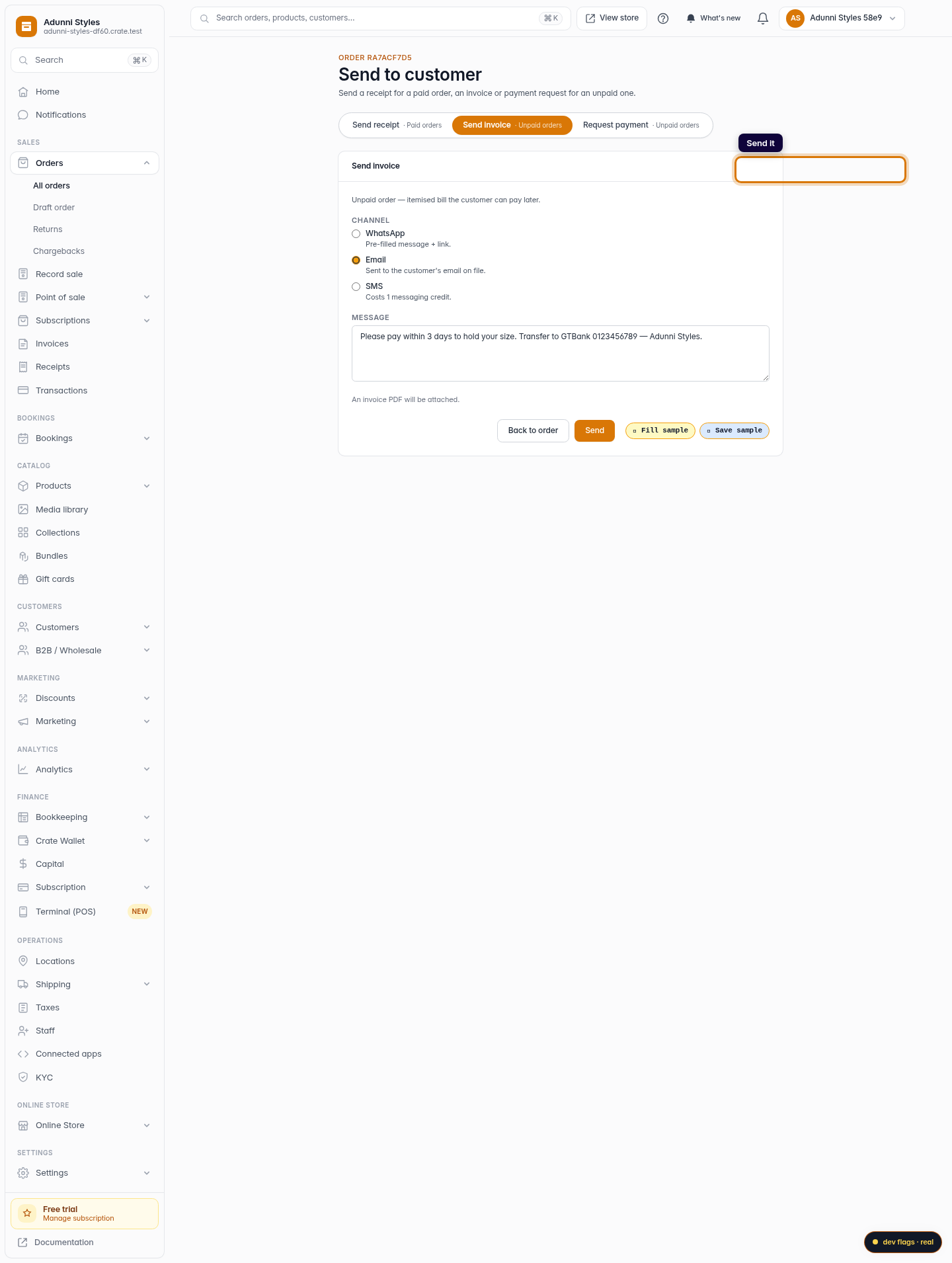
Send it
Click Send. Your invoice goes out on the chosen channel with your note attached, so the customer gets the bill and your instructions together.
Web