Edit an order you've already created
A customer changed their mind, added an item, or gave you a corrected address. Open the order, make your changes, and save — Crate updates the totals and keeps a record of the edit.
Orders rarely stay exactly as they were placed. A buyer adds another item, swaps a size, gives you a corrected delivery address, or agrees a different price. Rather than cancel and start over, open the order and edit it in place.
What you can change
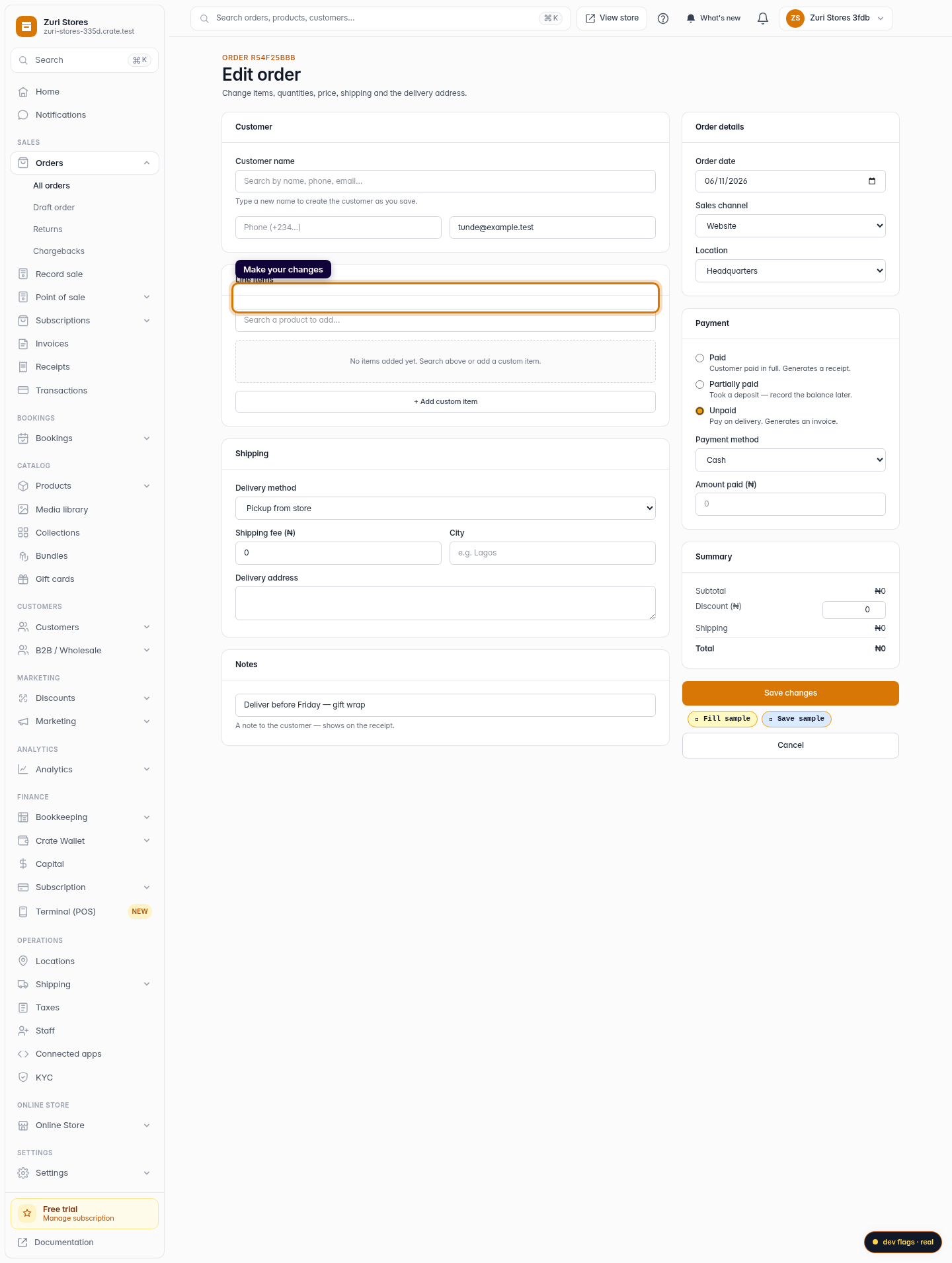
The order editor lets you adjust almost everything on an order:
- Line items — add a product, remove one, or change quantities.
- Pricing — edit an item's price, add a discount, or set the shipping fee.
- Delivery — change the shipping method, address or city.
- Customer & notes — fix the customer's name, phone or email, or add a note that shows on the receipt.
As you edit, the Summary panel updates the subtotal, discount, shipping and total live, so you always see what the customer will owe.
A note on paid orders
If an order is already paid, Crate flags it at the top of the editor. You can still adjust details, but adding items leaves a balance owed — the customer will need to pay the difference. For an order you want to undo entirely, cancel it instead of editing.
Every edit is recorded
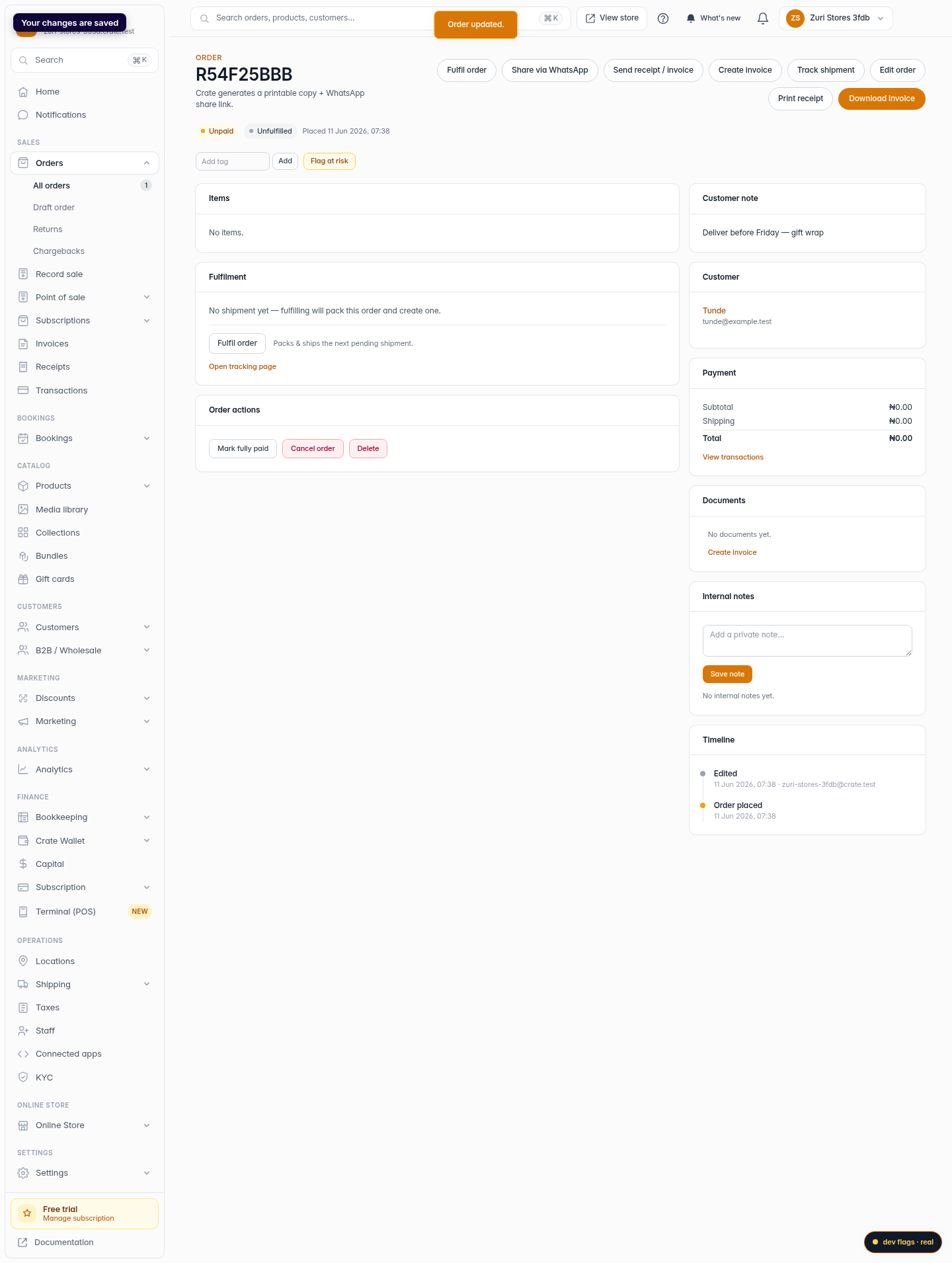
When you save, Crate logs the change on the order's timeline, so you and your team always have a trail of what changed and when.
-
1
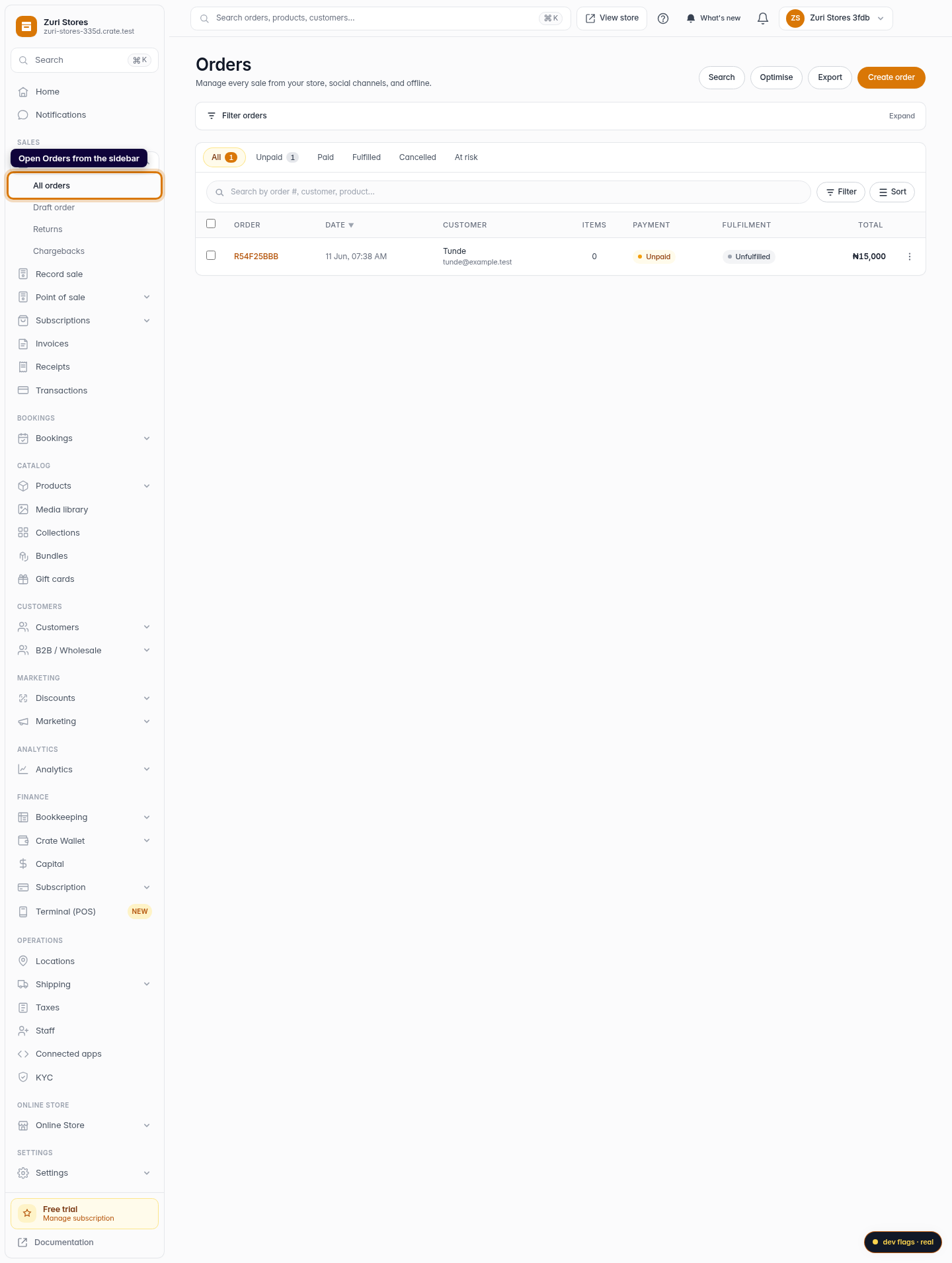
Open Orders
From your Crate dashboard, open Orders in the left sidebar.
Web 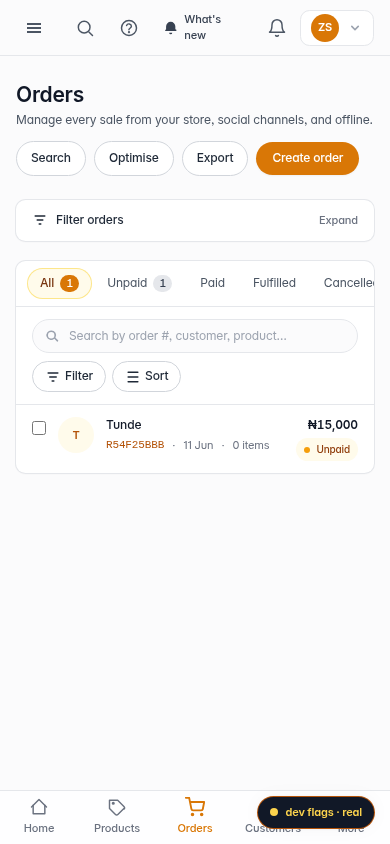
Mobile -
2
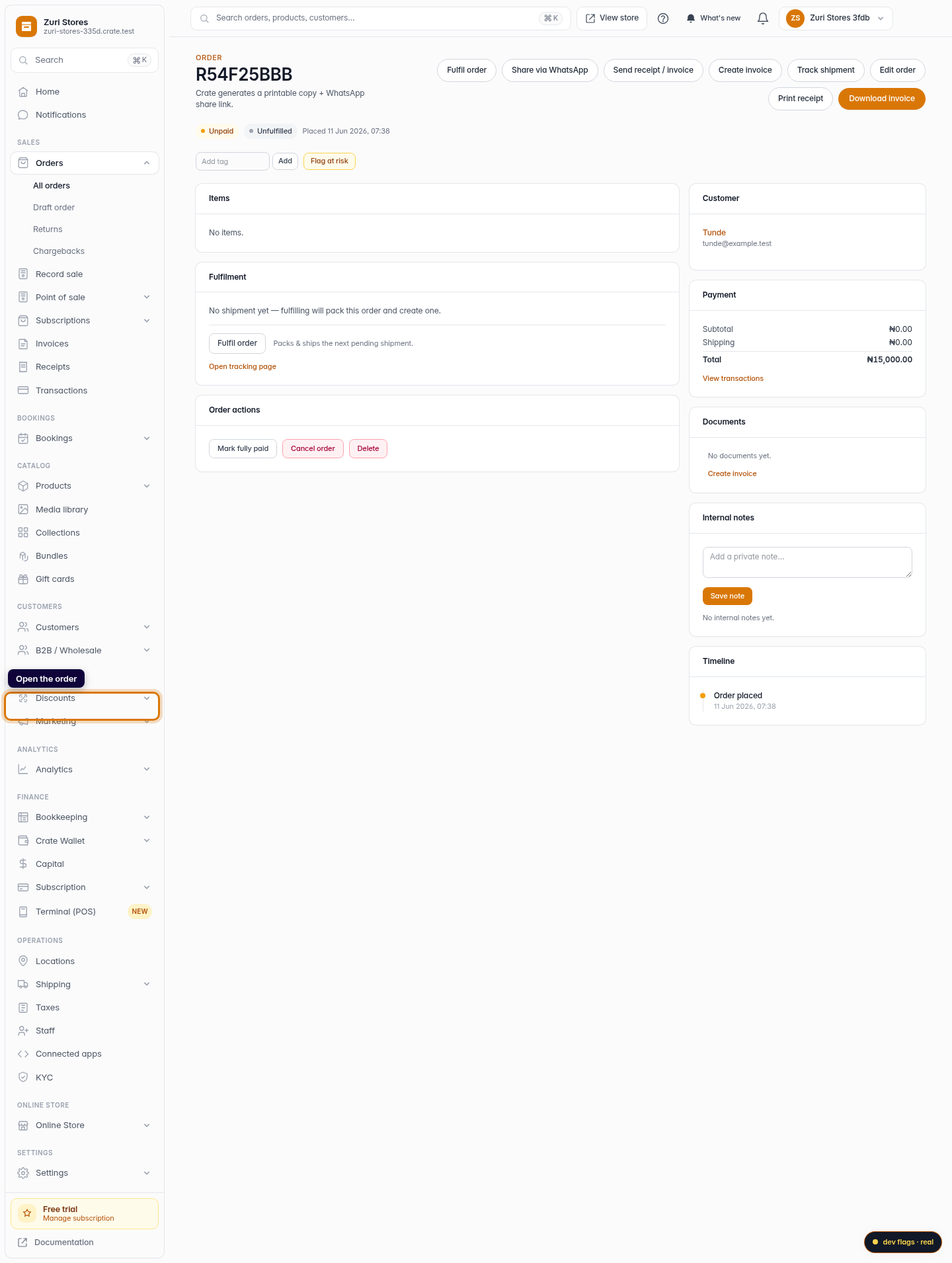
Open the order
Click the order you want to change to open its details.
Web -
3
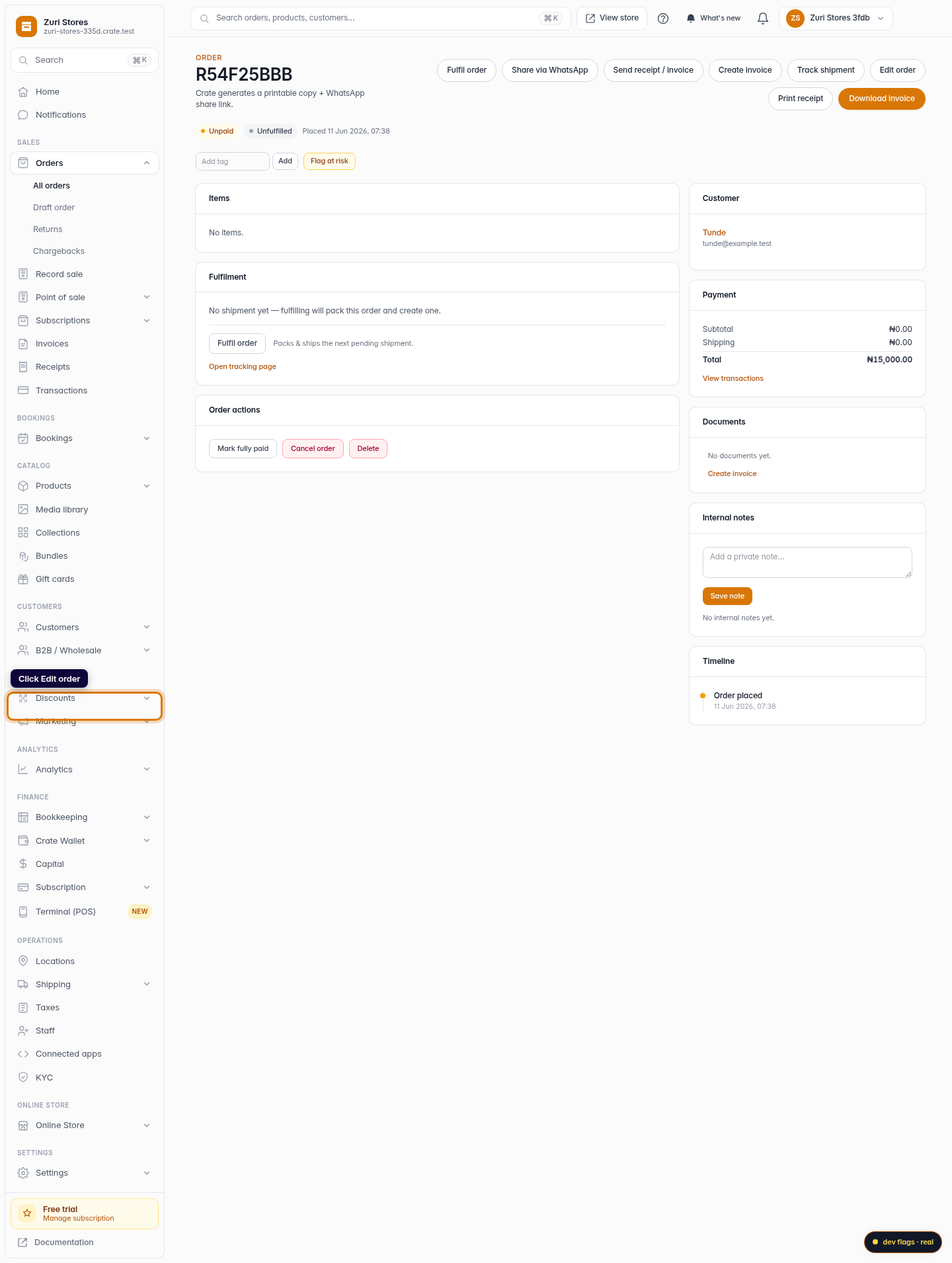
Click Edit order
Click Edit order in the top-right corner to open the order in edit mode.
Web -
4
Make your changes
Adjust items and quantities, change the price, shipping fee or delivery address, or update the customer's details and notes. Crate recalculates the totals as you go.
Web -
5
Save the changes
Click Save changes. Crate updates the order, refreshes its total, and records the edit on the order's timeline.
Web