How to create a discount
Set up a storewide discount that applies automatically — no code needed. Choose a percentage or fixed amount, decide whether it covers all products, specific products or a collection, set the validity dates, and save.
A discount is the simplest way to run a sale: you set it up once and it applies automatically at checkout for every shopper who qualifies. There's no code to share and nothing for the customer to remember — the price they see is already discounted.
When to use a discount (and when to use a coupon)
- Use a discount for open promotions everyone should get: a storewide sale, a markdown on one collection, a fixed amount off a hero product.
- Use a coupon when you want to gate the offer behind a code — a welcome offer, a loyalty reward, an influencer code. See How to create a coupon.
Scoping the discount
The Applies to setting decides how far the discount reaches:
- All products — the whole catalogue.
- Specific products — only the products you pick.
- Specific collections — every product inside the collections you choose.
Pick the narrowest scope that fits the promotion so you don't discount items you didn't mean to.
Percentage vs fixed amount
A percentage discount scales with the cart — 10% off a ₦20,000 order is ₦2,000, off a ₦5,000 order it's ₦500. A fixed amount takes the same money off regardless of cart size. For percentage discounts, set a Max discount to cap the most it can ever take off and protect your margins on large baskets.
Tip: Set an end date for any time-boxed sale so the discount stops itself — you won't have to remember to switch it off.
-
1
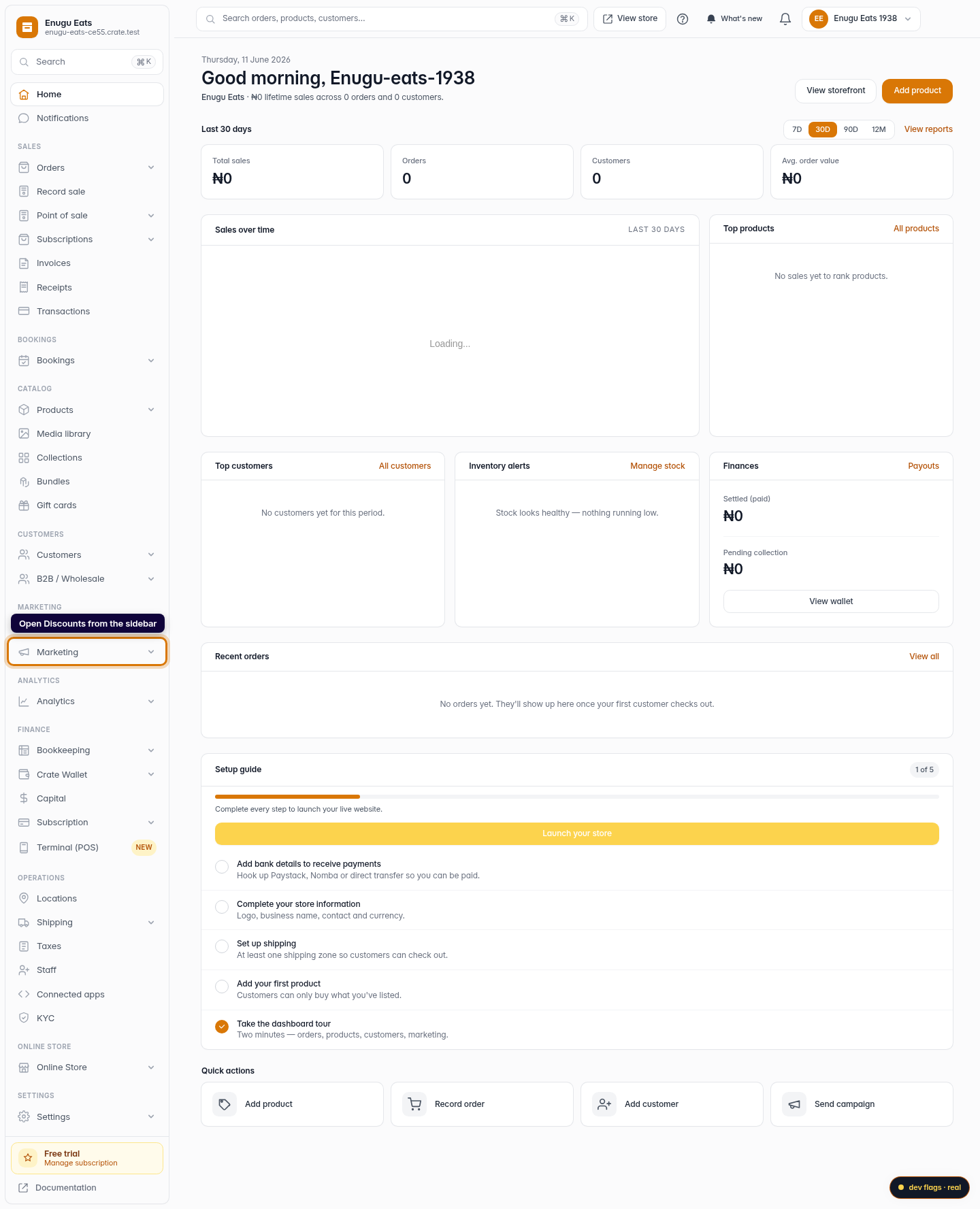
Open Discounts
From your Crate dashboard, open Discounts in the left sidebar. Discounts apply automatically at checkout — there's no code for the customer to enter (that's what Coupons are for).
Web -
2
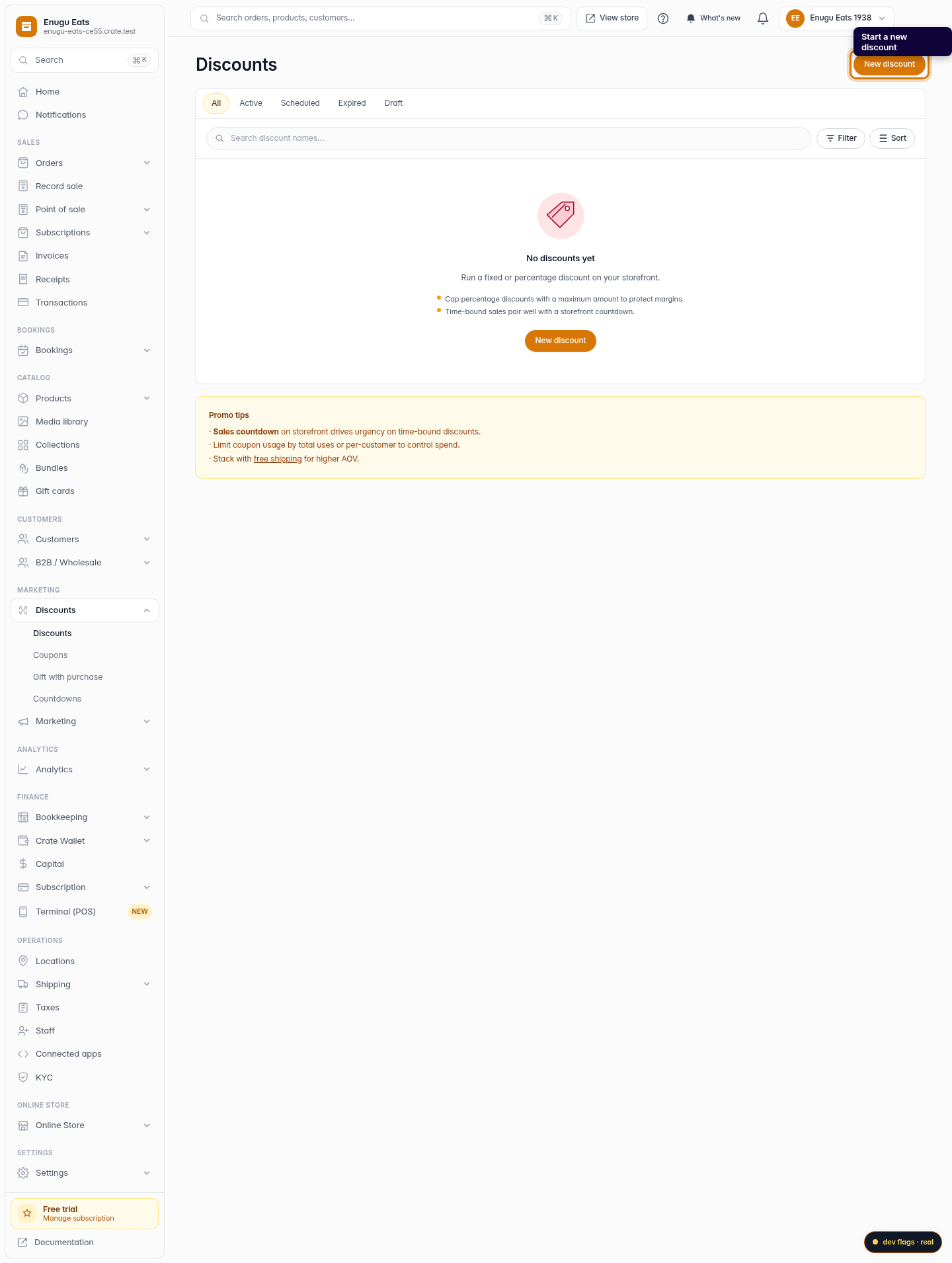
Start a new discount
Click New discount in the top-right corner to open the discount builder.
Web -
3
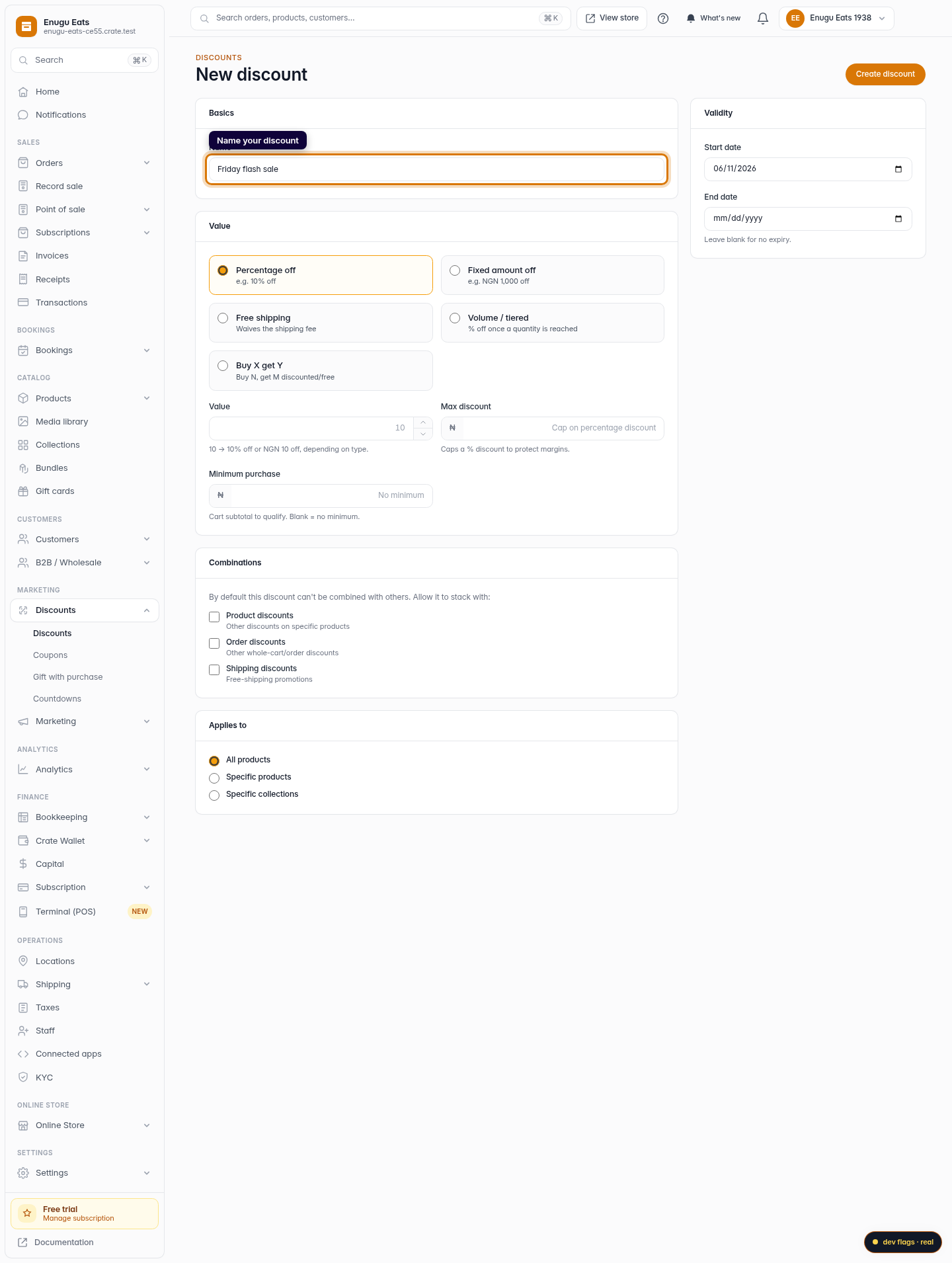
Name your discount
Give it a clear name like Friday flash sale. This is for your records — customers don't see it.
Web -
4
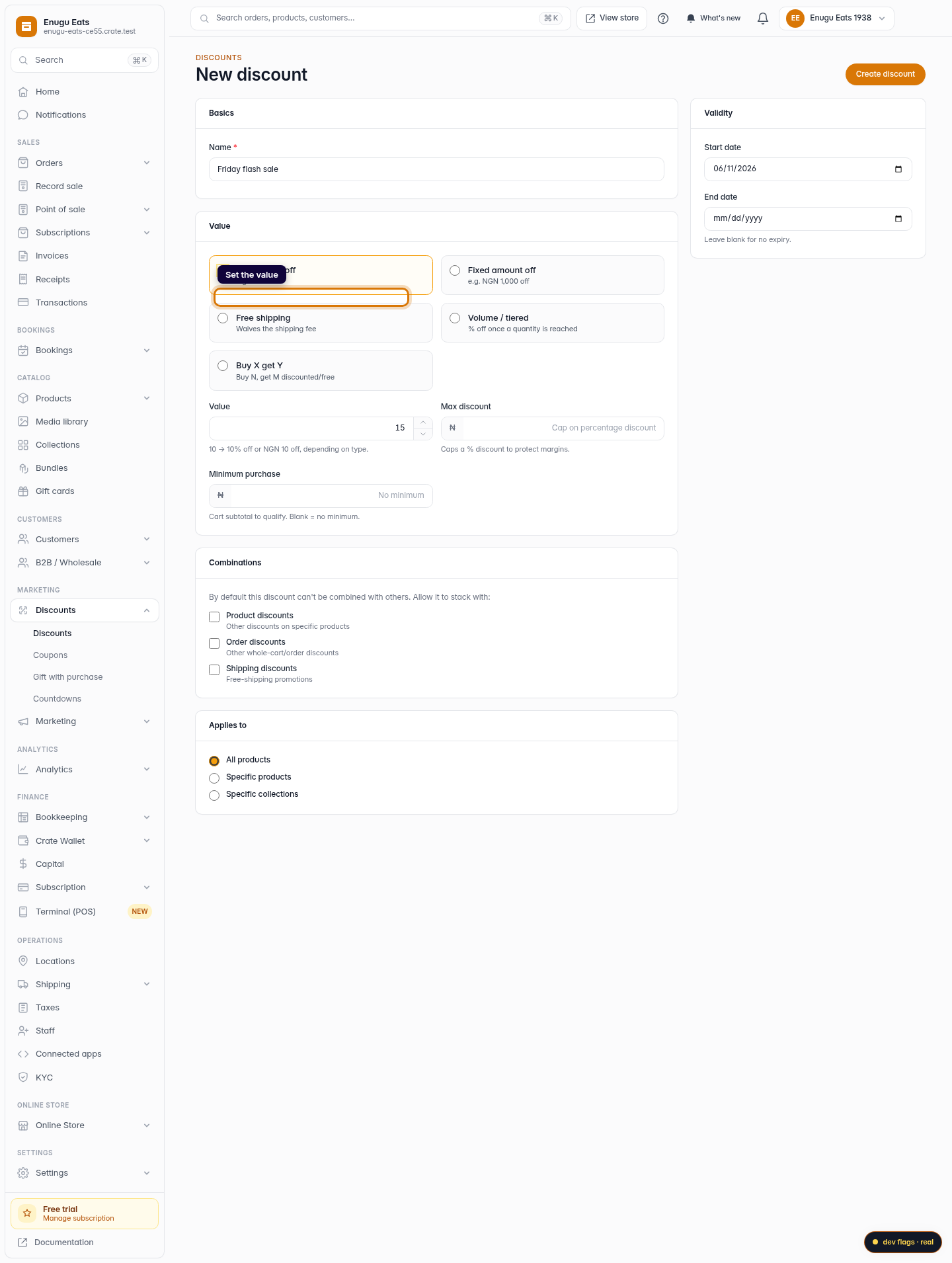
Set the value
Pick the value type — Percentage off or Fixed amount off — and enter the amount. For a percentage you can add a Max discount to cap how much it can take off.
Web -
5
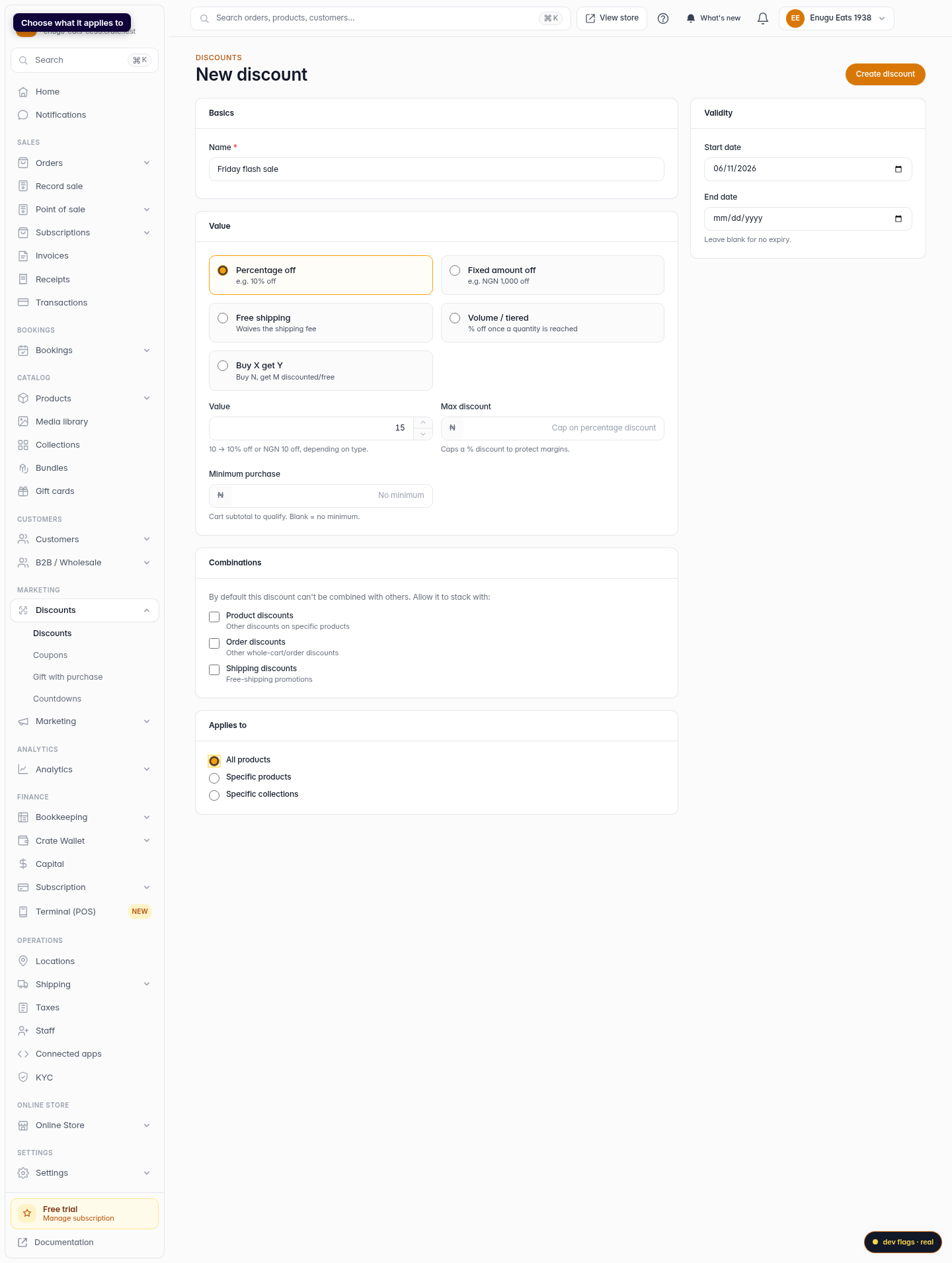
Choose what it applies to
Under Applies to, decide whether the discount covers All products, Specific products, or Specific collections. Pick the matching items if you choose a narrower scope.
Web -
6
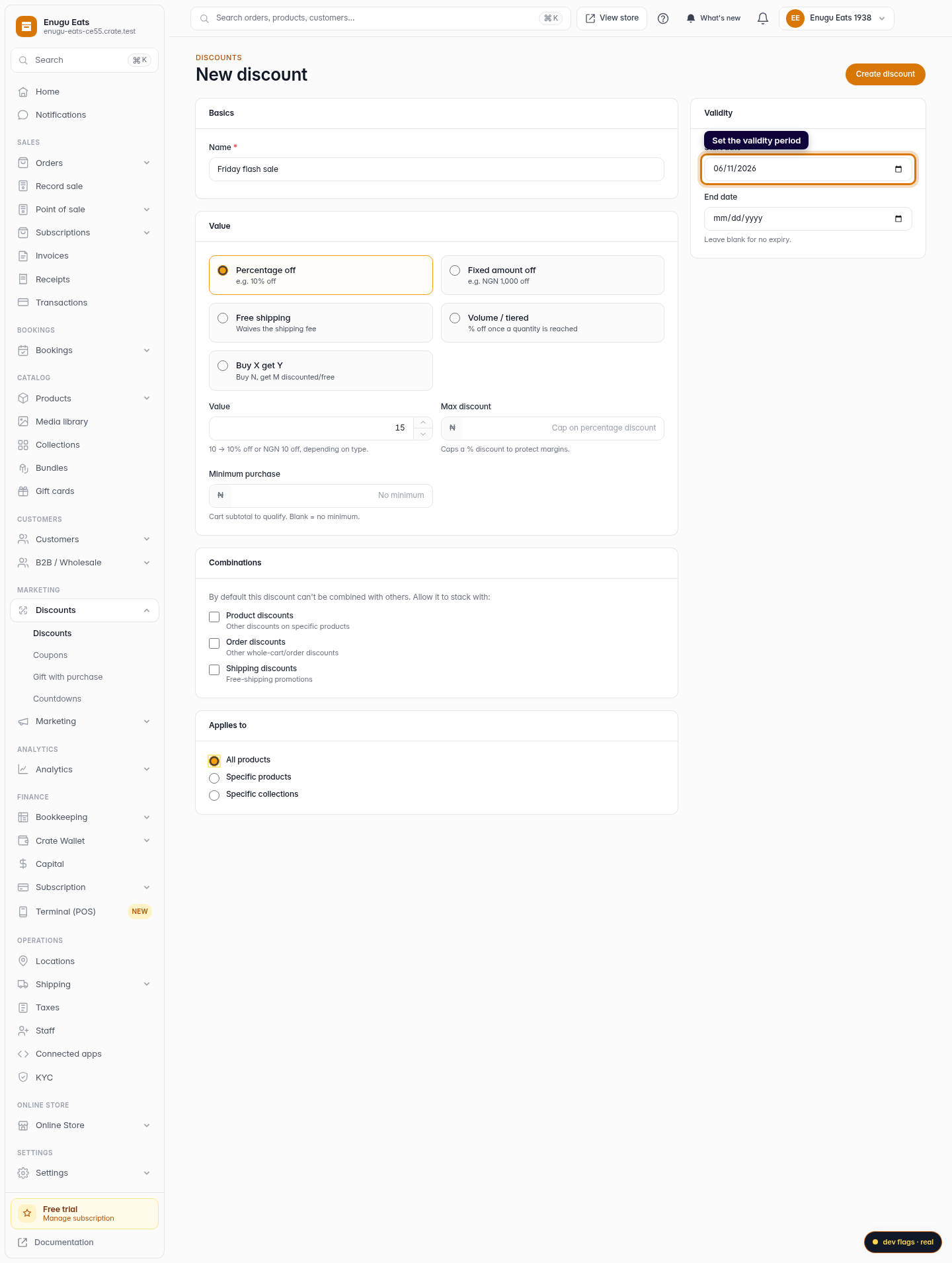
Set the validity period
Optionally set a start and end date so the discount runs only for your sale window. Leave the end date blank for an ongoing discount.
Web -
7
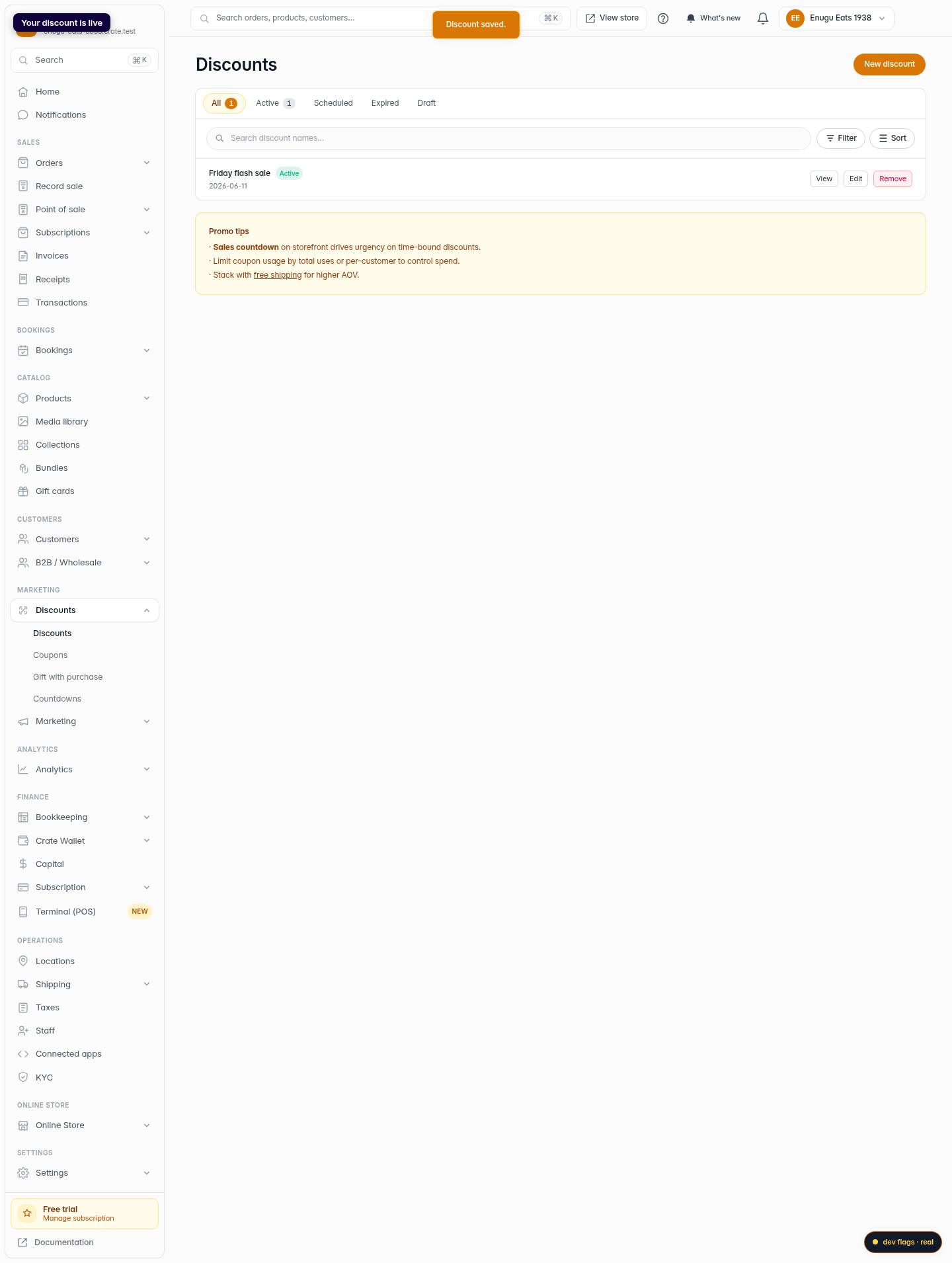
Create the discount
Click Create discount. Crate saves it and it begins applying automatically to every qualifying cart.
Web