Discount several products at once
Run one markdown across a hand-picked set of products. Create a single discount, choose the products it covers, and Crate applies it to every one of them.
When a promotion should hit a specific set of products — your new arrivals, a seasonal edit, everything in one supplier's range — you don't want to mark each product down by hand. Create one discount, point it at the products it covers, and Crate applies the same markdown to all of them.
When to use this instead of a per-product sale
A single-product sale price is best for marking down one item. A discount that applies to specific products is the tool when the same markdown should run across several — change the percentage once and it updates everywhere, and you can give the whole promotion a start and end date in one place.
Tip: If you'd rather discount an entire category, choose Specific collections instead of Specific products — Crate then covers every product in those collections, including ones you add later.
Caps, minimums and dates
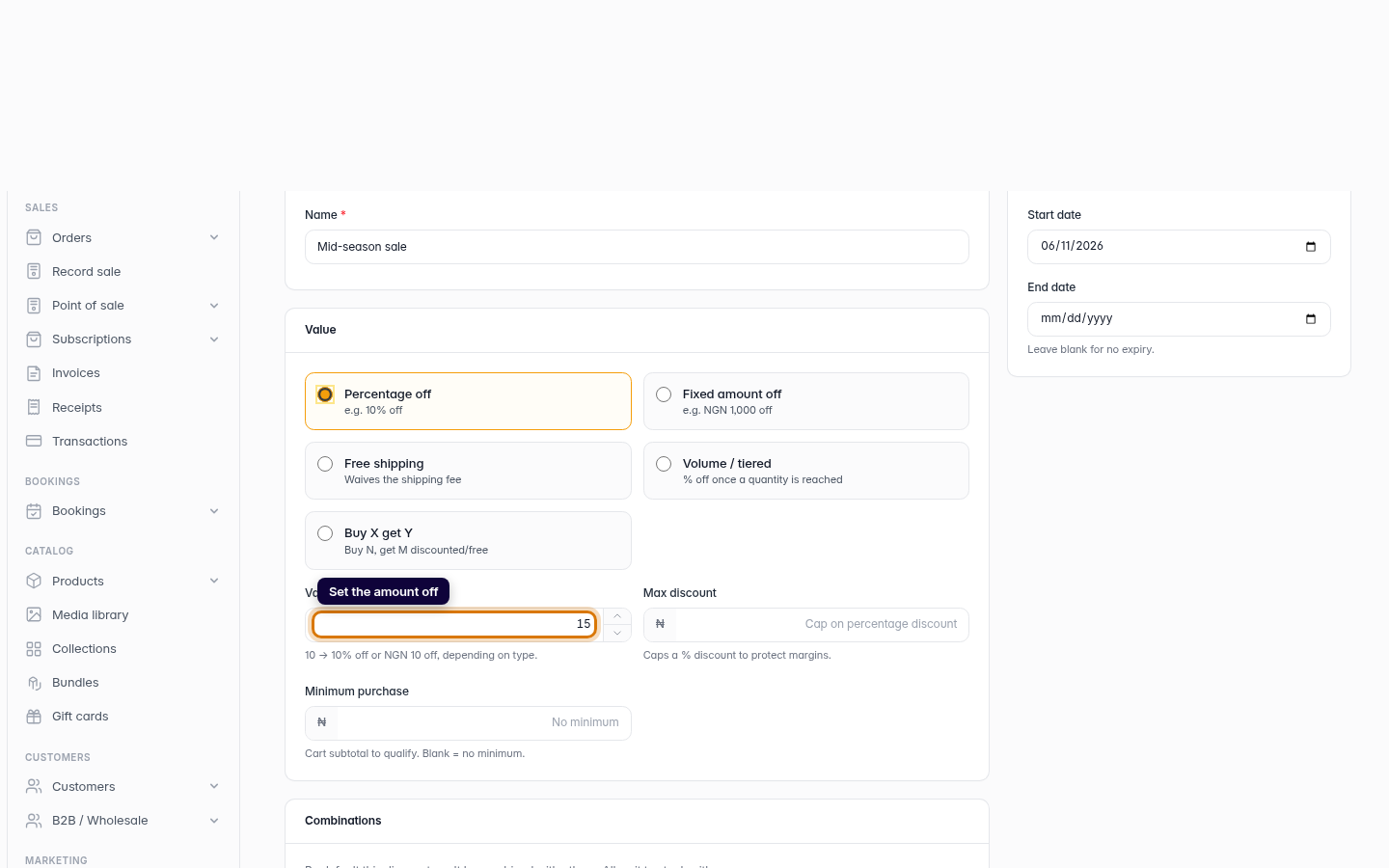
- Max discount caps how much a percentage deal can take off any one order — useful for protecting margin on big baskets.
- Minimum purchase requires the cart to reach a subtotal before the discount applies.
- Start and end dates schedule the promotion: set them and the discount switches itself on and off, so a weekend sale needs no babysitting.
A discount applies automatically at checkout — there's no code for the shopper to enter. If you want shoppers to type a code, create a coupon instead.
-
1
Open Discounts
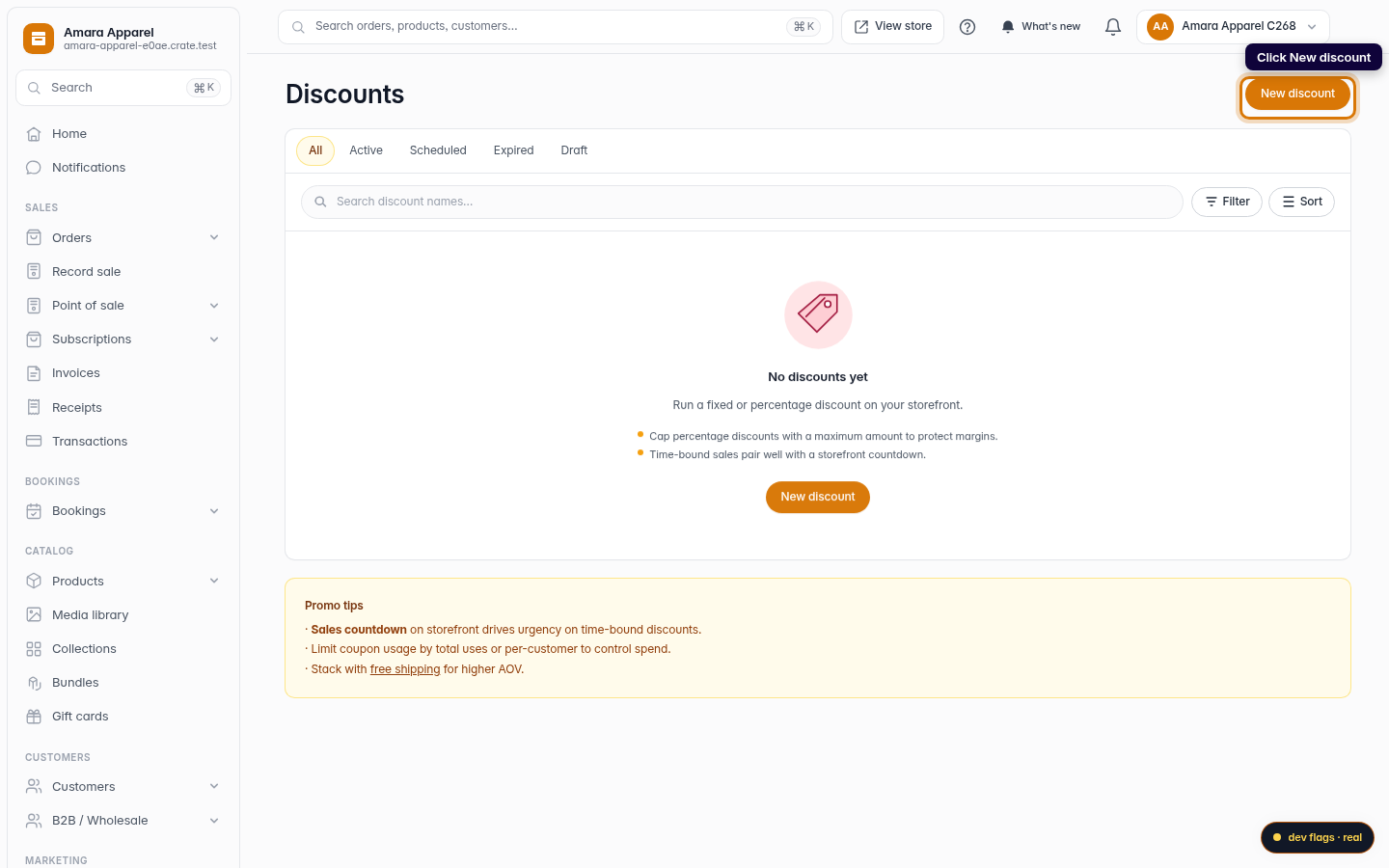
From your dashboard, open Discounts and click New discount. A discount is one rule that can cover many products at once.
Web -
2
Name it
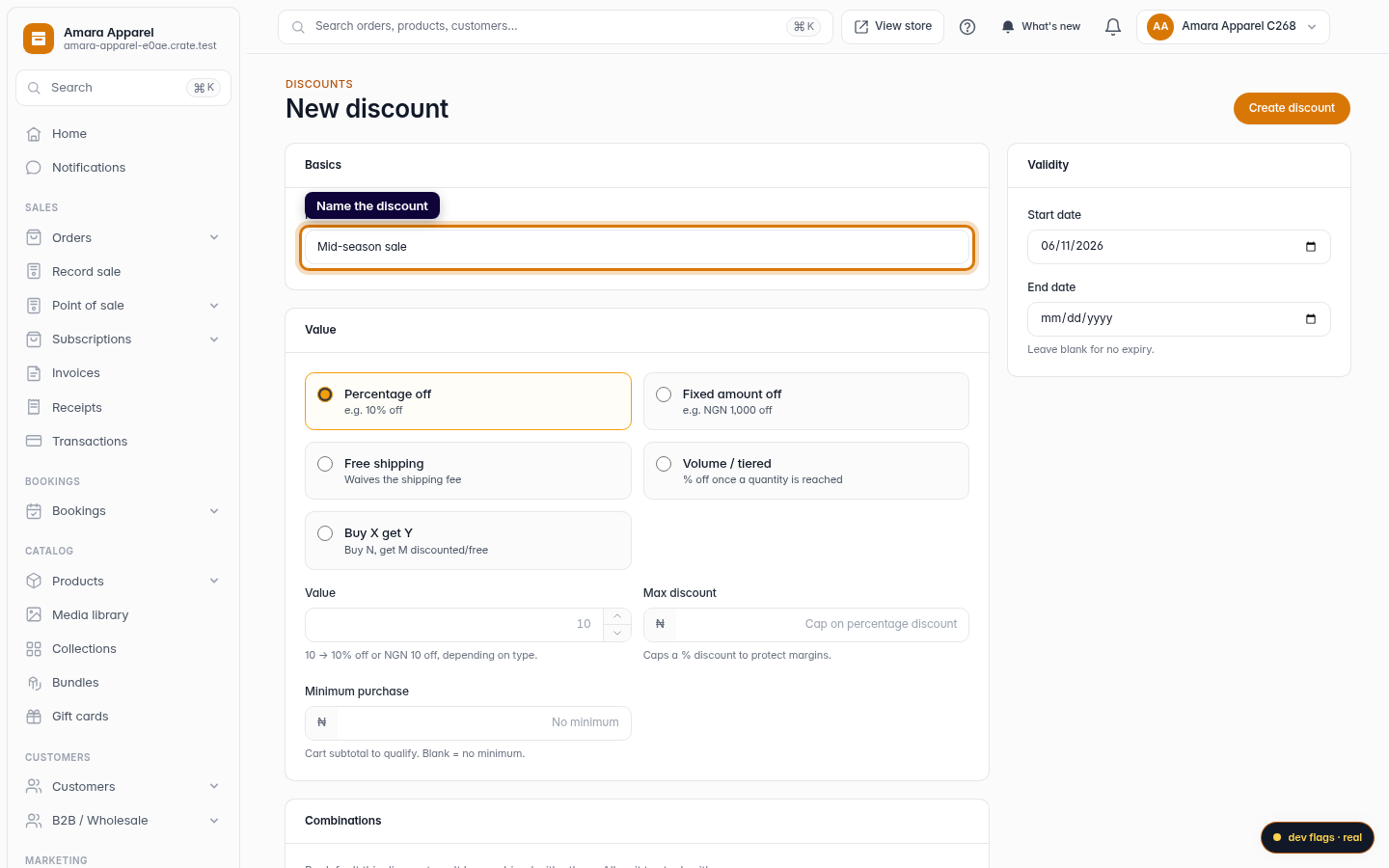
Give the discount a name you'll recognise later — for example Mid-season sale. Shoppers never see this name; it's for your records.
Web -
3
Set the amount off
Choose a value type — Percentage off or Fixed amount off — and enter the amount. A percentage like 15 takes 15% off every product in the set.
Web -
4
Choose Specific products
Under Applies to, pick Specific products. A searchable picker appears.

Web -
5
Add the products
Search each product by name and add it. Every product you add is covered by this one discount — add as many as you like.

Web -
6
Create the discount
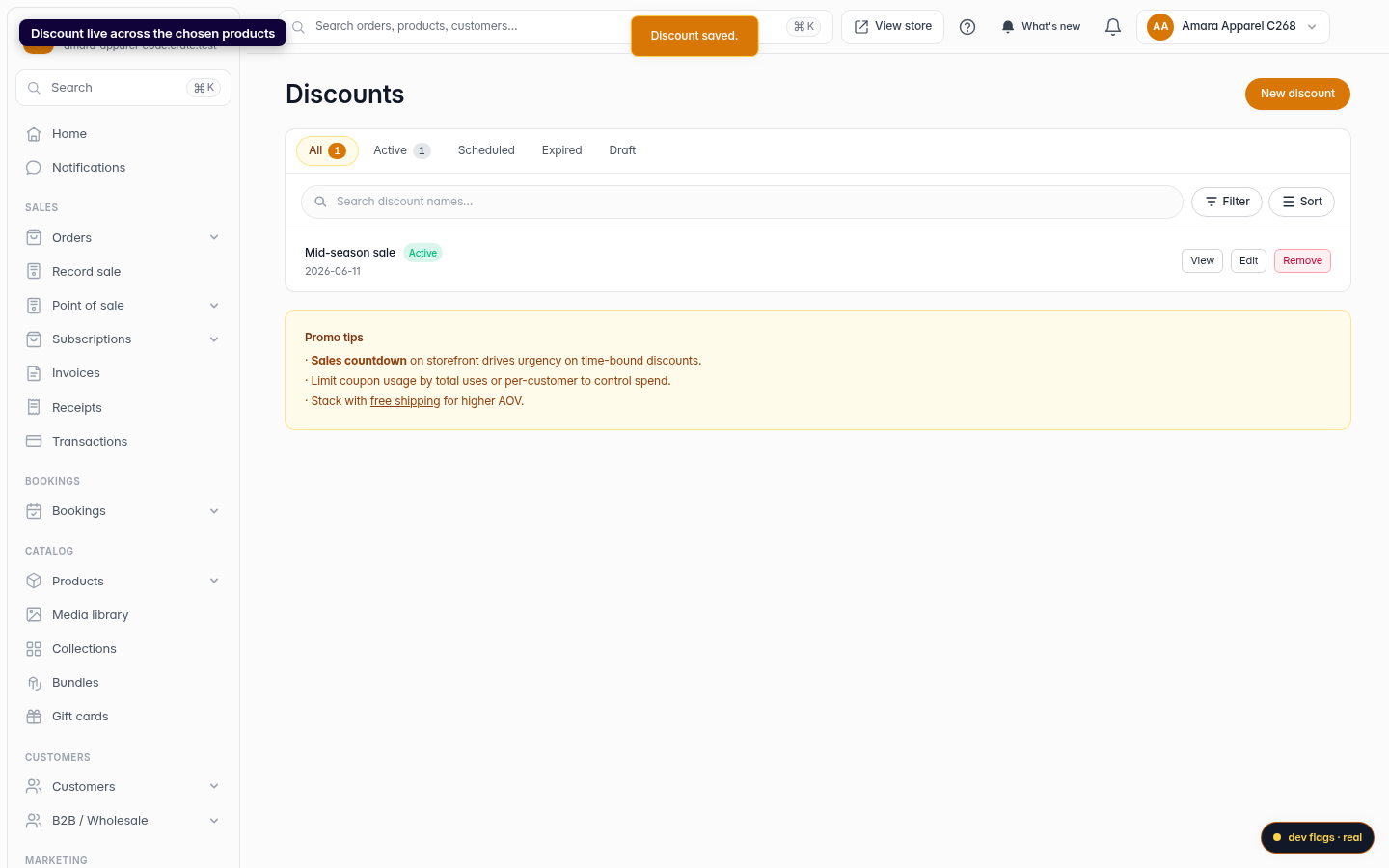
Click Create discount. The markdown goes live across all the products you chose.
Web