Reset your Wallet PIN
Forgotten your 4-digit Wallet PIN or want a fresh one? Reset it securely — confirm your account password, enter the 6-digit code we email you, then set a new PIN.
Your Wallet PIN is the 4-digit code that guards every withdrawal from your Crate Wallet. If you've forgotten it, or just want a fresh one for security, you can reset it without losing access to your wallet. To keep your money safe, the reset is gated by two checks: your account password and a one-time code emailed to you.
Before you start
Have access to the email address on your Crate account — that's where the reset code is sent. If you've also forgotten your account password, reset your password first, then come back here to reset your PIN.
How the reset works
- Confirm your password. From the Wallet PIN page, enter your account password and request a reset code. This proves it's you before any code goes out.
- Enter the emailed code. Crate sends a 6-digit code to your account email. It's valid for a short window, so check your inbox promptly. Enter it to unlock the PIN form.
- Set a new PIN. Choose a fresh 4-digit PIN and confirm it. Avoid easy patterns like
1234or a birth year.
Tip: Once you've verified the code, the new-PIN form opens automatically. Your old PIN stops working the moment you save the new one.
Didn't get the code?
Codes are rate-limited to protect your account, so if you've just requested one, give it a moment before asking for another. If it still hasn't arrived, check your spam folder and confirm the email address on your account is current.
-
1
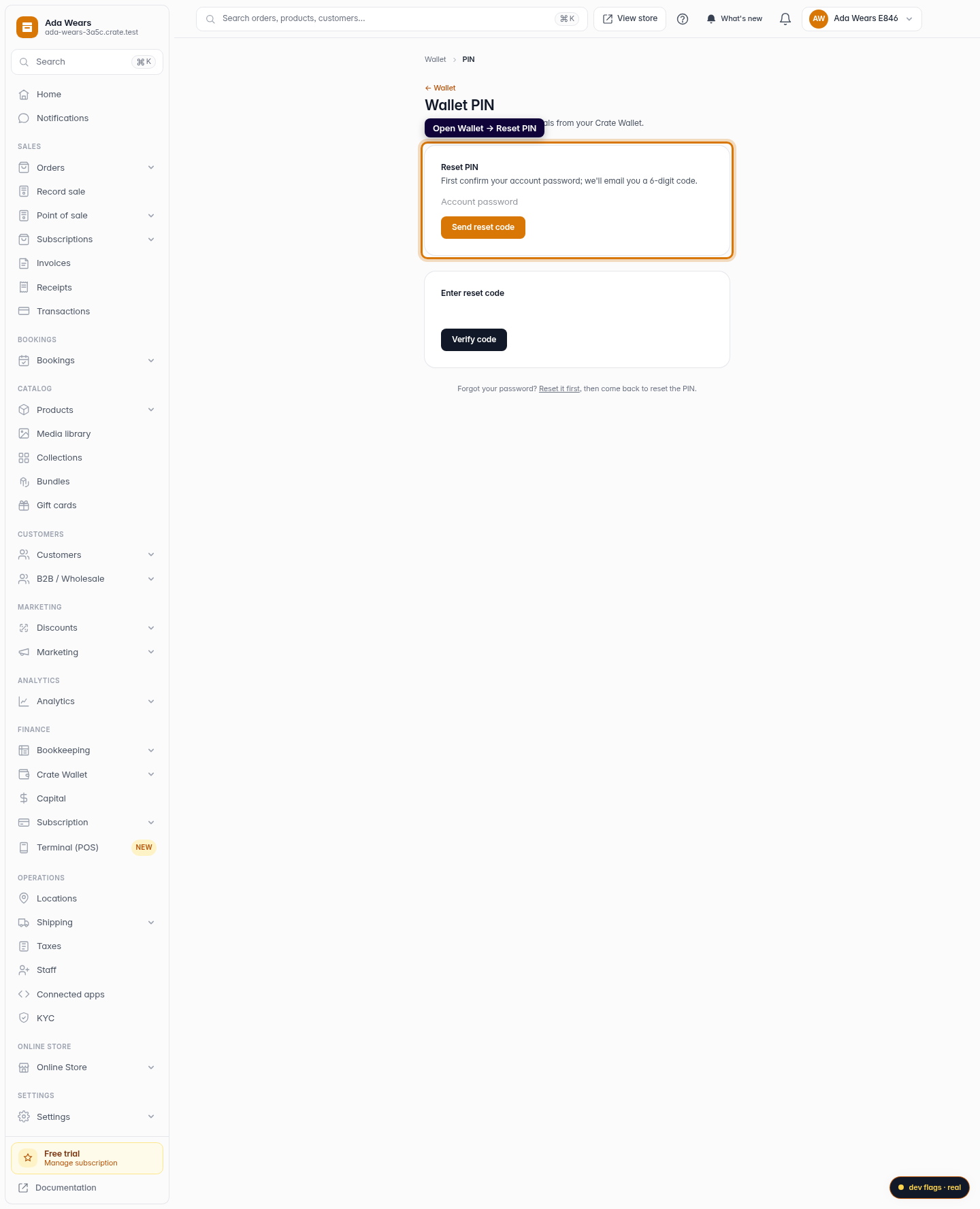
Open Wallet PIN
From your Wallet, click Reset PIN. Because a PIN is already set, Crate asks you to verify it's really you before letting you change it.
Web 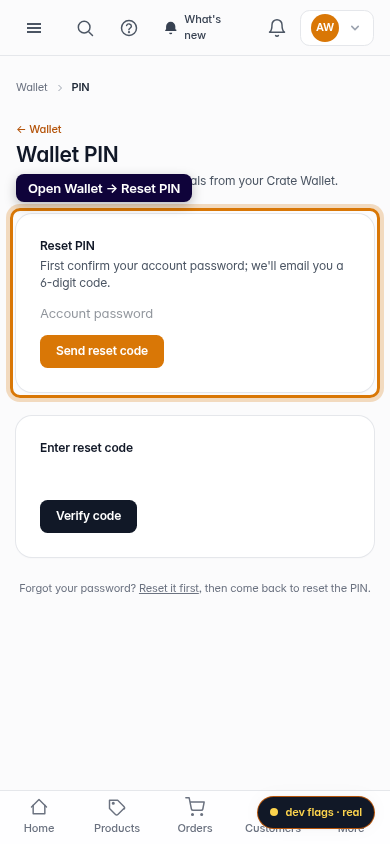
Mobile -
2
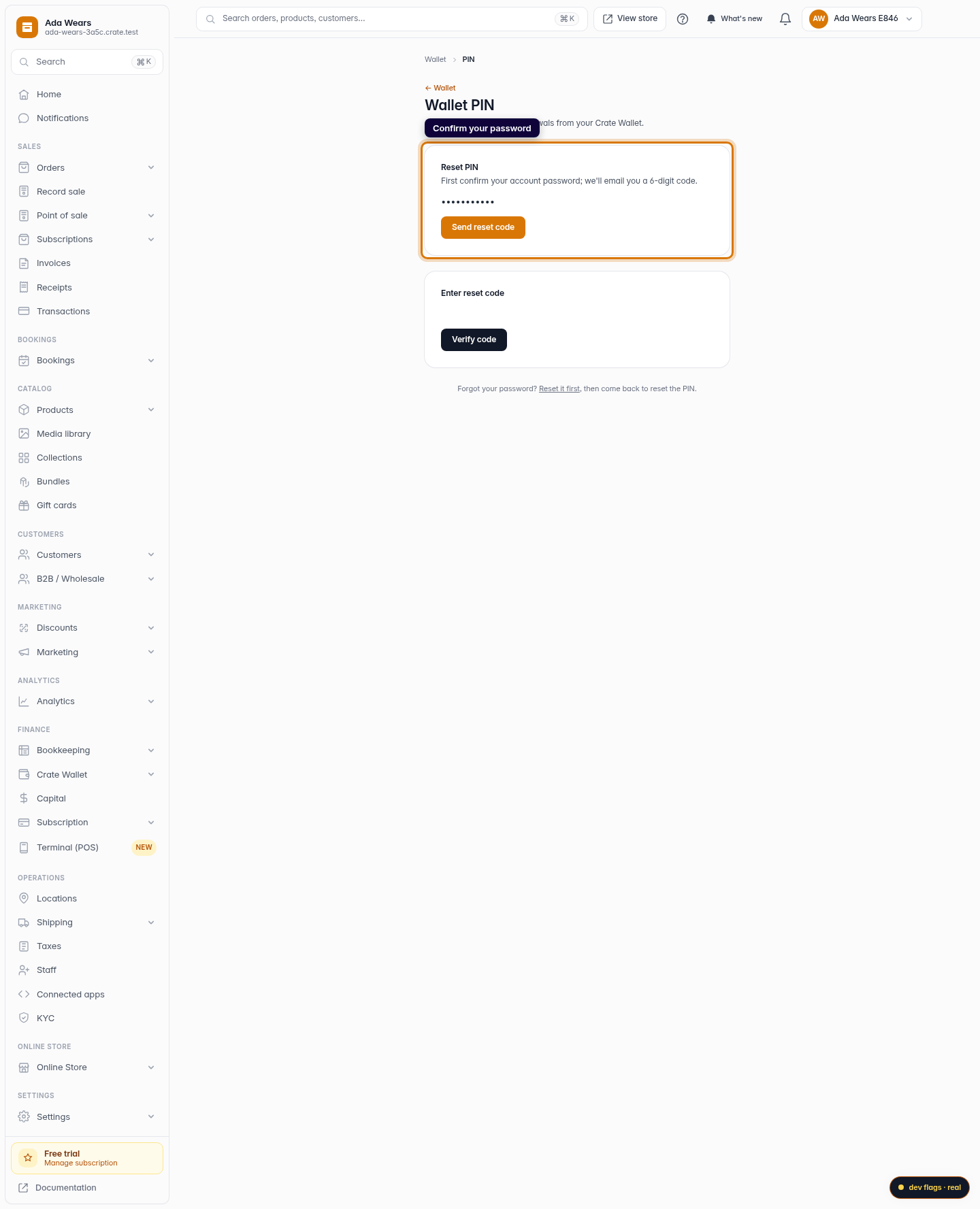
Confirm your password
Enter your account password and click Send reset code. Crate emails a 6-digit code to your account email address.
Web -
3
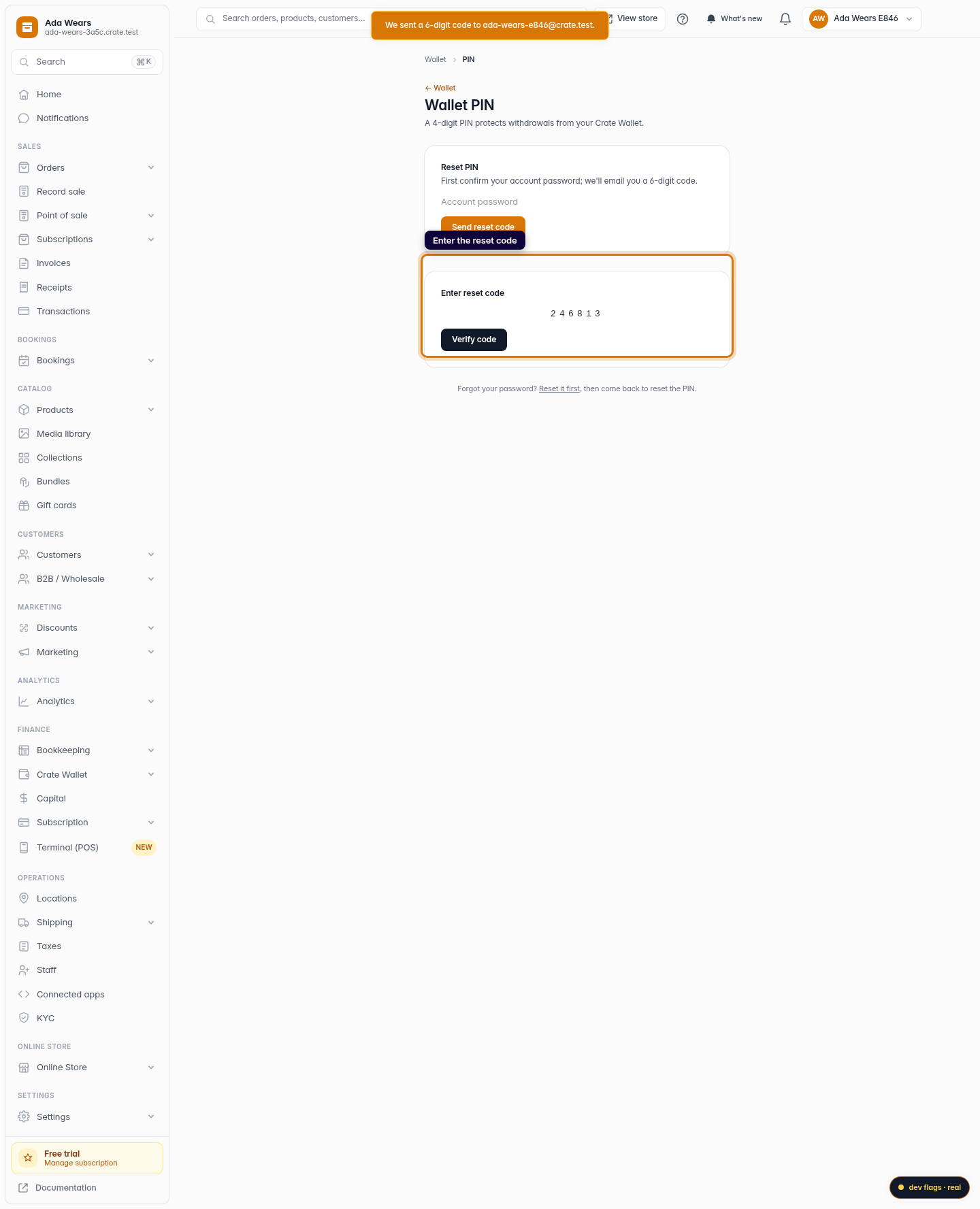
Enter the reset code
Open your email, copy the 6-digit code, paste it into Enter reset code, and click Verify code.
Web -
4
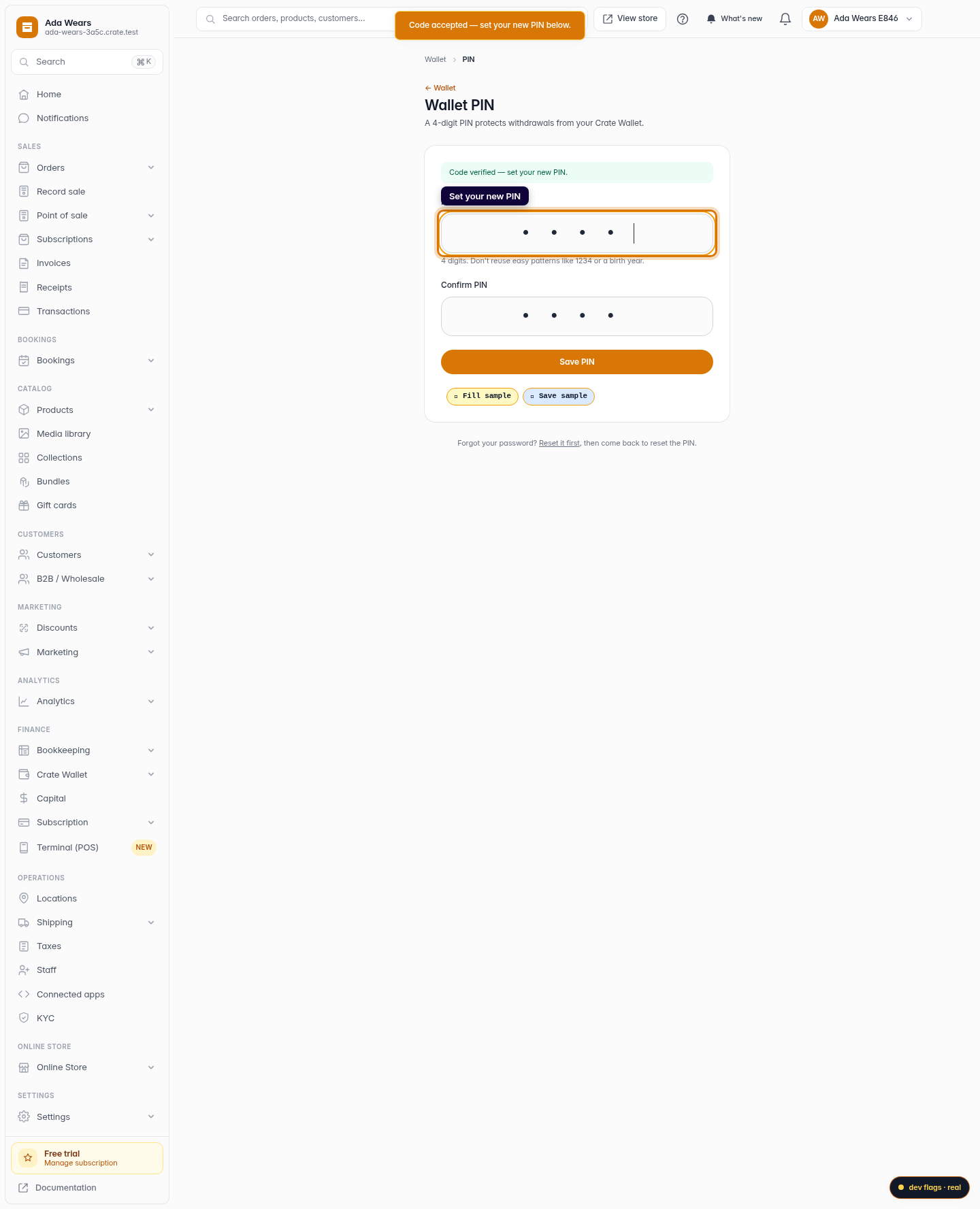
Set your new PIN
Type your new 4-digit PIN, confirm it, and click Save PIN. Your wallet is now protected by the new PIN.
Web 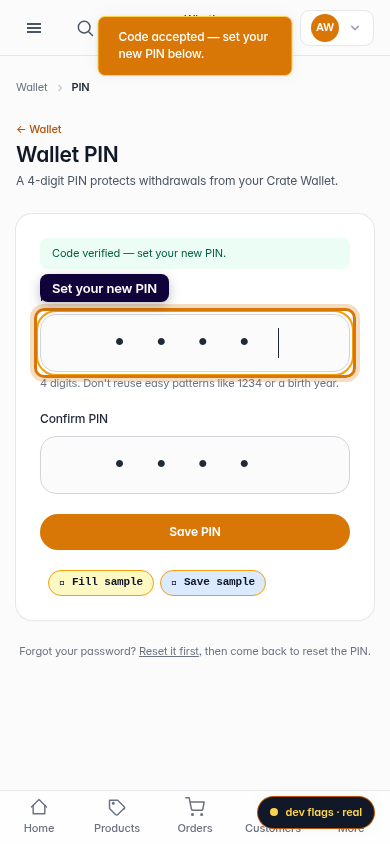
Mobile