Cancel your subscription
Thinking of cancelling? Here's exactly what you keep, what you lose, and how to turn off your Crate subscription in a few clicks.
We're sorry to see you considering leaving. Before you cancel, it's worth knowing that cancelling on Crate simply turns off auto-renewal — your storefront, orders, products and customers stay exactly as they are until your current period ends. Nothing is deleted the moment you cancel.
Try this first
If you're cancelling because something isn't working — a feature you can't find, a bill that looks wrong, a bug — reach out to support before you go. Most issues are quick to resolve, and you may be able to keep your store running without missing a beat.
What you keep, what you lose
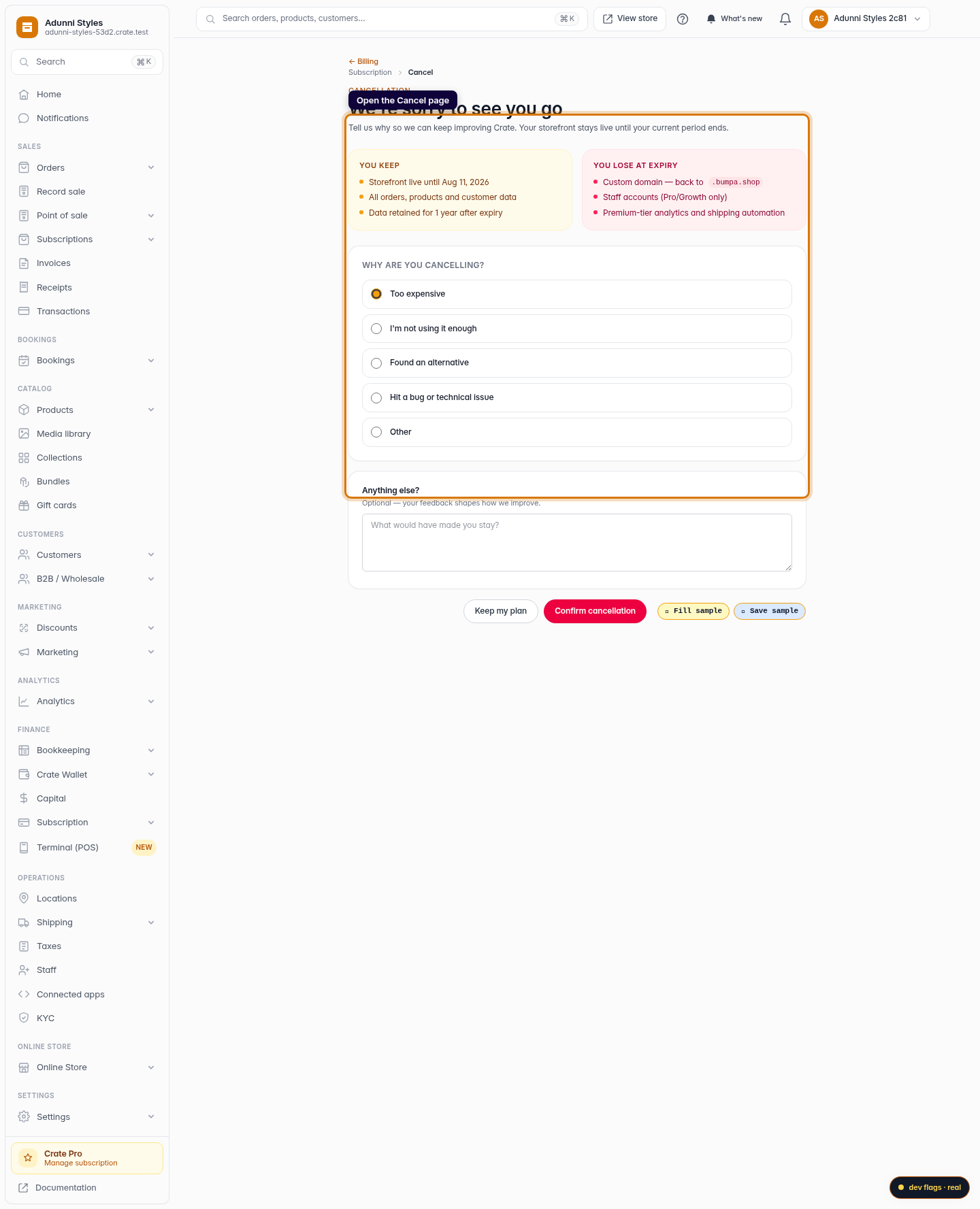
When you cancel, you keep full access until your current period ends: your live storefront, every order and product, and all your customer data. After expiry you'd lose plan-only features — your custom domain reverts, staff accounts switch off, and premium analytics and shipping automation pause. Your data is retained for a year, so you can come back any time by resubscribing.
Tip: Cancelling isn't the same as deleting. Your store sleeps; it isn't erased. Resubscribe before the retention window closes and everything comes back.
What happens after you confirm
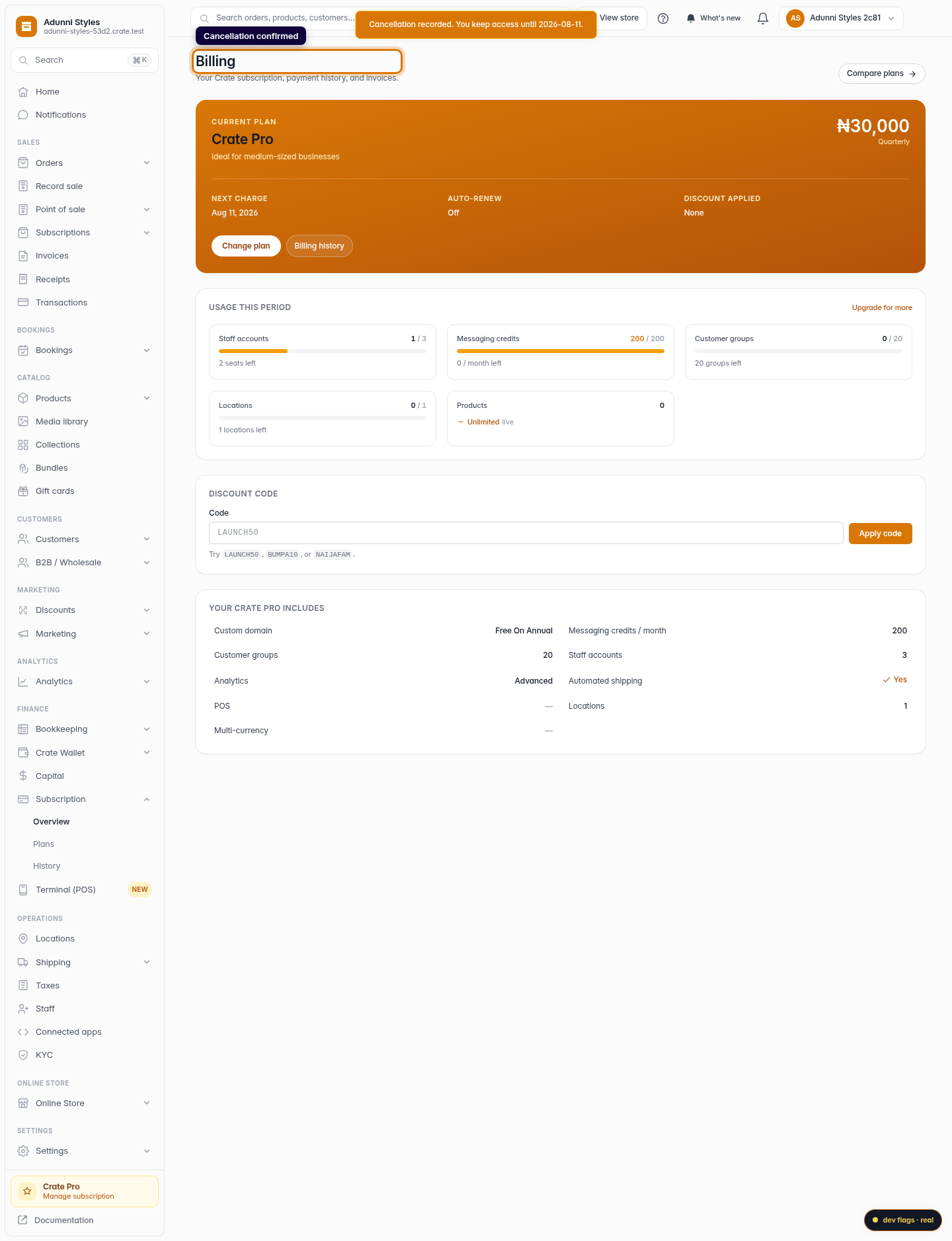
Crate switches off auto-renewal and records your reason. You'll see a confirmation with the exact date your access runs until — and your storefront keeps selling right up to that day. Changed your mind? Renew from the billing page before the period ends and nothing lapses.
-
1
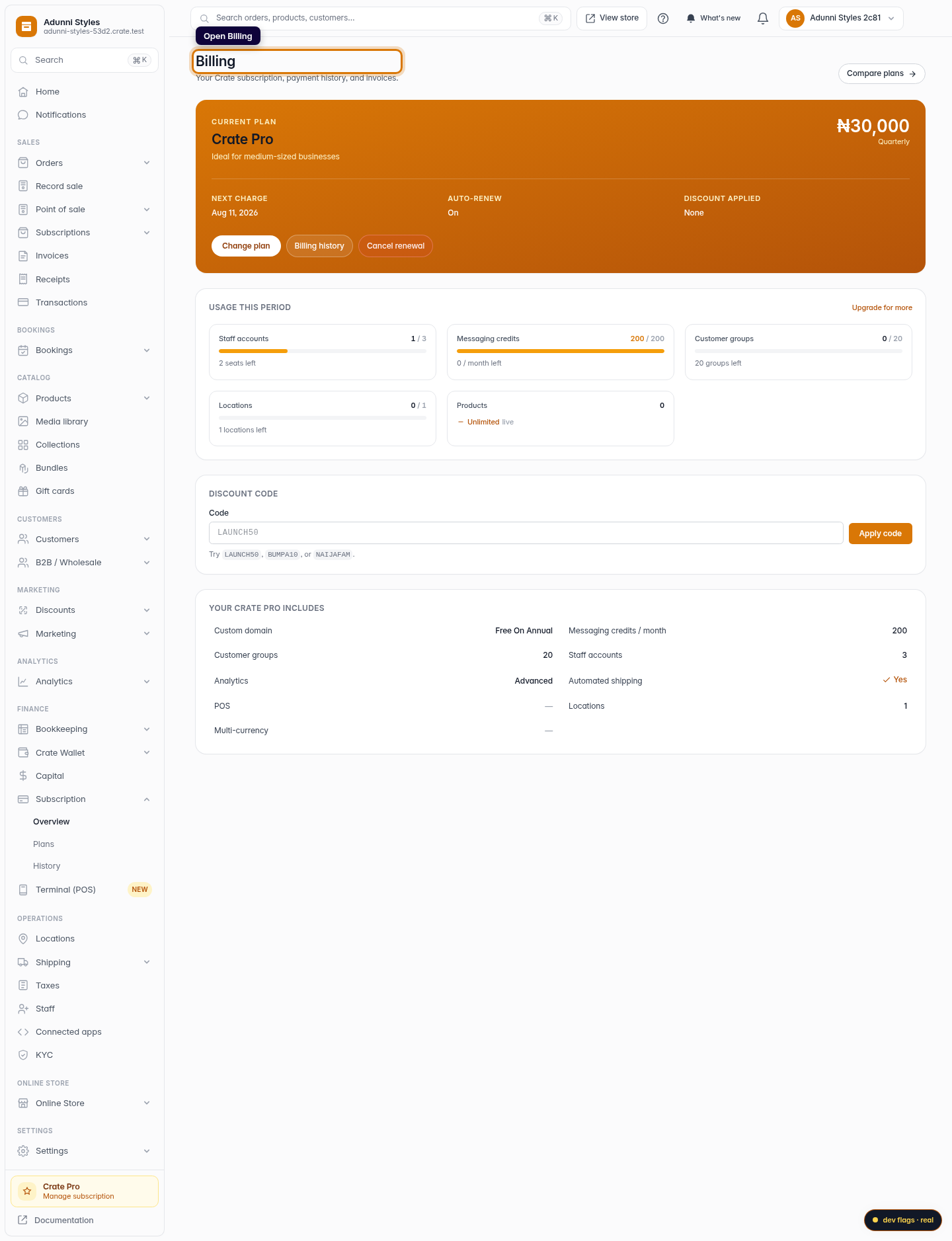
Open Billing
From your dashboard, go to Billing to see your current plan and renewal date before you decide.
Web 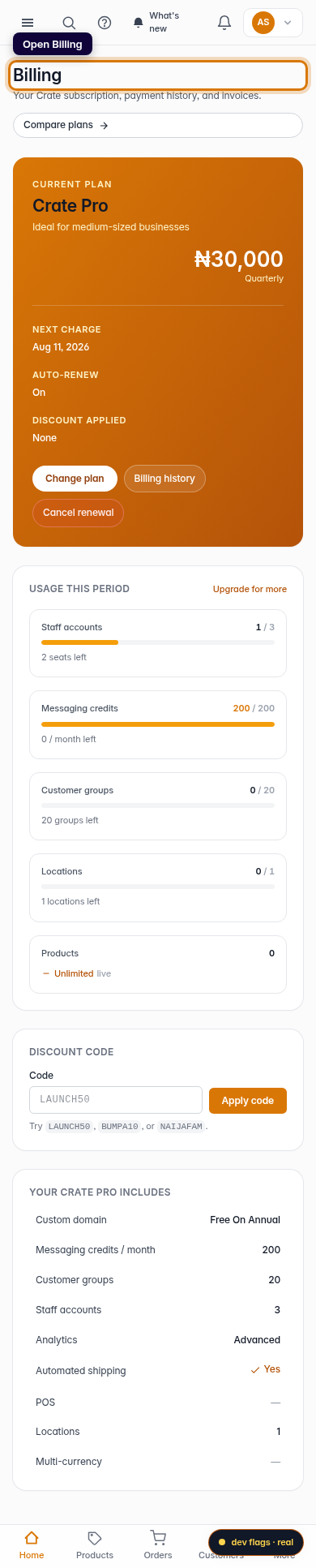
Mobile -
2
Open the cancellation page
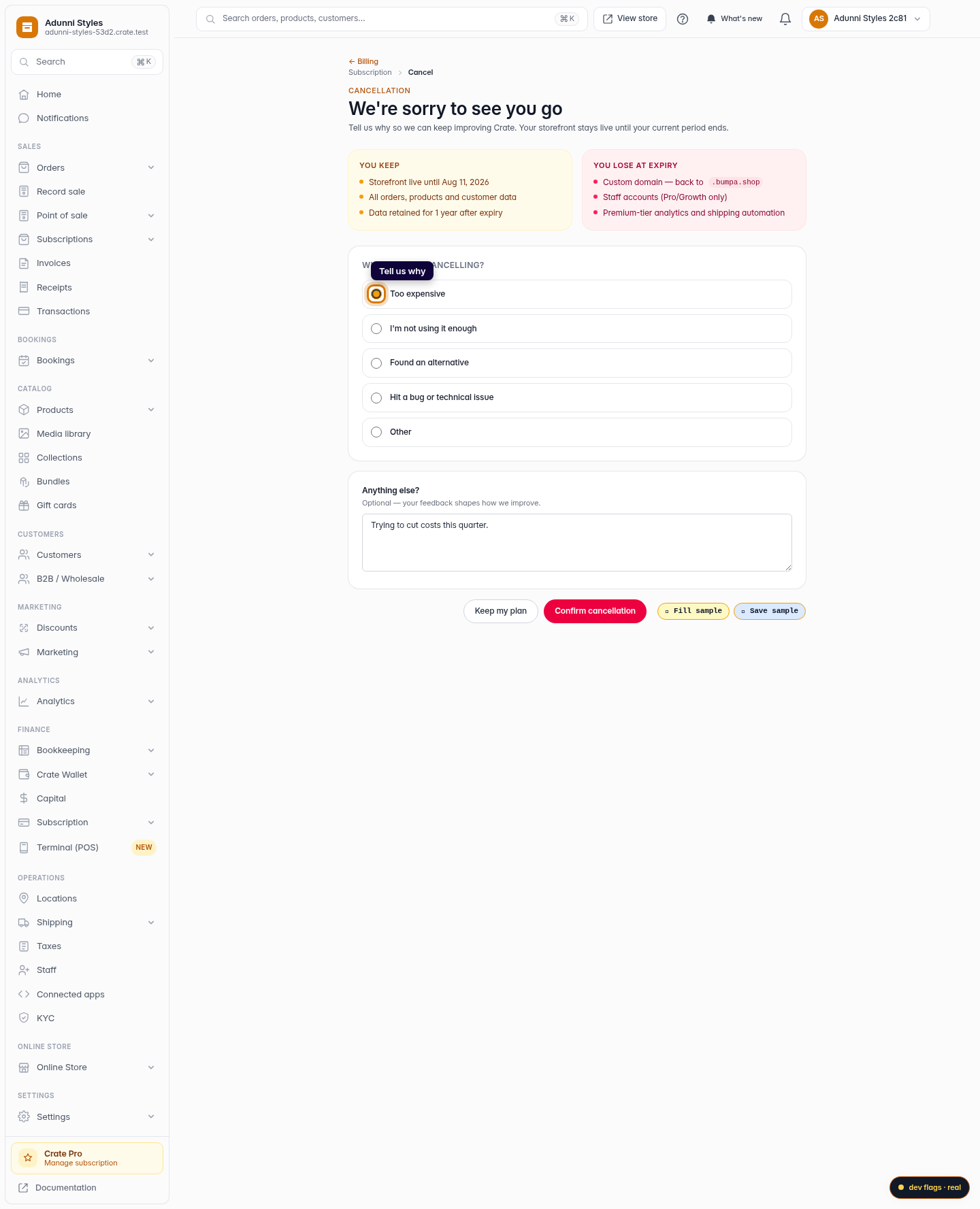
Open the Cancel subscription page. Crate lays out what you keep and what you'd lose when your current period ends, so there are no surprises.
Web 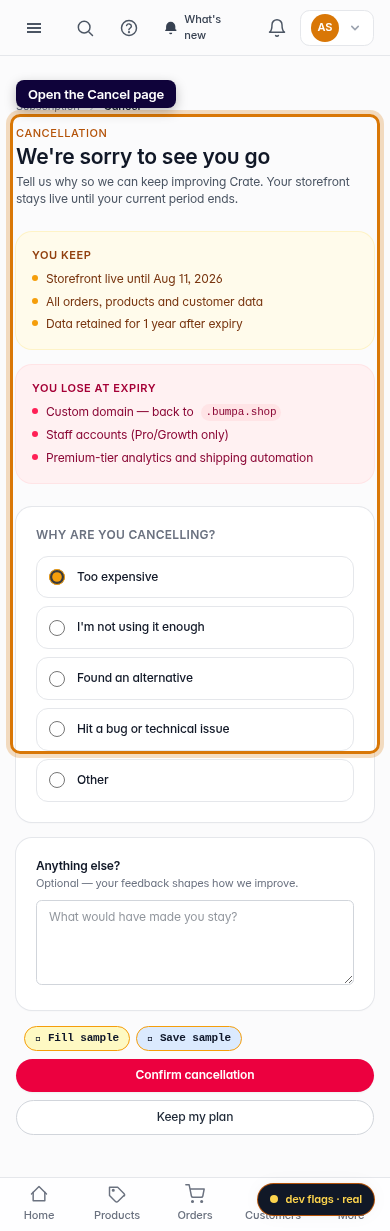
Mobile -
3
Tell us why
Pick a reason for cancelling. This helps us improve Crate — and sometimes points to a fix that means you don't have to leave at all.
Web -
4
Confirm the cancellation
Click Confirm cancellation. Auto-renewal is switched off and Crate confirms the date your access runs until — your store stays live the whole time.
Web 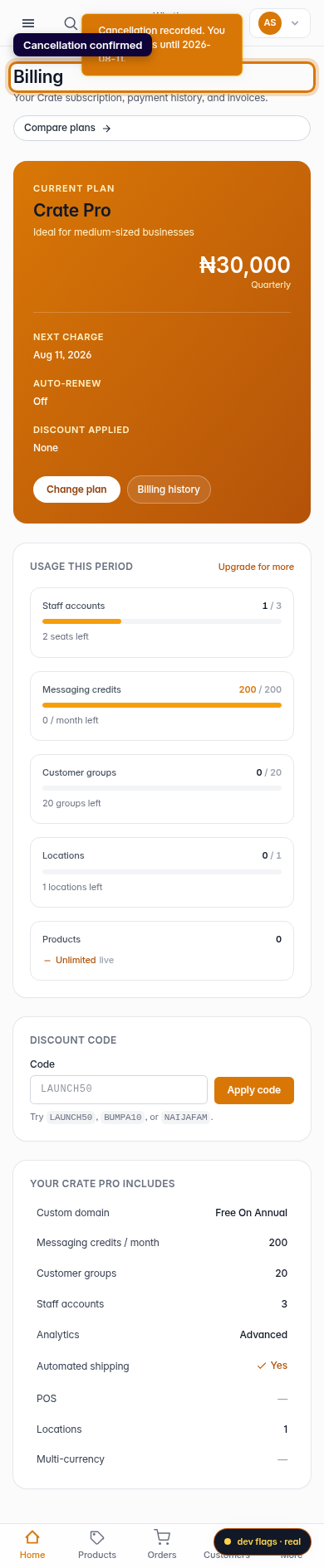
Mobile