View your newsletter subscribers
See everyone who opted in through your storefront in one place. Crate shows your total, verified, and pending counts at a glance, plus the full list — ready to email or export into Mailchimp, Klaviyo, or Brevo.
Your newsletter list is one of your most valuable marketing assets — it's a direct line to people who asked to hear from you. Crate keeps the whole list in one place, captured automatically from your storefront, so you can see who's subscribed and act on it.
Where subscribers come from
Every email on this page was captured by your storefront: either the inline newsletter section on a page, or the Newsletter Popup that greets visitors. There's nothing to import — opt-ins flow straight onto this list as they happen.
Reading the page
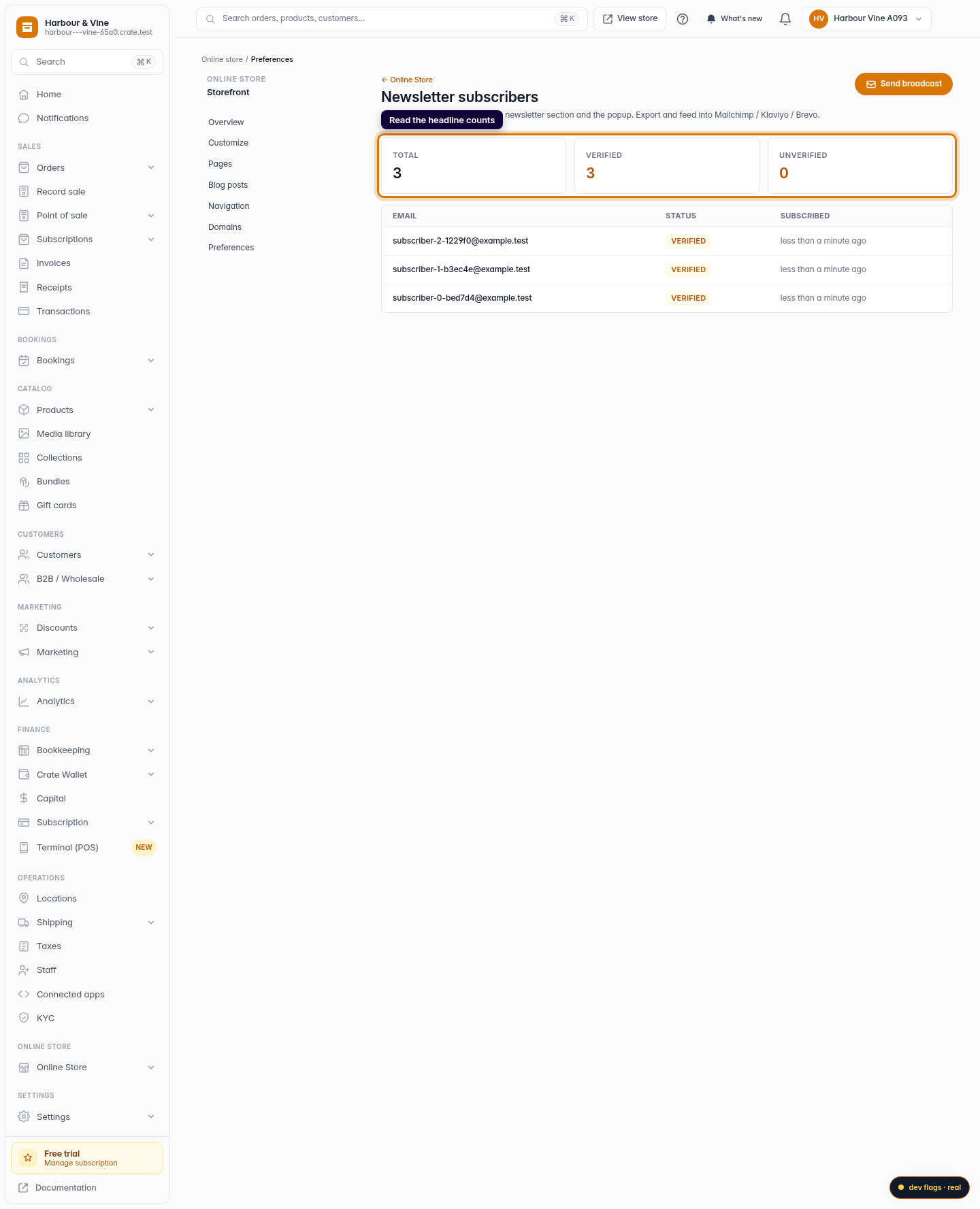
- Total — everyone who's ever subscribed.
- Verified — active subscribers safe to email.
- Unverified — sign-ups still pending confirmation.
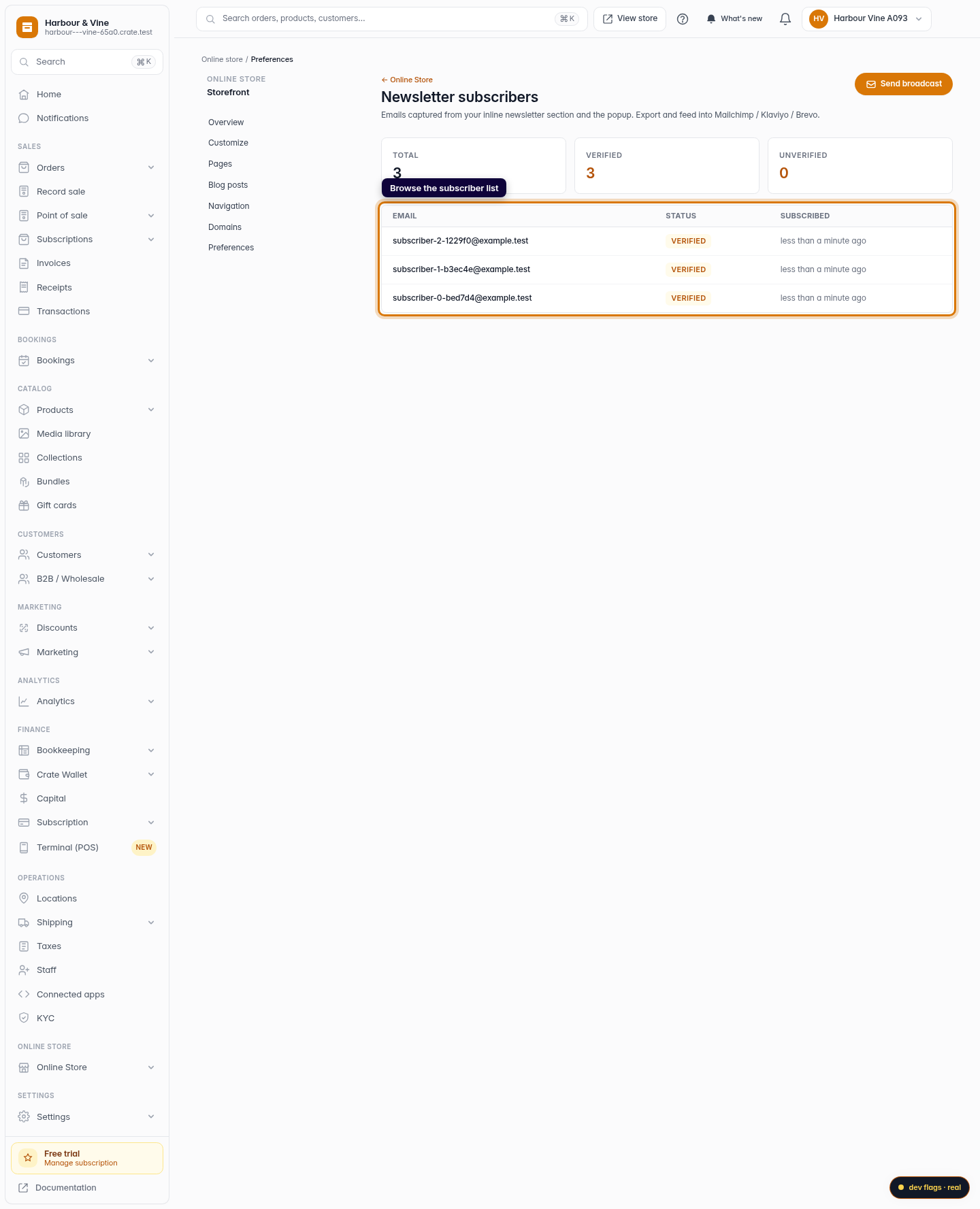
The list itself shows each subscriber's email, status, and how long ago they joined, newest first.
Tip: No subscribers yet? Add a Newsletter Popup to your homepage from the storefront editor — it typically converts 3–7% of visitors into subscribers.
What you can do next
From here you can send a broadcast to every verified subscriber, or export the list and feed it into a dedicated email tool like Mailchimp, Klaviyo, or Brevo — your list is yours to take anywhere.
-
1
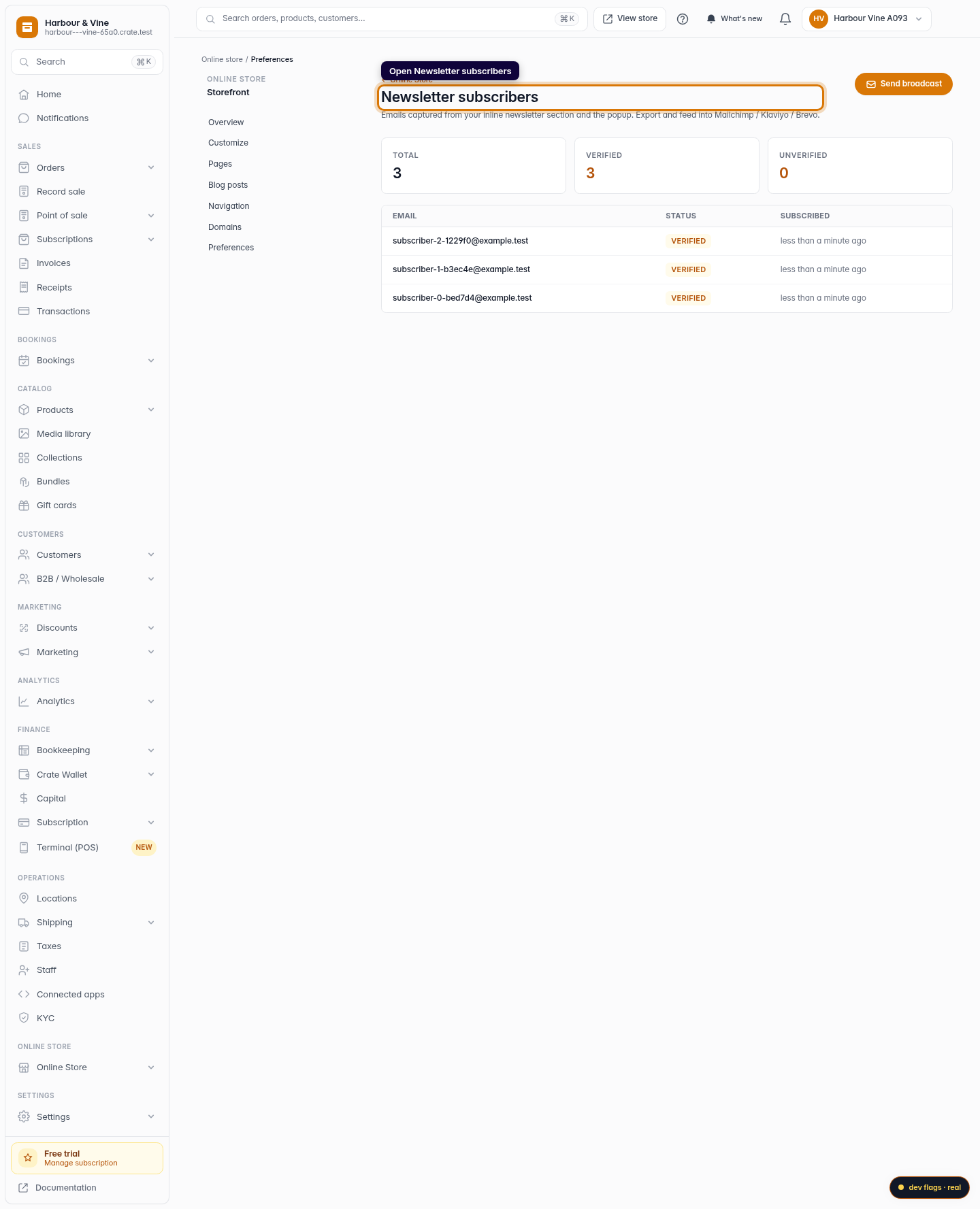
Open Newsletter subscribers
From the dashboard, go to Marketing → Newsletter. This page lists every email captured by your storefront's inline newsletter section and popup.
Web -
2
Read the headline counts
Three cards at the top summarise your list — Total subscribers, how many are Verified, and how many are still Unverified (pending). It's the quickest way to gauge how your sign-up forms are performing.
Web -
3
Browse the subscriber list
Below the counts, every subscriber is listed with their email, a status badge (Verified or Pending), and when they subscribed. The most recent sign-ups appear first.
Web