Connect Crate to Shipbubble
Generate a Crate API key and paste it into Shipbubble so your orders flow into Shipbubble for dispatch and tracking — no manual re-keying.
Shipbubble handles the courier side of selling — rates, pickup and tracking across Nigeria. Connecting it to Crate means every order you take shows up in Shipbubble ready to dispatch, and once a parcel ships or is delivered, that status flows back into Crate. No copying order details by hand.
The connection is one-directional and key-based: you generate an API key in Crate, then paste it into Shipbubble. Crate never needs your Shipbubble password, and Shipbubble only ever sees the scopes you grant the key.
Before you start
You'll need a Shipbubble account. If you don't have one yet, create it on Shipbubble's site first, then come back here to generate the key.
Tip: Name the token after the app you're connecting — Shipbubble, Fez, and so on. If you later switch couriers, you can revoke just that one token from Settings → Developer without breaking your other integrations.
What the key can and can't do
The token only carries the scopes you tick. For Shipbubble, read and write access to orders is enough — it doesn't need access to your customers, payouts or settings. If a key is ever leaked, revoke it from the Developer page and generate a fresh one; nothing else about your store is exposed.
-
1
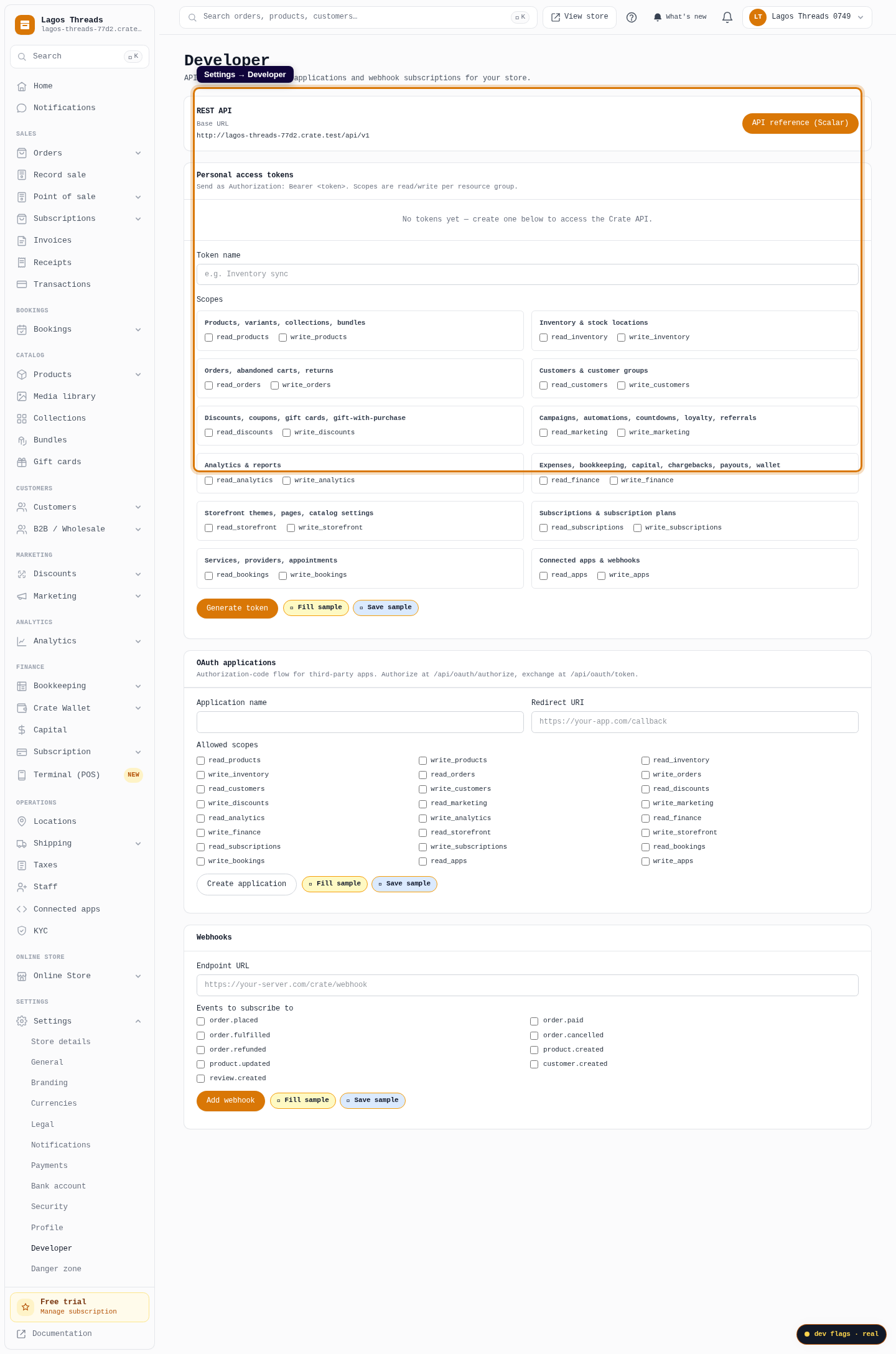
Open Developer settings
From your Crate dashboard, go to Settings → Developer. This is where you mint the API key Shipbubble uses to read your orders.
Web 
Mobile -
2
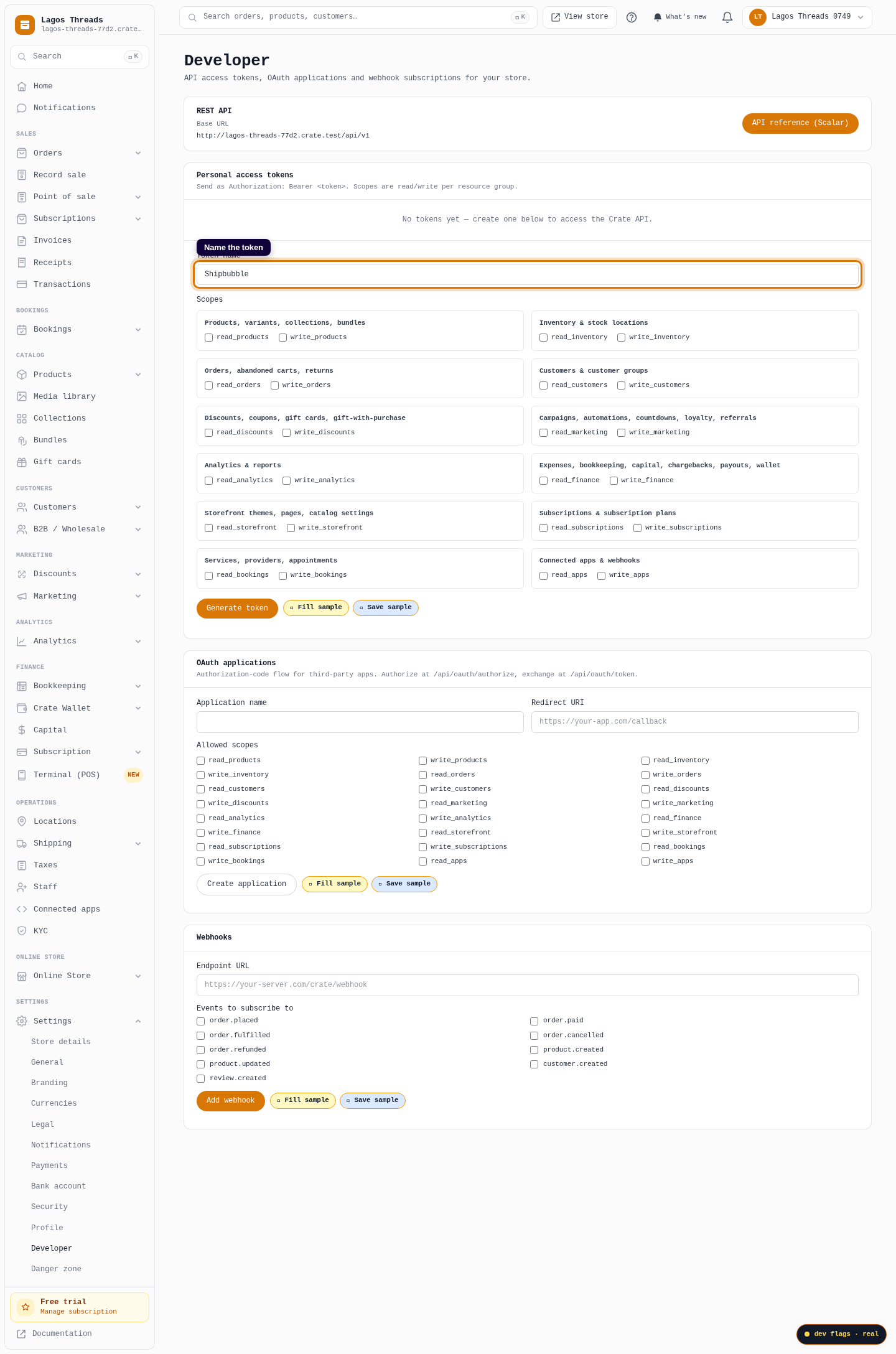
Name the token
Under Personal access tokens, give the token a name you'll recognise later — for example Shipbubble. A clear name makes it easy to revoke just this connection if you ever need to.
Web -
3
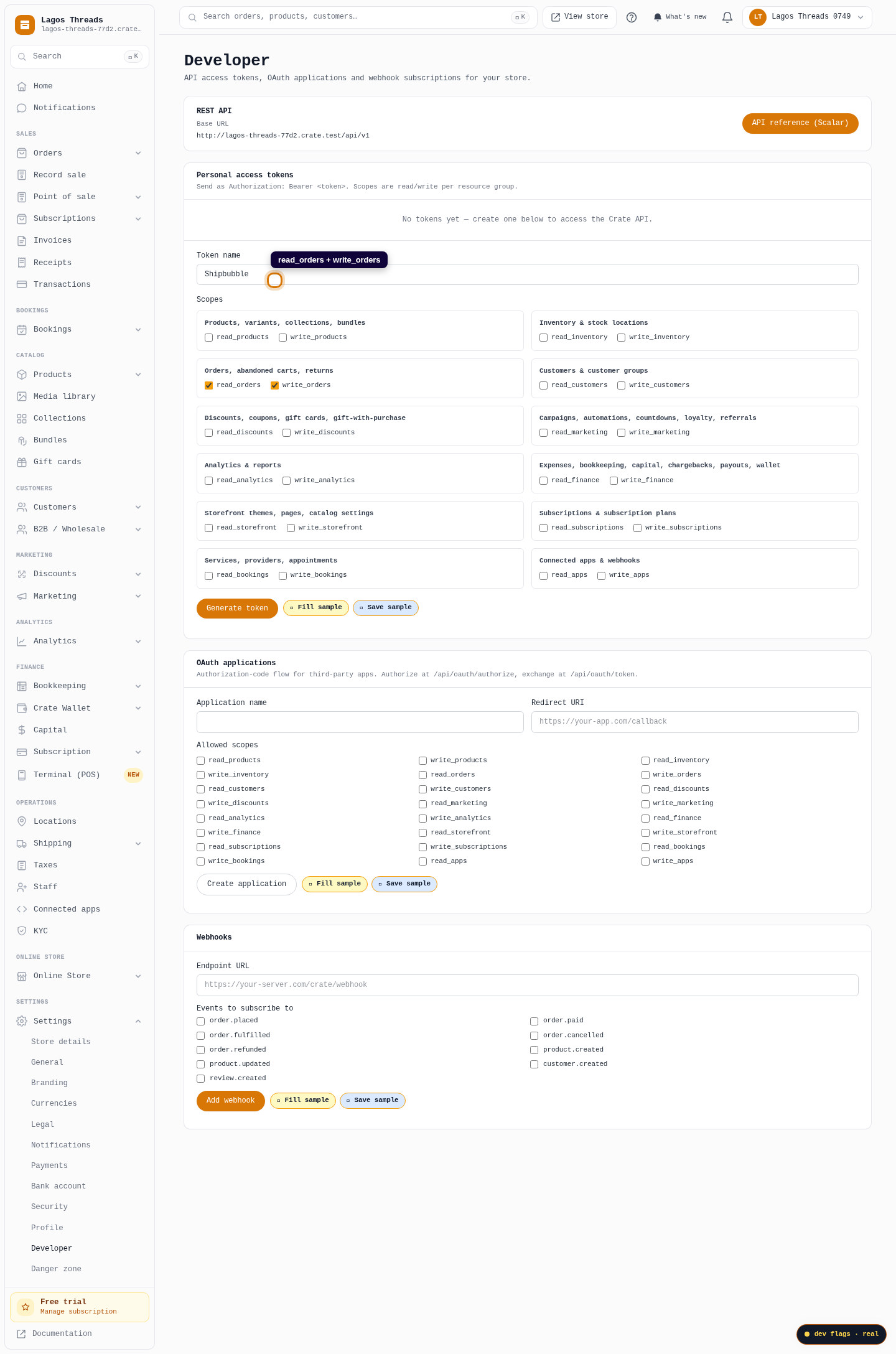
Pick the scopes
Tick the scopes Shipbubble needs to pull and update your orders — read_orders and write_orders. Crate keys are scoped, so the token can only touch what you allow.
Web -
4
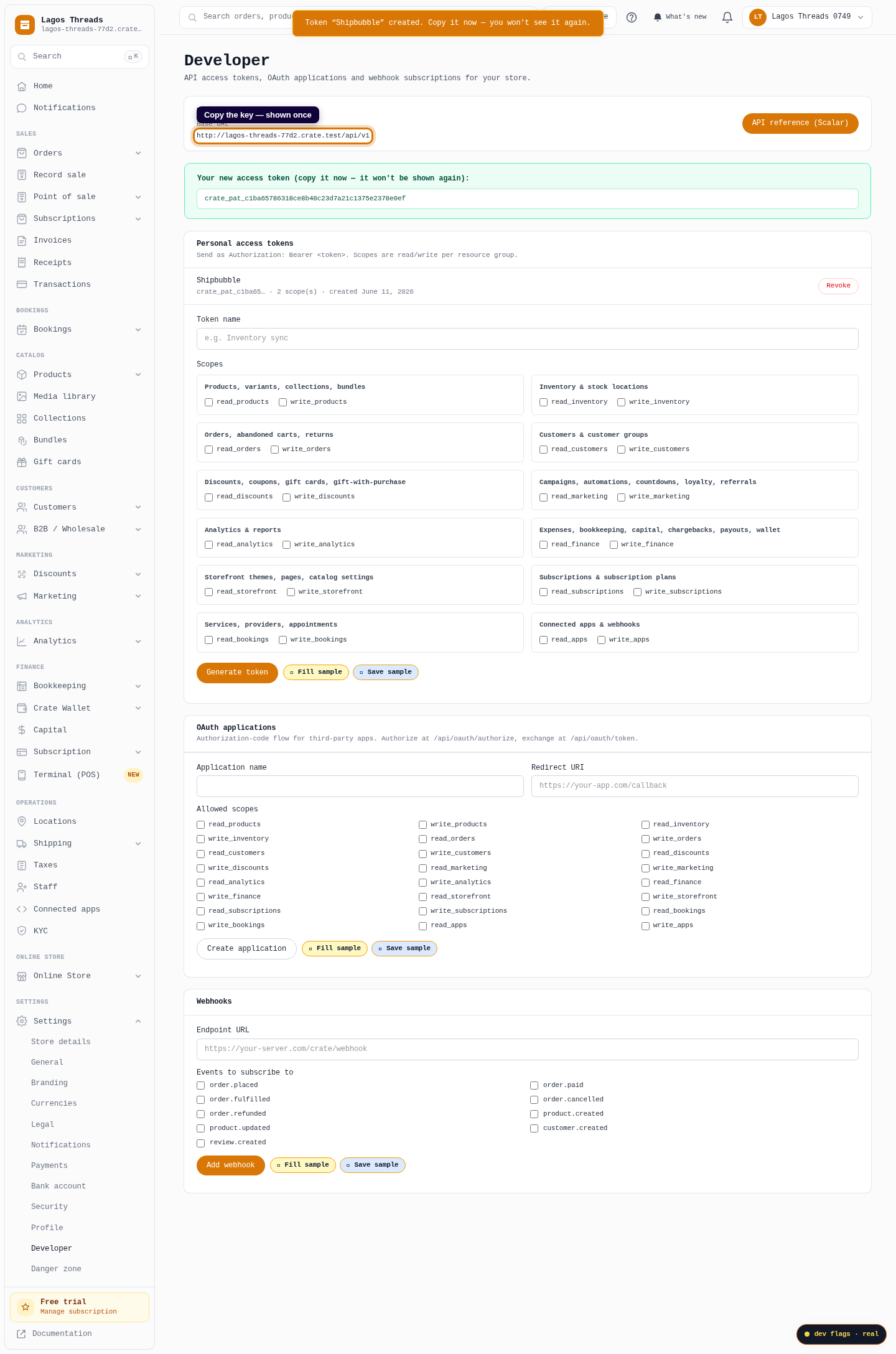
Generate and copy the key
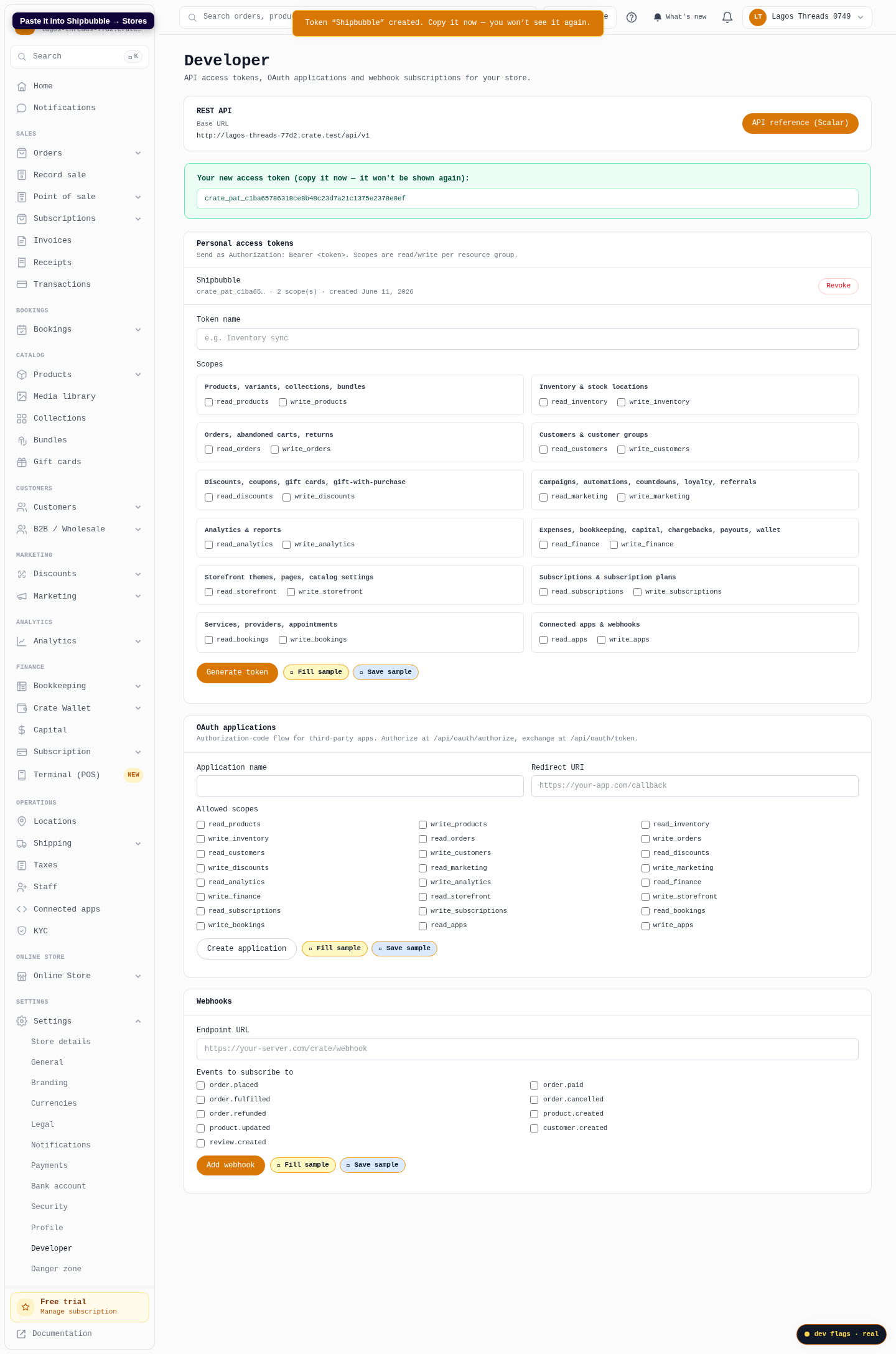
Click Generate token. Crate shows the key once in a green banner — copy it immediately. You won't be able to see it again, only revoke it.
Web -
5
Paste it into Shipbubble
In Shipbubble, open Web Stores → Stores, choose Crate, paste the key and click Connect. From then on your Crate orders appear in Shipbubble automatically, and delivery status flows back to Crate.
Web