Find bank transfer in Connected apps
Connected apps is the directory of everything Crate plugs into — shipping, payments, marketing. Here's how to reach bank transfer from it and turn it on.
Crate's Connected apps page is the one place to see everything your store integrates with — couriers like Shipbubble and Fez, payment providers, messaging and marketing tools. It's where you go when you're not sure where a particular integration is configured.
Paying by bank transfer is one of those options. Because it's a built-in Crate payment method (not an external app you authenticate against), its switch lives on the Payments page rather than behind a credentials form. This guide shows the path from Connected apps to turning it on.
Connected apps vs Payments
Think of Connected apps as the catalogue and Payments as the control room for money specifically. Third-party tools you authenticate with API keys appear as cards in Connected apps; native ways to get paid — bank transfer, Paystack mode, who covers the fee — are managed in detail under Settings → Payments.
Tip: Already on the Payments page? Skip straight to Direct bank transfer — there's no need to detour through Connected apps. See Accept direct bank transfer for the full setup, including adding your bank account.
Once it's on
Customers picking bank transfer at checkout see your verified account number, account name, bank and a reference. You confirm the money landed, mark the order paid, and fulfil — same as any other order.
-
1
Open Connected apps
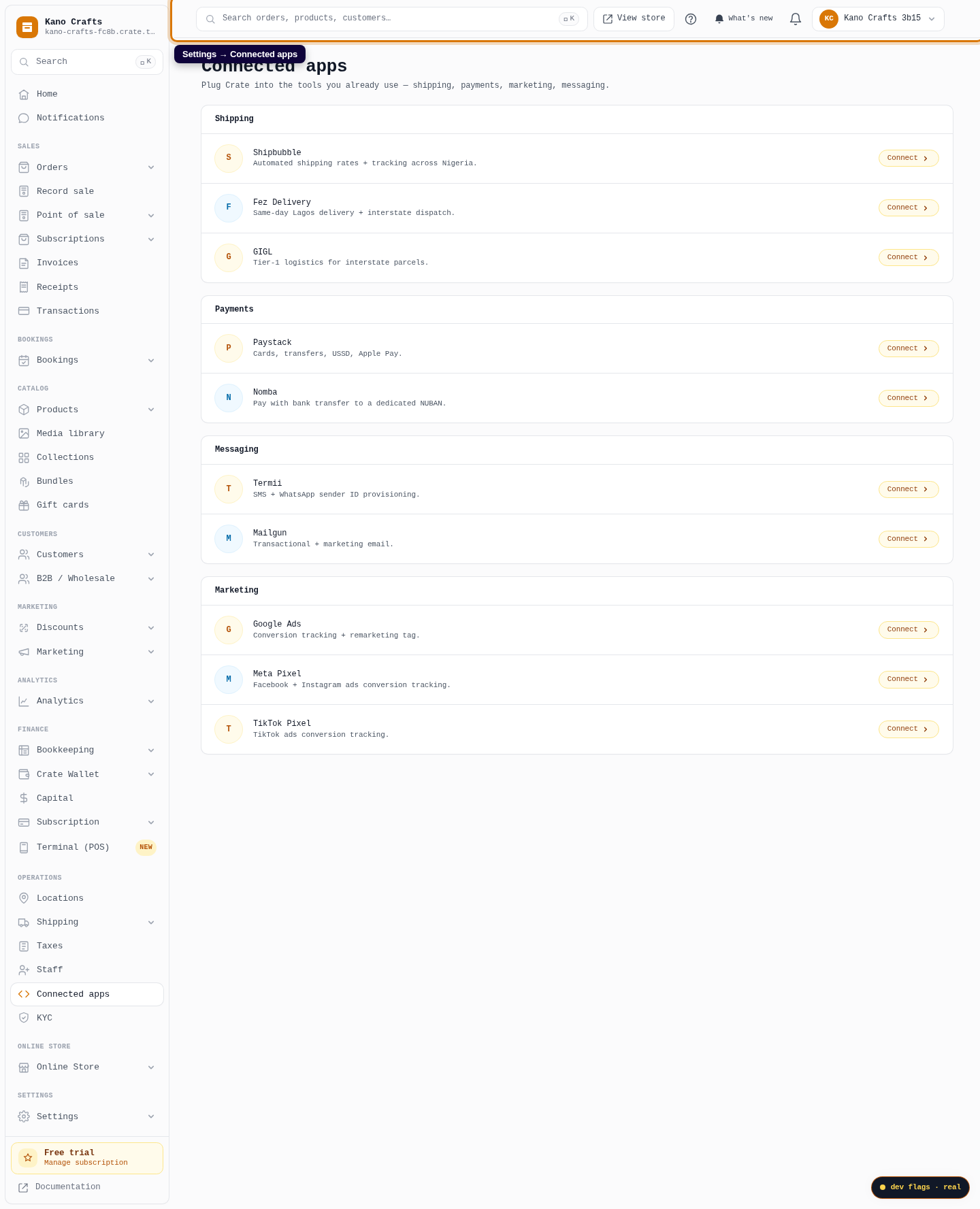
From your Crate dashboard, go to Settings → Connected apps. This is the directory of every tool Crate plugs into — grouped by Shipping, Payments, Marketing and Messaging.
Web 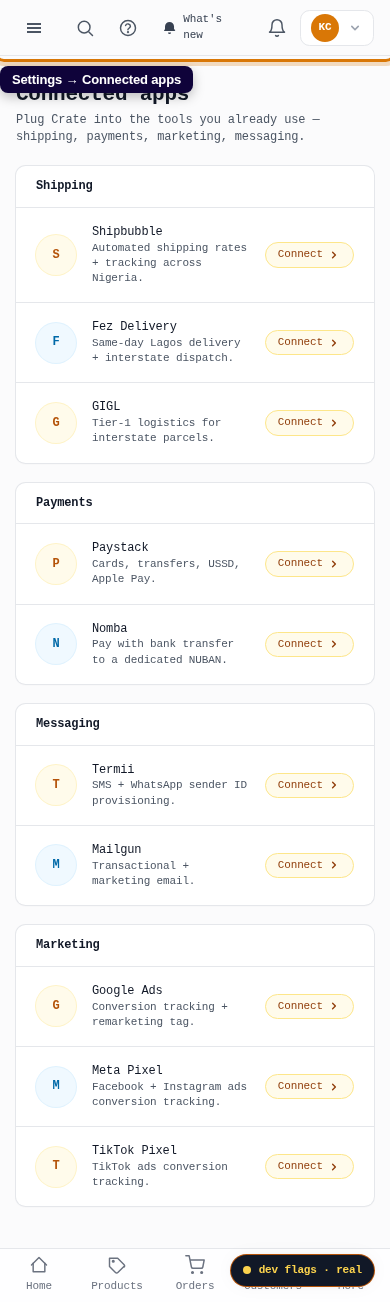
Mobile -
2
Find the Payments group
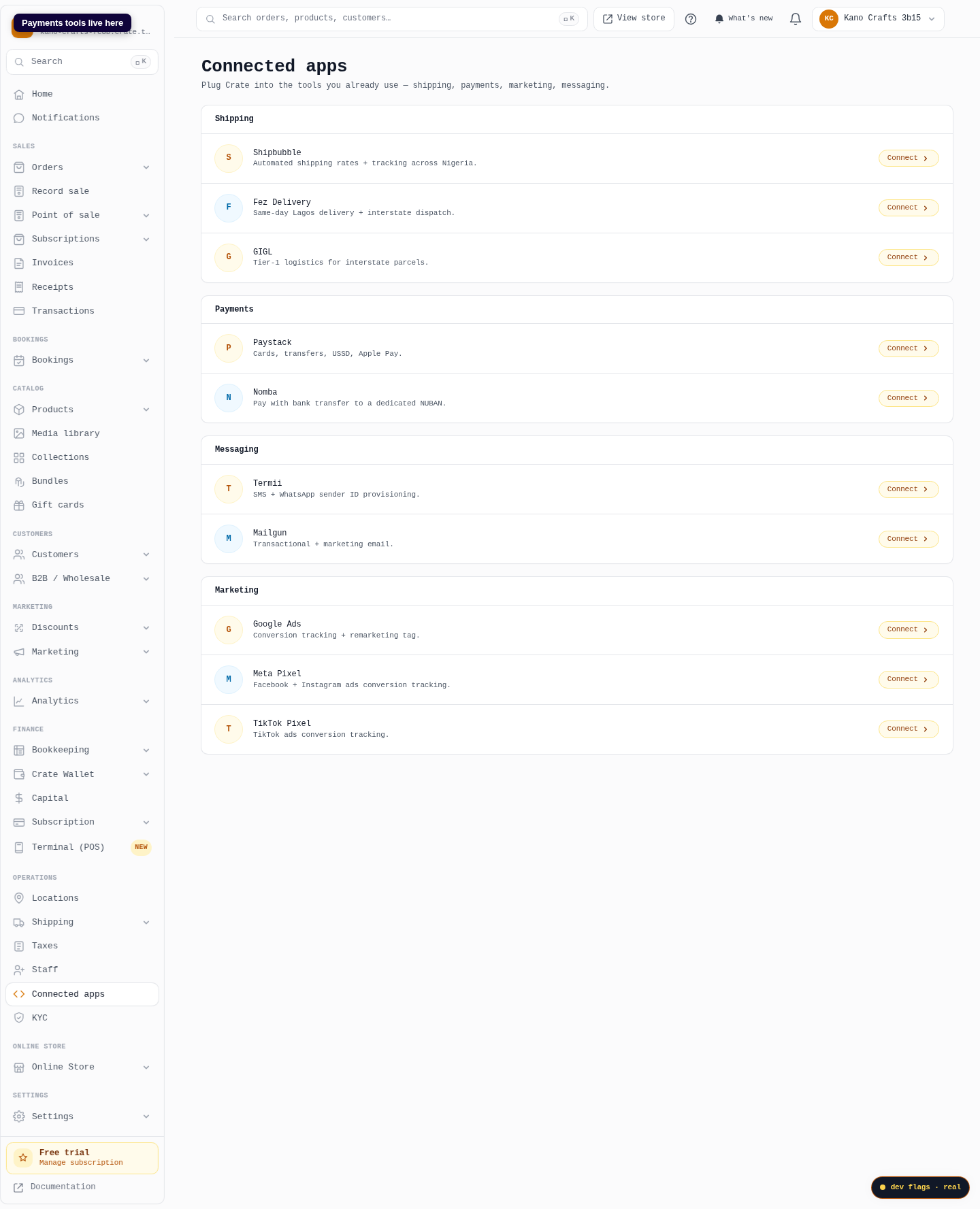
Scroll to the Payments section. Alongside Paystack and Nomba you'll manage how customers pay you — including paying by direct bank transfer.
Web -
3
Open Payments to manage transfer
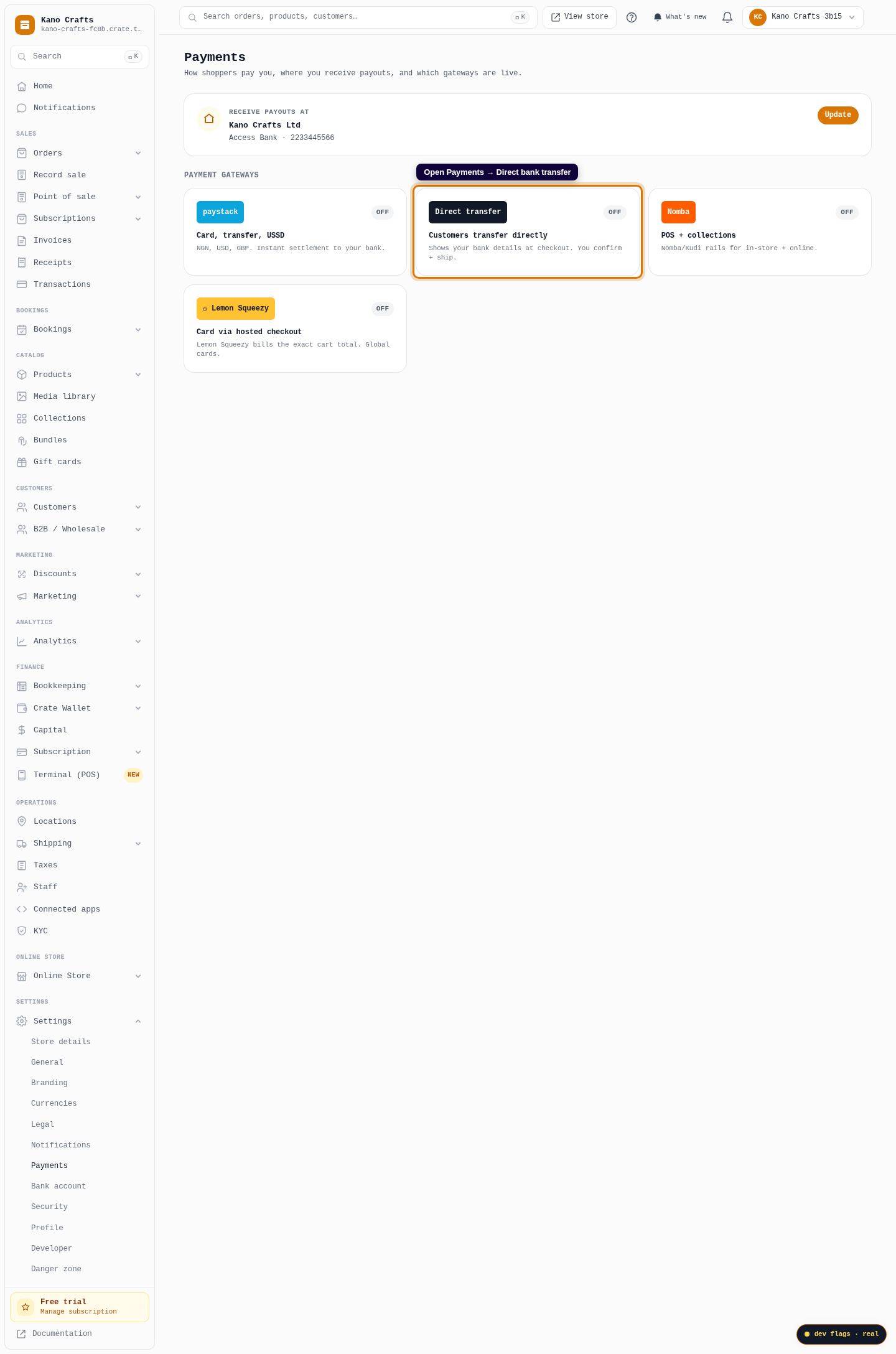
Bank transfer is a Crate-native payment method rather than a third-party app, so it lives under Settings → Payments → Direct bank transfer. Open Payments to manage it.
Web -
4
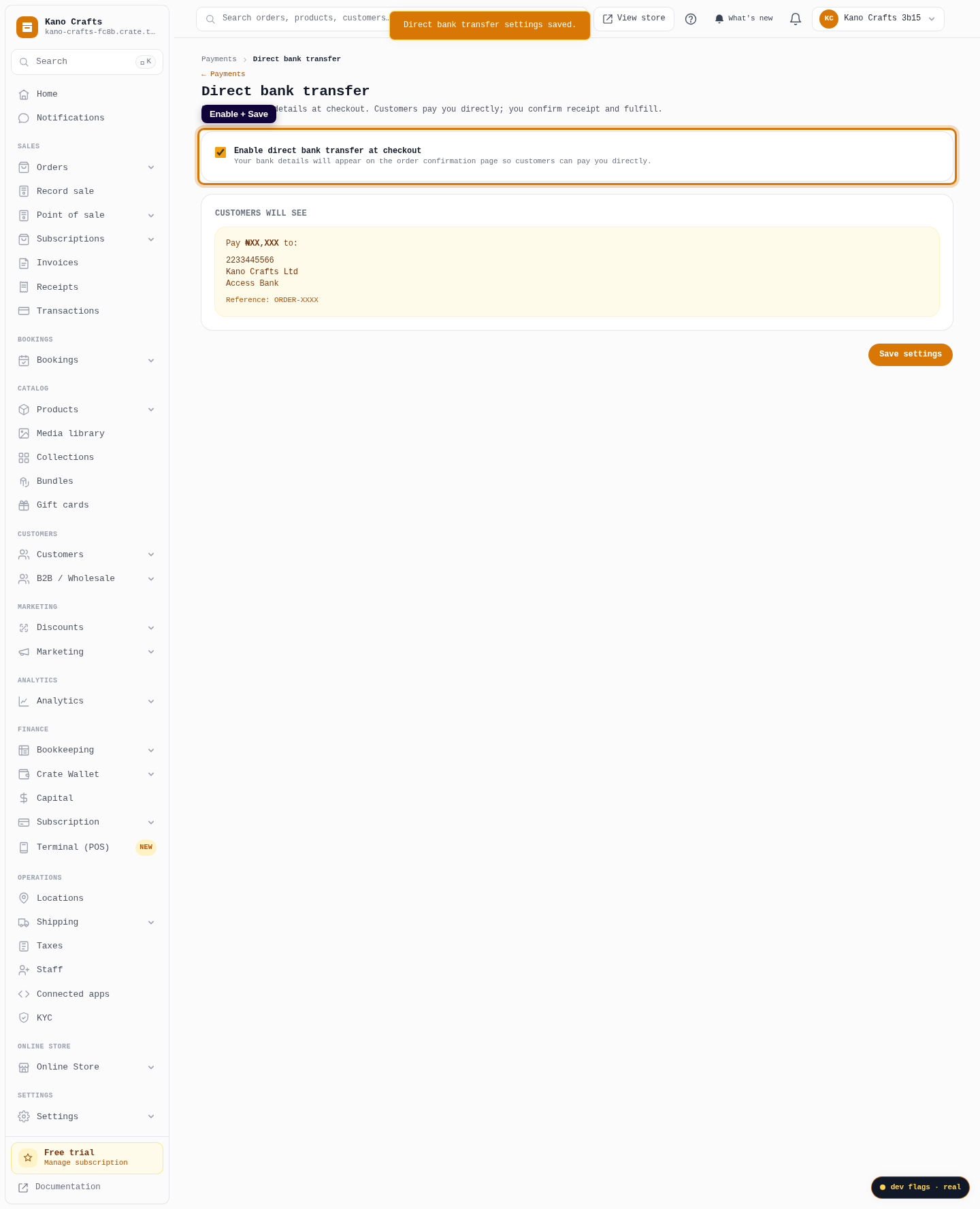
Turn on bank transfer
On the Direct bank transfer page, tick Enable direct bank transfer at checkout and Save settings. Your account details now show on the order confirmation for customers who choose to pay you directly.
Web