Export your customers
Download your full customer list as a CSV in one click — emails, phone numbers and order stats — ready to open in Excel or import into another tool.
Sometimes you need your customer list outside Crate — to crunch numbers in a spreadsheet, hand it to an accountant, or import it into an email tool. Exporting takes one click and gives you a clean CSV you can open in Excel, Google Sheets or Numbers.
What the file contains
The export is a comma-separated file with one row per customer — their name, email, phone and the order stats Crate tracks. It's plain CSV, so any spreadsheet app opens it directly.
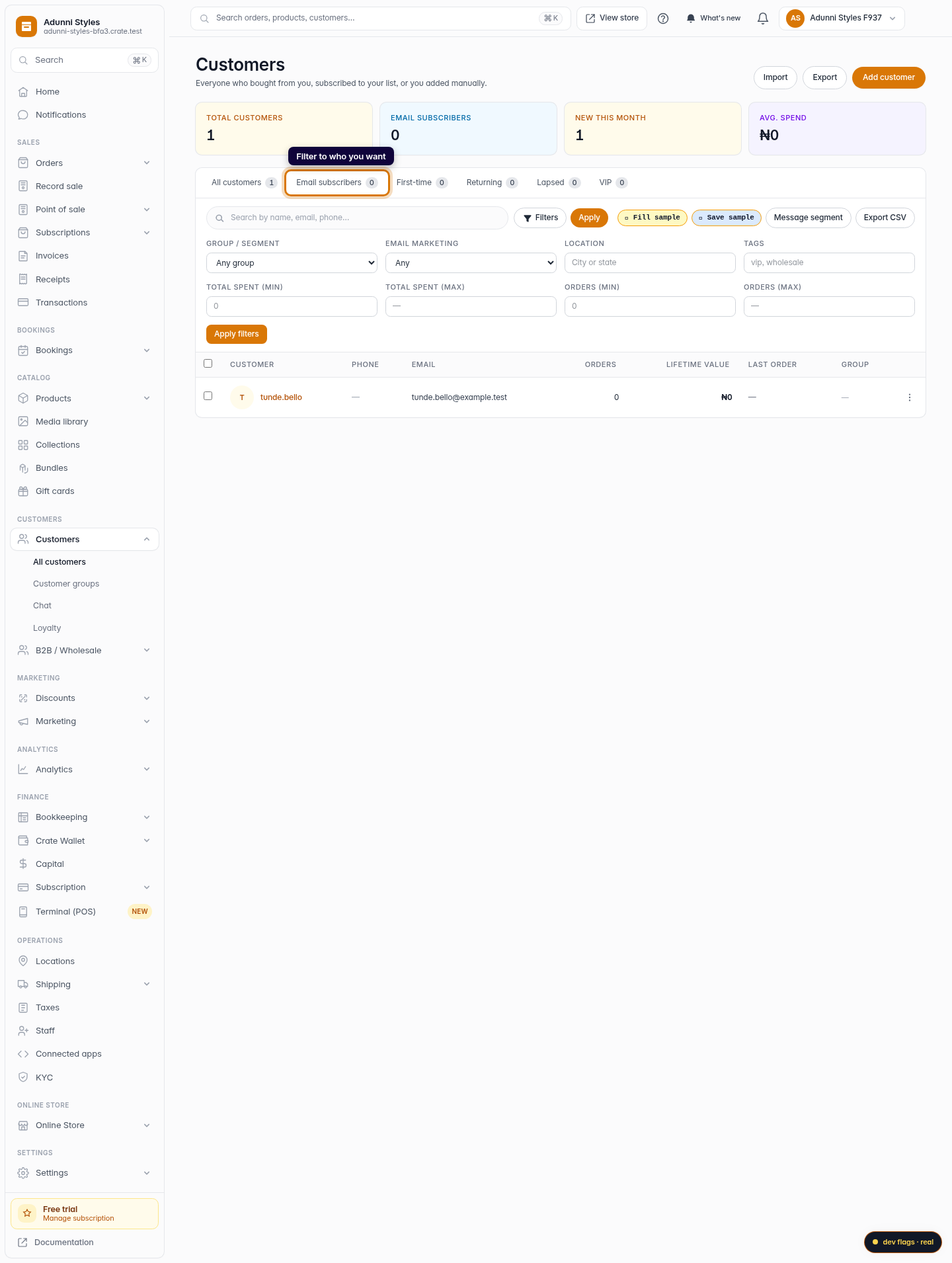
Tip: Use the segment filter before you export. If you switch to Email subscribers or VIP first, the download contains only those customers — handy when you're building a targeted list for an external campaign rather than exporting everyone.
A note on your data
Your customer list is personal data, so treat the exported file with care — it leaves Crate's protections behind the moment it lands on your device. Store it somewhere private, and delete stray copies once you're done. Inside Crate, exporting is a permission your team owns individually, so you control who on staff can pull the full list.
-
1
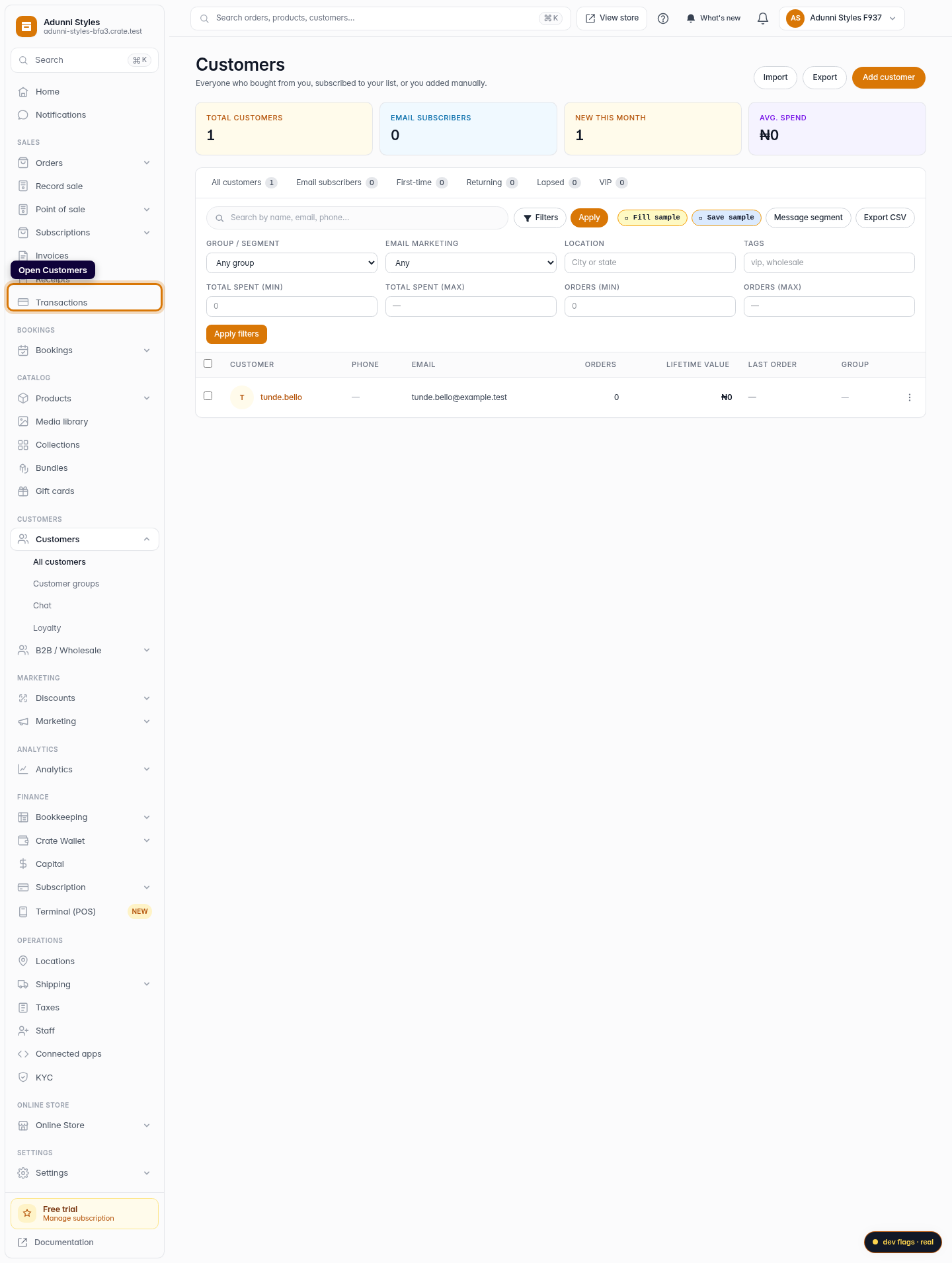
Open Customers
From your Crate dashboard, open Customers in the left sidebar to see your full list.
Web 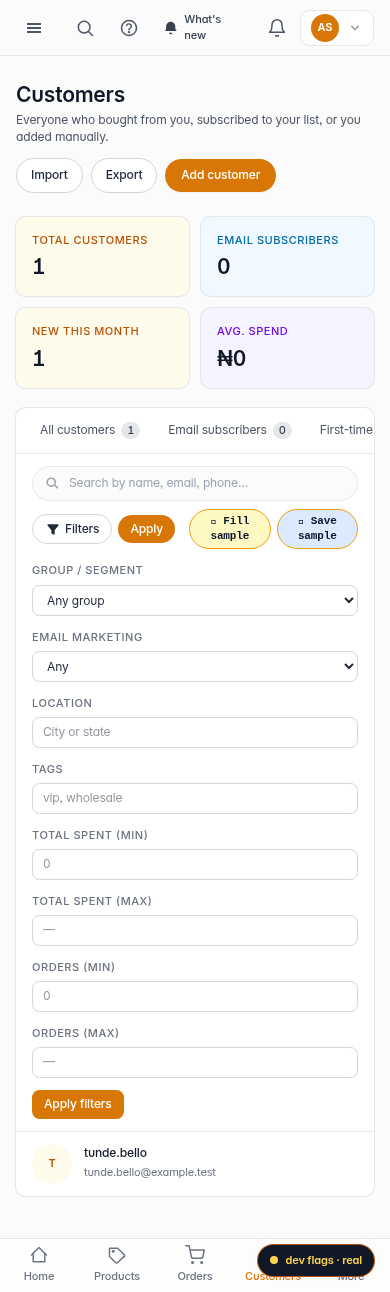
Mobile -
2
Filter to who you want (optional)
If you only need a slice — say email subscribers or VIPs — choose a segment first. Crate exports exactly the list you're currently viewing.
Web -
3
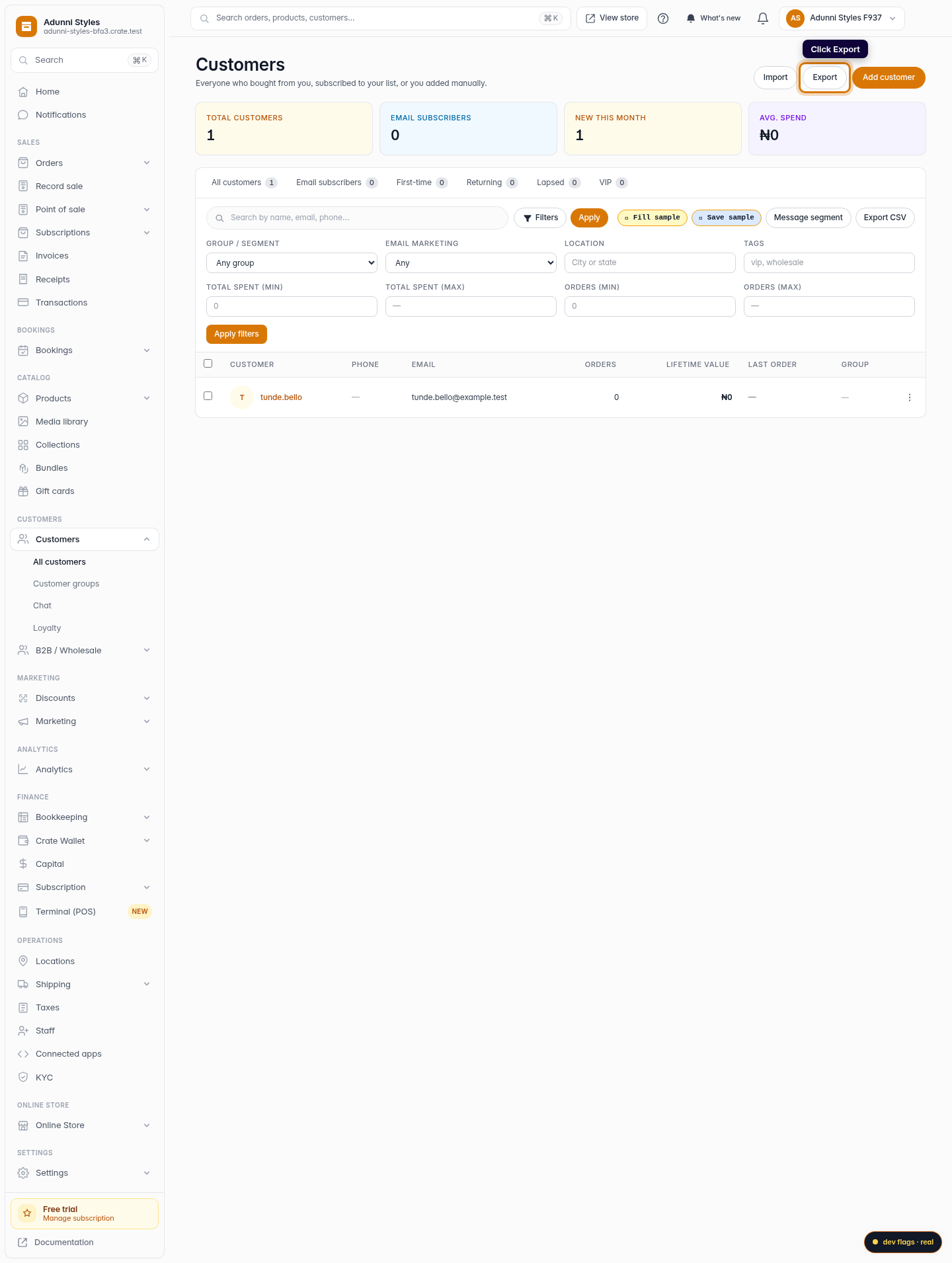
Click Export
Click Export in the top-right corner of the Customers page. Crate generates a CSV of the current list and downloads it to your device.
Web 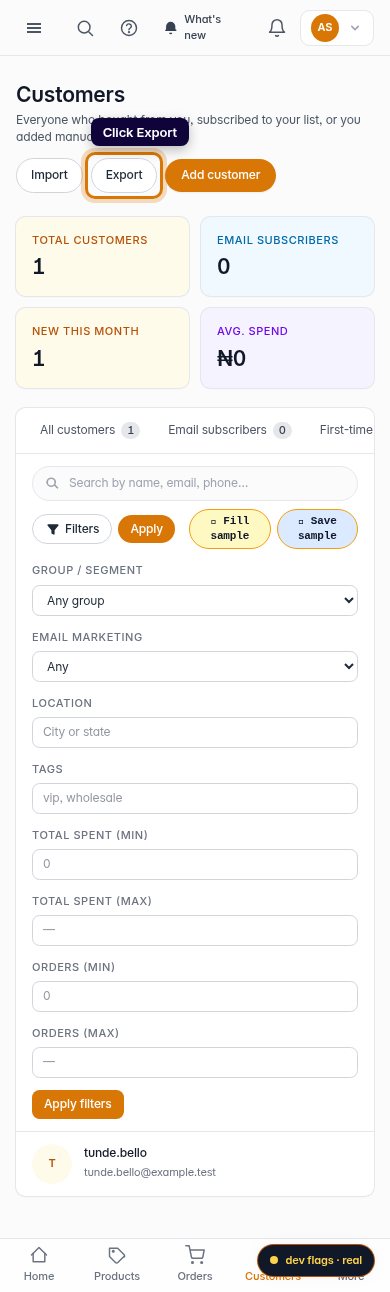
Mobile