How to edit the customer information
Open any customer from the web dashboard and update their identity, contact, shipping, group or marketing consent — then save in one step.
A customer's profile is only as useful as the details on it. Editing from the web dashboard lets you correct a typo, move someone into a new segment, or update a marketing preference without disturbing their order history.
The edit form
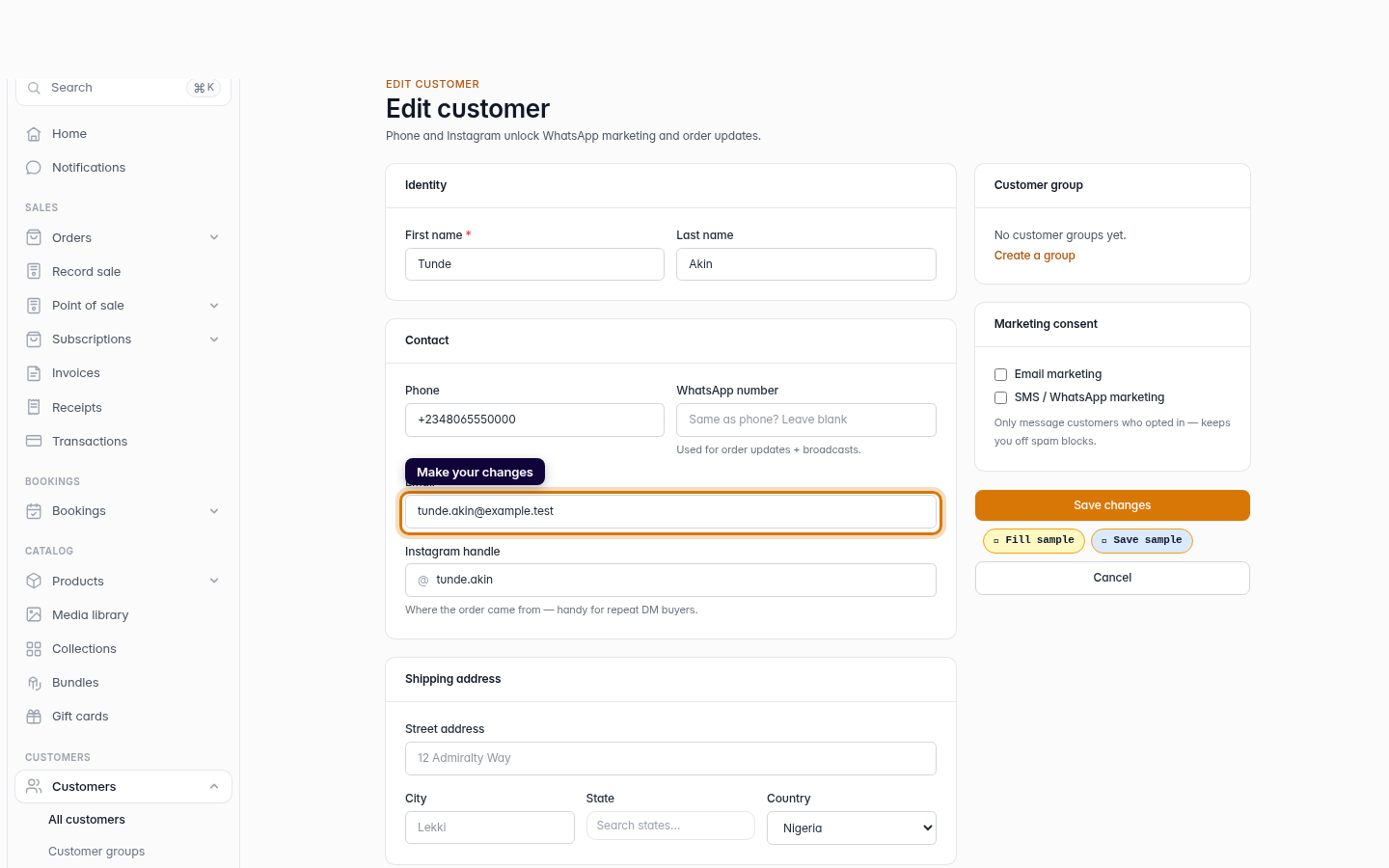
Clicking Edit loads the same structured form used to create a customer, pre-filled with everything Crate has on file. It's organised into Identity, Contact, Shipping address and Notes, with Customer group and Marketing consent in the sidebar — so whatever you need to change is easy to find.
Tip: Use the Customer group dropdown to move a buyer into a manual segment — for example promoting a regular into your VIP group — straight from the edit form.
What's preserved
Saving an edit updates only the form fields. The customer's orders, lifetime value, tags, notes and store credit are all left intact, so editing a profile is always safe.
-
1
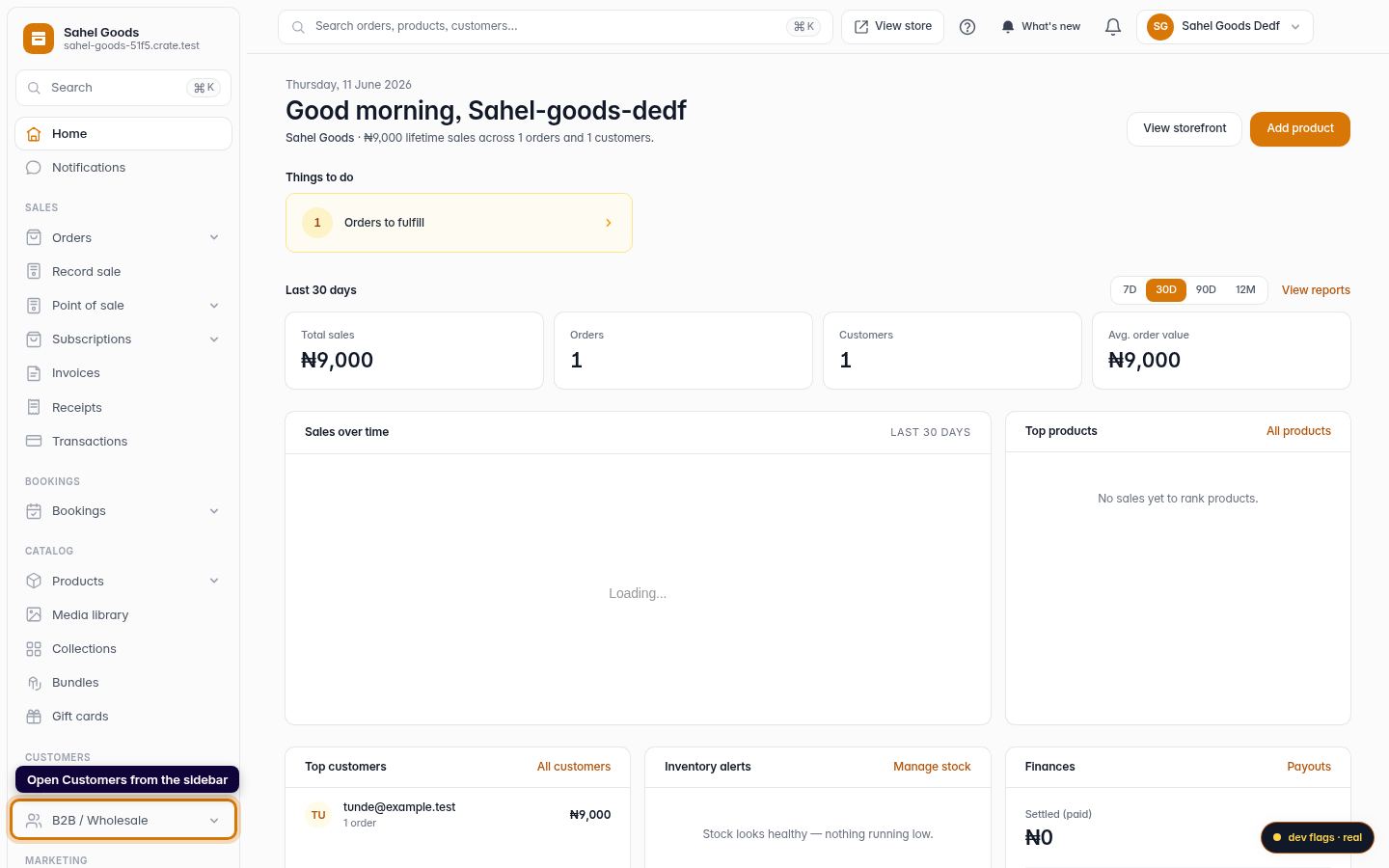
Open Customers
On the dashboard's left sidebar, click Customers to open your customer list.
Web -
2
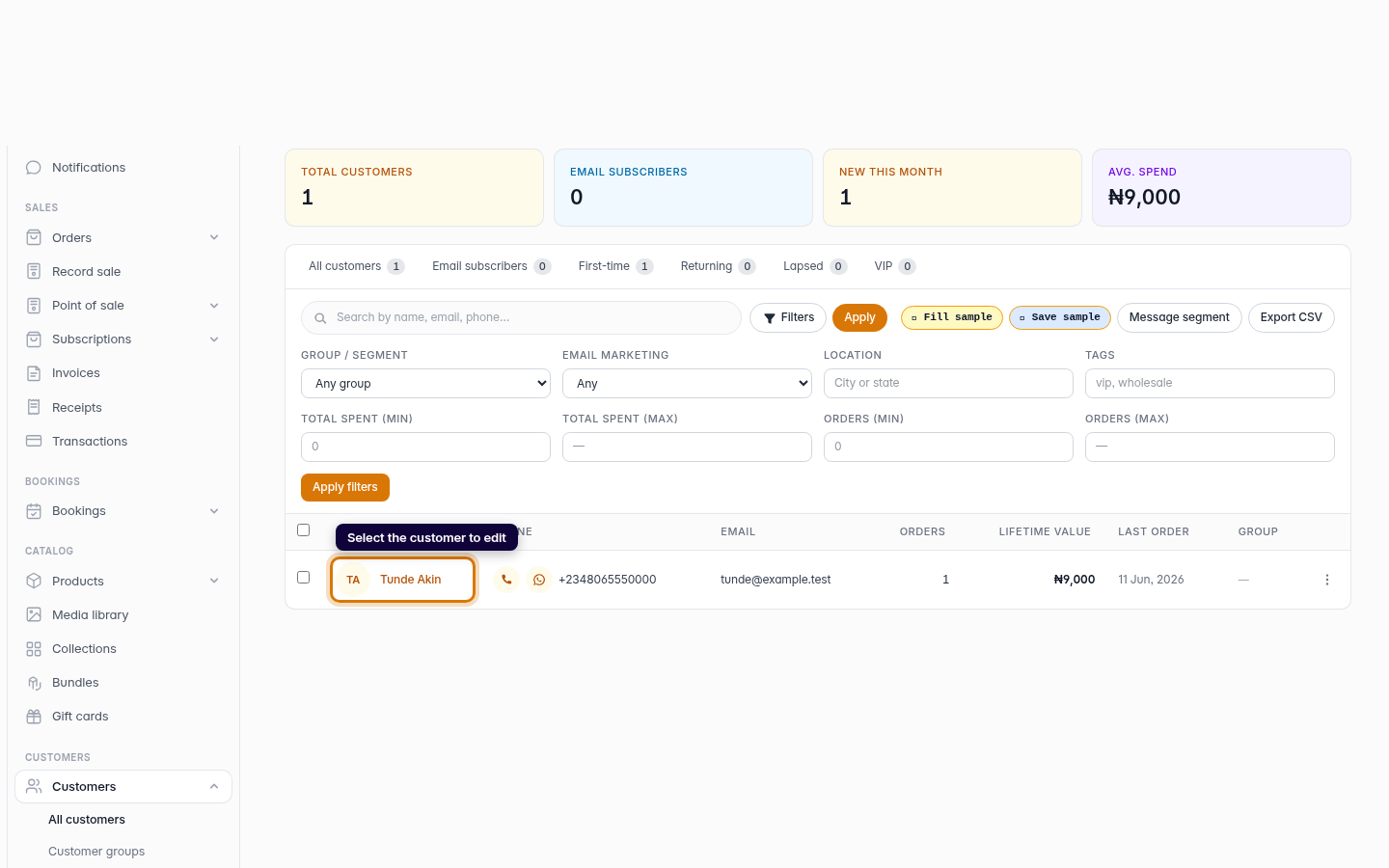
Select the customer to edit
Click the customer you want to edit. Their profile page opens with their full details and history.
Web -
3
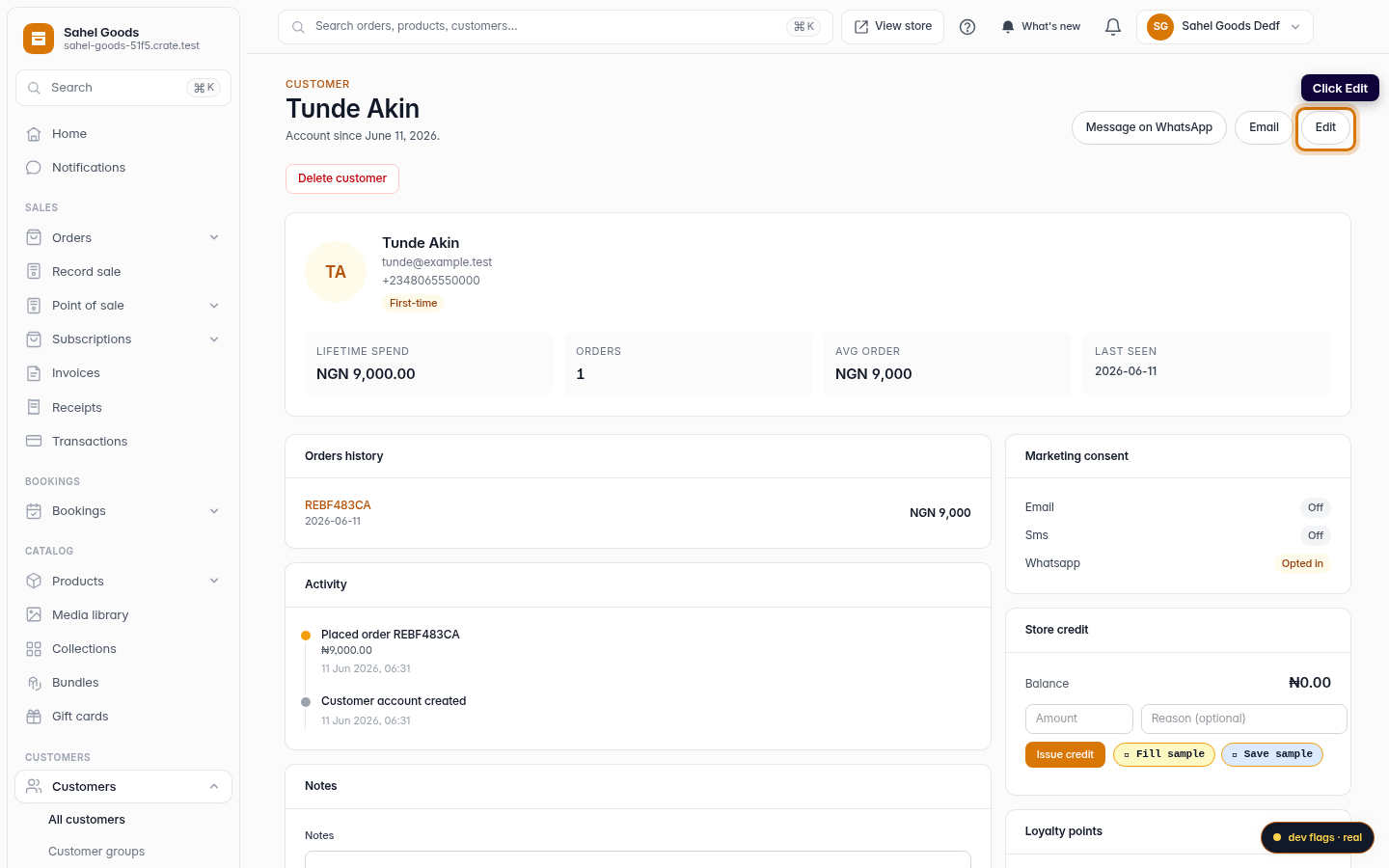
Click Edit
Click Edit on the profile to open the customer's details in the editable form.
Web -
4
Make your changes
Update any field — name, phone, email, Instagram handle, shipping address or notes on the left, or the customer group and marketing consent in the sidebar. Every field is pre-filled with the saved values, so you only touch what's changed.
Web -
5
Save
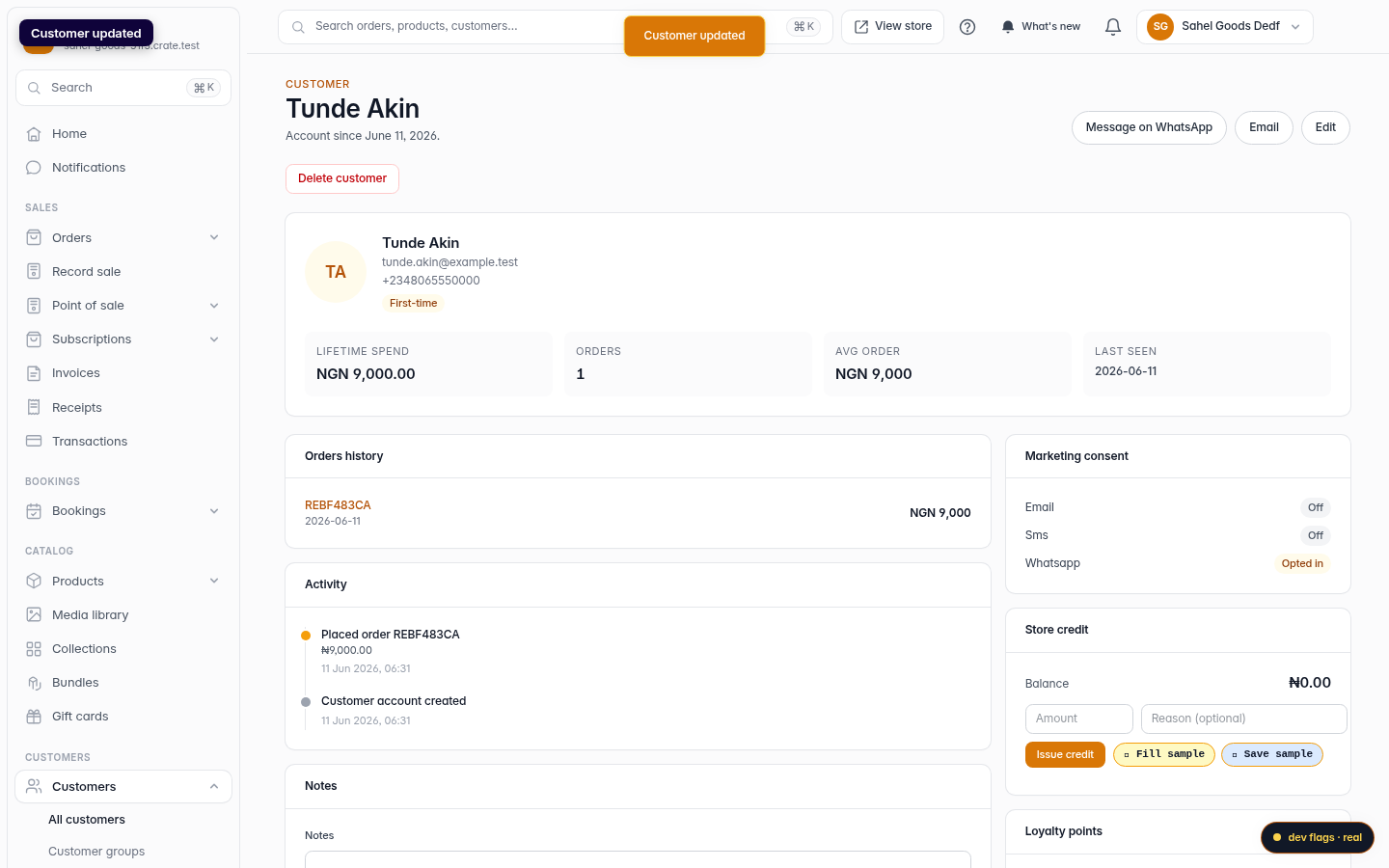
Click Save changes. Crate writes the update and returns you to the profile with a Customer updated confirmation.
Web